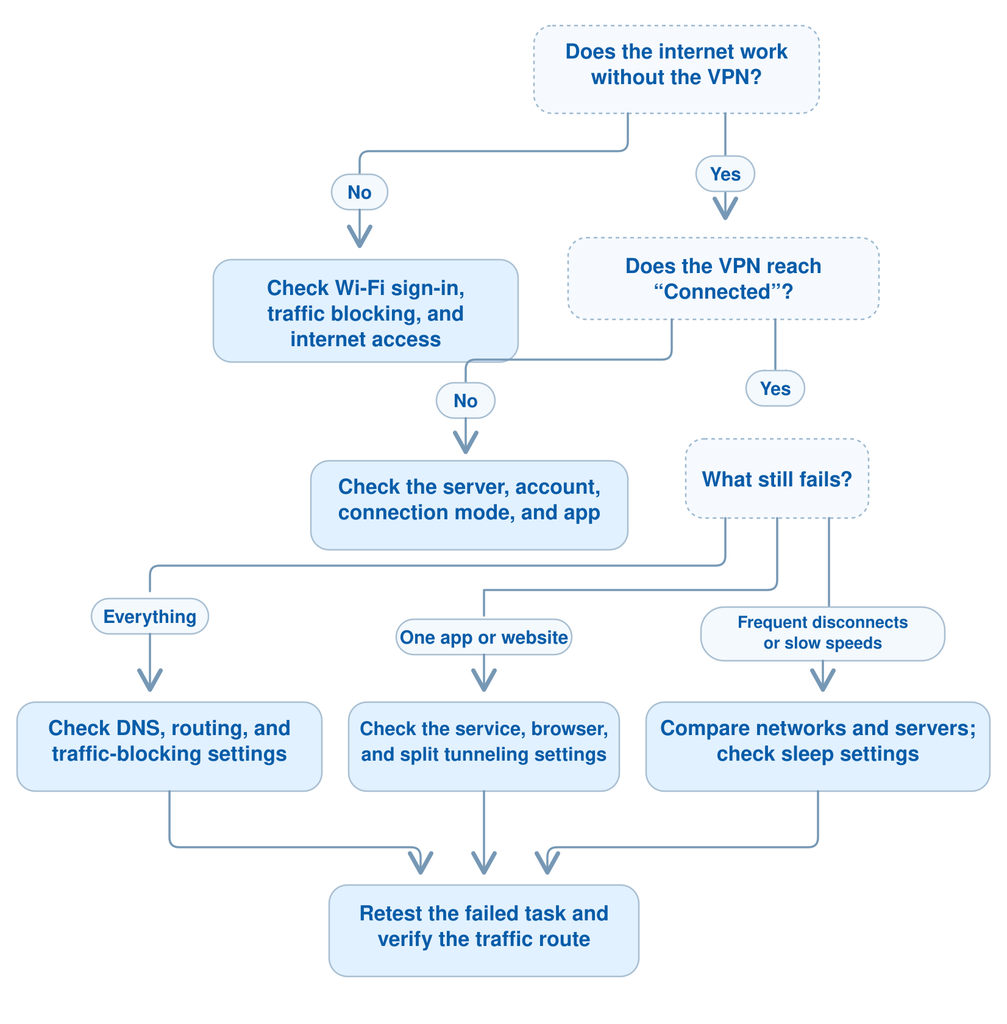
If your VPN is not working, start by checking whether your internet works without it. Then try another VPN server and restart the app. If the VPN connects but websites still won’t load, move to the no-internet checks below—the connection status alone does not tell you where the problem is.
This guide helps you narrow down the cause, choose the right fix, and check whether your connection is working again. Use the symptom table to find your starting point, then change one setting at a time so you can tell what helped.
Quick Checks Before You Start
- Check the underlying connection. Try two unrelated websites with the VPN disconnected. On hotel or airport Wi-Fi, complete the network’s sign-in page first.
- Try another server. A problem with one server does not necessarily affect the whole VPN service.
- Restart the VPN app. Cancel the connection attempt, fully quit the app, and reopen it.
- Record any error message. “Authentication failed,” “server unavailable,” and “connected” with no internet call for different checks.
- Check for intentional traffic blocking. A VPN kill switch may keep internet access blocked while the tunnel is down. If you temporarily allow non-VPN traffic for testing, pause sensitive activity and restore protection afterward.
Find Your VPN Problem
Choose the row that matches what you actually see. You do not need to work through every fix in this guide.
A “VPN not connected” label simply means that the VPN connection is not currently active. It may be switched off, waiting for you to connect, or failing during a connection attempt. The label alone does not identify a fault.
VPN Not Connecting or Stuck on Connecting
Use this section if your VPN never reaches “Connected,” repeatedly times out, or stops immediately after you press Connect.
The aim is to find which part of the connection is failing: your internet access, the selected server, your account, or the app and its settings.
1. Check Whether the Internet Works Without the VPN
Disconnect the VPN and open two unrelated websites. If neither loads, check whether other devices on the same network can get online.
On public Wi-Fi, look for a “Sign in to network” notification. Connecting to the Wi-Fi signal does not always mean the network has granted internet access.
If possible, test the same device on another connection, such as your phone’s hotspot.
What the result tells you:
- Internet fails across several devices on the same network: investigate the Wi-Fi, router, or internet service first.
- Only this device cannot get online: focus on its network settings and any software still blocking traffic.
- Internet works until you try to connect the VPN: continue with the VPN checks below.
- The VPN works on another network: the original network or route is a useful lead, but this alone does not prove deliberate VPN blocking.
If traffic remains blocked after disconnecting, check whether the kill switch is still active before concluding that your internet service is down.
2. Restart the App and Try Another Server
Cancel the pending connection, fully quit the VPN app, and reopen it. If it remains unresponsive, restart your device.
Next, choose a different server. If your app lets you choose individual servers, try another server in the same region first; otherwise, select another available location.
If another server works: use that connection and check the provider’s service-status page for a reported issue. One failed server is not a reason to reset your entire device.
If every server fails: continue with account and connection-setting checks.
3. Check Account Access and the Device Clock
Confirm that you can sign in to your VPN account and that your plan includes the server you selected. An expired paid plan may remove access to paid servers without necessarily disabling the provider’s free service.
Also check that your device’s date and time are correct. An incorrect clock can interfere with certificate checks and prevent sign-in. These are documented causes in Proton VPN’s connection troubleshooting guidance.
If you use a manually configured or workplace VPN, follow the credentials and configuration supplied by your provider or IT team. Microsoft’s Windows VPN setup guidance distinguishes between different sign-in methods; your connection may require more than a standard account password.
If an error code appears, keep the exact wording. For Proton-specific connection errors, see our Proton VPN troubleshooting guide.
4. Change the VPN Protocol or Connection Mode
If the VPN still will not connect, test another protocol or connection mode available in your app.
- Cancel the current connection attempt.
- Open the app’s settings and look for Protocol, Connection, or Connection Mode.
- Try Automatic or the recommended setting first, if available.
- If it fails, select another supported option while keeping the same server where possible, then reconnect.
Depending on the provider and device, the options may include WireGuard, OpenVPN UDP, OpenVPN TCP, IKEv2, or a proprietary mode. If OpenVPN UDP fails and TCP is available, compare TCP. If your provider recommends an obfuscated or stealth mode for the network you are using, test that option.
These are examples across different VPN services, not a list of protocols supported by every app. In BearVPN, use the connection modes actually shown for your device.
What the result tells you: if one mode works consistently while another fails, keep the working mode and record the result. This helps support investigate the connection without repeatedly changing unrelated settings.
5. Check Whether a Firewall, Antivirus, or Another VPN Is Blocking the Connection
A firewall rule, antivirus network filter, or another active VPN can interfere with your connection. Check for evidence of a conflict before changing your security settings.

- Look for a blocked-connection alert. Open your security software’s notifications or activity log. Check whether it identifies your VPN app or one of its components as blocked.
- Review the VPN app’s network permissions. Find the firewall’s allowed-app or application-control settings. If the official VPN app is explicitly blocked, follow the VPN provider’s instructions to correct that rule. Allow only the required app or component.
- Run a brief test if the cause is still unclear. On your personal device, follow the security software’s instructions to temporarily pause the suspected firewall or network-filtering component. Test the VPN connection once, then immediately restore protection, whether the test succeeds or fails. Test one component at a time and avoid unrelated browsing or downloads during the test.
- If the VPN connects during the test, fix the specific rule. With protection re-enabled, add the official VPN app or required component to the appropriate allow list, following the provider’s guidance. Reconnect to confirm that the VPN works with your security software running.
- If the VPN still fails, check other conflicts. Disconnect another active personal VPN and temporarily disable any browser proxy extension relevant to the problem. If nothing changes, continue testing another server or supported connection mode rather than leaving security software disabled.
On a work or school device, ask the administrator to review blocked connections and required VPN settings. Do not remove managed profiles or bypass organization controls.
Avoid opening arbitrary router ports or configuring port forwarding for a routine VPN connection. Only change those settings when your provider or network administrator specifies what is required.
What the result tells you: a successful connection during the brief test suggests that the paused security component is involved. The fix is confirmed when the VPN connects with protection restored and the relevant rule corrected.
6. Update the App Before Reinstalling It
Check the provider’s official website or your device’s app store for an available update. Install it, restart the app, and repeat the connection test.
If you still need to reinstall, first make sure you can sign back in and restore any personal settings or manual configuration. Download the replacement only from the official provider or app store.
Record what you have already tested: the network, server, connection mode, app version, and exact error. This gives support a useful starting point and saves you from repeating the same unsuccessful steps.
Once the app reaches “Connected,” try loading two unrelated websites. If both fail, continue to VPN Connected but No Internet. If browsing works, check your public IP address as an initial verification, then follow the full verification section later in this guide.
VPN Connected but No Internet
Your VPN says “Connected,” but pages keep loading or apps report that you are offline. This means the app reports an established VPN connection; it does not confirm that traffic is reaching every destination successfully.
Start by checking how widespread the problem is.
1. Separate a Browser Problem from a Connection Problem
With the VPN connected, open two unrelated websites, then test another internet-connected app.
- Only one website fails: go to VPN Works, but One Website or App Doesn’t.
- One browser fails, but another works: check that browser’s extensions, proxy settings, and Secure DNS configuration.
- Websites and other apps all fail: continue with the checks in this section.
If you already tested internet access without the VPN, use that result rather than repeating every basic step. Working internet without the VPN, followed by failure with it enabled, narrows the investigation to the VPN connection or settings interacting with it.
2. Check When the Internet Stops
Notice whether traffic stops while the app remains connected, during reconnection, or only after you disconnect.
A kill switch can intentionally block traffic when the VPN tunnel is unavailable. Some configurations also block internet access whenever the VPN is off. That behavior needs a different response from a connected tunnel that cannot pass traffic. Proton’s kill switch documentation explains this distinction.
If the VPN is reconnecting, try restoring the tunnel first. If you temporarily turn off traffic blocking to test ordinary internet access, pause sensitive activity and restore the setting afterward.
What the result tells you: internet returning when traffic blocking is disabled confirms that the blocking setting affected access. It does not explain why the VPN connection failed in the first place.
3. Fix VPN DNS Problems
Errors such as “DNS server isn’t responding” or “server IP address could not be found” make DNS worth investigating. DNS translates website names into the addresses your device uses to reach them.
If you previously entered a custom DNS address, save it before making changes. In the VPN app, restore the provider’s default or recommended DNS setting if that option is available, then reconnect and retry the same websites.
If only Chrome fails and you selected a custom Secure DNS provider, open Settings → Privacy and security → Security → Use secure DNS. Test the automatic/current-provider option, where available, instead of the custom provider. If this restores browsing, investigate the custom DNS service before changing device-wide settings. Chrome Secure DNS settings
On Windows, open Command Prompt as administrator, run ipconfig /flushdns, then reopen the browser and retry. This clears cached DNS records; it does not change your DNS provider or repair an unavailable VPN server. Microsoft’s network troubleshooting instructions
What the result tells you: if browsing resumes after one DNS change, repeat the test before changing anything else. If the error persists across apps, continue with routing and proxy checks.
4. Test Without Custom Routing Rules
Review any split tunneling rules, manually configured proxies, or other VPN connections.
For a controlled test, temporarily turn off custom split tunneling rules and reconnect using the app’s normal full-tunnel configuration, if supported. Restart the affected app so it establishes a fresh connection.
If this restores access, reintroduce your rules one at a time. Check whether your configuration sends only selected apps through the VPN or excludes selected apps from it—these modes produce opposite results. Our split tunneling guide explains the feature.
If the whole device still has no internet across multiple VPN servers, save the test results for support before attempting a full network reset.
VPN Not Connecting on Wi-Fi
A VPN that works on mobile data but fails on Wi-Fi gives you a useful comparison. The difference could involve the Wi-Fi login process, router settings, filtering, or the network path to the VPN service.

It does not automatically mean your ISP is blocking VPNs.
1. Complete the Wi-Fi Sign-In Page
Hotels, airports, and cafés may require you to accept terms, enter a room number, or purchase access before using the internet.
Open the network’s sign-in notification and complete the process. On an iPhone or iPad, open Settings → Wi-Fi and select the network to access its login screen. Apple’s captive-network instructions cover the available options.
If VPN traffic blocking prevents the portal from opening, temporarily allow the login process, then reconnect the VPN before continuing your browsing.
A Wi-Fi icon confirms that your device has joined the wireless network; it does not confirm that the portal has granted internet access.
2. Compare Networks Without Changing Everything Else
Use the same device, VPN server, and connection mode for both tests:
- Attempt the connection on Wi-Fi.
- Switch to mobile data or another trusted network.
- Attempt the same VPN connection again.
Works only on the second network: focus on the first network’s settings or route.
Fails on both: return to app, account, server, or device troubleshooting.
Several devices fail only on the same Wi-Fi: this strengthens the case for investigating that network, rather than reinstalling the VPN on every device.
3. Check the Network You Control
On your home network, restart the router and check for recently changed parental controls, security filters, or access rules. If available, compare Ethernet with Wi-Fi to separate a wireless problem from a broader network issue.
On a workplace, school, or other managed network, ask the administrator whether your VPN connection is supported.
If your provider offers another connection mode suitable for restrictive networks, test it and record the result. Avoid opening arbitrary router ports or enabling every VPN passthrough option: the required settings depend on the actual protocol and configuration.
For problems tied to a particular country or network environment, use the regional troubleshooting guides later in this article.
VPN Keeps Disconnecting
A VPN that connects successfully and then drops needs a different investigation from one that never connects. Pay attention to when the drop happens.
1. Look for a Repeatable Trigger
Keep a short note of the event immediately before each disconnect:
- The screen locked or the computer woke from sleep.
- The device switched between Wi-Fi and mobile data.
- You moved farther from the router.
- A download, call, or other connection also stopped.
- The VPN dropped while the device stayed awake on a stable network.
Then repeat the test under more controlled conditions. Stay near the router, keep the device awake briefly, and use one network.
If drops stop: investigate sleep, background restrictions, or network handoffs.
If ordinary internet access also drops: focus on the underlying connection.
If only the VPN drops: compare another server or supported connection mode.
2. Check Background Restrictions on Android
If disconnects happen mainly after you lock an Android phone, inspect the VPN app’s battery and background-usage settings.
Where available, allow the VPN app to run without battery restrictions, then repeat the screen-lock test. Menu names vary by manufacturer. Proton documents cases where Android battery management stops its VPN app.
Change the setting for the affected VPN app rather than disabling battery-saving features across the entire phone.
For iPhone, Windows, and macOS, use the device-specific section below rather than applying Android instructions to a different operating system.
3. Separate Reconnection from Protection
Auto-reconnect and a kill switch serve different purposes:
- Auto-reconnect attempts to restore a dropped VPN connection.
- A kill switch restricts traffic while the VPN is unavailable.
Enable the features you need, but do not treat either as a fix for unstable Wi-Fi or an app fault. A connection that drops every few minutes still needs investigation even if it reconnects automatically.
If the problem persists, record the approximate disconnect times, device state, network, server, and app version. A repeatable pattern gives support more to investigate than “the VPN disconnects randomly.”
VPN Connected but Slow
If websites load but browsing, downloads, or calls become noticeably slower, compare performance before making changes.
There is no single acceptable speed-loss percentage for every VPN connection. Your starting connection, server location, network route, device, and workload all affect the result.
1. Make a Fair Before-and-After Comparison
Use the same device and network, pause large downloads or cloud backups, and run the same speed test with the VPN off and on. Keep the test destination the same where the tool allows it, and repeat the comparison to reduce the effect of a single unusual result.
Look at more than download speed:
- Download and upload rates matter for file transfers and video quality.
- Latency affects how quickly interactive tasks respond.
- Jitter and packet loss, where available, can help explain unstable calls or gameplay.
If both tests are slow, investigate the underlying connection first. If performance drops mainly with the VPN enabled, compare its servers and connection settings.
2. Compare a Nearby Server and Another Connection Mode
Try the provider’s recommended server and a nearby alternative. If you need an exit location in a particular country, compare available servers there first.
A nearby server is a useful starting point, but distance alone does not determine performance. Keep the server that performs consistently in your actual tests.
Then compare another supported connection mode. Changing servers and protocols are also among NordVPN’s recommended speed checks.
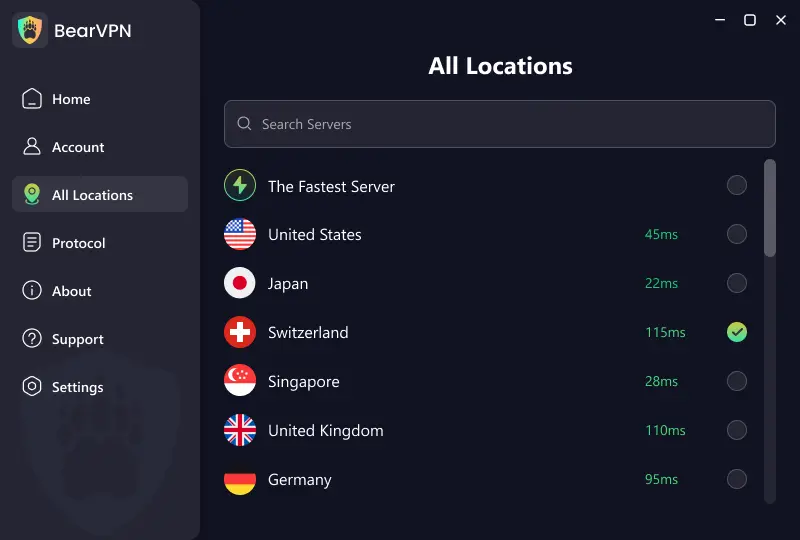
BearVPN users can review the available VPN server locations when choosing an alternative.
3. Check Whether the Slowdown Is Limited to One Task
If speed tests and ordinary browsing work well but one stream buffers or one download crawls, test another service before changing device-wide settings.
The destination server, app, or route to that service may be the limiting factor. A slow download from one website does not establish that the entire VPN connection is slow.
Split tunneling may help when a specific app should use your regular connection, but excluded traffic will not receive the VPN tunnel’s protection. Use it as a deliberate routing choice, not as proof that the underlying issue has been fixed.
VPN Works, but One Website or App Doesn’t
If most services work through the VPN, focus on the failing website or app. Resetting your entire network is unlikely to be the best first step.
1. Check the Service and Its Error Message
Check the service’s official status page, where available, and record the exact error.
“Service unavailable,” “proxy detected,” “access denied,” and an account-verification request describe different situations. If the service also fails without the VPN, investigate its availability, your account, or the app itself.
If it fails only with the VPN enabled, compare another server while keeping other settings unchanged.
2. Isolate Browser Data and Extensions
Try the website in another browser or a private window. This provides a comparison with a different session and, depending on the browser, fewer active extensions.
If the site works in another browser or a private window, return to your normal browser and test one change at a time:
- Temporarily disable a relevant proxy, VPN, or content-blocking extension, then reload the site. Re-enable it if nothing changes.
- If extensions are not responsible, clear cookies and site data for the affected domain, then sign in again if needed.
- If the problem continues, compare the browser’s proxy and custom DNS settings with the browser that works.
A successful private-window test points toward a difference in the browser session, settings, or extensions; it does not identify the cause on its own.
If a content filter is blocking a legitimate part of the site, use a site-specific exception where appropriate. Do not bypass a malware, phishing, or certificate warning simply to make the page load.
3. Check Which Route the App Uses
Review whether the affected app or domain is included in your VPN’s split tunneling rules. Restart the app after changing a rule and reconnect the VPN if required.
For BearVPN on Windows and macOS, check both app and domain rules. A browser and another application may follow different routes, so a working browser does not establish that the other app is using the same connection.
For Android-specific cases, see VPN blocking Android apps.
4. Use the Guide for the Service You Are Testing
Google notes that unusual-traffic messages can arise when other users on the same network—including a shared VPN network—send automated searches. Complete the verification offered and contact the provider if the problem persists. The message alone does not prove your device is infected or your VPN tunnel has failed. Google’s explanation
Once the affected service works, repeat the test in your normal browser or app. If you changed routing or disabled a filter, confirm that the final settings still provide the protection you intended.
Authentication Errors and Server Unavailable
An error message can help narrow the investigation, but similar wording can mean different things across VPN providers. Record the full message and any error code before dismissing it.
Authentication Failed or Login Rejected
First, identify where authentication fails:
- You cannot sign in to the app or account website: check your account credentials, sign-in method, and any verification request.
- You can sign in, but connecting fails: check access to the selected server, your subscription status, and any connection limit.
- A manually configured VPN rejects your login: confirm that you are using the connection credentials supplied by the provider or your administrator.
If you normally sign in through Apple, Google, or another identity provider, use the same method rather than assuming a separate email-and-password login exists.
For a workplace VPN, certificate or multi-factor authentication problems may require IT assistance. A consumer VPN cannot replace the authorized connection needed to access an organization’s private network.
Subscription Expired or Device Limit Reached
Open your account dashboard and check the plan associated with the signed-in account. If you recently purchased a subscription, confirm that the purchase and the app are linked to the same account.
An expired plan may remove access to paid servers while leaving other service options available. Follow the provider’s account rules rather than repeatedly reinstalling the app.
If the error explicitly mentions a device or simultaneous-connection limit, review active devices or sessions. Disconnect an unused session through the provider’s supported controls and retry.
Server Unavailable or Connection Timed Out
Check the provider’s official status page, then compare another available server.
One server fails while another works: use the working server and report the affected location if the issue continues.
All servers fail on one network but work elsewhere: investigate that network or route.
All servers fail across multiple networks: provide support with the exact error and your earlier account, app, and device test results.
An unavailable-server message does not establish that the server is overloaded. Maintenance, an unreachable endpoint, and local connection problems may require different responses.
VPN App Won’t Open, Crashes, or Stopped Working After an Update
If the VPN app cannot stay open, start with the app itself. Changing server locations will not help until you can operate it reliably.
Check Whether Only the VPN App Is Affected
Try opening other apps and check whether the device responds normally.
- Only the VPN app crashes: focus on its installation, compatibility, and settings.
- Several apps crash or the whole device freezes: investigate a broader operating-system or device problem.
- The app opens but fails only when you press Connect: return to connection troubleshooting and record any new error.
If the problem began after an update, note the app version and operating-system version. Check the provider’s release notes or support notices for a matching issue before making extensive changes.
Repair the App in Stages
Use the least disruptive step you have not already tried:
- Fully close the app and restart the device.
- Install any available official app update.
- Check whether the installed version supports your operating system.
- On Android, try clearing the VPN app’s cache.
- Reinstall only if the earlier steps fail.
On Android, Clear cache and Clear storage/data are different actions. Clearing storage can remove local app settings and require you to sign in again. Google’s app troubleshooting guidance covers force-stopping, cache clearing, and reinstallation.
Before reinstalling, save any personal configuration you need and confirm that you can access your account. Use the official installer or app store rather than an older copy from an unofficial download site.
Device-Specific VPN Fixes
Use these checks when the problem appears limited to one device or began after a system change. Menu names vary by operating-system version and manufacturer.
VPN Not Working on Windows
First, determine how you normally connect.
If you use the provider’s app: open that app directly and record its error. Do not create a second manual Windows VPN profile unless the provider instructs you to.
If you use Windows’ built-in VPN connection: open Settings → Network & internet → VPN, select the connection, and compare its server address, VPN type, and sign-in method with the supplied configuration. These are separate settings in Microsoft’s Windows VPN setup instructions.
If the provider’s app reports a missing service, adapter, or driver, use its documented repair or reinstall process. Removing unrelated network adapters can create additional problems.
Reserve a full network reset for a persistent device-level issue after targeted checks have failed. It should not be the first response to a single server timeout.
VPN Not Working on macOS
Open System Settings and search for VPN. Review the listed connections and identify the one belonging to the app you are testing.
If the official VPN app requests approval for a network component, complete its documented setup. A missing approval and a failing remote server require different fixes.
Next, review other software that filters or redirects network traffic. If the problem began immediately after installing such software, test its interaction with the VPN using the vendor’s instructions.
Apple recommends checking VPN and third-party security software when investigating device connectivity, and consulting the organization before changing managed settings. Apple’s network troubleshooting guidance
A Mac does not require every VPN app to use the same protocol. Select from the options supported by your provider and macOS version.
VPN Not Working on Android
Open Settings, search for VPN, and inspect the configuration associated with the app you intend to use. Check whether another VPN has been selected for always-on operation.
Android’s VPN controls differ between devices and configurations; Google documents the general settings under Network & internet → VPN.
If the connection drops mainly after the screen locks, use the background-usage checks in VPN Keeps Disconnecting. If the app crashes, use the cache and update checks above.
When the VPN connects but only certain Android apps fail, inspect the relevant routing rules and follow the Android app connection troubleshooting guide.
VPN Not Working on iPhone or iPad
Start with the VPN configuration, then use a network reset only if simpler checks have failed.
- Complete the app’s setup. Open the official VPN app and attempt to connect. If iOS asks permission to add a VPN configuration as part of that setup, approve it.
- Check the selected configuration. Open Settings → General → VPN & Device Management → VPN, where available. Confirm that you are testing the configuration belonging to your intended app.
- Check obsolete personal configurations. If your provider recommends recreating its VPN configuration, follow its instructions for removing and adding that specific configuration. Keep any profiles required by your employer or school.
- Consider a network reset only for persistent network problems. Go to Settings → General → Transfer or Reset iPhone/iPad → Reset → Reset Network Settings. This resets saved Wi-Fi networks and passwords, cellular settings, and VPN/APN settings, so prepare the details you need to reconnect. On a managed device, consult IT first. Apple’s network reset instructions
Reconnect and repeat the original task after each relevant change. If only Safari or one app fails, use the single-app troubleshooting section instead. For more detailed checks, see our VPN not working on iPhone guide.
How to Check Whether the Fix Worked
A successful connection message is a starting point. Verify the original problem, the route your traffic uses, and whether the connection remains stable.
1. Repeat the Task That Failed
Open the same website or app that failed before, then test another unrelated service.
If the original task works, repeat it under the conditions that triggered the problem. For example, if disconnects happened after screen lock, test that behavior again. A connection that works only while the app stays open may still need attention.
2. Check the Public IP for the Traffic You Expect to Protect
Use the same browser and public IP checker before and after connecting, if an ordinary non-VPN comparison is appropriate for your situation.
For a typical consumer VPN connection covering that browser, the connected result should show the VPN’s public exit address rather than your normal connection’s public address.
If it does not change, inspect browser extensions and split tunneling before declaring the VPN broken. The browser may be intentionally excluded.
A browser IP test checks that browser’s route. It does not establish that every app on the device uses the VPN.
3. Check for Unexpected Exposure
For a fuller privacy check, compare public IPv4, IPv6, and DNS results with the provider’s expected behavior.
A private local address such as 192.168.x.x is not the same as an exposed public ISP address. Similarly, a DNS server appearing in a different country from the VPN exit is not, by itself, proof of a leak.
Unexpected ISP DNS results deserve investigation, particularly if you have configured custom DNS or other network software. Proton’s DNS leak documentation explains how DNS traffic can take an unintended route.
Our guide to checking whether your VPN is working covers the broader verification process.
4. Interpret the Results
Restore any security settings temporarily changed during testing. Keep a short record of the fix so you can reverse it or explain it to support if the problem returns.
More Help by VPN Provider and Location
Use a focused guide when the remaining problem depends on a particular app, error code, or network environment. These guides expand on the general checks above.
Troubleshooting by VPN Provider
Match any instructions to the app and operating-system version you actually use. For a newly introduced error or a confirmed outage, check the provider’s current support information.
Troubleshooting by Location
If the VPN works on some networks but consistently fails in your current location, these regional guides provide additional context:
- VPN not working in India
- VPN not working in Egypt
- VPN not working in Pakistan
- VPN not working in Iran
- VPN not working in Turkey
- VPN not working in Qatar
- VPN not working in Saudi Arabia
Results can differ between mobile carriers, home internet providers, and managed Wi-Fi within the same country. Use your network-comparison results to guide the next test rather than assuming that every connection in that location behaves the same way.
VPN Usage Data: What Users Need to Verify
VPN usage research helps explain why connection status alone is not enough. The survey below measures users’ reasons for choosing a VPN, not connection reliability. We have mapped those reasons to practical checks in this guide; the recommendations in the final column are our interpretation, not findings from the survey.
Security.org’s June 2025 survey of 1,009 U.S. adults found that, among VPN users, 60% cited general privacy, 37% cited safer public Wi-Fi use, and 23% cited access to media unavailable in their country. Respondents could select multiple reasons. Survey and methodology
These are reported motivations, not VPN failure rates or proof that every service delivers those outcomes. The survey platform also blocked participation through VPN connections, which the researchers identify as a possible source of undercounting.
Use the findings as context: verify the task and protection you need, rather than relying on connection status alone. For broader background, explore VPN adoption by country.
Still Having Problems? Give Support a Useful Test Record
If the relevant checks have not resolved the issue, send your VPN provider a concise record of what failed and what you tested.
Include:
- Device and operating system: the model and full OS version.
- VPN app version: the installed version, not simply “the latest.”
- Exact symptom or error: whether the app fails to open, cannot connect, disconnects, or connects without usable internet.
- Time of the problem: include your time zone.
- Networks tested: home Wi-Fi, mobile data, or another connection, and whether internet access worked without the VPN.
- Servers and connection modes tested: identify which combinations worked and which failed.
- Relevant changes: an app update, OS update, new security software, or modified routing settings.
For intermittent problems, describe a repeatable trigger such as “disconnects after screen lock” or “fails when switching from Wi-Fi to mobile data.”
Use the provider’s official support channel for diagnostic logs. Do not post passwords, authentication codes, private keys, or complete logs in public comments.
If several devices fail only on one network, share that result with the network administrator or ISP as well. If the problem involves a workplace VPN, contact your IT team with the same test record.
Try BearVPN When Your Current VPN Keeps Failing
If your ordinary internet connection works but your current VPN remains unreliable after targeted troubleshooting, test BearVPN on the same device and network.
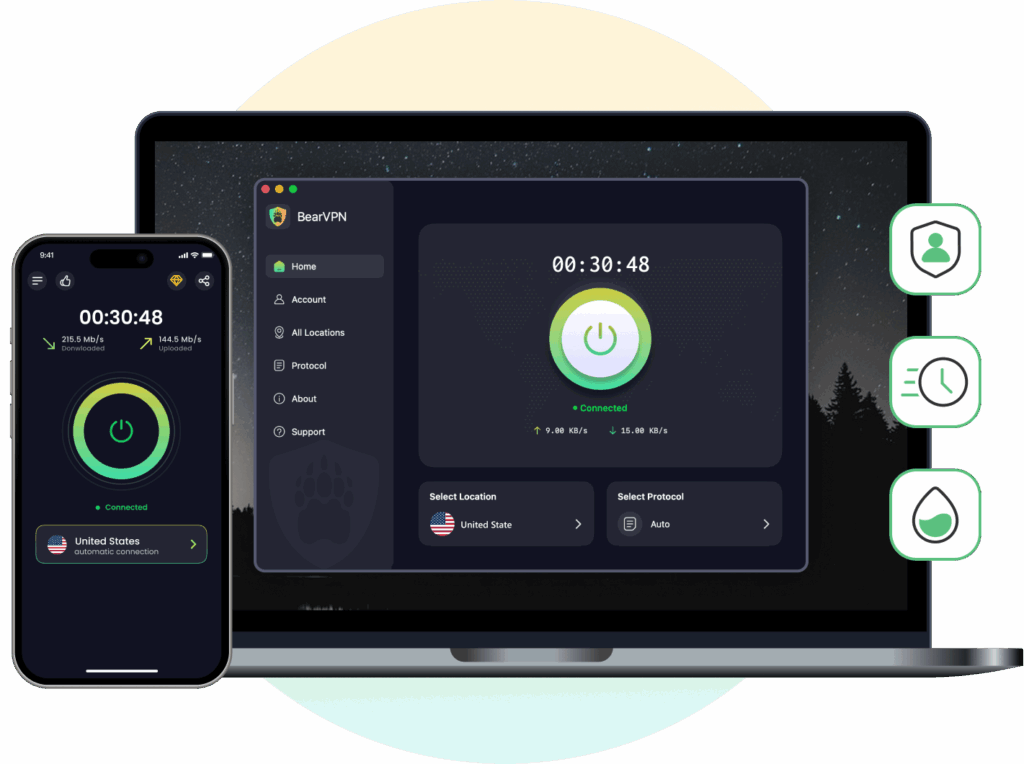
BearVPN offers 2,000+ servers across 50+ locations, giving you alternatives when a particular connection does not perform well. Its apps are available for Windows, macOS, Android, and iOS. Explore BearVPN
Features relevant to troubleshooting include:
- Alternative server locations: compare another available connection without changing your underlying network.
- Obfuscation: try supported connection modes designed for restrictive network conditions.
- Split tunneling: control which traffic uses the VPN. BearVPN supports app and domain rules on Windows and macOS.
- Kill Switch: help prevent traffic from falling back to your ordinary connection if the VPN drops.
Test BearVPN in Three Steps
- Install the official app. Download the version for your device and choose the plan or access option that fits your needs.
- Connect without another VPN running. Start with an available nearby server and the app’s recommended settings.
- Repeat the original task. Check the website, app, or activity that failed, then verify the connection using the tests above.
If BearVPN works under the same conditions, you have a practical alternative and useful evidence for troubleshooting your original provider. The result does not identify the exact fault by itself: the services may use different servers, routes, or connection modes.
BearVPN cannot restore an internet connection that is down or replace the authorized VPN required to reach a private workplace network.
Download BearVPN and test your connection.
Frequently Asked Questions
It means the VPN connection is not currently active. You may not have switched it on, or an attempted connection may have failed.
Whether traffic continues through your regular internet connection depends on your VPN and traffic-blocking settings. HTTPS protection does not disappear when a VPN is off, but the traffic no longer benefits from that VPN tunnel.
Check what changed around the time the problem started: the network, app version, operating system, account access, or selected server. The timing gives you a starting point, but it does not prove the cause.
If nothing obvious changed, compare another server and network before resetting the device. A temporary service problem can resemble a local configuration fault.
Your browser may be excluded by split tunneling or using another proxy. The VPN may also be showing a stale connection status or failing to route the browser’s traffic through its tunnel.
Refresh the same IP-check page after reconnecting, confirm that the browser is included in the VPN connection, and test another server. Compare IPv4 and IPv6 separately if the checker displays both. If your normal public ISP address remains visible when the browser should be protected, contact the provider with the results.
Look for a shared factor: the underlying network, device restrictions, conflicting software, or a configuration that affects all VPN connections.
Try one VPN at a time on another network. If it works there, investigate the original network. If failures persist across networks on that device while another device works, focus on the affected device’s settings and installation.
Only use that as a deliberate diagnostic step when you need to determine whether traffic blocking explains the loss of internet access.
Disabling it can allow ordinary traffic outside the VPN. Restore protection after testing. If the VPN tunnel still cannot connect, the original connection problem remains.
It can help when name resolution or a custom DNS configuration is the problem. It will not repair an expired subscription, an app that cannot launch, or every blocked connection.
Follow the DNS checks when the symptoms point there, and change one setting at a time. Avoid replacing working DNS settings simply because a VPN fails.
A free plan may restrict server choices, data use, or other features. Check the provider’s actual plan terms and any message in the app.
Do not assume that every free VPN failure is caused by congestion or that payment will fix it. Test the network and device first, then decide whether the plan’s limits explain your problem.
Usually, targeted checks should come first. A network reset changes more than the VPN configuration and may require you to restore saved connections or other settings.
Consider it when the evidence points to a persistent device-level network problem and simpler fixes have failed. Follow the instructions for your operating-system version and record the settings you need beforehand.