Disney+ enforces strict anti-proxy systems that frequently detect and block shared VPN server IPs, leaving subscribers staring at Error Code 73 (“Not available in your region”) or Error Code 83 (“Device compatibility issue”). Whether your VPN suddenly stopped working today or you are migrating from a heavily flagged provider, resolving this block requires clearing localized location caches and switching to obfuscated routing.
Why Is Disney Plus Blocking Your VPN?
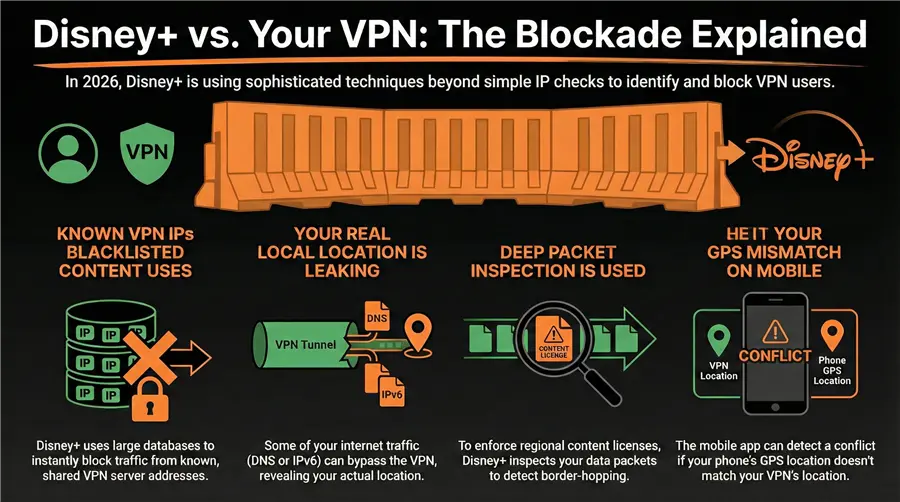
To fix the problem effectively, it helps to understand how Disney+ detects and blocks VPN traffic in 2026. The platform no longer relies on simple country checks. Instead, it combines IP intelligence, traffic analysis, device signals, and licensing enforcement. Here are the main detection mechanisms at work:
1. Massive IP Blacklisting Networks
Disney+ subscribes to commercial databases that continuously track IP ranges owned by VPN providers, hosting companies, and cloud infrastructure. If you use a popular or free VPN, you’re likely sharing an IP with thousands of other users.
When Disney+ detects abnormal traffic volumes from a single IP, it marks the address as “proxy suspected” and blocks it globally—sometimes within minutes.
2. DNS, WebRTC, and IPv6 Leaks
Even when your VPN tunnel is active, certain requests may escape outside the encrypted tunnel:
- DNS lookups are routed through your local ISP
- WebRTC reveals your real IP in browsers
- IPv6 traffic bypassing IPv4-only VPN tunnels
If Disney+ sees any location data that contradicts your VPN location, the session is immediately flagged.
3. Deep Packet Inspection (DPI)
In 2026, Disney+ actively analyzes traffic patterns, not just IP addresses. DPI systems look for: encrypted tunnel fingerprints, abnormal packet timing, protocol signatures (OpenVPN, WireGuard, etc.). If your traffic “looks like a VPN,” Disney+ blocks it—even if the IP itself is clean.
4. Licensing and Regional Contract Enforcement
Disney+ operates under strict, multi-billion-dollar licensing contracts. The same movie may belong to different distributors in different countries.
To prevent rights violations, Disney+ aggressively enforces geo-restrictions using:
- Country-level IP verification
- DNS location checks
- Account region history analysis
Frequent region switching is often flagged as suspicious behavior.
5. GPS and Sensor Mismatch (Mobile Devices)
On Android and iOS, Disney+ can request: GPS location, Wi-Fi network region and time zone and system locale.
If your VPN says “London” but your phone sensors say “Singapore,” Disney+ triggers Error 73 or Error 83 instantly.
6. Account Behavior Profiling
Disney+ also monitors: Sudden country changes, Frequent IP hopping and Multiple logins from different regions in short time spans. This behavioral profiling often causes VPN users to be blocked even when using high-quality services.
Why Popular VPNs (NordVPN, Surfshark, ExpressVPN) Fail on Disney+
Many users searching for solutions report that their NordVPN or Surfshark app was working yesterday but stopped loading Disney+ today. This occurs because Disney+ continuously purchases updated lists of data center IP subnets. When thousands of users route their stream through a single popular node simultaneously, Disney+ automatically flags that entire IP range. If your current provider is stuck in a loop of Error 73, switching to specialized stealth nodes or clean IP pools is necessary.
10 Fixes for Disney Plus VPN Not Working (2026 Edition)
If your VPN is connected but Disney+ still isn’t working, go through these fixes in order. In most cases, one or two of these steps will solve the problem.
1. Switch to a Different Server Location
Avoid connecting to generic “US” or “UK” servers. Choose a specific city server or one labeled for streaming. Popular locations are blocked more frequently.
2. Use Streaming-Optimized Servers
Always select servers marked Streaming, Media, or 4K Optimized. These servers use clean IP pools refreshed more frequently.
3. Change Your VPN Protocol
Standard protocols like OpenVPN and WireGuard are now easy to detect.
- Switch to SCProxy or SLProxy (if available)
- Enable obfuscation or stealth mode
This disguises your VPN traffic as normal HTTPS browsing.
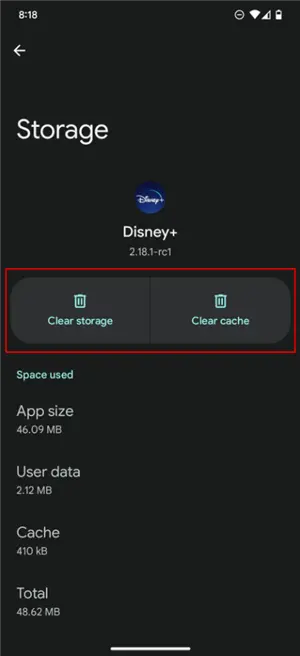
4. Clear Cookies, Cache, and App Data
Disney+ stores location breadcrumbs locally.
- Browsers: Clear cookies + cached images
- Android: Clear app cache
- iOS: Reinstall the Disney+ app if needed
Then reconnect to the VPN before reopening Disney+.
5. Disable GPS and Location Services
On mobile devices:
- Turn off precise location
- Deny location permission for Disney+
- Enable “Location via device only” (no Wi-Fi scanning)
This prevents GPS mismatches.
6. Turn Off IPv6
Many VPNs do not fully tunnel IPv6 traffic.
- Disable IPv6 in your device network settings
- Or enable IPv6 leak protection in your VPN app
This closes a major detection loophole.
7. Enable DNS Leak Protection
Make sure your VPN is using its own DNS servers, not your ISP’s. If necessary:
- Manually set DNS to automatic (VPN-controlled)
- Flush your DNS cache before reconnecting
8. Restart Device and Router
Old network sessions may still carry your real IP.
- Power off your device
- Restart your router
- Reconnect to VPN first, then open Disney+
9. Try a Different Device or Browser
Sometimes the block is device-specific.
- Test on a different browser
- Use Incognito / Private mode
- Try another device on the same VPN connection
This helps isolate cache and fingerprint issues.
10. Upgrade to a Premium Streaming VPN
If none of the above works, your VPN’s IP pool is likely fully blacklisted. Look for a provider that offers: dedicated streaming IP pools, stealth / obfuscation protocols and frequent IP rotation.
BearVPN’s streaming network and SCProxy protocol are specifically designed for this scenario.
How to Fix Disney Plus with BearVPN (Step-by-Step)
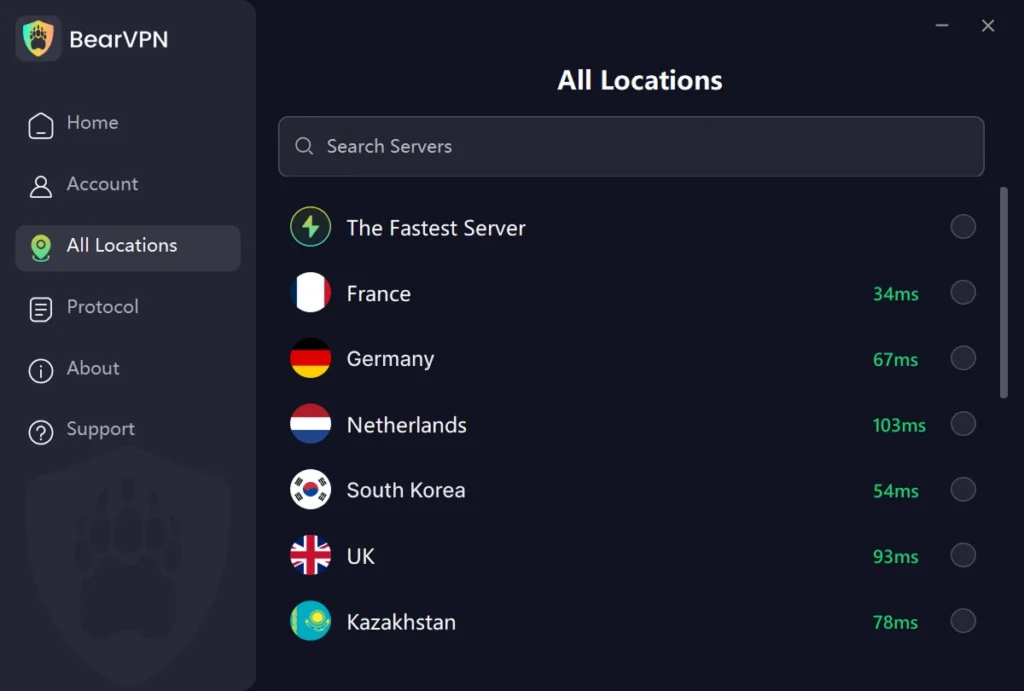
Follow this 2026-validated workflow to restore your access using BearVPN. BearVPN is a free and reliable VPN tool that supports one-click IP switching, allowing you to access the global internet with ease. With over 2,000+ servers across 50+ regions, BearVPN is the ideal choice whether you want to visit restricted websites or enhance your online privacy and security.
Key Features:
- Extensive Server Network: Access thousands of stable, high-speed servers worldwide and switch freely at any time.
- Advanced Encryption: Uses industry-leading encryption protocols to ensure your data remains secure and protected.
- High-Speed Connections: Smart routing technology delivers smooth performance for streaming, downloading, and gaming without interruptions.
- Unlimited Bandwidth: No data limits — enjoy unrestricted internet access anytime.
- One-Click Connection: Simple, user-friendly interface with instant setup. No technical knowledge required.
- Privacy Protection: Strict no-logs policy to fully safeguard your online privacy.
- Multi-Platform Support: Compatible with Windows, iOS, Android, and macOS.
Click the button to download BearVPN and follow the steps below to fix your Disney Plus successfully.
Steps to Fix Disney Plus with BearVPN
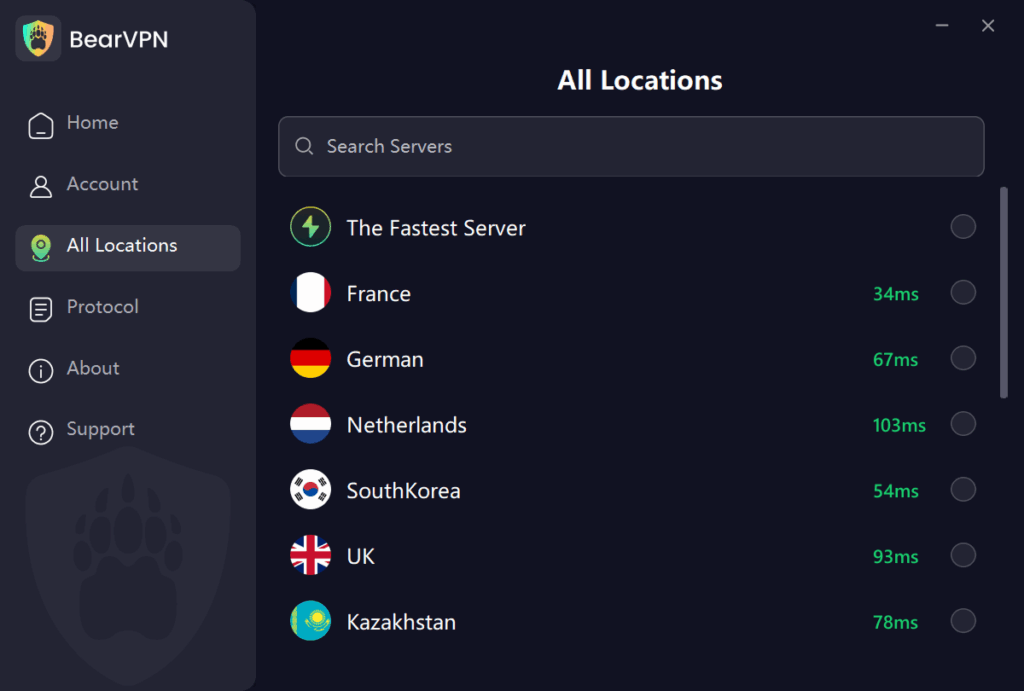
Step 1: Switch to a Streaming-Optimized Node
Open the BearVPN app and select a server labeled “Streaming” or “4K Optimized.” These servers use clean, frequently refreshed IPs designed to bypass Disney’s blacklists.
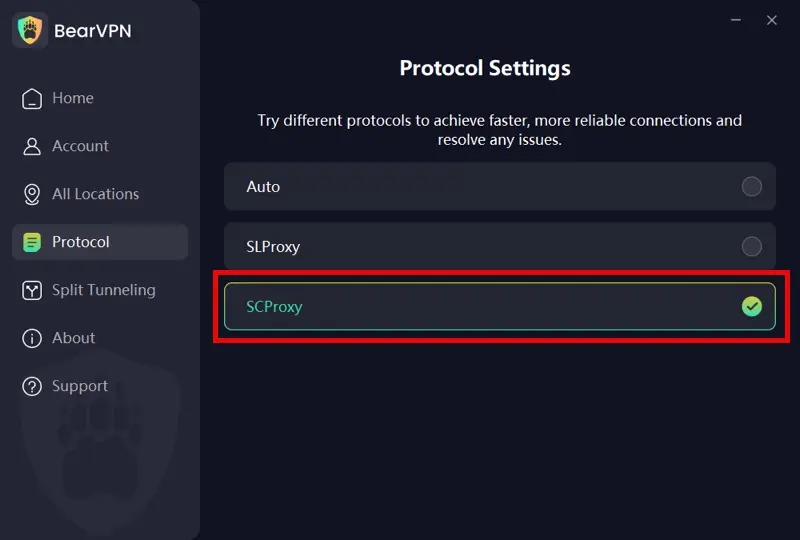
Step 2: Toggle the SCProxy Protocol
If Disney+ still blocks you:
- Open BearVPN Settings
- Go to Protocols
- Select SCProxy
SCProxy obfuscates your VPN traffic so it looks like normal HTTPS browsing, making detection extremely difficult.
Step 3: Enable the Kill Switch
Activate the Kill Switch in BearVPN. If your connection drops for even one second, your real IP will never be exposed to Disney’s servers.
Step 4: Clear App or Browser Cache
This step removes location “breadcrumbs.”
- Chrome / Edge: Settings → Privacy → Clear browsing data (cookies + cache)
- Android: Long-press Disney+ → App Info → Storage → Clear Cache
Step 5: Restart and Reconnect
Force close Disney+, connect to BearVPN, and relaunch the app. You should now have full access to the library.
Why BearVPN Is the Best Choice for Disney+ in 2026
In today’s high-detection streaming environment, general-purpose VPNs no longer work reliably. BearVPN offers features built specifically for streaming survival.
High-Speed 4K Nodes
BearVPN maintains bandwidth-reserved servers optimized for UHD streaming—no buffering, no resolution drops.
Anti-Detection Protocols (SLProxy & SCProxy)
Unlike standard WireGuard or OpenVPN, BearVPN’s proprietary protocols mimic normal web traffic, making them nearly invisible to Disney’s AI detection systems.
Multi-Device Support
One account supports 10 simultaneous connections, so your Smart TV, tablets, and phones can all stream without triggering Error 73.
How Stealth Protocols Improve Streaming Stability
Traditional VPN handshakes carry detectable signatures that allow streaming platforms to identify encrypted tunnels. Utilizing stealth modes or obfuscated protocols (such as SCProxy) disguises encrypted packets as standard web traffic, preventing automated deep packet inspection systems from triggering instant server blocks.
Troubleshooting Common Disney+ Error Codes
Conclusion: Get Back to Your Favorite Stories
In 2026, unlocking Disney+ requires more than just changing your IP. You need stealth protocols, clean streaming nodes, and leak-proof protection.
With BearVPN’s optimized servers, SCProxy technology, and multi-device support, you can restore full Disney+ access in minutes—anywhere in the world.
Ready to stream without limits? Click the button below to download BearVPN now and save up to 80% on your subscription.
FAQs
Error Code 73 indicates that Disney+ believes you are accessing the service from an unsupported region or using a blocked VPN IP. To fix it, disconnect your VPN, clear your device cache, switch to an obfuscated streaming server, and reopen the app.
Error Code 83 usually signifies a device compatibility or proxy detection failure. Ensure your browser or device is fully updated, turn off third-party ad blockers, and use a VPN protocol that supports traffic obfuscation.
Yes. Disney+ detects VPNs primarily through commercial IP databases that identify data center servers, as well as analyzing DNS, WebRTC, and IPv6 traffic leaks.
Disney+ actively blacklists server IP pools from popular VPN providers due to high traffic concentration. If your current provider fails, try switching server cities, disabling IPv6, or using a service with refreshed streaming IPs like BearVPN.
No. Disney+ targets VPN infrastructure by displaying error messages and blocking IP ranges, rather than banning individual subscriber accounts.