Whether you are hunting for rare vintage collectibles in a bustling neighboring metro area, preparing ahead for an upcoming cross-country move, or looking to expand your reach as a local reseller, Facebook Marketplace is one of the most powerful peer-to-peer commerce hubs on the internet today.
However, because Meta automatically pins your browsing experience to your device’s physical GPS and local IP network, expanding your shopping horizon isn’t always seamless. Many buyers and sellers find themselves trapped in their immediate neighborhood—or worse, battling the dreaded glitch where their set location constantly resets back to an old hometown.
In this comprehensive, step-by-step guide, we will walk you through exactly how to change your location on Facebook Marketplace across mobile and desktop (both for buyers and sellers), how to fix the notorious location reverting bug once and for all, and how to safely access overseas listings without triggering regional blocks.
Why Change Your Location on Facebook Marketplace?
Facebook Marketplace has quickly evolved from a neighborhood garage sale alternative into one of the world’s largest peer-to-peer e-commerce hubs. By default, Facebook uses a combination of your device’s current GPS coordinates, connected Wi-Fi networks, and profile settings to serve you listings within your immediate geographical vicinity (typically a 40-mile radius).
However, limiting your feed to your immediate zip code is not always ideal. There are several strategic reasons why you might want to switch your location manually:
- Hunting for Rare Finds and Better Deals: Niche collectibles, specific car models, vintage furniture, or high-end electronics are often unavailable in smaller towns. Changing your location to major nearby metro hubs (like Los Angeles, Chicago, or Dallas) immediately expands your selection and lets you compare competitive pricing.
- Planning an Upcoming Relocation or Move: If you are moving to a new city or state next month, you do not want to wait until moving day to look for housing essentials, sublets, or used appliances. Setting your Marketplace location to your future neighborhood ahead of time allows you to secure items in advance.
- Expanding Seller Reach: If you live on the rural outskirts of a major metropolitan area, listing an item in your sleepy hometown might yield zero inquiries. Changing your listing location closer to the city center can expose your item to thousands of active, ready-to-buy shoppers.
- Scouting Deals While Traveling: If you are temporarily staying in an Airbnb or traveling for business and need local supplies, switching your location ensures you see items you can physically pick up today rather than listings from your home hundreds of miles away.
How to Change Location on Facebook Marketplace as a Buyer
Changing your location as a shopper alters what items appear on your feed, category pages, and search results. Facebook allows you to set your search radius anywhere from 1 mile up to 500 miles from your chosen point.
Here is the exact step-by-step process across all mobile and desktop devices.
Method 1: On the Mobile App (iOS & Android)
The mobile app interface is identical whether you are using an iPhone, iPad, or Android phone.
- Open Facebook and Access Marketplace:
Launch the Facebook app. Tap the Marketplace icon (represented by a small storefront awning) located in the bottom navigation bar on iOS or the top bar on Android. (If you do not see the icon, tap the Menu (three horizontal lines) at the bottom-right or top-right corner, then tap Marketplace). - Locate Your Current Location Tag:
At the very top of your Marketplace screen, just below the search bar, look for your current location tag (e.g., “Austin, Texas · 40 mi” or your current zip code). - Open the Location & Radius Map:
Tap on the location tag. A full-screen interactive map with a circular radius boundary will appear. - Enter Your Target City or Zip Code:
- Tap the search bar at the top of the map.
- Type in the name of the city, state, or the exact 5-digit US Zip Code (or postal code) you want to browse.
- Alternatively, you can use two fingers to pan and drag the map manually until the central pin rests over your desired area.
- Adjust the Distance / Radius Slider:
Drag the Radius slider at the bottom of the screen to choose how wide your search area should be:- Minimum: 1 mile (ideal for walkable, dense city centers).
- Standard: 20 to 60 miles (standard commuter distance).
- Maximum: Up to 500 miles (great for cars, recreational vehicles, and items eligible for nationwide shipping).
- Save and Apply:
Tap the blue Apply button at the bottom of your screen. Your Marketplace feed will instantly refresh and populate with listings from your newly chosen area.
If tapping “Apply” does not refresh the feed, pull down firmly on the screen to trigger a manual feed refresh.
Method 2: On Desktop / Web Browser (PC & Mac)
Browsing on a desktop browser (such as Google Chrome, Apple Safari, Microsoft Edge, or Mozilla Firefox) offers a wider view and makes comparing multiple listings side-by-side much easier.
- Go to Facebook Marketplace:
Open your browser, navigate to facebook.com, and log into your account. Click Marketplace in the left-hand navigation sidebar. (You can also go directly tofacebook.com/marketplace). - Find the Location Filter:
Look at the left sidebar under the search bar. Under the Filters section, you will see Location displaying your current set city and radius. - Open the Location Dialog:
Click on the blue or black location text (e.g., “Within 40 miles of New York, New York”). A pop-up modal showing an interactive map will open. - Update the Location Details:
- In the Location field, type your desired city or Zip code. Select the correct matching city from the dropdown auto-suggestions.
- In the Radius dropdown menu, select your preferred search distance (options typically range from 5, 10, 20, 40, 60, 100, 250, up to 500 miles).
- You can also drag the pin directly across the interactive map to fine-tune your location.
- Click Apply:
Click the blue Apply button at the bottom of the modal. The desktop page will reload, and all active listings, categories, and recommended products will now reflect your new geographic radius.
Even after changing your location, Facebook will often still mix in nationwide listings offering parcel shipping. To strictly view items you can physically drive to and pick up in your newly chosen city:
- On Mobile: Tap the Filters icon next to your location tag > scroll to Delivery Method > select Local pickup only.
- On Desktop: In the left sidebar under Delivery Method, select Local pickup only. This instantly clears out clutter from other states.
How to Change Location on an Active Listing as a Seller
Many sellers assume that changing their buyer browsing location will automatically move their items for sale into the new area. It does not.
Facebook locks the location of each listing individually to ensure buyers in that specific area are not misled about local pickup availability. If you moved, or if you want to market a large item in an adjacent, busier city, follow these steps:
Updating Location on an Existing Active Listing
- Open Facebook and navigate to Marketplace.
- Tap or click on the Account / Selling profile icon (in the mobile app, tap the small person silhouette icon in the top right; on desktop, click Selling on the left menu).
- Select Your Listings.
- Locate the item you wish to update and tap/click the three dots (
...) next to the listing. - Select Edit Listing from the menu.
- Scroll down through the listing fields past the Title, Price, and Description until you reach the Location field.
- Type in the new City or 5-digit Zip Code. Ensure you select the exact match from the drop-down recommendations.
- Tap or click Update (or Save) to commit the changes.
When Should You “Delete and Relist” Instead?
While editing an existing listing is fast, there are two distinct scenarios where deleting the listing and creating a brand-new post is far more effective:
- Major Cross-State Relocations: If you have moved hundreds or thousands of miles (e.g., from New York to Miami), Meta’s algorithm often retains the historic engagement profile of the old listing. Simply changing the zip code can sometimes cause the listing to be deprioritized or shadow-flagged for misleading geographical signals.
- Stale Listings with Zero Inquiries: If an item has been sitting in your old location for over 14 days without traction, the algorithm treats it as stale. Deleting the listing, taking fresh photos, and uploading a completely new listing assigned to your new zip code triggers Facebook’s “New Listing” algorithmic boost, putting your item in front of active local buyers immediately.
Why Does Facebook Marketplace Location Keep Reverting? (The 4 Real Causes)
If you have ever painstakingly selected a new city or zip code on Facebook Marketplace, only to refresh the page and watch it instantly snap back to your old town—or worse, a default hub like Menlo Park, California or Paris, France—you are not alone.
This location-reverting glitch is one of the most heavily discussed complaints across community forums like Reddit’s r/FacebookMarketplace.
The reason this happens is that Meta does not rely on a single user input field to determine where you are. Instead, the platform cross-references three independent location signals:
[1. Hardware GPS / Wi-Fi Triangulation]
↓
[2. Browser Site Permissions & Cookies] —> Meta Location Conflict —> Reverts to Default
↓
[3. Facebook Profile “Current City” & IP]
When these signals disagree, the system triggers a fail-safe and silently reverts your view to whatever it deems your “true” physical or account-bound location. Specifically:
- Conflict with Real-Time Hardware GPS: On mobile devices, if your device’s GPS or Wi-Fi positioning detects that you are physically in Dallas, but you manually set your Marketplace pin to Chicago, the Facebook app’s background sync periodically overrides your manual setting to “correct” what it assumes is a user error.
- Browser Permission Blocks on Desktop: If you access Facebook via desktop and have blocked “Location Access” in Chrome, Edge, or Safari, the browser cannot verify your position. In response, Facebook frequently defaults to an estimated location based on your ISP’s regional routing gateway—which might be located in a neighboring city or an entirely different state.
- Ghost Profile Overrides (“Current City” Sync): Many users do not realize that Facebook’s primary user database is linked to your personal profile’s About Info > Places Lived. If you have an old hometown or previous residence hardcoded as your “Current City,” the Marketplace backend periodically syncs with that primary profile data, overwriting your manual Marketplace filter.
- Anti-Scam Anti-Spoofing Filters: Meta employs aggressive automated fraud detection. If an account abruptly jumps from Miami to Seattle, or if an IP address looks suspicious or unstable, Facebook may restrict manual location adjustments to prevent scammers from flooding distant local markets with fraudulent ads.
How to Fix the Facebook Marketplace Location Reverting Bug (Tested Workarounds)
If your location refuses to stick, standard troubleshooting like simply reloading the page will not work. Below are the five most effective, field-tested workarounds collected from real-world user resolutions:
Fix 1: The “Target / Compass Arrow” Calibration Trick (Mobile)
This is the single most effective mobile fix when the app keeps defaulting to an inaccurate location.
- Open the Facebook app and navigate to Marketplace.
- Tap on your current location bubble to open the map view.
- Look closely at the upper-right corner of the interactive map for a small compass arrow or target reticle icon.
- Tap this target icon. Your phone will prompt you to confirm location access.
- Choose “While Using the App” and ensure “Precise Location” is toggled ON.
- Allow the map to snap to your actual physical position first, then manually drag the pin or type in your new desired zip code.
- Tap Apply. Calibrating the sensor first forces the app’s internal database to clear cached GPS conflicts.
Fix 2: Reset Browser Location Permissions (Desktop)
If you are on PC or Mac and the location constantly reverts upon refreshing:
- In Google Chrome, Microsoft Edge, or Brave, look at the left side of your address bar (right next to
https://www.facebook.com). - Click the View site information or Tune icon (sliders).
- Find Location. If it is set to “Block,” change it to Allow (or click Reset permissions).
- Refresh Facebook. When the browser asks “facebook.com wants to know your location”, click Allow.
- Once your browser establishes a trusted location handshake, re-enter your desired Marketplace city and click Apply. It should now remain sticky across sessions.
Fix 3: Update the “Current City” in Your Main Facebook Profile
To permanently break the background reversion loop:
- Go to your personal Facebook Profile.
- Click or tap Edit Profile, then scroll to the bottom and select Edit Your About Info.
- Select Places Lived from the left navigation column.
- Check what is listed under Current City. If it displays an outdated town or is left blank, click the Pencil (Edit) icon.
- Enter the city you want Marketplace to default to and save your changes.
- Log out of Facebook, restart your browser or app, and log back in. Marketplace will now inherit your updated home base.
Fix 4: Clear App Cache and Test in Incognito Mode
Corrupted site data and conflicting browser extensions (especially ad blockers or script blockers) frequently break Marketplace’s location scripts.
- On Android: Go to Settings > Apps > Facebook > Storage > Clear Cache.
- On iPhone: Because iOS does not allow manual cache clearing for apps, uninstall the Facebook app, restart your iPhone, and reinstall it from the App Store. If you suspect an underlying network lease glitch on your device, you can also change IP address on iPhone to force a complete network handshake refresh.
- On Desktop: Open an Incognito / Private Window, log into Facebook, and adjust your Marketplace location. If it works in Incognito, an outdated cookie or browser extension in your standard window was causing the glitch. Clear your browser cookies specifically for
facebook.comto resolve it permanently.
Fix 5: The “Draft Listing” Force-Reset Method
If your buyer location is completely frozen, you can force Facebook’s backend database to re-index your geographic preferences by initiating a seller listing:
- Click Create new listing > Item for sale.
- You do not need to publish the item. Simply upload a dummy photo and type a letter in the title.
- Scroll down to the Location field in the listing editor and type your target city or zip code.
- Let the dropdown autocomplete your selection.
- Discard or delete the draft and exit back to the Marketplace home screen. In many cases, this forces the backend to update your global account location.
Before reopening Facebook to verify whether your location stickiness is resolved, check your visible public network address using a free What Is My IP tool to ensure your ISP or browser is not leaking conflicting geographic coordinates.
Can You Change Facebook Marketplace Location to Another Country?
Many cross-border shoppers, digital nomads, international travelers, and expats ask: Can I change my Facebook Marketplace location to browse listings in another country (such as browsing the US Marketplace while living in the UK, Canada, or Europe)?
The Cross-Border Limitation
If you simply open the standard search bar and type in an international postal code (for example, typing a London postal code into a US-based Facebook account), you will likely encounter one of two roadblocks:
- No Listings Found: Facebook will display an empty screen or state that there are no items available within your selected radius.
- “Marketplace Isn’t Available to You”: Meta actively restricts cross-border Marketplace access to prevent international dropshipping spam, counterfeit sales, and currency mismatch disputes. The platform detects your connection’s public IP address and confines your Marketplace view to your current country.
[Foreign Physical Connection]
↓
[Meta Geo-IP Detection: Confined to Local Country]
↓
[International Zip Code Entered: “No Listings Found” / Currency Block]
The Solution: Aligning Your Virtual Location via a VPN
If you are moving abroad, planning an extended trip, or need to research products in an overseas market, you must align your network signals with your target destination before opening Facebook. To reliably unblock Facebook Marketplace and hide your IP from regional tracking algorithms, you need a high-trust connection that routes your traffic natively.
However, not all VPNs work for Facebook Marketplace. Free or low-end proxy services rely on crowded virtual private servers (VPS) with heavily shared IP pools. When Meta’s automated security systems detect thousands of requests from known datacenter IPs, they immediately trigger automated security checkpoints, disable the Marketplace tab, or throw the infamous “Marketplace Isn’t Available to You” error.
Recommended Solution: BearVPN (Bare-Metal Dedicated IP Network)
To reliably browse overseas Facebook Marketplace listings without triggering fraud detection or account flags, you need a high-trust connection that mimics native residential traffic.
BearVPN is specifically engineered for high-security, bypass-resilient browsing:
- 100% Dedicated Bare-Metal Physical Servers (Non-VPS): Unlike mainstream VPN providers that deploy thousands of users onto cheap, virtualized VPS instances, BearVPN operates exclusively on dedicated bare-metal hardware. This ensures clean, uncontaminated IP reputation scores that Meta’s fraud filters trust.
- Proprietary Obfuscation Protocols: BearVPN cloaks VPN packet headers, stripping away telltale handshake signatures. Your traffic appears identical to standard encrypted HTTPS web traffic, preventing platform-level proxy throttling.
- 2,000+ Bare-Metal Servers Across 50+ Global Locations: Connect to prime commercial markets across the United States, United Kingdom, Canada, Australia, Europe, and Asia.
- Free Mobile Version (iOS & Android): Try BearVPN with zero friction—no registration, no login, and unlimited bandwidth out of the box (includes 1 default connection line).
- Premium Switching on Desktop & Mobile: Upgrading to a subscription allows you to freely switch between all 50+ global locations on mobile, and unlocks full desktop support for Windows and macOS with up to 10 simultaneous device connections.
- RAM-Only Zero-Logs Infrastructure: Your browsing session and IP data are wiped automatically upon server reboot, ensuring 100% personal anonymity.
How to Access Foreign Facebook Marketplace with BearVPN (Step-by-Step)
[1. Connect BearVPN (e.g., US Node)] ──> [2. Open Incognito Tab] ──> [3. Browse & Change US Zip Code Without Blocks]
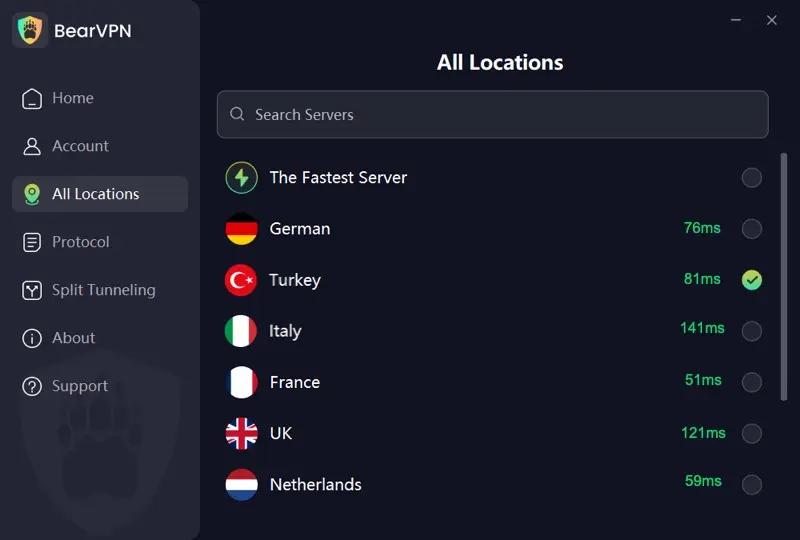
- Launch BearVPN: Open the BearVPN app on your PC, Mac, iOS, or Android device.
- Connect to Your Target Country: Select a server in the destination country whose Marketplace you want to explore (for example, connect to United States – New York).
- Open Facebook in an Incognito / Private Window: Open a clean private browsing window (or clear your browser cookies for
facebook.com) so Meta reads your new clean bare-metal IP without reading old cached geo-cookies. - Change Your Location: Navigate to Facebook Marketplace, click the location filter, type your target foreign city or zip code (e.g., 90210 for Beverly Hills or 10001 for New York), and tap Apply. You can now browse local foreign listings, view native local currencies, and contact sellers smoothly.
Safety First: Essential Tips When Buying & Selling Out of Your Local Area
Changing your Marketplace location to shop or sell in distant regions opens up tremendous deals, but it also increases your exposure to scams. Because you cannot easily inspect the item in person, adhere strictly to these safety rules:
- Beware of the “Remote Payment” Scam: If an out-of-town buyer insists on paying you upfront via Zelle, Venmo, or CashApp and immediately sends an email screenshot showing “Payment Pending – Upgrade to Business Account,” it is a scam. Meta has no affiliation with these third-party payment apps. Never ship an item until funds have officially settled into your bank account.
- Rely on Facebook Purchase Protection: If an item must be shipped, only complete the checkout process through Facebook Marketplace’s native “Buy Now” button. This ensures your transaction is backed by Facebook Purchase Protection, which covers items that never arrive, arrive damaged, or are substantially different from the listing description.
- Meet in Designated “Safe Exchange Zones”: If you are traveling to a distant city to pick up a high-value item (like a car, laptop, or designer watch), never meet in a secluded parking lot or residential address. Insist on meeting at a local police station parking lot (many offer monitored “Safe Trade Stations”) or inside a busy, well-lit bank lobby during business hours.
- Never Take Communication Outside Messenger: Scammers will almost immediately ask for your phone number, email, or WhatsApp to bypass Facebook’s automated fraud filters. Keep 100% of your negotiation and communication within the Facebook Messenger thread. If an issue arises, Meta’s support team can only review chat history hosted directly on their servers.
Frequently Asked Questions (FAQ)
The maximum search radius you can set on Facebook Marketplace is 500 miles (approximately 805 kilometers) from your chosen central location. The minimum radius is 1 mile. If you want to find items beyond 500 miles, you must manually change your central location to a new city closer to that target area.
No. Changing your Marketplace browsing or listing location does not alter your personal profile location, your check-ins, or your visibility on Facebook Dating or Messenger. Marketplace location is an isolated filter designed strictly for commerce discovery.
If you recently relocated to a new region or country and see the message “Marketplace Isn’t Available to You,” this typically occurs because:
Your account is very new (Meta requires accounts to establish normal activity before unlocking Marketplace).
Marketplace is not officially supported in that country or territory.
Your current IP address is flagged as suspicious by Meta’s automated security filters. Ensuring a stable, verified network connection usually resolves this within a few days.
No. Facebook Marketplace never displays your exact street address or physical home coordinates to other users. It only displays an approximate public radius (represented by an open circular area on the map) and your generalized city or zip code. Your specific address is only shared if you personally send it to a buyer or seller via private message.
Changing your browsing location across different cities within the same country is completely safe and permitted. However, rapidly jumping between international locations within a span of minutes—or listing dozens of identical items in multiple distant cities simultaneously—can trip Meta’s automated spam algorithms, potentially resulting in a temporary Marketplace shadowban. Change locations naturally and avoid mass-posting identical listings.
Facebook Marketplace does not dynamically recalculate currencies simply by moving the map pin. Currency is determined by two factors:
1. The Seller’s Listing Origin: If an item was originally listed by a seller in the US, it will display in USD, even if a buyer views it from Canada.
2. Your Account Payment Settings: If your personal account is registered in the US, Facebook Pay defaults to USD. To view listings natively in local currencies (like GBP or CAD), your account’s primary payment settings (`Settings > Orders and Payments`) must be aligned with that country, typically requiring a native IP connection during browsing.
Meta restricts cross-border searches when your IP doesn’t match your target city. Powered by 2,000+ bare-metal servers across 50+ global locations, BearVPN lets you explore foreign listings and local prices seamlessly. Free on mobile with unlimited data.
Final Thoughts
Changing your location on Facebook Marketplace is an indispensable strategy for finding rare items, scoring bargain-basement prices, and securing essentials before an upcoming move.
- As a buyer, adjusting your city and distance slider takes only seconds on both mobile and desktop.
- As a seller, taking the time to update your listing location—or completely relisting stale items—ensures your products gain maximum visibility in high-demand markets.
- If you run into the notorious location reverting bug, remember to check for hardware GPS conflicts, reset browser permissions, and update your profile’s primary city.
Finally, for travelers, expats, and cross-border shoppers wanting to access international listings without regional blocks or connection errors, utilizing a secure, reliable network with dedicated bare-metal servers guarantees that your browsing remains smooth, private, and free from disruptive geo-locking.