Opera’s built-in VPN has become a popular choice for people looking to quickly access blocked websites or boost their online privacy—without having to install extra software or tinker with complicated settings. Since the VPN feature is baked right into the Opera browser, it’s easy to use and appeals to anyone who wants a hassle-free solution.
But while Opera VPN sounds great on paper, many users have found it doesn’t always live up to expectations. It’s not uncommon to run into issues like connection failures, unreliable access, or the dreaded “Opera VPN not working” message—especially when using it on mobile devices. Why do these problems happen, and what can you do if Opera VPN isn’t working for you? In this article, we’ll break down the main reasons for these issues, share some troubleshooting tips, and introduce the best mobile-friendly alternatives, including BearVPN.
Common Issues with Opera VPN
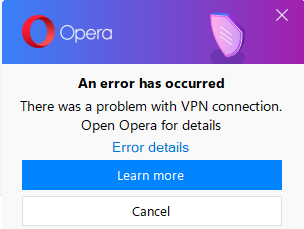
A lot of people try Opera’s free built-in VPN hoping for a secure and smooth browsing experience, but it doesn’t always go as planned. Sometimes, Opera VPN just won’t connect, offering only vague error messages or not responding at all. Even if you manage to get it working, it often disconnects out of nowhere, which can be really frustrating. Slow speeds are another big issue—browsing becomes sluggish, and streaming videos can feel impossible. Switching VPN locations, like from Europe to the Americas, rarely helps with speed or unlocking new content.
Things can get even trickier for mobile users. The VPN feature might be missing, not working properly, or unable to access certain sites on your phone or tablet. No matter how many times you try, it often feels like Opera VPN just can’t deliver the reliable access and consistent privacy you’re looking for.
Why Opera VPN Fails: Causes and Technical Limitations
Opera VPN’s ongoing connection issues and limited effectiveness often stem from a combination of technical constraints and service design choices. While its convenience and free access are appealing, these same factors also result in a range of persistent problems that impact both desktop and mobile users.
- Browser-Only VPN: Not a Full Solution
Under the hood, Opera VPN is actually a secure HTTPS/SSL proxy, not a system-wide VPN. While a true VPN installs an encrypted tunnel over your entire operating system, Opera’s proxy only acts as a secure shield for the traffic passing inside the Opera browser window itself. This means any background activities (like your Discord calls, game launchers, torrent clients, or other browsers like Chrome and Safari) are completely bypassed and left entirely unprotected on your local network. - Server Issues and Network Restrictions
Opera VPN’s free status means its servers are often overloaded, leading to slow speeds or failed connections. The server list is small and non-specific (regions only), and during peak times, users may see the “Opera VPN is Temporarily Unavailable” message. Additionally, some ISPs, schools, or public Wi-Fi networks block known Opera VPN traffic. - Deepening Mobile Bottlenecks (iOS & Android)
The limitations of Opera’s browser-only proxy become even more glaring on mobile devices:
- No Full-Device Protection: It only encrypts traffic inside the mobile Opera app, leaving your social media, banking, and gaming apps completely exposed.
- Inconsistent Support: The VPN toggle frequently disappears or fails to connect after Android updates, while iOS versions offer extremely limited stability due to Apple’s strict sandbox policies.
- No Advanced App Controls: You cannot use features like split tunneling to decide which apps bypass the VPN, resulting in high input lag and performance issues.
4. Streaming and Geo-blocks
Opera VPN is routinely detected and blocked by major streaming platforms. Its limited server infrastructure and shared IP addresses make it unreliable for accessing region-restricted content on services like Netflix, Hulu, or YouTube.
5. Security and Privacy Limitations
Unlike premium VPNs, Opera VPN lacks advanced features like DNS leak protection, kill switch, or strict no-logs policies. For privacy-focused users, these gaps are concerning.
Troubleshooting: How to Fix Opera VPN Not Working
If Opera VPN isn’t working for you, you’re not the only one—lots of people run into the same kinds of issues. The upside is that there are a few things you can try before you decide to move on or look for another VPN. Sometimes, just updating your browser or tweaking a simple setting can solve the problem. Other times, you might need to go through a couple more steps. Here are some tips that might help you get Opera VPN working again.
1. Update the Opera Browser
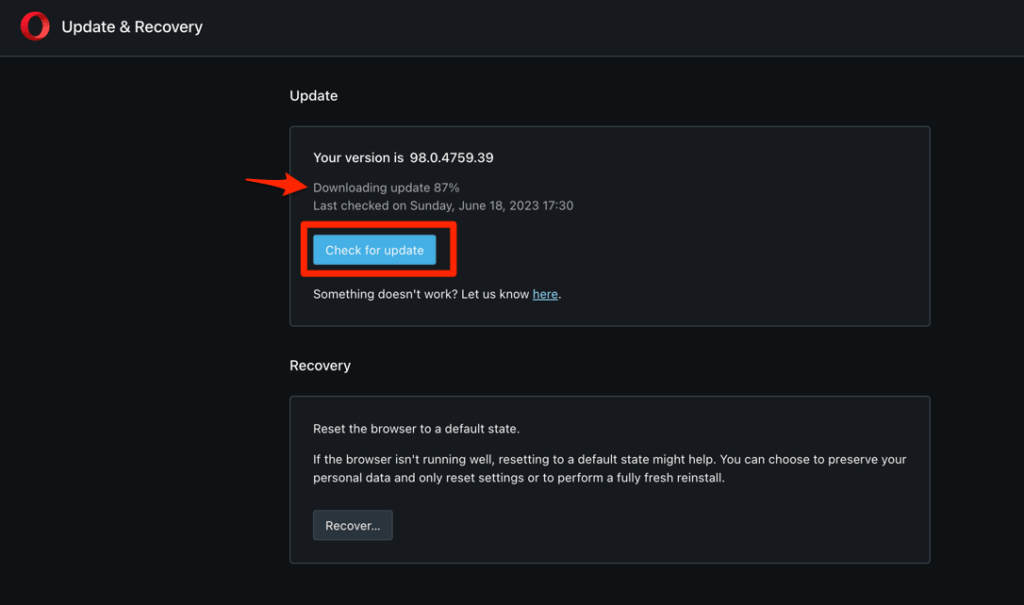
Outdated browsers can cause compatibility problems. Go to the “About” section in Opera to check for updates.
2. Switch VPN Server Locations
Opera lets you select from regions (Americas, Europe, Asia). Try changing your virtual location to see if one works better.
3. Clear Browser Cache and Disable Extensions
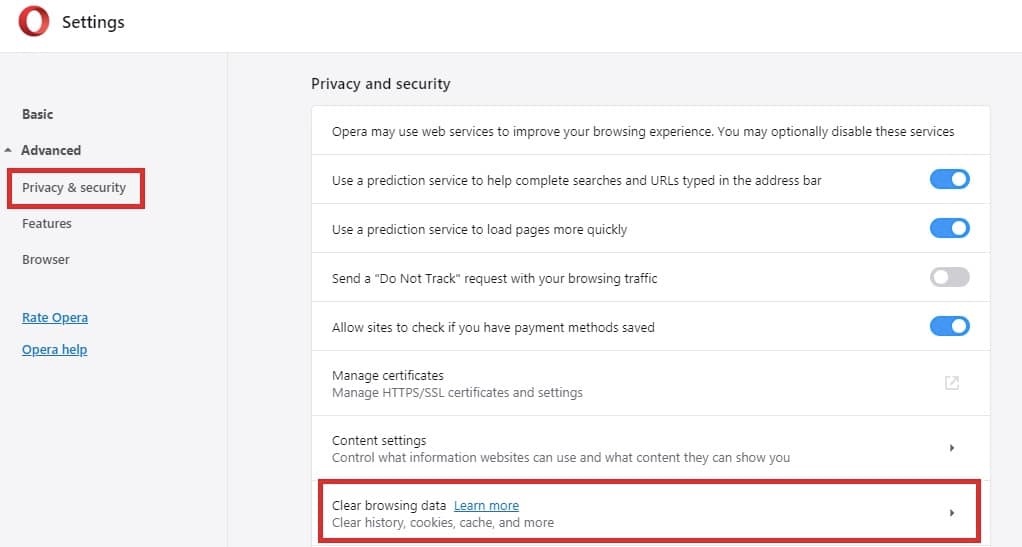
Corrupted cache or conflicting browser extensions often block the VPN from working properly. Go to “Settings > Privacy & Security” to clear browsing data, and try disabling all extensions, then re-enable one by one.
4. Check Your Internet Connection
A weak or unstable connection may prevent the VPN from working. Test your connection without the VPN to ensure your internet is functioning.
5. Temporarily Disable Antivirus or Firewall
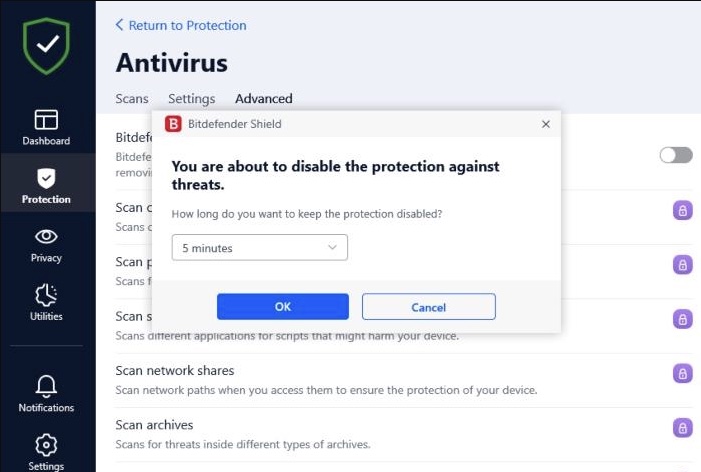
Some security software may block Opera VPN connections. Temporarily turn off your antivirus/firewall and test again—but remember to re-enable protection after testing.
6. Reinstall Opera
Uninstalling and reinstalling the browser can fix deeper software issues.
7. Try a Different Network
If you’re on public Wi-Fi or a restricted network, Opera VPN may be blocked. Switch to a different Wi-Fi, or try mobile data.
8. Use an Alternative (for Mobile and Desktop)
If you’re frustrated by Opera VPN’s limitations—especially on mobile devices—a dedicated VPN app can make all the difference. BearVPN is built from the ground up for a mobile-first world, helping users enjoy secure, fast, and flexible connections wherever they go.
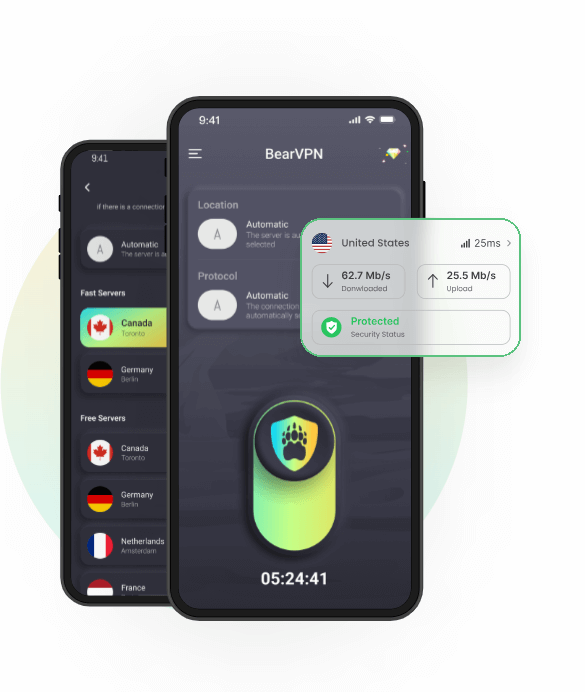
Here’s why BearVPN stands out as a smarter mobile solution:
- Works on iOS & Android: BearVPN provides native apps designed specifically for mobile users, ensuring seamless performance across devices.
- Full-device protection: Unlike browser-based solutions, BearVPN encrypts all your mobile traffic—not just your browser—so your privacy is safeguarded no matter which app you’re using.
- Consistent speed and stability: With a global network of optimized servers, BearVPN helps you avoid slowdowns and frequent disconnects, even during streaming or gaming.
- Easy to use: A simple, intuitive interface means you can connect with one tap, without navigating complicated settings.
- Smart access: BearVPN helps you access your favorite streaming platforms and games, even on public Wi-Fi or while traveling.
Whether you’re streaming, gaming, or just staying safe on public networks, BearVPN makes it easy to get reliable VPN protection right from your phone or tablet.
- Native support for iOS and Android
- Fast global servers and low latency
- Easy-to-use interface, one-tap connection
- Privacy-first features: no logs, DNS leak protection, encrypted connections
- Ability to unblock popular streaming services
- Game optimization for lower ping
- Custom routing (split tunneling, app-based control)
FAQs
Most of the time, it’s due to overloaded servers. Because it is a free service, millions of users share a very small pool of servers, causing frequent congestion or temporary outages. Other common culprits include local network restrictions (like school or office firewalls blocking proxy traffic), conflicts with other browser extensions (especially ad-blockers), or corrupted cache files.
Nothing has happened to it permanently. It is still a built-in feature of the browser. However, because it is technically a browser proxy, it is highly susceptible to server drops, changes in Opera’s infrastructure, and aggressive blocking by ISPs or streaming sites like Netflix. If you can’t find it at all, it may have been toggled off during an update, or your current private network has blocked the port it uses.
You may try these quick fixes in order:
Toggle it: Click the “VPN” badge next to the address bar, turn it off for 5 seconds, and turn it back on.
Switch locations: Change your region setting (e.g., from “Optimal” to “Americas” or “Europe”) to jump to a different, less crowded server.
Clear cache: Go to Settings > Privacy & security > Clear browsing data, and clear your cached images and files.
Disable extensions: Turn off other active extensions to rule out compatibility conflicts.
Update the browser: Go to the Opera menu and click Update & Recovery to ensure you are on the latest build.
First, look at the VPN badge in your address bar:
If it’s blue/orange: The VPN is connected and actively routing your browser traffic.
If it’s grey: The VPN is enabled but currently disconnected or still trying to connect.
Conclusion: Don’t Let Connection Issues Limit You
Opera VPN’s free and convenient nature comes with real limitations—especially for users who need consistent privacy and performance on mobile devices. If you’re frustrated by ongoing connection problems, switching to a dedicated mobile VPN like BearVPN can help you regain security, speed, and peace of mind—no matter where you are.