You click Connect and get an endless handshake, no internet, or Error 86101 while the local network, firewall, or ISP keeps Proton’s tunnel pinned down. Test the underlying internet, another network, server, and protocol in that order. If Proton alone keeps failing after those checks, a different VPN protocol and server network can reveal whether the problem is Proton-specific or a broader network block.
Why Is Proton VPN Not Connecting?
Proton VPN can fail before the tunnel is established, remain stuck on “Connecting,” or connect while leaving you without internet. Match the symptom before choosing a fix:
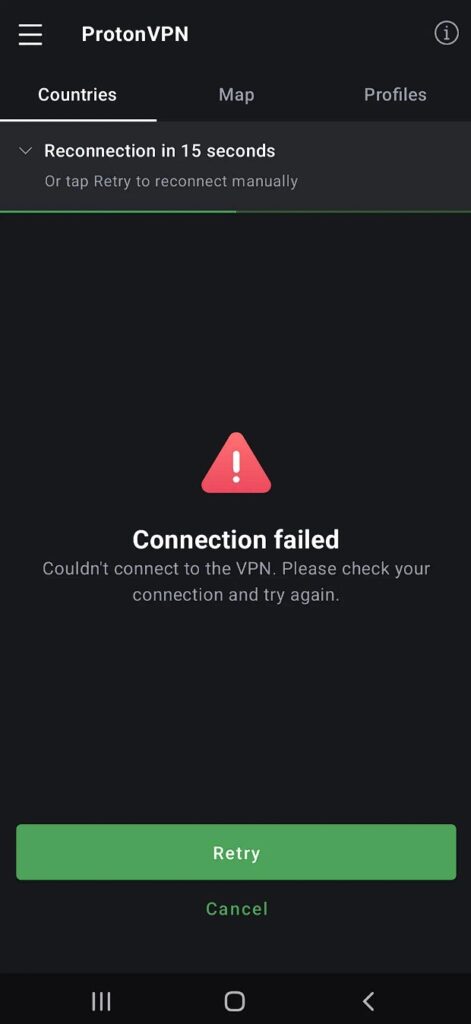
Also verify that your device’s date and time are correct. An incorrect system clock can cause certificate validation or sign-in failures. If Proton’s service or a particular server is unavailable, changing local settings will not fix that server—use another operational server or wait for service to recover.
The good news is that all of these can be resolved. Let’s dive into the solutions.
- Switch to another protocol and server network.
- Use obfuscation when the current Wi-Fi restricts VPN traffic.
- Confirm whether the failure is Proton-specific in minutes.
What Does Proton VPN Error Code 86101 Mean?
Proton VPN Error 86101 generally means the app is trying to connect from a restricted network. It does not, by itself, prove that your ISP has identified a specific protocol or blocklisted a particular Proton server IP.
Try these checks in order:
- Disconnect Proton VPN and confirm that normal internet access works.
- Switch from Wi-Fi to mobile data, or test another trusted network.
- Try a different Proton VPN server.
- Open Proton VPN’s protocol settings and try Smart Protocol or Stealth. On supported desktop apps, TCP-based options may also work better on restrictive networks.
- Check whether a firewall, antivirus program, proxy, or network administrator is blocking VPN connections.
If Error 86101 appears on one network but Proton VPN connects normally on another, the original network is the likely source of the restriction. If it fails across every network and device, check Proton’s status page and contact Proton support with the error code and app logs.
How to Fix ProtonVPN Not Connecting Issue?
Here are 4 proven fixes to get you back:
Method 1: Change the Proton VPN Protocol
A network may allow one VPN protocol while blocking or disrupting another. This is especially worth testing when Proton VPN is stuck on “Connecting,” shows Error 86101, or works on mobile data but not on your current Wi-Fi.
How to Change Protocol in ProtonVPN:
Step 1: Open Proton VPN and go to Settings.
Step 2: Open Connection or Protocol. The exact menu name varies by operating system and app version.
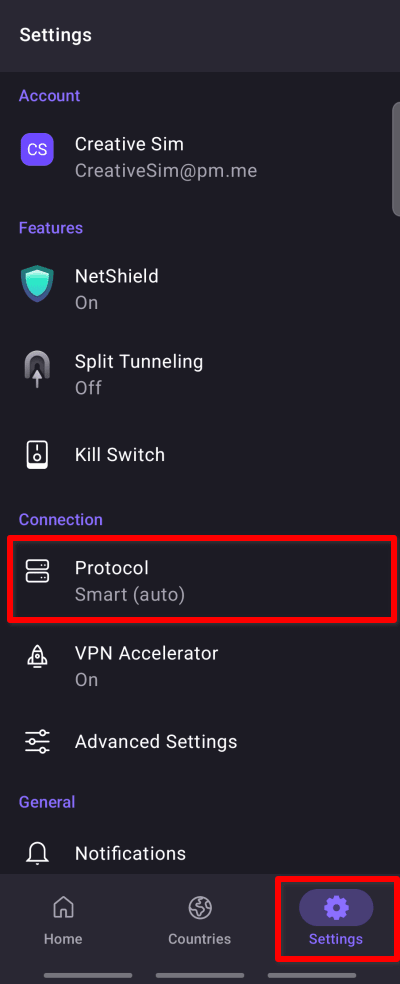
Step 3: If Smart Protocol is disabled, enable it and reconnect.
Step 4: If Smart Protocol cannot connect, manually try another available option. Proton recommends Stealth when a network is actively blocking VPN traffic. Supported Windows versions may also offer WireGuard TCP or OpenVPN TCP.
Step 5: Attempt the connection again using a different server.
Do not assume every platform offers the same list of protocols. Proton discontinued OpenVPN inside its Android app, so Android users should use one of the protocols currently shown in their app instead of looking for an OpenVPN setting.
Why this works:
Different protocols use different transport methods and can behave differently behind firewalls, proxies, unstable Wi-Fi, or restrictive networks. Smart Protocol cycles through supported options automatically, while Stealth is designed for networks that attempt to block VPN connections.
Method 2: Connect to a Different Server Location
ProtonVPN servers—especially free ones—can get overloaded or temporarily go offline.
Steps to Switch Servers:
Step 1. Open the ProtonVPN app.
Step 2. Click or tap on the server list (either on the map or dropdown).
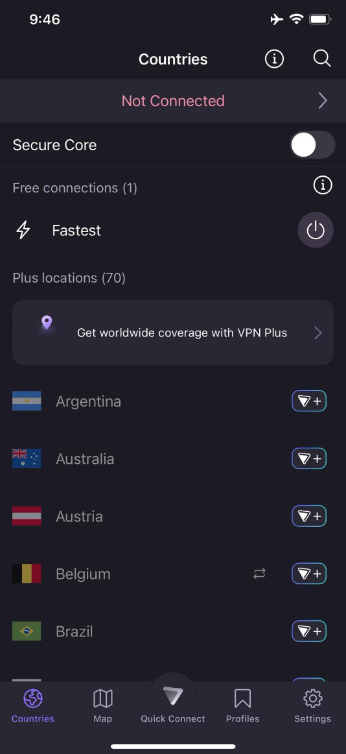
Step 3. Choose a different country or city.
Step 4. Hit the Connect button.
Paid users have access to more stable servers. If you’re on the free plan, try during off-peak hours.
Why this works:
Server outages, maintenance, or traffic congestion can prevent successful connections. A different server = a fresh start.
Method 3: Stop Firewalls, Proxies, or Other Apps From Blocking Proton VPN
If Proton VPN says “Another app might be preventing Proton VPN from connecting,” start by checking software that can control or filter network traffic. This can include antivirus suites, third-party firewalls, system proxies, another VPN client, and some DNS or network-filtering apps.
On Windows
- Close any other VPN or proxy application.
- Open Settings → Network & internet → Proxy and check whether a manual proxy is enabled. Do not disable a work or school proxy without permission from the network administrator.
- Temporarily pause third-party antivirus or firewall protection and test Proton VPN.
- If Proton VPN connects, turn the security software back on immediately and add Proton VPN as an allowed app or exception.
- Restart Proton VPN and the computer before testing again.
Do not leave your firewall or antivirus disabled. The temporary test is only meant to identify whether the security software is causing the conflict.
On Android
Android allows only one app to use an active VPN connection. If another VPN has Always-on VPN enabled, Proton VPN will not connect.
- Open Android Settings → Connections or Network & internet → VPN.
- Tap the settings icon beside the other VPN app.
- Disable Always-on VPN for that app.
- Return to Proton VPN, tap Connect, and approve Android’s VPN connection request.
Also disable screen-overlay apps temporarily if the Android connection permission button does not respond. Proton specifically notes that display-filtering apps can interfere with this permission prompt.
Some Android versions have separate VPN connection bugs. For example, Proton documents an Android 13 issue associated with switching between Wi-Fi and mobile data. Its suggested workarounds include toggling Airplane mode and, where appropriate, checking Android’s VPN Kill Switch and IPv6 settings.
Method 4: Test Another VPN Connection
If Proton VPN still cannot connect after you have tested another server, protocol, network, firewall setting, and device restart, use another VPN to isolate the problem.
This is particularly useful when:
- Proton VPN fails only on one restrictive network.
- Error 86101 keeps returning after protocol changes.
- You need a working connection now and cannot spend more time troubleshooting.
- Proton VPN support has confirmed that the issue requires further investigation.
BearVPN gives you another connection path with strong obfuscation, smart routing, and access to 2,000+ servers across 50+ locations. A different protocol and server network may connect under conditions where the original VPN route fails, although availability still depends on your location and network.
How to Test BearVPN
Stop repeating the same failed Proton route. Install BearVPN, connect to a recommended or nearby server, and test the same device and network immediately.
- Download and install BearVPN.
- Open the app and select a recommended or nearby server.
- Tap Connect.
- Confirm that your internet connection works before closing Proton VPN troubleshooting.
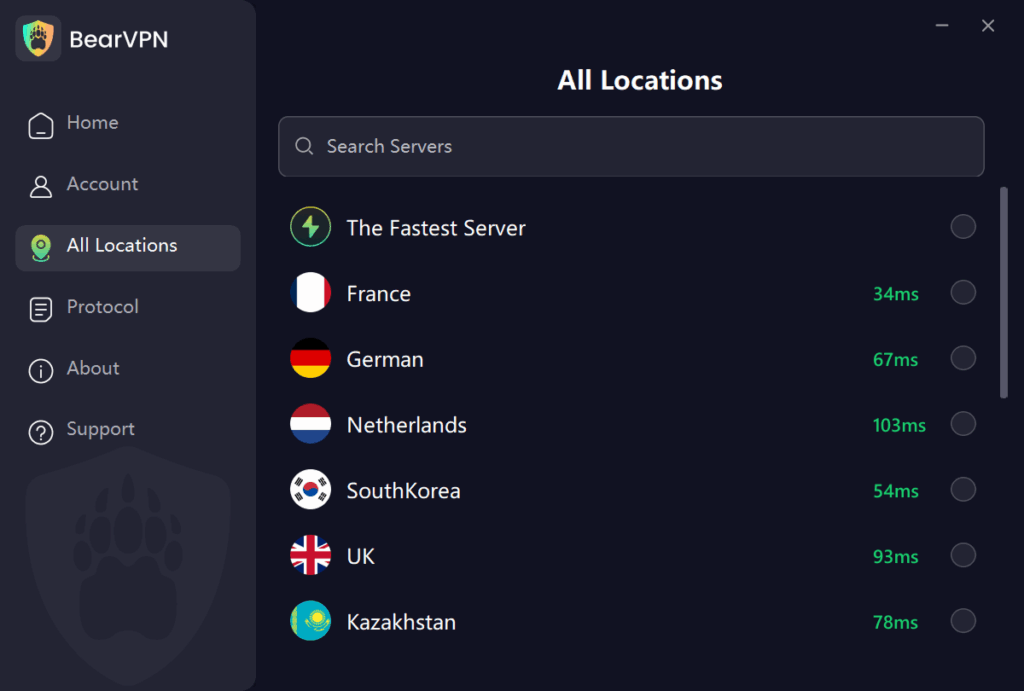
If BearVPN connects on the same device and network while Proton VPN does not, that points to a Proton-specific route, protocol, or app conflict. If neither VPN connects, the local network may be blocking VPN traffic more broadly.
BearVPN also offers unlimited bandwidth and support for up to 10 simultaneous devices on a paid account. Connection speed and access can vary by server, network, location, and third-party service.
Bonus Tips If ProtonVPN Still Won’t Connect
Here are a few more things you can try:
- Restarting your device clears temporary conflicts.
- Check your internet – test it without the VPN first.
- Update ProtonVPN – install the latest version from the official site.
- Disable “Permanent Kill Switch” (ProtonVPN setting) – this might block your internet until the VPN reconnects.
- Check ProtonVPN’s status – visit their status page or Twitter to see if there’s a known outage.
FAQs: ProtonVPN Connection Issues
Error 86101 generally points to a restricted network. First confirm that your normal internet connection works, then test another Wi-Fi network or mobile data. If Proton VPN works elsewhere, the original network is probably interfering with the connection. Try Smart Protocol, Stealth, another available protocol, and a different server.
The selected server may be unavailable, the current protocol may not work on your network, or a firewall, proxy, antivirus program, or another VPN app may be interfering. Try another server, switch protocols, restart the app, verify your system time, and check Proton’s service status.
Close other VPN clients and check antivirus, firewall, and system proxy settings. Temporarily disable third-party security software only to test the connection, then turn it back on and add Proton VPN as an exception if necessary. On Android, disable Always-on VPN for any other VPN app.
Make sure you accepted Android’s VPN connection request and that no other VPN app is using Always-on VPN. Restart the phone and test both Wi-Fi and mobile data. On affected Android versions, toggling Airplane mode or reviewing the Android VPN Kill Switch and IPv6 configuration may help.
Reinstallation can repair damaged app files or network components, but it should come after simpler checks. Test another network, server, and protocol first; restart the device; verify the system clock; and check for app conflicts. If you reinstall, download the current app only from Proton’s official website or an official app store.
Include your operating system, Proton VPN app version, exact error message, the networks and protocols tested, and whether the problem occurs on other devices. Send diagnostic logs through Proton VPN’s official support process, but do not publish logs publicly because they may contain device or network details.
Disconnect Proton VPN and confirm that the underlying connection works. Then reconnect using another server. If internet access stops only while disconnected from the VPN, check whether the Kill Switch or Android’s “Block connections without VPN” option is active. DNS or proxy conflicts can also interrupt browsing.
Final Thoughts
ProtonVPN not connecting is a common but fixable problem. Most users can solve it by switching protocols, trying a different server, or checking firewall settings.
If all else fails, consider reaching out to ProtonVPN’s support team for deeper assistance.
If Proton support needs more time, you do not have to leave the device unprotected. Connect BearVPN now and return to Proton troubleshooting later.