If YouTube says, “YouTube is blocking requests from your VPN’s IP address. Connect to a different VPN server (or turn the VPN off) and reload the page,” the public IP assigned by your VPN has probably been flagged for unusual or high-volume traffic. Reconnecting or switching servers is the fastest first step.
If changing servers does not work, the cause may be stale YouTube cookies, a conflicting VPN protocol, an IP or DNS leak, a browser extension, or a problem unrelated to the VPN. Test YouTube briefly without the VPN on a trusted network: if it still does not load, troubleshoot the app, browser, device, or internet connection instead.
This guide walks through eight fixes in the order you should try them. It also explains why regular YouTube and YouTube TV require different troubleshooting.
Why Is YouTube Not Working with Your VPN?
Regular YouTube does not automatically reject every VPN connection. Problems usually occur when YouTube distrusts the server IP, receives inconsistent network signals, or cannot load videos reliably through the VPN tunnel.
1. The VPN Server IP Has Been Flagged
Many people can share the same public IP on a VPN server. If that address generates unusually high traffic or automated-looking requests, YouTube may limit it or display a message telling users to connect to another VPN server.
This does not necessarily mean YouTube has blocked your entire VPN provider. Another server—and therefore another public IP—may still work.
2. Cookies or Session Data Conflict with the New IP
YouTube and Google store session, language, account, and location-related information in cookies. After you change countries or IP addresses, previously stored data can conflict with the new connection.
Opening a private window is a quick way to test this possibility before deleting all browser data.
3. DNS or IP Traffic Is Escaping the VPN Tunnel
A DNS, IPv4, or IPv6 leak can expose a network route that does not match the VPN server. This creates conflicting location signals and may prevent region-restricted content from loading correctly.
A leak does not mean the VPN has exposed every part of your identity, but it does mean the connection is not routing traffic as expected.
4. The VPN Connection Is Slow, Unstable, or Restricted
Buffering alone does not prove that YouTube has blocked your VPN. A distant or congested server, an unstable tunnel, a blocked VPN protocol, an active Kill Switch, or a weak underlying internet connection can all stop videos from loading.
On a restricted school, workplace, public, or regional network, the network may interfere with the VPN connection itself. In that case, changing the VPN protocol or using an obfuscated connection may help.
Common YouTube VPN Errors and What They Mean
The message on your screen can help you choose the right fix:
- “YouTube is blocking requests from your VPN’s IP address”: YouTube is refusing requests from the public IP used by the VPN server. Reconnect or switch servers to obtain a different IP.
- “Sign in to confirm you’re not a bot”: YouTube has detected traffic it considers unusual. Shared VPN IPs can trigger this prompt, although VPN use is not the only possible cause.
- “This video is not available in your country”: The video is unavailable for the location associated with your current IP. It does not automatically mean the VPN has been detected.
- “Proxy or VPN detected” on YouTube TV: YouTube TV applies separate playback-area rules and may refuse to stream while a VPN or proxy is active.
- Endless buffering or a generic playback error: The server may be slow, the VPN tunnel may be unstable, or YouTube may be experiencing a wider problem. Test another server and then compare the connection with the VPN temporarily disconnected.
How to Fix YouTube Not Working with VPN
Try these fixes in order. After each step, reload the video before moving to the next one.
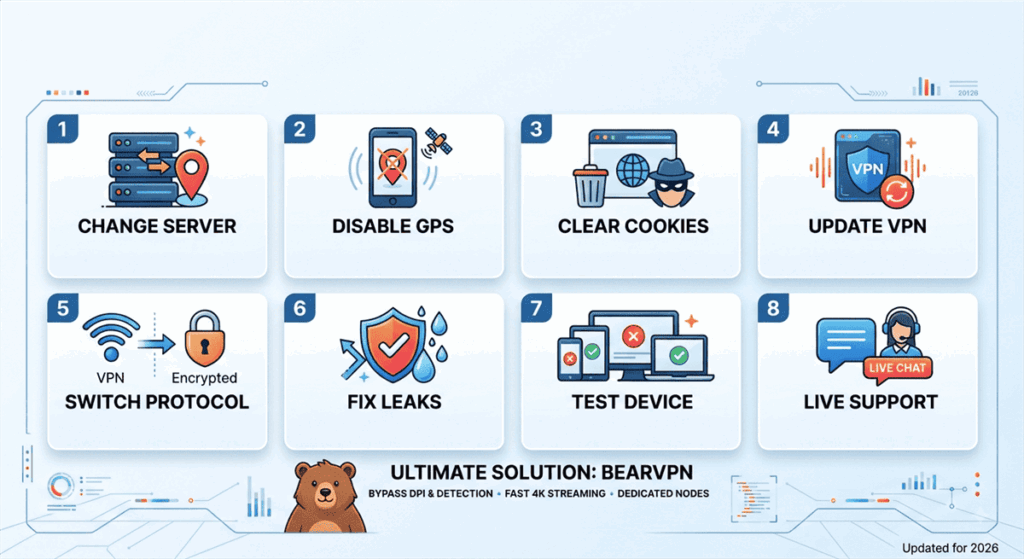
Method 1. Reconnect or Switch VPN Servers
If YouTube specifically says it is blocking requests from your VPN’s IP address, start here.
- Disconnect from the current VPN server.
- Reconnect once to see whether the VPN assigns a different public IP.
- If the error remains, choose another server in the same country.
- Reload YouTube and test more than one video.
For ordinary YouTube playback, a nearby server usually gives you a better chance of maintaining sufficient speed. If you need content available in a particular region, choose another server in that region and follow YouTube’s terms and local laws.
Method 2. Check Whether the VPN Is Actually the Cause
Temporarily disconnect the VPN while using a trusted home or mobile network, then reload YouTube.
- YouTube works without the VPN: The server, protocol, VPN configuration, or assigned IP is probably causing the problem.
- YouTube still does not work: Restart YouTube, test another browser or device, check your internet connection, and see whether YouTube is experiencing a wider outage.
- Only one video fails: The problem may involve that video’s regional, age, account, or rights restrictions rather than your VPN.
Reconnect the VPN after the test if you still need its privacy protection.
Method 3. Open a Private Window or Clear YouTube Site Data
A private window starts a new browser session without most existing YouTube cookies.
If YouTube works in the private window, clear the stored site data for youtube.com and google.com, then sign in again if necessary. Clearing all browser cookies is usually unnecessary and will sign you out of unrelated websites.
Method 4. Change the VPN Protocol
A protocol that works on one network may be slow or blocked on another.
- Open your VPN’s connection or protocol settings.
- Select another available protocol.
- Reconnect to the VPN.
- Reload YouTube.
In BearVPN, try SLProxy first for normal streaming. If the local network interferes with VPN traffic, switch to SCProxy and reconnect. Protocol availability depends on the device.
Method 5. Restart and Update the VPN App
First disconnect the VPN, fully close the app, reopen it, and connect again. If the connection still fails:
- Install the latest BearVPN or VPN-provider update.
- Restart your device.
- Restart your router if other devices are also affected.
- Reinstall the VPN app only if a normal restart and update do not help.
Updates can fix device compatibility and connection problems, but they do not guarantee that a particular YouTube IP block will disappear.
Method 6. Check for DNS, IPv4, or IPv6 Leaks
Disconnect the VPN and note the IP shown by BearVPN’s What Is My IP tool. Connect to the VPN, refresh the page, and confirm that the public IP changes to the VPN server’s address.
You should also run a DNS leak test. If the test continues to show your ISP’s DNS servers or your original IP:
- Enable DNS/IP leak protection in the VPN app.
- Reconnect using another protocol.
- Restart the VPN and network connection.
- Contact the VPN provider before manually disabling IPv6.
Keep the Kill Switch enabled when privacy is the priority, but remember that it can intentionally stop all internet traffic if the VPN tunnel drops.
Method 7. Test Another Browser, App, or Device
Connect another device to the same VPN server and open YouTube.
- If YouTube works on the second device, clear the affected app’s cache or reset the original browser.
- If the website works but the app fails, update or reinstall the YouTube app.
- If every device fails on the same server, change servers or contact the VPN provider.
- If YouTube shows an ad-blocker warning rather than a VPN-IP warning, temporarily disable conflicting browser extensions and test again.
This comparison helps separate a blocked server IP from a local browser or app problem.
Method 8. Use Split Tunneling or Change VPN Providers
If YouTube works only when the VPN is disconnected, you have two final options.
On supported Android and iOS devices, app-level split tunneling can exclude YouTube from the VPN or route only selected apps through it. Excluding YouTube may restore playback, but YouTube traffic will then use your normal internet connection.
If you need YouTube to remain inside the encrypted tunnel, try another server or a provider with more server alternatives and suitable protocols. No VPN can guarantee that every server will always work with YouTube.
Try a Fresh YouTube Connection with BearVPN
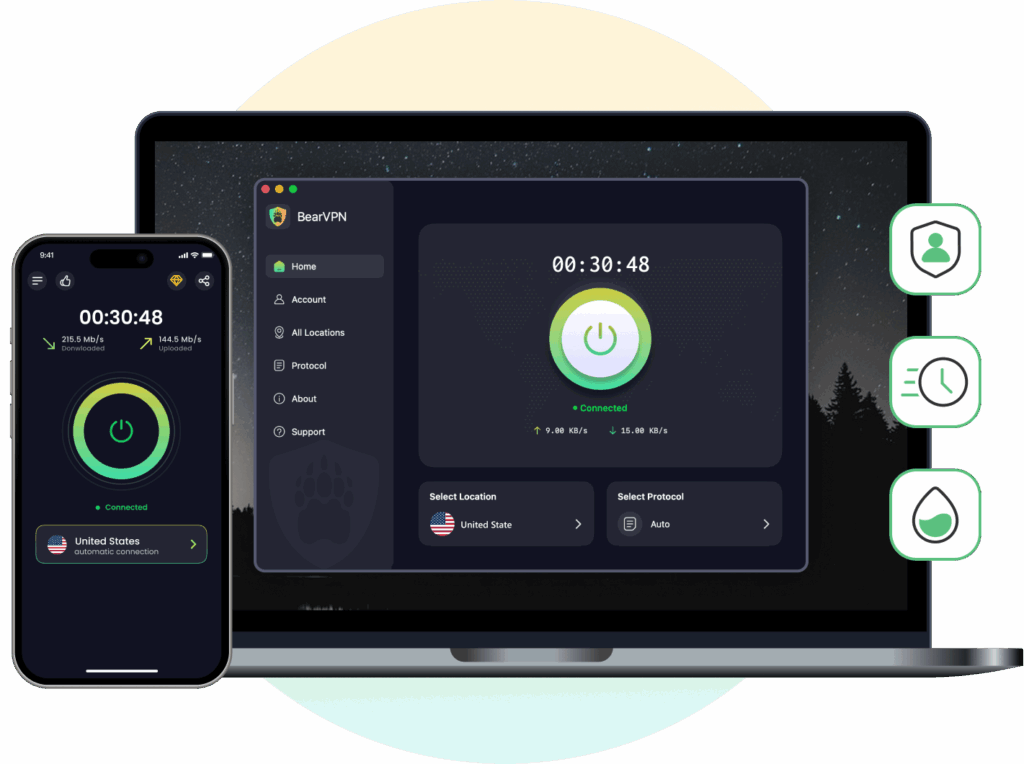
If your current VPN keeps returning blocked or overused IPs, stop cycling through the same small pool. BearVPN gives YouTube a fresh set of routes and lets you attack the exact layer that is failing:
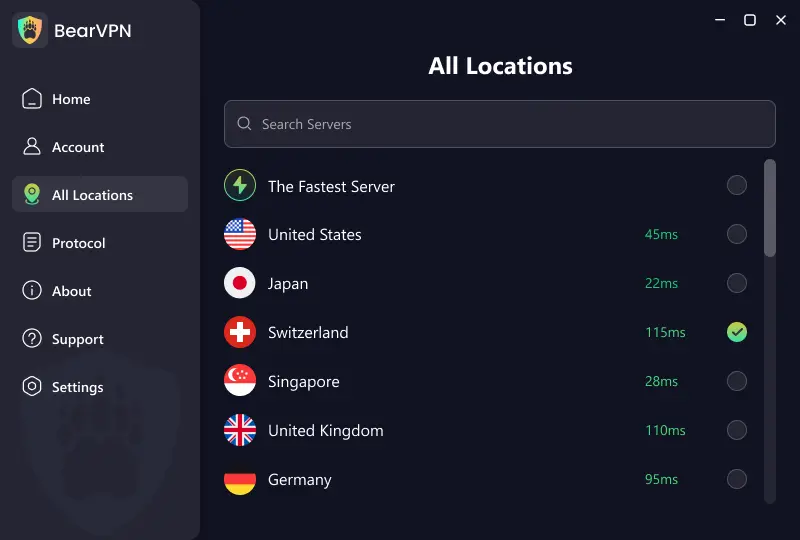
- 2,000+ servers across 50+ locations provide alternative routes when one server IP does not work.
- Multiple connection modes let you change the tunnel when the current protocol is slow, unstable, or restricted.
- DNS/IP leak protection and Kill Switch help prevent traffic from unexpectedly leaving the VPN tunnel.
- Smart server recommendations can help you choose a suitable connection without testing the entire list manually.
- Strong Obfuscation helps BearVPN keep connecting when a school, workplace, ISP, or restrictive network blocks ordinary VPN traffic.
To try BearVPN:
- Download and install BearVPN on your device.
- Open the app. Android and iOS are free to use without registration and include unlimited data; Windows and macOS require a subscription.
- Connect to a nearby server for general YouTube playback.
- If YouTube reports that the VPN IP is blocked, reconnect or choose a different server.
- Close and reopen YouTube, then test the video again.
Server availability, playback quality, and access to third-party content can vary by network, location, and YouTube’s own policies.
YouTube Still Not Loading? Identify Where the Failure Starts
Use the following symptoms to narrow down the cause:
YouTube TV Not Working with a VPN
YouTube TV should not be treated as ordinary YouTube. Google states that users may be unable to stream YouTube TV, Primetime Channels, or channels with restricted playback while connected to a VPN or proxy. Its recommended fix is to disable the VPN or proxy and update the Current Playback Area.
YouTube TV is also intended for use within the United States and says programming cannot be accessed while traveling internationally. A VPN should therefore not be presented as a guaranteed YouTube TV solution.
The Bottom Line
If YouTube is blocking requests from your VPN’s IP address, reconnect or switch servers first. If that does not work, test YouTube without the VPN, open a private window, change protocols, update the app, and check for DNS or IP leaks.
Do not assume every loading problem is a VPN block. If YouTube also fails without the VPN, focus on the browser, app, device, network, or a possible YouTube outage. YouTube TV requires separate troubleshooting and may require you to disable the VPN to verify your playback area.
If YouTube works without your current VPN but every available server keeps triggering the same IP block, the bottleneck is now that provider’s usable server pool. Switch to BearVPN for a different set of exit routes across 2,000+ servers in 50+ locations, then let Smart Server Selection find a suitable connection instead of repeating the same failed cycle. YouTube controls its own IP decisions, so no provider can promise that every server will work forever—but a larger set of fresh alternatives gives you far more ways back in.
Move YouTube to a fresh BearVPN connection with 2,000+ server alternatives, Smart Server Selection, and DNS/IP leak protection.
Frequently Asked Questions
YouTube does not appear to apply a blanket ban to every VPN connection. However, it may limit a shared VPN IP when the address generates unusual or high-volume traffic. You may then see a VPN/proxy warning, a bot-verification prompt, or a message saying YouTube is blocking requests from the VPN’s IP address.
Disconnect and reconnect the VPN first. If the error remains, choose another server to obtain a different public IP, then reload YouTube. Next, test a private browser window, clear YouTube site data, switch VPN protocols, and check for DNS or IP leaks. If YouTube also fails without the VPN, the problem is probably elsewhere.
The assigned VPN IP may have been flagged, the server may be congested, or the selected protocol may not work reliably on your network. Reconnect, switch servers, and change protocols. If every server fails, update the VPN app or contact its support team.
YouTube TV applies stricter location rules than regular YouTube. Its official help page says users may be unable to stream while connected to a VPN or proxy and recommends disabling it to resolve playback-location errors. YouTube TV also says its programming is unavailable while traveling internationally.
A VPN may be used for connection privacy, but it does not remove YouTube Premium’s geographic rules. YouTube’s Paid Service Terms prohibit misrepresenting your country of residence or attempting to circumvent geographic restrictions. Premium access used predominantly outside the sign-up country may also violate its terms.
It can. Encryption, server distance, congestion, and the underlying internet connection can reduce speed. Choose a nearby server and compare multiple servers before assuming YouTube is throttling the VPN. A VPN may help in some ISP-throttling situations, but faster or buffer-free playback cannot be guaranteed.