“I installed a VPN and Netflix worked for a while—then suddenly I got the proxy error. I tried switching servers, but nothing helped. I just want to watch my shows again!” — Reddit user
If you’ve ever tried to watch Netflix while connected to a VPN and suddenly found yourself blocked, you’re not alone—and it’s incredibly frustrating. One minute you’re bingeing your favorite series, the next you’re staring at the dreaded message:
“You seem to be using an unblocker or proxy. Please turn off any of these services and try again.”
This is Netflix telling you it has detected and blocked your VPN connection. For people who rely on VPNs to protect their privacy or access content from different regions, it’s a jarring disruption. Whether you’re trying to watch The Office from the U.S. catalog while abroad, or you’re a digital nomad catching up on your favorite shows from home, this block throws a wrench in your plans.
And it’s happening more frequently. As of 2026, Netflix’s VPN detection has become more aggressive than ever, especially with the rise of account-sharing crackdowns, ad-supported plans, and stricter regional licensing deals. That means more users—both casual streamers and privacy-conscious viewers—are running into roadblocks, even with paid VPN subscriptions.
But here’s the good news: just because Netflix detected your VPN doesn’t mean you’re out of options. In this article, we’ll show you exactly how to troubleshoot VPN issues with Netflix, explain why the problem happens in the first place, and help you determine whether your current VPN is still up to the task—or whether it’s time to move on to one that works, like BearVPN.
Why Netflix Isn’t Working with Your VPN
Netflix aggressively blocks VPNs for one simple reason: content licensing restrictions. Netflix doesn’t own all the shows and movies on its platform. In many cases, it licenses content by region—and VPNs allow users to circumvent those restrictions.

To prevent that, Netflix uses:
- IP detection and blacklists (e.g. spotting known VPN server IPs)
- DNS filtering
- GPS mismatch detection on mobile
- Browser fingerprinting and cookies
- Blocking ad-supported accounts from VPN access (new in 2023)
When Netflix detects any of these signs, you’ll get this infamous message:
“You seem to be using an unblocker or proxy. Please turn off any of these services and try again.”
But don’t worry—there are reliable workarounds.
How to Fix Netflix Not Working with VPN: 9 Solutions That Work in 2026
Running into a Netflix VPN block can feel like hitting a wall, but in most cases, it’s a wall you can climb—with the right tools. Before you ditch your VPN or cancel your Netflix subscription out of frustration, try these proven strategies that work in 2026.
1. Switch to a Different VPN Server
Netflix doesn’t block VPNs by name—it blocks known IP addresses. If you’re connected to a server with an IP that Netflix has flagged, you’ll get the proxy error. However, most premium VPNs operate thousands of servers across many countries, and not all of those are blocked.

What to do:
- Disconnect from your current server and reconnect to another in the same country.
- Prioritize servers labeled “Streaming” or “Netflix-optimized.”
- Try servers in neighboring countries if the main one is blocked (e.g., Canada instead of the US).
2. Clear Your Browser’s Cookies and Cache
Cookies store location and session data, which Netflix may use to determine your real geographic location—even if you’re connected through a VPN. This is a common culprit, especially for browser-based streaming.
Steps:
- Go to your browser’s settings or preferences.
- Clear all cookies and cached files (make sure to sign back into your accounts afterward).
- Restart your browser and reattempt streaming while connected to your VPN.
⚠️ This fix is especially effective if Netflix worked previously but suddenly started showing a proxy error.
3. Change VPN Protocol (e.g., Use TCP or Obfuscated Mode)
VPNs use different connection protocols to create secure tunnels. Some of these protocols are more easily identified by Netflix’s detection systems.
Recommended fixes:
- Switch from UDP to TCP in your VPN settings (TCP is slower but more stable and harder to detect).
- Enable “Stealth Mode” or “Obfuscation” if your VPN supports it. This masks VPN traffic to look like regular internet traffic.
4. Disable IPv6 on Your Device
IPv6 leaks are one of the sneakiest ways Netflix can detect your real location—even when connected to a VPN. While many VPNs block IPv6 automatically, some don’t, especially on older or custom setups.
How to disable IPv6:
- On Windows: Go to Control Panel > Network and Internet > Network Connections > right-click your connection > Properties > uncheck “Internet Protocol Version 6 (TCP/IPv6)”.
- On macOS: Open Terminal and run specific network configuration commands (or use an app like Tunnelblick if supported).
- On routers: Log in to your router settings and look for the IPv6 section.
Once disabled, reconnect your VPN and reload Netflix.
5. Restart Your VPN or Device
As simple as it sounds, restarting can clear temporary glitches in your VPN connection, update internal routing, and trigger a new IP assignment from the VPN server.
Steps:
- Fully disconnect from your VPN.
- Close the app entirely.
- Reopen the app, connect to a fresh server, and then launch Netflix.
If you’re still blocked, restart your device too—especially if using a mobile or smart TV setup.
6. Try a Different Device or Browser
Netflix’s VPN detection varies slightly across platforms. What gets blocked on your smart TV might work fine on your laptop browser—or vice versa.
Try these alternatives:
- Use Chrome or Edge on desktop instead of the Netflix app.
- Try your mobile device with the VPN connected.
- Cast from your phone to your TV instead of using a native Netflix app.
- Use a router VPN setup to cover all devices without needing app installation.
📱 BearVPN supports browser extensions, native apps for iOS/Android, and router-based setups to help you stay flexible.
7. Check Your Netflix Plan: Ad-Tier Accounts Are Blocked
As of late 2023, Netflix rolled out ad-supported subscriptions that do not allow VPN access by design—even with VPNs that normally work. If you’re on the Basic with Ads plan, streaming over a VPN is automatically disabled.

How to Fix:
- Upgrade to the Standard or Premium plan in your Netflix account.
- Once upgraded, reconnect your VPN and test again.
Tip: Netflix doesn’t always advertise this limitation clearly—many users only discover it after running into proxy errors with ad-tier accounts.
8. Contact VPN Support for a List of Working Servers
If none of the above fixes work, your best bet is to contact your VPN provider. Premium VPNs rotate their servers and keep an internal list of servers currently verified to work with Netflix.
What to ask:
- “Which servers currently work with Netflix US?”
- “Do you offer Netflix-compatible servers for [insert region]?”
- “Do I need to change any protocol settings for streaming?”
9. Switch to a Netflix-Compatible VPN Like BearVPN
Sometimes the only fix is to move on. Not all VPNs are equipped to keep up with Netflix’s aggressive blocking tactics. Free or low-quality VPNs often lack IP rotation, stealth features, or even basic streaming support.
If your current Netflix VPN:
- Has no working servers left,
- Has poor streaming speeds or buffering,
- Doesn’t offer real-time support or server status updates…
…it might be time to switch.
Why BearVPN?
BearVPN offers a lightweight, free solution tailored for privacy-conscious users. With a vast network of servers across more than 50 regions, BearVPN guarantees a fast and stable connection at all times. Moreover, its RAM-based servers automatically erase data upon reboot, making it the perfect choice for those who prioritize anonymity.
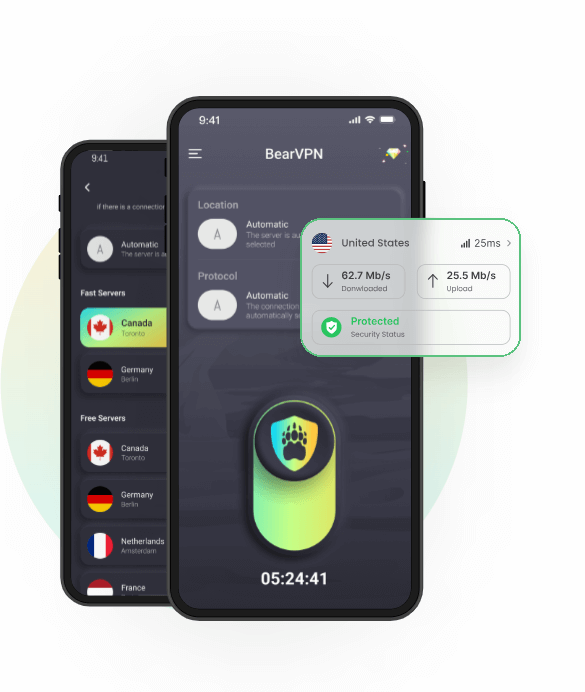
- Optimized Netflix-Ready servers: BearVPN provides a vast network of high-speed, 2,000+ servers, allowing you to access content from the country of your choice easily. Want to watch a show that’s only on Canadian Netflix? Connect to a Canada server. Need to use a UK-only service like BBC iPlayer? Connect to a UK server. BearVPN’s server list covers popular regions like USA, UK, Canada, Australia, Germany, Japan, and many more. Simply select the location that matches the content’s region.
- For highest speeds: Typically, connecting to a server that is geographically closer to you will give better speed and lower latency.
- For privacy and anonymity: Any BearVPN server will hide your IP, but if you’re especially concerned about tracking, you might change locations periodically. You could use one server for a while and then switch to another country later.
2026 Advanced Technical Troubleshooting Protocol
Best VPNs That Work with Netflix in 2026
We tested the top VPNs across 10+ Netflix regions. Here’s how they stack up:
FAQs: Netflix & VPNs
Is it legal to use a VPN with Netflix?
Yes. Using a VPN to stream Netflix is legal in almost all jurisdictions. While accessing regional catalogs may violate Netflix’s Terms of Service, it is not a legal offense. Netflix enforces its licensing rules by displaying proxy error messages rather than terminating or banning user accounts.
Why is Netflix not working with my VPN?
Your VPN is likely returning proxy error m7111-5059 because Netflix flagged and blacklisted your server’s datacenter IP. It can also occur if your browser leaks WebRTC/IPv6 location data, or if old location cookies linger in your device storage. Switching to an obfuscated residential server, disabling IPv6, and clearing your cache will resolve the issue.
Why is Netflix not allowing VPNs anymore?
Netflix actively blocks VPN connections to enforce territorial licensing agreements signed with copyright owners and movie studios. Because streaming rights are licensed on a country-by-country basis, Netflix uses automated detection systems—such as commercial IP range checks and TLS fingerprinting—to enforce regional barriers.
Can Netflix detect all VPNs?
No. Netflix cannot detect VPN software directly on your device. Instead, it identifies and flags shared IP addresses coming from commercial datacenter subnets. VPNs that utilize residential IP masking and dynamic IP rotation remain invisible to Netflix’s detection systems.
Does the Netflix VPN trick still work?
Yes, but basic proxies and legacy VPN protocols no longer work. Bypassing modern Netflix blocks requires stealth obfuscation, which strips away VPN handshake markers from your packet metadata. This tricks Netflix firewalls into seeing your connection as standard home broadband traffic.
Will a free VPN work with Netflix?
Rarely. Most free VPNs rely on overcrowded datacenter IP pools that Netflix has already blacklisted. Additionally, free VPNs lack stealth obfuscation features and frequently leak DNS or WebRTC data, making them ineffective for bypass attempts.
Which VPN still works for Netflix without proxy errors?
VPNs with active IP rotation and obfuscated routing—such as BearVPN—continue to bypass Netflix blocks seamlessly. BearVPN operates dedicated streaming nodes across its global network of 2,000+ servers, utilizing residential-style IP masking to deliver smooth 4K streaming.
How do I choose the right BearVPN server for Netflix?
Open BearVPN, navigate to the location list, and select a server in your target streaming country (e.g., United States or United Kingdom). Ensure Stealth/Obfuscation Mode is enabled in your settings, clear your browser cookies, and launch Netflix in an Incognito/Private window.
Final Thoughts
Getting blocked by Netflix when all you want to do is relax and stream your favorite show is annoying—but fixable. Whether you’re troubleshooting your current VPN or ready to try a smarter alternative, you’re now equipped with everything you need to restore access.
BearVPN is built for streamers—with the reliability, support, and speed to handle even Netflix’s toughest blocks.