Nothing is more frustrating than getting ready for a video chat, only to find OmeTV not working. It can be a black screen, an endless spinning circle, or a frozen camera feed on your iPhone. The reasons vary from a simple connection error to hidden IP bans. Whatever it is, technical glitches can ruin the fun instantly.
“For some reason, when I try to enter OmeTV, it doesn’t load, it just appears the OmeTV screen and that’s it.” – A user reported on Reddit.
In this guide, we will look into why OmeTV is not loading on your device, troubleshoot several possible causes, and then show you exactly how to fix OmeTV loading issues in 2026.
Why Is OmeTV Not Loading?
OmeTV is a WebRTC-based platform, meaning it relies heavily on real-time data transmission between your browser and the stranger’s device. This complex connection makes it sensitive to even minor disruptions. Here are the most common reasons why OmeTV is not working:
Quick check: open OmeTV on mobile data or another trusted network. If it works there but not on your usual Wi-Fi, the problem is more likely tied to that network or its public IP.
Connect to BearVPN to replace the public IP OmeTV sees and route the session through another server. This can help with a blocked network or IP; it will not fix an OmeTV outage or disabled camera access.
How to Fix OmeTV Not Working Issues
After explaining why OmeTV fails to work, you may wonder how to fix this issue effectively. Most issues can be resolved with a few simple troubleshooting steps. Just follow the methods below to restore your connection on OmeTV.
Method 1. Check OmeTV Server Status
Sometimes the problem isn’t on your end at all. If OmeTV’s central matching servers are down, no one can connect.
How to verify:
Go to the server check websites like downforeveryoneorjustme and search for OmeTV. It will show you the current status of the OmeTV server. If it’s down, you have to wait for the official recovery and use it again.
Method 2. Enable Camera & Microphone Permissions
OmeTV will strictly refuse to load the chat interface if it cannot detect the camera and microphone. If you accidentally clicked the block option when first visiting the platform, it will appear broken.
For Chrome:
- Click the Lock icon in the address bar.
- Look for the Camera and Microphone.
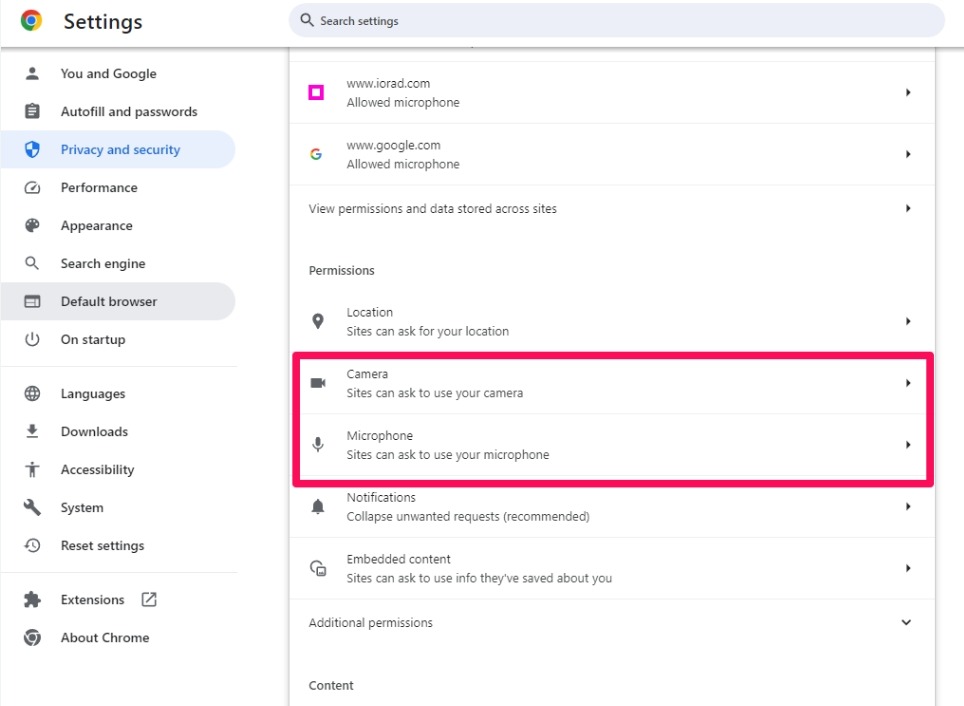
- Toggle the switches to On or select Allow from the dropdown menu.
- Reload the page.
For iPhone/Android:
- Go to Settings > Privacy & Security.
- Tap Camera.
- Find OmeTV and ensure it is enabled.
- Repeat the above steps for the Microphone.
Method 3. Clear Cache on OmeTV
If your OmeTV is not working due to corrupted cache files, clearing this data will force your browser or app to download fresh and working scripts from the server. Here’s how to clear cache on OmeTV:
For Google Chrome (Desktop):
- Simultaneously press the Shift+Ctrl+Delete buttons.
- Select time range: All time.
- Check cookies and cached images/files.
- Click Delete data.
For OmeTV App (Android):
- Go to Settings > Apps.
- Find OmeTV in the list.
- Tap Storage & Cache.
- Tap Clear Cache.
You can’t clear the cache for iPhone apps directly. You can only reinstall the OmeTV app from the App Store, during which the caches will be cleared.
Method 4. Disable Ad-blocker in Browser
OmeTV is free to use, but it displays ads for commercial concerns. Additionally, it has built-in mechanisms to detect ad-blockers. If your ad-blocker accidentally blocks the video signaling server, you may need to disable it temporarily.
How to disable ad-blockers in the browser:
- Look for your ad-blocker icon in your browser’s extension bar.
- Disable it in the settings.
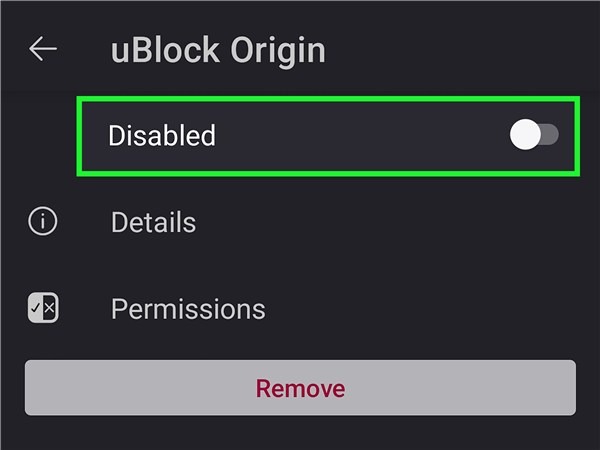
- Refresh the OmeTV page.
If the site loads, keep the ad-blocker disabled while chatting.
Also read: Is OmeTV safe
Method 5. Reinstall the OmeTV App
If you use the mobile app and it keeps crashing or freezing on the logo, the installation files might be corrupt. This is common after a major Android or iOS update. You can reinstall the OmeTV app to get it to work normally.
How to reinstall the OmeTV app:
- Long-press the OmeTV app icon and select Remove App or Uninstall.
- Restart your phone to clear any residual temporary files from the RAM.
- Go to the Google Play Store or Apple App Store and download the latest OmeTV app.
- Open the app and log in. You will be prompted to allow permissions again. Simply allow them for future use.
Method 6. Restart Your Router
A simple restart of your network router is the first step for network-related glitches. OmeTV requires a stable, low-latency connection. If your router has been running for weeks, it may have accumulated errors, which disrupt the real-time video stream.
How to restart your router:
- Unplug your router’s power cable from the wall outlet.
- Wait for 1 to 3 minutes. This drains the capacitors and ensures a full reset of the device’s temporary memory.
- Plug it back in and wait for all the indicator lights to turn solid green.
- Reconnect your device and try loading OmeTV again.
Tip: If you are on mobile data, toggle the airplane mode on for 10 seconds or restart your device to reset your connection to the cell tower.
Method 7. Use a VPN
If OmeTV is online, your camera and microphone work, the app or browser data has been refreshed, and OmeTV loads on another network but not your usual connection, you may be dealing with a local network block or an IP-based restriction.
BearVPN can route the connection through another server and replace the public IP OmeTV sees. It cannot remove an account-level moderation decision, repair a broken camera, or bring OmeTV back during a platform outage.
What Makes BearVPN Outstanding:
- A different public IP: Test whether OmeTV is rejecting the IP assigned to your usual network.
- Another network route: Route OmeTV traffic around a school, office, or ISP-level restriction.
- Nearby server choice: Start with a close location for lower video-chat latency.
Download BearVPN on the device you use for OmeTV, connect to a nearby server, and reopen the site or app.
How We Tested BearVPN for OmeTV Not Working
First, we logged in to an OmeTV account that was IP-banned in Canada last month. It got stuck on the loading page.
Then we opened BearVPN and connected to a US server.
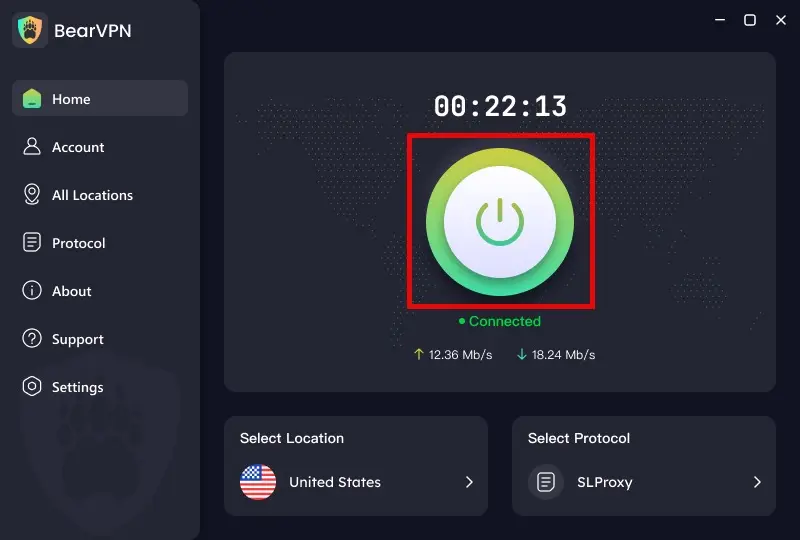
After that, we cleared the browser cache and restarted it. Then we went to the OmeTV website again.
With a new IP, we entered the account and chatted with strangers successfully.
In our test, OmeTV loaded on the same account after we changed the network IP with BearVPN and cleared the old browser data. This result supports an IP-related cause in that test; other OmeTV errors may require a different fix above.
Is OmeTV Down? – Server Check
When you can’t access the OmeTV website or pair with strangers, you may wonder if the OmeTV server is down. While OmeTV does not have an official status page, there are some reliable ways to check.
1. Browser Error Codes:
- 500 Internal Server Error: The server is broken. Come back later.
- 403 Forbidden: OmeTV refused the request. This can come from an access rule, network restriction, or ban; test another network before assuming the cause.
- 404 Not Found: The URL is wrong, or the page has been moved.
2. Social Media:
- Go to X and search for “OmeTV down”. If there is something wrong with the servers, you will see plenty of tweets within minutes because OmeTV has millions of active users.
3. Third-Party Detectors:
Search for “Is OmeTV down”, you can get several detection sites, including:
- downforeveryoneorjustme.com
- downdetector.com
- isdownorblocked.com
Related Tip: How to change your name on OmeTV
Conclusion
When OmeTV is not working, start with the cause rather than the product: check whether OmeTV is down, restore camera and microphone access, refresh saved data, and test another network. These steps resolve most device, browser, and platform problems without changing your IP.
If OmeTV works on another network but not your usual Wi-Fi, BearVPN can replace the public IP and give the connection another route. Connect to a nearby server, reopen OmeTV, and keep following the platform’s community rules.
FAQs About OmeTV Not Working
The OmeTV app usually stops working due to restricted camera or microphone permissions, unstable internet, a corrupted app cache, outdated software, or an active server IP ban.
Yes, you can still use OmeTV via its official app or website. If it is blocked or restricted on your network, using BearVPN can help bypass OmeTV IP ban and restore access.
Yes. You can be banned on OmeTV for violating community guidelines. Common reasons include nudity, harassment, spamming, displaying a black screen, or being under 18, which trigger immediate IP bans.
The most common reason for OmeTV not loading on iPhone is Safari’s strict privacy settings. Apple’s Advanced Privacy Protection can sometimes interfere with WebRTC. You can clear the cache in the browser or use a VPN to fix this issue on the iPhone.
No. Reinstalling the OmeTV app only deletes the application files and temporary cache from your phone. Your account information, friends list, and profile data are always stored on OmeTV’s cloud servers and linked to your social media or Google account.
Start by checking OmeTV’s camera and microphone permissions, updating or reinstalling the app, and clearing Safari site data if you use the web version. Use BearVPN only if OmeTV works on another network but fails on the iPhone’s usual Wi-Fi connection.


![How to Change YouTube TV Location [Still Works in 2026]](/_next/image/?url=https%3A%2F%2Fcms.bearvpn.com%2Fwp-content%2Fuploads%2F2026%2F06%2Fhow-to-change-location-youtube-tv.webp&w=640&q=75)