When you subscribe to YouTube TV, you are signing up for one of the most comprehensive and popular live TV streaming services available today. However, this premium cord-cutting experience comes with a significant caveat: strict geographical restrictions. Whether you are traveling for business, going on a long vacation, or simply hoping to watch a blackout-restricted out-of-market sports game, you have likely encountered YouTube TV’s location blocks.
Can you change location on YouTube TV? In this guide, we will explore YouTube TV location rules and how to change your location on YouTube TV in 2026. From native settings to using a powerful VPN, we will cover every necessary step to ensure you never miss your favorite local channels, regional news broadcasts, or highly anticipated hometown sports matchups again.
Why YouTube TV Restricts Your Location (And How It Happens)
YouTube TV enforces strict location checks with your physical IP address, GPS location, and WiFi connection. The location restriction is set mainly for money, legal contracts, and broadcasting rights. You can check the detailed information below:
1. Regional Licensing & Broadcasting Rights
Television networks don’t sell content globally or even nationally all at once. Instead, they sell show and movie rights on a market-by-market basis. If YouTube TV wants to carry a network like CBS or FOX, its contract states that it can only stream that network’s feed to users physically located within that specific media market. Allowing you to watch a New York feed while sitting in Miami would violate those multi-million dollar contracts.
2. Protecting Local Advertisers and Affiliates
Local TV stations, like your town’s local NBC affiliate, make their money from local commercials, such as regional car dealerships, local injury lawyers, and supermarkets.
- If you are traveling but still watching your home city’s news, the advertisers in your temporary city lose a viewer.
- Local stations fight hard to ensure that anyone inside their geographic boundary is forced to watch their broadcast and their commercials.
3. Sports Blackout Rules
Live sports are the biggest driver of location restrictions. Leagues like the NFL, MLB, and NBA have highly complex broadcasting deals.
- In-Market Restrictions: A local regional sports network or local broadcast channel might buy the exclusive right to air a game in your home city.
- The Penalty: To force people to buy tickets to the stadium or watch the local channel, national broadcasts of that same game are “blacked out” for anyone living in that specific zip code. YouTube TV uses your location to instantly flip the blackout switch when required by the leagues.
4. Tracking “Home” vs. “Away” Viewing
YouTube TV allows you to travel and use your account, but they require you to check in from your designated “Home Area” at least once every 90 days (or 30 days for MLB content). This prevents people from buying a subscription in a cheaper market or sharing a single account with friends and family living across the country.
You may also like: Best VPN for YouTube TV 2026
How YouTube TV Tracks Your Location
Many users assume that bypassing YouTube TV’s geo-blocks is as simple as flipping a switch on a basic web proxy, similar to unblocking a foreign library on other on-demand platforms. However, unlike basic streaming platforms, YouTube TV cross-references up to four signals simultaneously, including your IP address, mobile GPS coordinates, and nearby Wi-Fi network databases.
First, YouTube TV thoroughly checks your IP address. Your IP address is a unique string of numbers assigned by your ISP that can easily reveal your general geographic location, such as your city and zip code.
Second, if you are using a smartphone or tablet, YouTube TV’s mobile application explicitly demands access to your device’s native GPS hardware. GPS coordinates are far more precise than IP addresses and cannot be spoofed by a traditional VPN without dedicated IP addresses alone.
Third, the YouTube TV app frequently uses Wi-Fi triangulation, comparing the local network routers around you against massive public databases of known network locations.
Finally, YouTube TV frequently requires browser-based location services via HTML5 APIs when you are streaming on a desktop. By layering these tracking methods, YouTube TV builds an accurate, real-time profile of your exact viewing status.
The “Home Area” vs. “Current Playback Area”
Understanding the difference between YouTube TV’s Home Area and Current Playback Area is vital for better understanding how to change location on YouTube TV. Your Home Area dictates your core channel lineup, while your Current Playback Area tracks where you are temporarily streaming from. It restricts access if the two do not match.
About Home Area
When you initially sign up for YouTube TV, the zip code you provide and the location you are streaming from become your permanently established “Home Area.” This baseline determines the local affiliates and regional sports networks assigned to your subscription base.
About Current Playback Area
Conversely, the “Current Playback Area” is completely dynamic. It is the geographic location YouTube TV detects every single time you open the app. If you travel outside your Home Area, your Current Playback Area automatically changes. When this mismatch occurs, YouTube TV temporarily suspends access to your Home Area’s local channels and instead provides you with the local channels of your new Current Playback Area. Furthermore, if you do not log in from your Home Area at least once every three months (or every 30 days for MLB content), YouTube TV may restrict your account entirely until you virtually go back to your home area.
How to Change Home Area in YouTube TV Settings
If you have moved to a new city or if you are traveling in another country, you can officially change your location directly through the YouTube TV app settings. You can change your home area twice inside YouTube TV every year.
Here is the step-by-step process for updating your Home Area via the YouTube app:
Step 1. Open your YouTube app on your mobile phone or smart TV. Log in to your YouTube TV account.
Step 2. Choose your Profile photo>Location>Home Area>Update. (The path can be slightly different from device to device)
Step 3. YouTube TV will now prompt you to confirm that you want to change your Home Area. If your current IP address and location data match the new area you are trying to establish, the system will verify the change immediately.
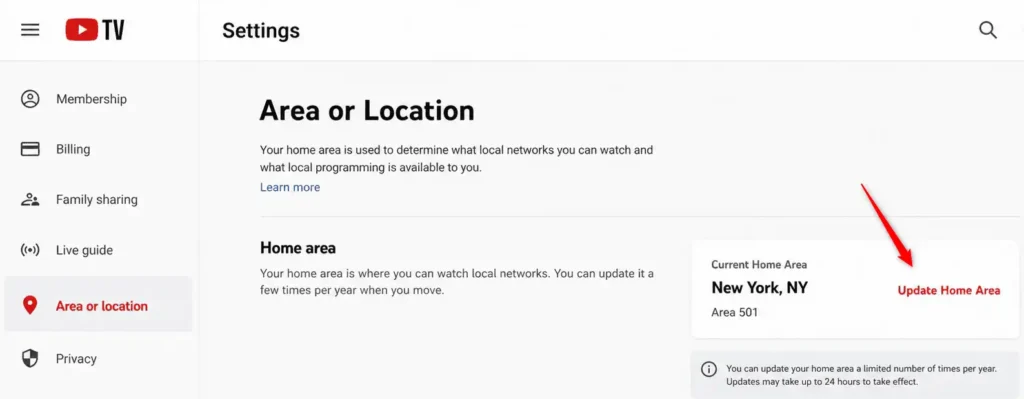
You can also update the YouTube TV home area from its official website if you don’t install the app on a device.
Tips: You must physically be located in the new area you wish to set, or you should use a VPN to change your IP address to make the update work flawlessly. Besides, YouTube TV strictly enforces a policy that allows you to officially change your Home Area a maximum of twice per 12-month period. If you have already exhausted your two changes, this native method will be completely greyed out or will return an automatic error.
How to Change Location on YouTube TV with BearVPN
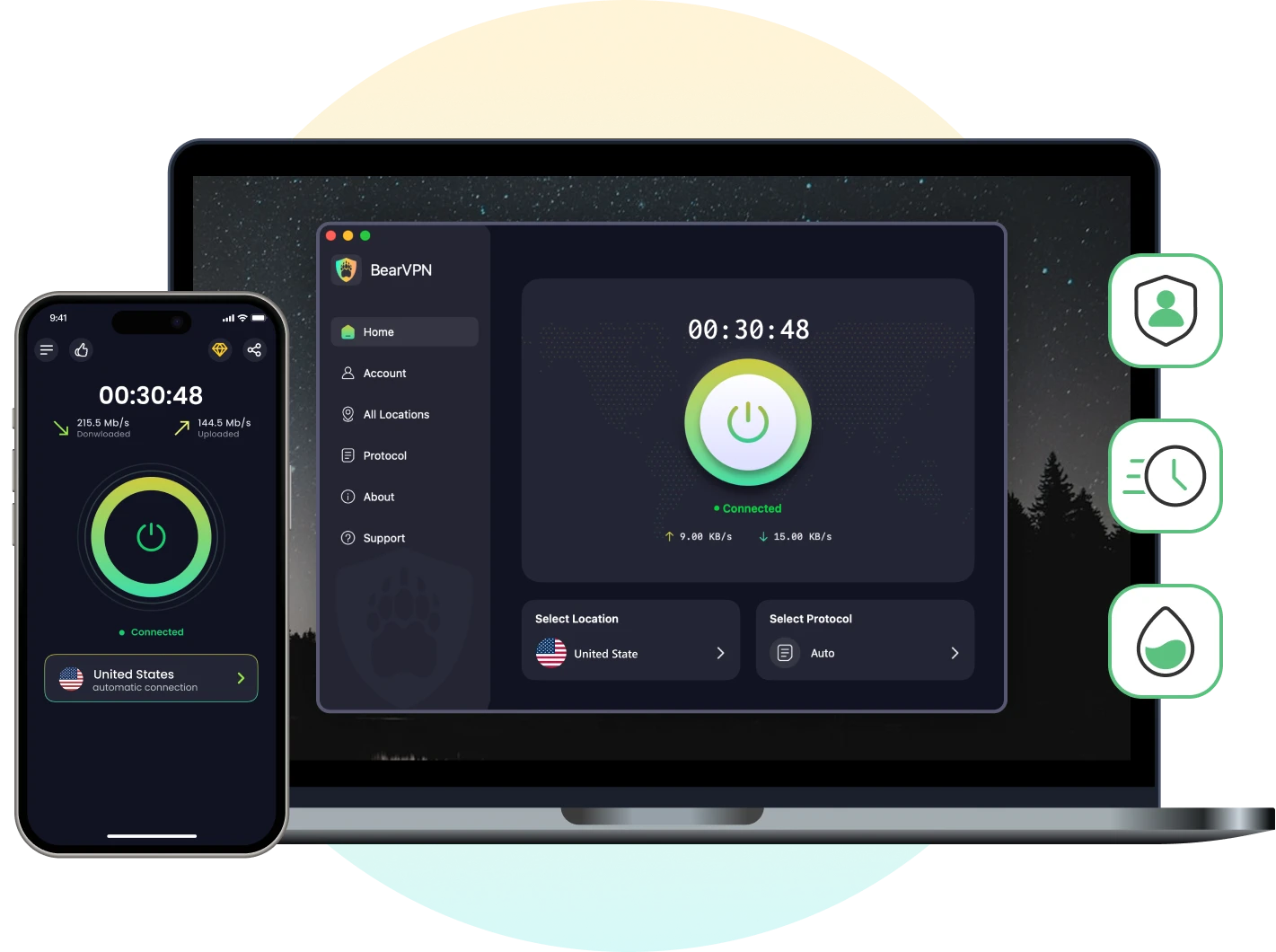
Without being located in a new area that you want to change your YouTube TV to, a VPN is necessary to update your home area or deal with constant “Location Error” black screens. Here, we recommend BearVPN as your ultimate solution. Engineered for default stealth, pure speed, and global servers, BearVPN breaks the restrictions on YouTube TV location and provides you with an uninterrupted streaming experience no matter where you are.
- Strong Obfuscation
- RAM-only Diskless Servers
- Non-VPS Hosting
- Double VPN
How We Tested BearVPN for Changing Location on YouTube TV
1. Preparation before the location update:
2. Test Process:
Step 1. On both devices, we connected to a US server individually, one in Los Angeles, the other in Miami.
Step 2. When the server is connected, we have cleared the app and browser cache on each device.
Step 3. We went to the YouTube TV app on the Samsung phone and the website on the Lenovo laptop. Then we followed the steps to change the YouTube TV home area on each device.
3. Test Result:
We have successfully updated the 2 accounts’ home areas. After updating, we unlocked local streaming content without restrictions.
Why BearVPN is the Best Choice for YouTube TV
Unmatched 4K Streaming Speeds: Live TVs, particularly fast-paced sports broadcasts and live event coverage, require immense, consistent bandwidth. BearVPN’s high-bandwidth infrastructure eliminates video buffering, network lag, and ISP throttling, ensuring your streaming speed always remains fast and stable.
Strict No-logs Policy: BearVPN uses AES-256 encryption and sticks to a strict no-logs privacy policy, ensuring your browsing history is never tracked by others.
Advanced Stealth Protocols: Streaming services are engaged in identifying and banning the IP addresses associated with known VPN data centers. BearVPN’s SLProxy and SCProxy protocols can easily bypass strict IP blacklists and firewalls, ensuring your connection remains hidden and anonymous.
RAM-only Diskless Servers: When attempting to spoof your location for a platform as localized as YouTube TV, having granular, specific control over your city-level IP address is vital. With over 2000+ RAM-only servers worldwide, you have various options for localized US IP addresses to update your location in BearVPN.
Non-VPS Hosting: It offers budget-friendly pricing, effortless setup, and hands-off server management—making BearVPN the ideal, stress-free choice for beginners.
How to Update Your Current Playback Area on YouTube TV
Unlike the Home Area on YouTube TV, you can update your Current Playback Area as many times as you want. Here are the steps:
Step 1. Open your YouTube TV app and log in to your account.
Step 2. Click on your profile photo. Then select Location>Current Playback Area.
Step 3. Hit the Update Location button to make the change effective.
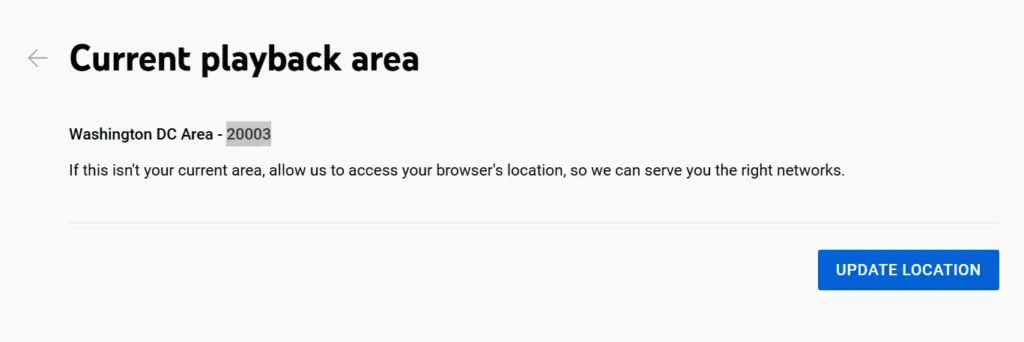
Note: This update may need to finish on your mobile device. YouTube TV requires your device location to confirm your current playback area.
Troubleshooting: YouTube TV Still Showing “Location Error”?
Even with the absolute best tools at your disposal, you might occasionally run into a stubborn “Location Error” message upon logging in. Because YouTube TV utilizes such aggressive, multi-layered tracking methods, small data leaks can sometimes disrupt the spoofing process. Here is exactly how to troubleshoot the most common errors.
1. Clear Cookies and Cache
Sometimes you have changed your location on YouTube TV, but old location data may be stored permanently in your browser, triggering a detection error. Clear your cache and restart the browser. When you visit websites, they drop tracking cookies on your hard drive to track your sessions. YouTube TV uses these saved tokens to remember where you were the last time you logged in. If you connect to a VPN server but fail to clear these cookies, YouTube TV will instantly spot the geographic discrepancy and initiate a lockdown.
- Quick Fix: Simply navigate to your browser’s advanced privacy settings, delete all cookies and cached images, and restart the browser to resolve this issue entirely.
Alt: Clear All Histories in Browser
2. Switch to Another BearVPN Server
YouTube TV occasionally flags and blacklists specific IPs. If thousands of users are suddenly accessing YouTube TV from the same VPN IP address, YouTube’s automated security systems will eventually flag that IP as a proxy and block it temporarily.
- Quick Fix: Simply open the BearVPN application, disconnect from the current server, and select a server with a dedicated IP address in the same geographic region to obtain a fresh, unblocked streaming experience.
3. The Mobile GPS Problem
This is perhaps the most frequent and frustrating issue mobile users encounter. Mobile apps actively read your phone’s hardcoded GPS coordinates. When you open the YouTube TV mobile app, it demands mandatory GPS location permissions. If your GPS sensor says you are in London, but your VPN IP says you are in Boston, the app will instantly crash or block your stream.
- Quick Fix: Check your GPS location in settings and connect to the same server in BearVPN. If possible, you can also disable the location service temporarily in YouTube TV settings.
Final Words
Figuring out how to change location on YouTube TV requires a firm understanding of the platform’s strict geo-restrictions and the deliberate limitations placed on its native settings. While you can officially update your Home Area twice a year, the ultimate, long-term solution for bypassing sports blackouts and streaming your favorite local channels from anywhere in the world is using a premium service like BearVPN.
By intelligently masking your IP address, leveraging advanced stealth protocols to evade detection, and deliberately avoiding mobile GPS tracking, you can maintain seamless, high-speed access to your localized content. To change location on YouTube TV effectively, combining BearVPN’s pure speed with these smart troubleshooting steps guarantees an uninterrupted viewing experience.
FAQs About Changing YouTube TV Location
On desktop, click your profile picture, select Location, and update it. On mobile, tap your profile picture, select Location>Home Area, and update it.
You can trick your YouTube TV location by updating it in the app settings. If it fails, try BearVPN to mask your IP address and trick it successfully.
It typically fails if you’ve exceeded your two-change yearly limit, have device location permissions blocked, or if YouTube TV detects a mismatched GPS location and IP address.
You can change your home area on YouTube TV up to twice per year. YouTube TV uses this limit to ensure you primarily reside in your designated viewing area. If you need to change your location more frequently for travel, you need to rely on a premium VPN like BearVPN.
Yes, using a VPN for personal privacy and cybersecurity is completely legal in the vast majority of jurisdictions, though spoofing your location to bypass regional blocks goes against the platform’s terms of service.
Currently, YouTube TV is only available within the United States. Viewers outside the US must use a YouTube TV VPN to access the service.
Your mobile phone uses native GPS coordinates that can override the VPN’s IP address, whereas desktops rely primarily on the IP address to determine location. You can visit YouTube in your mobile browser with the desktop mode to avoid GPS tracking.
While you can freely add sub-users and family members to your main account, simultaneous streaming in entirely different physical locations is heavily restricted by YouTube TV’s location monitoring. Family group members must periodically log in from the primary designated Home Area to maintain their ongoing access.


![How to Change YouTube TV Location [Still Works in 2026]](/_next/image/?url=https%3A%2F%2Fcms.bearvpn.com%2Fwp-content%2Fuploads%2F2026%2F06%2Fhow-to-change-location-youtube-tv.webp&w=640&q=75)