Changing your name on OmeTV usually does not happen inside OmeTV settings. The service’s current privacy policy says it receives a name from linked Google, Facebook, or VK accounts, so the reliable method is to update the account actually connected to OmeTV and then refresh that login.
First identify the provider—do not change every social profile at once. The sections below show the exact Google, Facebook, VK, iPhone/iPad, browser, and mobile-app paths, followed by a full troubleshooting flow if OmeTV keeps displaying the old name. OmeTV is an 18+ service; a name change must not be used to falsify age, impersonate another person, or evade a suspension.
You may also like: How to get unbanned from OmeTV
Quick Method Comparison
Start with the login provider connected to your current OmeTV account. Changing a different Google, Facebook, or VK profile will do nothing, and iPhone ownership alone does not mean the account uses Apple login.
Why Can’t You Change Your Name Directly in OmeTV?
OmeTV does not document a general in-app display-name editor for the account flows covered here. Its current privacy policy says the service receives name data from Google, Facebook, and VK when users register or sign in, while OmeTV also maintains its own internal user ID.
That means the name source and the OmeTV account session are two separate layers. Update the correct provider first; then make OmeTV request or display the refreshed information by signing out and back in. If the old value remains, use the troubleshooting section instead of repeatedly changing the provider name.
How to Change Your Name on OmeTV
The four paths below cover the providers documented by OmeTV and the conditional Apple flow that may appear on some devices. Each method includes the provider change, the OmeTV refresh, a success signal, and the point at which the user should stop editing account details.
Option 1: Change Your OmeTV Name Through Google
Use this method only if the current OmeTV session is connected to the Google account you are about to edit. A Google name change does not alter the actual @gmail.com address, and Google says it does not automatically change the YouTube channel name.
- Open myaccount.google.com and sign in to the Google account linked to OmeTV.
- Select Personal info.
- Under Basic info, select Name, then choose Edit.
- Enter the name you genuinely want this Google profile to display and select Save.
- Close OmeTV completely. Reopen it, go to account/settings, and log out of the current session.
- Sign in again with the same Google account. Confirm the email before approving the login so OmeTV does not reconnect a different saved account.
- Open the OmeTV profile/social view available on the device and verify the displayed name.

Success signal: the refreshed OmeTV profile shows the new Google name. Google notes that name changes can take time to update across products, so stop repeating edits if the Google Account page already shows the correct value; continue with the session troubleshooting section instead.
Option 2: Change Your OmeTV Name Through Facebook
OmeTV’s privacy policy says it receives the Facebook profile’s first and last name. Facebook allows a name change through Accounts Center, but generally limits another change for 60 days and requires the name to meet its name policy. Do not recommend a random fake identity.
Facebook app:
- Open Facebook and tap Menu → Settings & privacy → Settings.
- Open Accounts Center → Profiles and select the Facebook profile linked to OmeTV.
- Select Name, enter the permitted name, and tap Review change.
- Confirm the name order and save the change. Facebook may ask for the password or identity confirmation.

Desktop:
- Click the profile picture and open Settings & privacy → Settings.
- Select Accounts Center → Profiles, then choose the relevant Facebook profile.
- Select Name → Review change, confirm, and save.
After Facebook shows the new name, close OmeTV, log out, and sign back in with the same Facebook profile. If Facebook still shows the old name or says another change is unavailable, stop: clearing OmeTV’s cache cannot override Facebook’s 60-day restriction or review process.
Facebook generally allows one name change every 60 days. Use a name that follows Facebook’s policy; OmeTV privacy is not a reason to impersonate someone or create a deceptive profile.
Option 3: Change Your OmeTV Name Through VK
Use this method only when OmeTV is connected to VK. Menu labels can vary by VK app version and language, and a name change may be reviewed before it becomes public.
- Open VK and select your profile.
- Choose Edit profile or the pencil/edit control.
- Open Personal information and edit the first and last name.
- Save or submit the change and wait until the new name appears on the public VK profile.
- Close OmeTV, log out, and reconnect with that same VK account.
- Verify the OmeTV display. If VK has not approved the name yet, stop troubleshooting OmeTV and wait for the provider decision.

Note: A pending or rejected VK name change cannot be forced from OmeTV. Follow VK’s current name rules and wait until the provider profile itself shows the approved name.
Option 4: On iPhone or iPad, Check the Login Provider First
Using an iPhone does not prove that the OmeTV account uses Apple login. OmeTV’s current privacy policy documents Google, Facebook, and VK data for registration and login; therefore, follow the matching section above unless the current OmeTV sign-in screen actually displays Continue with Apple.
If that Apple button is present and the user is creating the OmeTV-linked account for the first time:
- Tap Continue with Apple.
- Review the first and last name shown in Apple’s authorization sheet.
- Edit the shared name only if the sheet provides the edit control.
- Choose Share My Email or Hide My Email according to the user’s privacy preference.
- Complete Face ID, Touch ID, or passcode authentication.
- Verify the name inside OmeTV before beginning a chat.
Apple normally provides the name to an app only during the first authorization/account-creation flow. Signing out and choosing Apple again usually returns the same existing app account instead of presenting a fresh editable name field. Deleting or recreating the Apple relationship is therefore not a reliable way to rename an existing OmeTV profile.
Alternative Method: Use a Separate Privacy-Focused Google Account
Renaming a primary Google or Facebook identity can change how the name appears in other services. An adult who wants stronger separation can instead use a dedicated Google account with a non-identifying display name, provided both Google’s policies and OmeTV’s rules are followed.
This is a privacy-separation method. It does not change the user’s actual age, erase the original OmeTV account history, or remove restrictions attached to that account.
- Create a Google account through Google’s official account page; do not buy an account or use a temporary inbox.
- Choose a display name that does not expose a full legal identity but does not impersonate a real person or organization.
- Secure the account with a unique password, recovery method, and two-step verification.
- In OmeTV, open account/settings and log out of the existing session.
- At the Google sign-in screen, choose Use another account and confirm the new email address before continuing.
- Verify the name displayed in OmeTV before chatting. If OmeTV reconnects the old session, use the device-specific cache steps below.
Troubleshooting: New Name Not Showing Up on OmeTV?
If the provider already shows the new name but OmeTV does not, the likely causes are the wrong linked account, an active session, cached browser/app data, provider propagation time, or an unsupported assumption about the login method. Change one variable at a time so the user knows what worked.
First, Verify the Source Account
- Open the Google, Facebook, or VK profile itself and confirm that the new name is already visible there.
- Record the email/account identifier connected to OmeTV. Many users edit one Google profile while OmeTV silently reconnects another saved profile.
- If the provider still shows the old name or a pending review, stop. OmeTV cannot import a value the provider has not published.
Web Browser on Windows or Mac
- Log out through OmeTV before clearing anything.
- Close every OmeTV tab.
- Remove cookies/site data for
ome.tvonly; do not wipe the entire browser unless the user wants to sign out everywhere. - Reopen the official domain in a private/incognito window and sign in with the verified provider account.
- A hard refresh (
Ctrl + Shift + Ron Windows orCmd + Shift + Ron macOS) can refresh page assets, but it does not replace a server-side account value by itself.
Android App
- Force-stop OmeTV.
- Open Settings → Apps → OmeTV → Storage & cache.
- Tap Clear cache first, reopen OmeTV, and sign in again.
- If the old session returns, log out and use Clear storage/data only after confirming the login credentials; this resets local app data.
- Reinstall from Google Play only if clearing the app session fails. Do not sideload a modified APK.
iPhone or iPad
- Log out of OmeTV and force-close the app.
- Reopen it and choose the correct Google, Facebook, VK, or supported Apple login shown on the screen.
- If the session remains stuck, delete and reinstall the official App Store version; iOS does not provide the same per-app Clear cache path used by Android.
- If Apple login returns the same old account, that is expected behavior for an existing Sign in with Apple relationship. Do not promise that reinstalling will create a new editable Apple name prompt.
Success signal: OmeTV displays the updated name after a clean sign-in with the verified provider. Stop condition: the provider is still pending, the same old server-side profile returns after clean login, or the account is restricted. At that point, contact OmeTV support instead of repeatedly clearing data or opening new accounts.
Does OmeTV Show Your Name to Other People?
Yes—OmeTV can use the name imported from a linked account in its profile, social, or matching surfaces. Exactly where another user sees it can vary by app/web view and version. OmeTV’s own FAQ says the linked Facebook profile itself remains hidden, but that is not the same promise as “your display name is never shown.”
OmeTV’s privacy policy says it collects names from Facebook, VK, and Google; it specifically describes Facebook first and last name as data used to personalize the user page. The policy also lists profile pictures, location-related data, IP address, device information, and an internal user ID. A VPN can mask the public IP seen by the service or a peer-to-peer connection, but it cannot change the display name imported from a linked account.
Before starting a chat:
- open the OmeTV profile/social view and check the displayed name and picture;
- remove identifying details from the permitted provider profile where appropriate;
- avoid showing mail, school, workplace, street signs, documents, or notifications on camera;
- do not disclose a surname, phone number, handle, location, or recovery email to a stranger;
- remember that OmeTV currently permits adults only—changing a name does not change or conceal the age requirement.
Why Display Name Privacy Matters on OmeTV
A name matters because strangers can combine it with a face, voice, profile picture, city clue, or social handle. Changing the name reduces one obvious search key, but it is only one layer of privacy. The four risks below explain what the change can—and cannot—prevent.
1. Make Cross-Platform Searches Harder
A full name combined with a face or city can lead directly to a public social profile. Use a permitted, non-identifying display name and avoid reusing the same profile photo across OmeTV and public accounts.
2. Reduce Unwanted Follow-Ups
Do not reveal a surname, exact location, school, employer, phone number, or distinctive social handle. A changed display name helps only if the conversation and camera background do not immediately reveal the same identity.
3. Separate OmeTV from Your Main Online Identity
A dedicated Google login can reduce accidental linkage to a primary inbox or public profile. Secure it like a real account; “separate” does not mean disposable, anonymous, or exempt from OmeTV’s rules.
4. Understand What a Name Change Cannot Hide
OmeTV’s privacy policy lists IP address, country code, browser/device data, internal user ID, and linked-account information among the data it may process. A name change does not erase those signals, remove prior account history, or prevent another person from recognizing a face or voice.
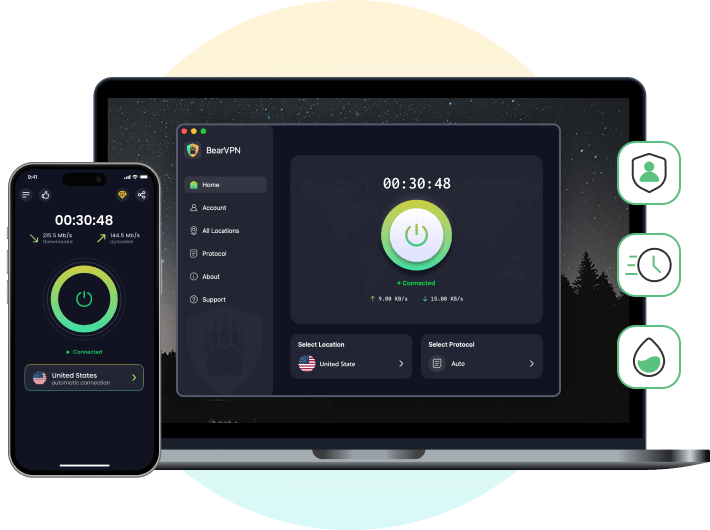
Protect More Than Your OmeTV Name with BearVPN
Changing the OmeTV name removes one obvious identity clue, but it does not hide the public IP used by the connection. OmeTV’s privacy policy says it processes IP address and country code, and notes that a peer-to-peer connection may require the IP address to be available to the other user’s device even though the interface does not display it.
BearVPN gives adult OmeTV users a stronger network-privacy layer by masking the home IP with a VPN server and encrypting traffic between the device and that server. Its strong obfuscation can also help when a local network blocks OmeTV. It complements the name change, but it cannot rewrite the display name or actual age stored in an OmeTV or linked-provider account.
Why choose BearVPN?
- Hide the Home IP: Replace the public IP exposed by the normal connection with a BearVPN server IP.
- Encrypt the Connection: AES-256 encryption helps protect traffic on shared or public Wi-Fi.
- Stop Accidental Exposure: Kill Switch can stop traffic if the VPN tunnel drops.
- Choose Another Route: 2,000+ physical servers across 50+ locations give users alternatives when one route is congested or restricted.
- Mask your home IP before an OmeTV chat.
- Encrypt video-chat traffic on shared Wi-Fi.
- Cut traffic if the VPN connection drops.
Conclusion
To change your name on OmeTV, update the Google, Facebook, or VK account actually linked to the current session, then log out and reconnect that same provider. On iPhone or iPad, use Apple’s name-sharing flow only if OmeTV currently offers Continue with Apple and the account is being created or reauthorized in a way that shows the editable name field.
Verify the result before chatting. A different display name can reduce casual cross-platform searching, while BearVPN can mask the public IP and encrypt the network connection. Neither step changes OmeTV’s 18+ rule, erases account history, or permits ban evasion.
FAQs: How to Change Name on OmeTV
Open OmeTV’s account or settings area and log out. Close the app or browser session, reopen the official OmeTV service, and choose the Google, Facebook, or VK account you want to use; choose Apple only if that option appears on the current sign-in screen. Confirm the account identifier before continuing. Do not switch accounts to evade a ban or age-verification requirement.
Yes—OmeTV can use the display name imported from a linked account in its profile, social, or matching surfaces. Exactly where it appears can vary by the current app/web view and version. OmeTV says the linked Facebook profile remains hidden, but its privacy policy also says it collects names from Facebook, VK, and Google and uses Facebook name data to personalize the user page. Check the visible profile before chatting instead of assuming the name is hidden.
OmeTV does not document a universal “hide display name” switch. An adult can reduce identification by using a permitted non-identifying provider name or a separate Google account, then checking the OmeTV profile before chatting. Do not impersonate someone, falsify age, or create another account to evade enforcement.
Do not change these details to misrepresent eligibility. OmeTV is 18+ and may use declared age, linked-account data, mobile-platform age signals, and third-party verification. Its privacy policy lists gender and birthday for Facebook/VK, while Google login data is listed as ID, name, and email. Use accurate information and contact OmeTV support if the account displays incorrect data.
First confirm that Facebook itself displays the approved new name and that OmeTV is linked to that exact Facebook profile. Then log out of OmeTV, close every session, and sign in again. On the web, remove only OmeTV site data or use a private window; on Android, clear OmeTV’s cache before considering app data; on iPhone, force-close and reinstall the official app only if a clean login fails. If Facebook is still reviewing the name or enforcing its 60-day limit, stop—OmeTV cannot import a change Facebook has not approved.
No. Changing the Google Account name does not change the @gmail.com address. It can change how the name appears across Google services and third-party logins, but Google says it does not automatically change the YouTube channel name or picture. Some services may take time to refresh the new profile value.


![How to Change YouTube TV Location [Still Works in 2026]](/_next/image/?url=https%3A%2F%2Fcms.bearvpn.com%2Fwp-content%2Fuploads%2F2026%2F06%2Fhow-to-change-location-youtube-tv.webp&w=640&q=75)