The message “You have denied access to your device” usually means OmeTV cannot use your camera or microphone. Start with browser and operating-system permissions, then clear saved site data. Only investigate an IP or network restriction if the camera works in other apps and those two fixes do not restore OmeTV access. The steps below follow that order.
You may also like: Best OmeTV alternatives 2026
Why Does OmeTV Say “You Have Denied Access”?
OmeTV showing “You have denied access to your device” is mostly caused by improper Camera & Mic Permissions, browser caches, or IP bans. We found these 3 distinct reasons in our testing across different devices and browsers. When you get this issue, your partners will not be able to see and hear you. Identifying which one applies to you will save you time in choosing a solution.
Cause 1: Browser Permission Conflict (The Most Common)
OmeTV runs directly in your browser. To work normally, it needs explicit permission to hook into your webcam and microphone. If you accidentally clicked the block button on the pop-up notification the first time you visited, or if your browser’s privacy settings automatically blocked it, OmeTV won’t be able to recognize your device. It interprets the connection and shows the denied access message.
Cause 2. Corrupt Cache
Browsers store temporary data to load sites faster. If OmeTV updated its script but your browser is trying to load an old, corrupted version of the site’s code, the permission request might fail to trigger entirely, leaving you stuck in a deny loop.
Cause 3. IP Ban or Shadowblock
Sometimes, the denied access message is a misleading symptom of a deeper account issue: an IP ban. OmeTV moderates its platform heavily. If your IP address was flagged, especially when a previous user on your shared Wi-Fi violated a rule, or OmeTV’s AI flagged innocent behaviors, the server will reject your connection request.
- How to check the IP ban: If you reset all your camera permissions, clear the cache on your browsers or the app, but still see the error, you are likely dealing with an IP ban.
Related topic: How to get unbanned from OmeTV
How to Fix Denied Access on OmeTV (Step-by-Step)
According to the possible reasons why OmeTV says “You have denied access to your device”, we have structured 3 effective fixes, from the easiest to the most robust. After each step, you can try to connect again in your OmeTV account. Follow them in order.
Step 1. Reset Browser Camera & Mic Permissions
The most likely culprit is that your browser remembers a block setting. Here is how to reset it and grant permissions to the camera and microphone.
For Google Chrome / Edge (Desktop)
- Locate the Lock Icon: Look at the address bar. On the far left, you will see a small “Lock” or “Settings” icon. Click it.
- Check Permissions: You should see rows for Camera and Microphone.
- Toggle to Allow: If the switch is off or says “Block,” toggle it to Allow.
- Reset Site Settings: If you don’t see the toggles, click Site Settings. This will open a dedicated page. Find the Camera option and select Allow or Ask (Default).
- Reload: Close the tab and open OmeTV again. It should ask for permission one more time – click Allow.
For Safari (iPhone/Mac)
Apple’s privacy settings are stricter and exist in two places: the browser and the OS.
- System Preferences: Go to Apple Menu > System Settings > Privacy & Security. Ensure your browser has a checkmark next to Camera.
- Safari Website Settings: Open Safari. In the top menu bar, click Settings > Websites.
- Find OmeTV: Look for the OmeTV website in the list. Change the dropdown menu from Deny to Allow.
Step 2: Clear Browser Cache and Cookies
If permissions were already set to Allow and it still doesn’t work, your browser’s saved data might be glitching. Check the following clearing steps:
- Open History: Press Ctrl + H (Windows) or Cmd + Y (Mac).
- Clear Browsing Data: Click “Clear browsing data.”
- Select Essentials: You don’t need to delete your history. Just check “Cookies and other site data” and “Cached images and files.”
- Time Range: Select All time to ensure no old scripts remain.
- Restart: Completely close the browser and restart it.
Step 3: Bypass IP Bans with BearVPN
If OmeTV still shows the error after you allow camera and microphone access, clear its saved data, and confirm that the camera works in another app, test whether the restriction is tied to your network or public IP.
First, open OmeTV on a different connection, such as mobile data. If it works there but not on your usual Wi-Fi, the network’s public IP may be the identifier OmeTV is rejecting. BearVPN can route the connection through another server and replace the public IP OmeTV sees.
BearVPN also encrypts the connection while you video chat. It cannot grant camera permission or remove a restriction tied to your OmeTV account, so complete Steps 1 and 2 before using this method.
How We Tested BearVPN for Fixing OmeTV Denied Access
Our account status: IP-banned in Turkey
Test Process:
Step 1. Download and install BearVPN on the device you use for OmeTV. It is available for Windows, macOS, iOS, and Android.
Step 2. We opened the app and connected to a Netherlands server. For the best video chat speed, you can choose a server in your own country or a nearby region.
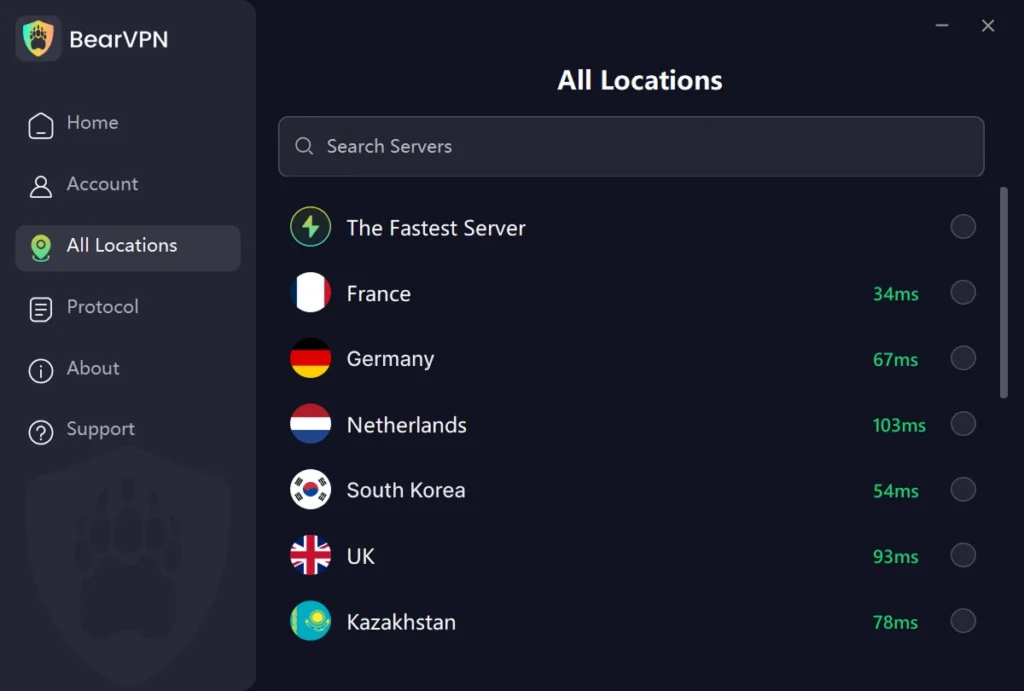
Pro Tip: BearVPN’s “Smart Route” feature will automatically pick the fastest server for you.
Step 3. Once the VPN is connected, reload the OmeTV website or app.
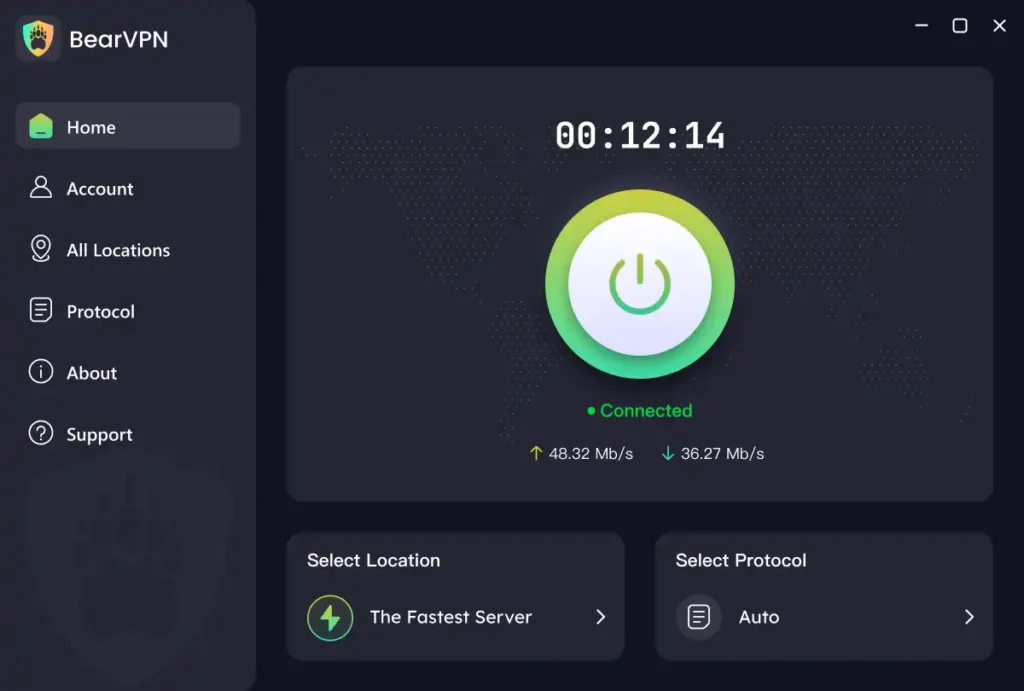
After BearVPN connects, reopen OmeTV and test the camera again. If the problem was tied to the previous network IP, OmeTV should now load without the same block. If the message remains, return to the device permissions or check whether the restriction is linked to your OmeTV account.
Test Result: In our test, OmeTV loaded on the same account after we changed the network IP with BearVPN, and we could start a video chat again.
Why BearVPN is the Best Choice for OmeTV
We tested several VPNs against OmeTV’s detection systems in different places. Many free VPNs failed because their IP addresses were already blacklisted. BearVPN stood out for three key reasons tailored to random video chat users (not only for OmeTV):
1. No Lag Video Streaming
Video chat requires consistent bandwidth. Nothing kills a conversation faster than a pixelated face or lagging audio. BearVPN provides 4K-level bandwidth reserves, ensuring your video stream remains crystal clear. Unlike free proxies that throttle your speed, BearVPN is built for high-demand video streaming.
2. Massive IP Pool & Privacy
With a network of 2000+ servers covering more than 50 global cities, you have virtually unlimited attempts. If OmeTV blocks one IP address, you can switch to another in just a few seconds. Plus, BearVPN’s strict No-Logs Policy ensures your chats and IP history are never recorded, offering privacy that OmeTV’s default connection lacks.
3. Multiple Devices Supported
You can simply log in to the BearVPN account on 10 devices simultaneously. It’s available to use on Windows, Mac, iOS, and Android, covering all your digital needs. Additionally, it offers an unbeatable price compared with common VPN services on the market, which is significantly cheaper than paying repeated fees while providing enhanced security.
- Replace the public IP OmeTV sees.
- Choose a nearby server for smoother video chat.
- Encrypt your connection on shared Wi-Fi.
Tips to Avoid OmeTV Denied Access with a VPN
Sometimes, when you have enabled camera and microphone permissions, cleared the cache, and connected to BearVPN, you still face the access denied error. You can check the following tips to avoid further errors in OmeTV.
Final Words
The OmeTV “You have denied access” error is usually a permission or saved-data problem, so start by allowing camera and microphone access and clearing the site cache. If the camera works elsewhere and OmeTV only fails on one network, the public IP may be the remaining blocker.
In that case, connect to BearVPN to replace the public IP OmeTV sees, choose a nearby server for a smoother video chat, and reopen OmeTV. BearVPN will not change your camera permissions or remove an account-level moderation decision, but it gives you a fast way to test and replace a blocked network IP.
FAQs about OmeTV Access & Bans
Yes. Using a VPN on OmeTV is legal in most countries for privacy protection and network security. You have a right to protect your IP address from strangers on the internet. However, you should always adhere to OmeTV’s community guidelines regarding conduct.
OmeTV Bans can range from a few hours to several months, depending on the severity of the alleged violation. It does not typically inform users of the duration. If the restriction is tied only to the public IP, BearVPN can give the connection a different IP. It does not shorten or remove an account-level moderation ban.
It can work, but we do not recommend it. Free VPNs have very limited server pools that are often already banned by OmeTV. Furthermore, they often have data caps that will run out after a few minutes of video chat, and many sell user data to cover costs.
To allow permissions on OmeTV, click the lock icon in your browser’s address bar, or go to Settings > Apps > OmeTV > Permissions on mobile, then enable Camera and Microphone access.
Yes. BearVPN has apps for iOS and Android and can replace the public IP your phone uses to reach OmeTV. If the error comes from camera permissions or an account restriction, fix that cause separately.