Trying to watch an age-restricted YouTube video can throw up several different walls: Sign in to confirm your age, Verify your age, Restricted Mode, or This video is not available in your country. They are not the same restriction—and using the wrong fix wastes time fast.
A genuinely age-restricted video normally requires a signed-in account that YouTube recognizes as 18 or older. URL edits, NSFW viewers and a VPN cannot turn an under-18 or supervised account into an adult account. But if the real block comes from Restricted Mode, a filtered network or country availability, the correct fix is different. Match the exact message below before changing another setting.
What Does “Age-Restricted” Mean on YouTube?
YouTube may age-restrict a video containing graphic violence, sexually suggestive material, dangerous activities, nudity, or other content considered unsuitable for viewers under 18.
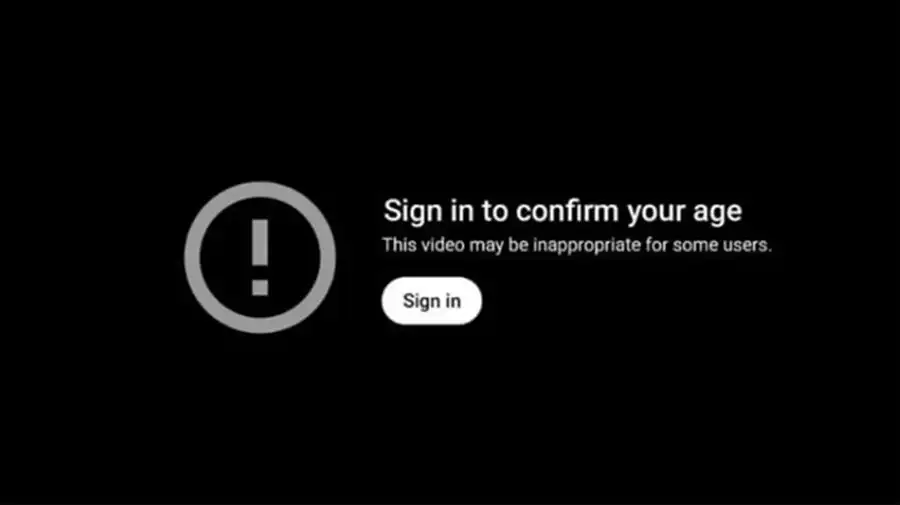
A genuinely age-restricted video cannot normally be watched when you are:
- Signed out of YouTube;
- Signed in with an account classified as under 18;
- Using Restricted Mode; or
- Trying to play the video through most third-party embedded players.
YouTube may use the birth date associated with your Google Account and other account signals to determine whether adult access should be available. If YouTube cannot confirm that you are over 18, it may display an additional verification prompt.
Before trying a fix, read the exact message shown by YouTube:
Age restriction and Restricted Mode are not the same feature. Turning off Restricted Mode can restore filtered results, but it does not remove the 18+ requirement from a video that YouTube has formally age-restricted.
Hard truth: If YouTube says Confirm your age, changing your IP is not age verification. If it says This video is not available in your country, uploading an ID is not the fix. Read the error before surrendering more data or installing another shady tool.
Is There a YouTube 18+ Setting?
No. YouTube does not provide one universal 18+ mode that unlocks every mature video. Three controls are commonly confused:
- Account age: A formally age-restricted video requires a viewer YouTube recognizes as at least 18.
- Age verification or estimation: Google may require more evidence, or YouTube may estimate that an account belongs to someone under 18.
- Restricted Mode: An optional content filter that can hide mature content but does not replace a video’s formal age requirement.
If you are an adult, confirm the correct birthday under Google Account Personal info, then follow any official verification prompt. Do not enter a false birthday: YouTube can apply teen protections regardless of the date saved in the account.
How to Sign In and Confirm Your Age on YouTube
For adults, this is the official and most reliable way to watch an age-restricted YouTube video.
- Sign in to the Google Account you normally use for YouTube.
- Open your Google Account’s Personal info section and check the birthday saved to the account.
- Correct the birthday only if it is inaccurate. Do not enter a false date to obtain access.
- Return to YouTube and reopen the restricted video.
- If Google displays a verification prompt, select one of the methods offered to your account and follow the on-screen instructions.
- If the video remains unavailable, check whether Restricted Mode is enabled or whether the video has a separate geographic restriction.
Depending on your account, device, and country, Google may offer verification using a government-issued ID, selfie, credit card, email address, or digital ID. Not every method is available in every region.
YouTube May Estimate Your Age Even When the Birthday Says 18+
YouTube now uses an age-estimation model in several countries, including Australia, Brazil, Canada, Indonesia, Malaysia, Singapore, Switzerland, Turkey, the United Arab Emirates, the United Kingdom, the United States, and countries in the European Economic Area. It can classify an account as over or under 18 regardless of the birthday saved in the account.
If an adult is incorrectly classified as under 18, the official correction is age verification—not a new IP address, a fresh browser profile or a fake birthday. Google says the available options may include government ID, credit card or selfie; its broader account flow may also offer email verification or a digital ID depending on the account, device and region.
If your account is supervised or belongs to someone under 18, changing the browser, deleting cookies, or connecting to a VPN will not convert it into an adult account.
Complete verification only through an official google.com, accounts.google.com, or YouTube prompt. Never upload an ID or enter card information on a third-party YouTube viewer.
Google says an uploaded ID is deleted after the date of birth is successfully verified. For selfie estimation, Google says its partner Private ID receives a random account identifier and deletes the selfie after returning the result. Email verification may share the email address with VerifyMy and its database partners to review where that address was previously used. Credit-card data may be retained as required for legal and regulatory purposes. Read the current on-screen disclosure before choosing a method.
Can You Watch Age-Restricted YouTube Videos Without Signing In?
For a video that YouTube has genuinely marked as age-restricted, the supported answer is no. YouTube states that age-restricted videos are unavailable to signed-out viewers. They also cannot be played through most third-party websites using YouTube’s embedded player.
This is why many older methods now fail:
- Changing
watch?v=toembed/may open an embedded player, but an age-restricted video will normally redirect you to YouTube or require a signed-in adult account. - Adding words such as
nsfw,repeat, orpwnto the URL sends you to an unrelated third-party website. It does not change the restriction applied by YouTube. - A “YouTube age-restricted video viewer” may only detect the video, display its thumbnail, or play unrestricted videos. That does not mean it can play genuinely restricted content.
- Video downloaders may fail when authentication is required and may conflict with YouTube’s terms or the video owner’s copyright.
Are Third-Party YouTube Viewer Websites Safe?
Treat unofficial viewer and mirror sites cautiously. Some rely on aggressive advertisements, redirects, tracking scripts, notification prompts, or misleading download buttons. Their ownership and privacy practices may also be unclear.
If you choose to visit one:
- Never sign in with your Google credentials.
- Never upload an ID or payment information.
- Do not install an extension or APK just because the site says it is required.
- Close unexpected download, notification, or antivirus prompts.
- Assume that the site can see the video URL and your IP address.
For an adult who wants to watch the video on YouTube itself, signing in and completing an official age check is safer and more dependable than repeatedly testing unknown viewer websites.
Why Is NSFW YouTube Not Working?
NSFW YouTube is not a YouTube setting. It is a name used by unrelated third-party sites and old URL-replacement tricks. Changing the domain does not remove the 18+ status attached to the original video. When YouTube changes authentication, embed or playback requirements, these sites may show only a thumbnail, redirect to YouTube or stop loading.
Never enter a Google password, upload an ID, add payment details, install an extension, allow browser notifications or download an APK to make one of these viewers “work.” For an eligible adult, direct playback on YouTube after official verification is more reliable and exposes less information to an unknown operator.
When Can a VPN Help With a Restricted YouTube Video?
A VPN can help only when the problem depends on your network or geographic location. It does not remove an account-level age restriction.
A VPN May Help When:
- YouTube displays “This video is not available in your country.”
- Your ISP or local network restricts access to YouTube.
- A public Wi-Fi network filters YouTube traffic.
- You want to encrypt your connection and mask your public IP address while using YouTube.
A VPN Cannot:
- Confirm that you are over 18;
- Turn an underage or supervised account into an adult account;
- replace Google’s ID, selfie, card, email, or digital ID verification;
- Disable Restricted Mode controlled by Family Link or an administrator;
- Restore a private, deleted, or copyright-blocked video; or
- Guarantee that any particular video will be available.
If the video says it is unavailable in your country and viewing it is permitted:
- Confirm that the message is about country availability—not age verification.
- Close YouTube.
- Open BearVPN and connect to a location where the video is officially available.
- Reopen the original YouTube URL; sign in if the video itself is age-restricted.
- If it remains unavailable, stop server-hopping. The uploader, YouTube, licensing, account state or local rules may still block it.
- Replace the visible public IP with a BearVPN server location.
- Encrypt YouTube traffic on the current Wi-Fi or ISP connection.
- Check whether the block follows the network—not the Google Account.
Why BearVPN Helps Only With Network or Country Errors
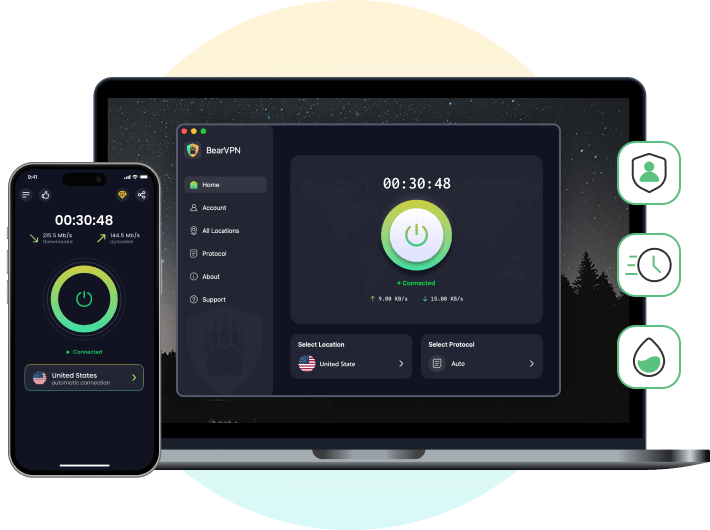
BearVPN is useful after the error has been identified as network- or country-based. It encrypts YouTube traffic between the device and VPN server, replaces the visible public IP, and provides 2,000+ physical servers across 50+ locations for testing another permitted route. DNS/IP leak protection and Kill Switch on supported platforms and plans help keep that route consistent.
It does not change the birthday on a Google Account, satisfy YouTube’s age-estimation or verification system, turn an under-18 account into an adult account, disable Family Link, unlock administrator-controlled Restricted Mode, or restore a private or removed video.
Practical BearVPN Advantages in This Scenario
- Use the original YouTube URL: No NSFW mirror, credential-harvesting viewer, unofficial APK, or downloader.
- Test the route cleanly: Start with a nearby server; choose another country only when the video is officially available there and viewing is permitted.
- Protect shared-network viewing: AES-256 encryption covers traffic to the VPN server on permitted public or shared Wi-Fi.
- Use supported devices: Native apps are available for Android, iOS, Windows, and macOS, with up to 10 devices on applicable paid plans.
- Know when to stop: If the prompt still asks for sign-in or age verification, changing servers is the wrong fix.
How to Watch Age-Restricted YouTube Videos on Android or iPhone
The same account-level requirements apply on mobile: you must be signed in with an account recognized as 18 or older, and YouTube may request additional verification.
- Open the official YouTube app.
- Tap your profile photo and confirm that you are using the correct Google Account.
- Open the restricted video.
- If YouTube asks you to verify your age, follow the official prompt.
- If the problem mentions Restricted Mode, go to Profile photo > Settings > General > Restricted Mode and turn it off, if the setting is under your control.
- If the restriction remains, open YouTube’s content restrictions page to check for account, DNS, carrier, or administrator-level filtering.
A private DNS can filter domains, but it cannot dismiss an account-level YouTube age check. Likewise, third-party APKs and unofficial YouTube clients should not be presented as guaranteed ways to watch restricted videos.
How to Turn Off Restricted Mode on YouTube
Restricted Mode is an optional content filter. It is different from the 18+ restriction applied to an individual video.
On a Computer
- Sign in to YouTube.
- Click your profile picture in the upper-right corner.
- Select Restricted Mode near the bottom of the menu.
- Turn Activate Restricted Mode off.
- Reload the video.
On Android or iPhone
- Open the YouTube app.
- Tap your profile photo.
- Select Settings > General.
- Turn Restricted Mode off.
If the option is locked or immediately turns back on, check YouTube’s content restrictions page. The restriction may come from:
- Google Family Link or a supervised account;
- A school or workplace administrator;
- A DNS filter;
- A mobile carrier’s content filter; or
- A managed browser or device.
Do not attempt to defeat parental controls or organization-managed restrictions. If you are an authorized adult user, contact the account owner, network administrator, or mobile provider responsible for the setting.
Turning off Restricted Mode does not allow an under-18 account to watch a video formally marked as age-restricted.
Is It Legal to Bypass YouTube Age Restrictions?
There is no single legal answer that applies to every country or every method. Local age-assurance, child-safety, copyright, and access-control laws differ.
YouTube’s Terms of Service prohibit attempts to circumvent features that restrict access to the service or its content. The terms also restrict downloading unless YouTube provides the feature or the relevant rights holder has authorized it. This means that a workaround can violate YouTube’s rules even when it is not necessarily a criminal offense in the user’s location.
Adults should use official account and verification options, follow local law, and respect the video owner’s rights. Minors should not attempt to evade age protections, Family Link, or administrator controls.
Final Thoughts
In 2026, there is no magic YouTube 18+ switch and no dependable anonymous viewer for a genuinely age-restricted video. Eligible adults should sign in, confirm the correct birthday, and complete an official Google verification prompt if YouTube asks. If YouTube’s age-estimation model incorrectly treats an adult as under 18, fix the account state—do not chase dead URL tricks.
If the screen says Restricted Mode, identify the account, device, DNS, carrier or administrator controlling it. If it says the video is unavailable in your country, or YouTube fails only on one network, then the route may be the real problem. That is where BearVPN belongs: protecting the connection and testing another permitted network path, not pretending an IP address is proof of age.
- AES-256 Encryption
- RAM-only Diskless Servers
- DNS Leak Protection
- Ultra Fast & Stable
FAQs About Age-Restricted YouTube Videos
Normally, no. YouTube states that age-restricted videos are unavailable to signed-out viewers. Older URL tricks and third-party players may still load the page or thumbnail, but most cannot play a video that YouTube has formally age-restricted. Adults should sign in with their own 18+ account and complete an official verification prompt if required.
Check that you are signed in to the intended account and that its birthday is correct. YouTube may also require stronger verification or may have estimated the account as under 18 regardless of the saved birthday. If you are an adult, follow the official Google verification prompt. Restricted Mode, a managed network, a regional block or a removed video can cause a separate failure.
Some sites can display public video details or unrestricted videos, but they cannot reliably override YouTube’s sign-in and age requirements. Age-restricted videos are also blocked in most third-party embedded players. Never enter Google credentials, ID documents, or card information into an unofficial viewer.
NSFW YouTube is a separate third-party website, not a YouTube setting. Changing the domain does not remove the restriction attached to the original video. The site may also stop working when YouTube changes playback or authentication requirements. Open the original video on YouTube and check the exact error instead.
A VPN does not change the age associated with your Google Account or satisfy an age-verification request. It may help if the video is unavailable because of your country or network, since it changes your public IP address. It cannot unlock an underage or supervised account, Restricted Mode controlled by an administrator, or a removed video.
Restricted Mode is an optional filter applied at the account, browser, device, DNS, or network level. A formal age restriction is attached to an individual video and requires a signed-in viewer who is at least 18. Turning off Restricted Mode may restore filtered results, but it does not eliminate the age requirement.
YouTube does not provide a universal “18+ videos” switch. Adults should confirm that their correct birthday appears in their Google Account and follow any age-verification prompt. Restricted Mode can be turned off separately under YouTube settings if it is not controlled by Family Link, an administrator, or a network filter.
No. YouTube Premium changes advertising and certain playback features; it does not replace the requirement for an account YouTube recognizes as 18 or older.