Found a clip on RedGIFs you’d love to keep? You’re not alone. Many users want to save RedGIFs videos for offline viewing or backup, but the site doesn’t make it easy. Fortunately, there are several safe and effective ways to download or save your favorite clips on any device.
This guide walks you through simple methods to download RedGIFs videos, covers common issues you may run into, and shows how to protect your privacy with BearVPN.
How to Download My Content From RedGifs
According to the RedGifs support page, verified users can download their own content directly from the Manage page. Here are the steps:
Step 1. Log in to your RedGifs account and head to your Manage page.
Step 2. Select the content you want to download.
Step 3. Click the three-dot button (•••) under the Actions tab.
Step 4. Choose the “Download” option and start downloading.
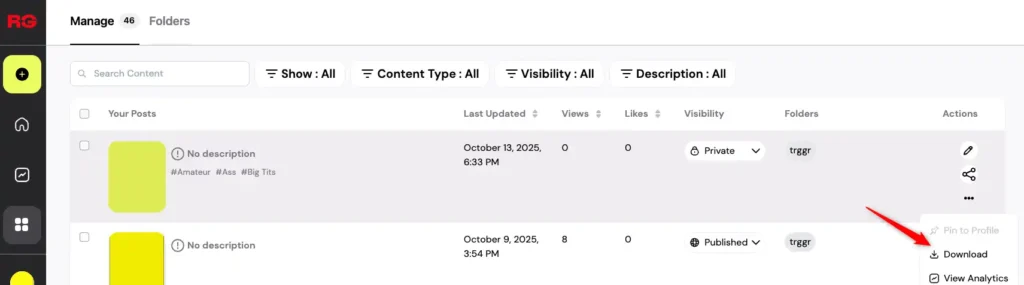
When the download process finishes, you can access the saved RedGifs videos in your local folder.
This download feature is only available for verified users. If you’re not verified yet, you’ll need to complete the verification process first. Moreover, you can only download your own content with this download feature.
3 Best RedGifs Downloaders 2026
For those who hope to download others’ videos from RedGifs, a RedGifs downloader is necessary. Here are 3 recommended tools you can try in 2026.
How to Save Videos from RedGIFs
Before diving into the guide, it’s important to know that each device has its own method. Mobile users can rely on downloader tools or browsers, while computer users can use developer tools or software. Let’s start with mobile devices first.
How to Download RedGIFs Videos on Android
Android gives you more flexibility when it comes to saving online videos. The process only takes a few minutes and doesn’t require installing extra apps.
Step 1. Open the RedGIFs video you want to save.
Step 2. Tap Share or Copy Link to copy the video URL.
Step 3. Visit a trusted online video downloader that supports RedGIFs (search “RedGIFs video downloader”).
Step 4. Paste the link and tap Download.
Step 5. Once the video is saved, check your Downloads or Gallery folder.
Tip: If the file doesn’t appear, use a file manager app to locate and move it manually.
How to Save Videos from RedGifs On iPhone
Apple’s security settings make downloading videos trickier, but it’s still possible using Safari and the Files app. Here’s how to save RedGIFs videos on iPhone:
Step 1. Open Safari and copy the RedGIFs video link.
Step 2. Go to a trusted RedGIFs downloader website.
Step 3. Paste the link and tap Download.
Step 4. When prompted, select Download linked file.
Step 5. After it’s saved, open Files → Downloads folder to find the video. You can move it to Photos if desired.
Troubleshooting: If your video won’t play or has no sound, use an online converter to change it to MP4.
Related article: RedGIFs Age Verification: Laws, Safe Steps, and Common Fixes
How to Save RedGIFs Videos on a Windows Computer
Saving RedGIFs videos on desktop devices gives you more control over quality and file type. You can use browser developer tools or a specialized downloader app.
Windows browsers like Chrome and Edge make it fairly easy to access and save embedded videos.
Step 1. Open the RedGIFs video in your browser.
Step 2. Right-click and select Inspect, or press Ctrl + Shift + I.
Step 3. In the Network tab, refresh the page and look for a file ending in .mp4 or .m4s.
Step 4. Right-click the file → Open in a new tab → then choose Save video as…
Alternative: Prefer a simpler option? Use a trusted online downloader or browser extension that supports RedGIFs links.
How to Download Videos from RedGifs on a Mac Computer
Mac users can save RedGIFs videos using either Safari or Chrome’s built-in developer tools.
Step 1. Open the video you want to save.
Step 2. Press Option + Command + I to open the Developer Tools.
Step 3. In the Network tab, refresh the page.
Step 4. Find the file ending with .mp4, open it in a new tab, and right-click Download Video As…
If you only see “.m4s” files, use an online converter to change the format to MP4.
Pro tip: If you download RedGIFs often, a Mac-compatible downloader app can help you save multiple videos in one go.
Now that you know how to download on any device, let’s address common issues that may appear during the process.
5 Common Issues When Saving RedGIFs Videos
Even if you follow the steps correctly, you might hit a snag — no sound, a corrupted file, or a site that just won’t load. Let’s go over frequent issues and easy fixes.
- No sound in the video: RedGIFs sometimes separates audio and video. Use a merger tool or converter to sync them.
- Video won’t play: The file may still be in “.m4s” format. Convert it to “.mp4.”
- Downloader not working: Try a different site or clear your browser cache.
- Video link blocked: Some regions restrict access; use a VPN like BearVPN to bypass the block.
- File missing: Check your “Downloads” folder or search by “.mp4” to locate it.
Once your video is saved and working, you should make sure your browsing and downloads stay private.
You may also like: 5 Best Sites Like RedGIFs
How to Save RedGIFs Videos Safely and Privately
Downloading from third-party sites can expose your device to pop-ups, tracking, or malware. It’s crucial to stay cautious and protect your connection while saving videos.
To keep things safe:
- Prefer the creator’s official download option. If you use a third-party downloader, HTTPS only protects the connection to that domain—it does not prove the site or file is safe.
- Never click on ads that say “Start Download” unless they match your intended file.
- Avoid any website asking you to log in or install unnecessary software.
BearVPN can add privacy at the network layer by encrypting traffic between your device and the VPN server and replacing your public IP with the server’s IP. This is useful on public Wi-Fi or when RedGIFs is unavailable on the current network. It does not verify a third-party downloader, block every malicious redirect, or scan the video file you receive.
Connect to BearVPN to mask your public IP and encrypt the network connection before opening RedGIFs. Keep browser and antivirus protection enabled—a VPN does not check the downloader or the saved file.
Related article: Is RedGIFs Safe? What You Should Know Before You Click
Conclusion
Downloading from RedGIFs can be complicated, but verified creators can save their own uploads from the official Manage page. If you use a third-party tool for another clip, confirm that you have permission, avoid deceptive download buttons, and inspect the file you receive.
BearVPN can protect the network connection and public IP while you browse, but it cannot make an untrusted downloader or video file safe. Keep browser protection, antivirus software, and normal copyright checks in place.
FAQs About RedGifs Video Download
It depends on who owns the video, the permission or license attached to it, RedGIFs’ rules, and the law where you live. Downloading your own upload is the clearest case. Do not assume that personal use automatically gives you permission to save or redistribute someone else’s content.
RedGIFs often separate audio and video tracks. Use a converter or merger to combine them into one MP4 file.
Choose sites that use HTTPS and don’t show aggressive ads or require logins.
On Android, check your Downloads or Gallery folder. On iPhone, look in the Files app → Downloads folder.
Not always, but a VPN like BearVPN keeps your connection encrypted and your downloads private.


![How to Change YouTube TV Location [Still Works in 2026]](/_next/image/?url=https%3A%2F%2Fcms.bearvpn.com%2Fwp-content%2Fuploads%2F2026%2F06%2Fhow-to-change-location-youtube-tv.webp&w=640&q=75)