You sit down, turn on your Roku, launch Crunchyroll to catch the latest anime release, and… black screen. Or maybe the app crashes back to the Roku home screen, refuses to log in, or buffers continuously. Before you give up or throw your remote across the room, don’t worry—most Crunchyroll glitches on Roku stem from temporary cache corruptions, network handshakes, or server outages.
In this comprehensive troubleshooting guide, we’ll help you diagnose the exact problem and fix Crunchyroll on your Roku TV or device in under 5 minutes.
You may also like: How to fix Crunchyroll not working in Japan
Quick Diagnostic Matrix: Match Your Error
If you don’t want to waste time trying every single fix, check the following quick fixes and find your specific issue to jump directly to the right solution.
Phase 1: Quick & Easy Fixes (Try These First!)
Step 1: Check Crunchyroll Server Status
Before changing settings or reinstalling apps, make sure the issue isn’t on Crunchyroll’s end. When popular series drop new episodes, high server loads can cause global outages.
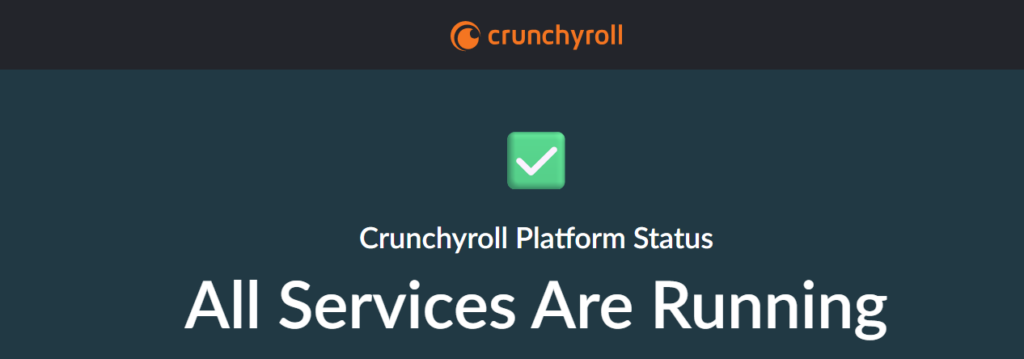
- Check Downdetector: Visit Downdetector’s Crunchyroll Page to see if other users are reporting spikes in outages.
- Check Social Media: Search @Crunchyroll or #CrunchyrollDown on X (Twitter) for live service announcements.
If Crunchyroll’s servers are down, local troubleshooting won’t fix it. Wait 15 to 30 minutes for their engineers to restore service.
Step 2: Verify Your Subscription Type (Roku Channel vs. Standalone App)
One of the most common reasons users get locked out or see subscription errors is subscribing through the wrong portal.
- Did you subscribe through The Roku Channel? If so, you cannot use the standalone Crunchyroll App. You must stream Crunchyroll directly inside The Roku Channel app.
- Did you subscribe to Crunchyroll.com? You must log in using your account credentials on the standalone Crunchyroll Roku Channel.
If you’re using the wrong app for your subscription type, sign in through the correct app corresponding to where you made your purchase.
Step 3: Use the “Profile Switch” Glitch Fix
If you can open the app but videos won’t play or throw a generic error, your user session token may be corrupted. A quick community-proven trick is forcing the app to refresh user profiles.
- Open the Crunchyroll app on your Roku.
- Navigate to your Profile / Account settings on the side menu.
- Select Switch Profile.
- Switch to a Secondary Profile (or create a temporary guest profile).
- Load any anime episode briefly, then exit back to the profile switcher.
- Switch back to your Main Profile. This re-authenticates your account token without needing a full re-login.
Phase 2: Roku System & App Troubleshooting
Step 4: Clear Roku Cache with the Remote Secret Code
Over time, temporary data accumulates and causes apps like Crunchyroll to lag or freeze. Roku doesn’t have a traditional “Clear Cache” button in settings, but you can trigger a system-level cache wipe using a special remote code sequence.
Roku Remote Secret Sequence:
- Press Home ➔ 5 times.
- Press Up Arrow ➔ 1 time.
- Press Rewind (<<) ➔ 2 times.
- Press Fast Forward (>>) ➔ 2 times.
After entering the sequence, your screen will scroll through menu items, freeze for 15–30 seconds, and then automatically reboot your Roku. Once back on the home screen, re-launch Crunchyroll.
Step 5. Restart Your Roku Device
A quick restart can solve a ton of issues. Think of it like a little refresh button for your Roku. Sometimes, a simple fresh reboot is all it takes to fix a problem where Crunchyroll isn’t working.
Steps to restart your Roku device:
- Press the Home button on your Roku remote.
- Scroll up or down and select Settings.
- Go to System > Power > System Restart.
- Choose Restart and wait for your Roku to reboot.
Once your Roku restarts, try opening the Crunchyroll app again to see if it works. If the app was lagging or freezing, this might just do the trick.
Step 6: Check for Crunchyroll App & System Software Updates
An outdated app or Roku OS can cause compatibility issues with video players. Roku app updates often contain bug fixes, performance improvements, and new features, so it’s always a good idea to keep it updated.
Steps to Update the Crunchyroll App on Roku:
- Press the Home button on your Roku remote.
- Scroll down to Streaming Channels and find Crunchyroll.
- Highlight Crunchyroll, press the star button on the remote, and select Check for Updates.
- If an update is available, Roku will automatically install it.
To update Roku OS:
- Go to Settings > System > System update.
- Select Check now and install any pending updates.
Once the app updates are finished, you can open the Crunchyroll app again and check if it works normally.
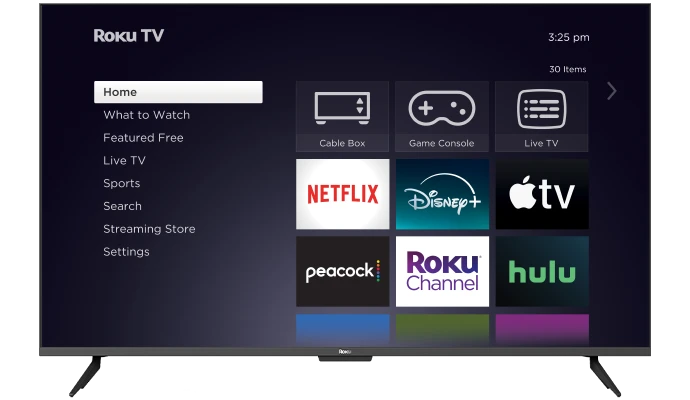
Step 7: Delete, Reboot, and Reinstall Crunchyroll
If the app is still giving you trouble, removing and reinstalling it might fix the issue. This helps reset any app-related glitches and can clear any cached data that might be causing problems.
Steps to Remove and Reinstall Crunchyroll on Roku:
- Press the Home button on your Roku remote.
- Highlight the Crunchyroll app and press the star button.
- Select Remove channel and confirm.
- Go back to the Roku Channel Store and reinstall the Crunchyroll app.
Phase 3: Network & Display Fixes
Step 8: Fix Black Screen with Audio (HDCP Glitch)
If you hear video audio playing fine but the video screen remains completely pitch black, you are experiencing an HDCP (High-bandwidth Digital Content Protection) handshake failure.
- Change Display Resolution: Go to Settings > Display type. Switch from Auto-detect to manual 1080p or 720p. Check if the video renders.
- Reseat Cable: If using a Roku Streaming Stick or Box connected via HDMI, turn off your TV, unplug the HDMI cable from both ends, wait 30 seconds, and plug it firmly back in.
Step 9. Test and Optimize Your Internet Connection
A poor or unstable internet connection is often the reason Crunchyroll doesn’t work on Roku. If you’re experiencing buffering, freezing, or videos not loading, this could be the issue.
Steps to Check Roku TV’s Internet Connection:
- Press the Home button on your Roku remote.
- Scroll down and select Settings > Network.
- Choose Check connection. Roku will test your network connection and show you the status.
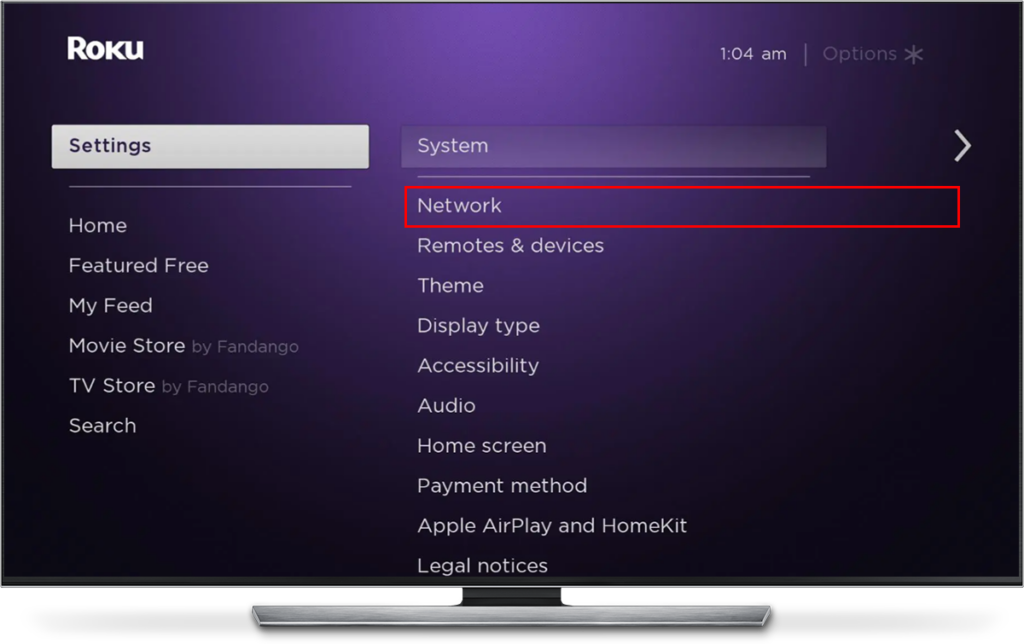
If the connection is weak, try rebooting your router (unplug it for 30 seconds and plug it back in). Alternatively, you can consider switching to a wired connection if you’re using Wi-Fi, or move your Roku closer to your router for a stronger signal.
Step 10: Resolve VPN and Proxy Blocking Issues
Are you using a VPN or Proxy service on your home network? Crunchyroll aggressively detects and blocks known VPN IP addresses to protect region-locked licensing agreements. This often causes Error Code 10051, endless loading, or playback failures.
Steps to fix VPN streaming blocks on Roku:
- Switch Servers: Disconnect from your current server and reconnect to a streaming-optimized server location.
- Roku Network Configuration: Because Roku devices do not support native VPN apps directly, ensure your setup uses Smart DNS or router-level configurations provided by your provider.
- Use Premium Streaming VPNs: If you rely on a service like BearVPN, ensure you are connected to an active streaming node designed to bypass proxy detection mechanisms without slowing down your connection.
Also read: Best VPN for Crunchyroll 2026
Phase 4: Last Resort Steps
Step 11. Factory Reset Your Roku Device
If all else fails and Crunchyroll still isn’t working on Roku, a factory reset can help clear up any underlying issues that might be affecting the app. Just keep in mind, this will erase all your settings and channels, so it’s a bit of a last resort!
A factory reset erases all saved preferences, accounts, and downloaded apps. You will need to set up your Roku from scratch.
Steps to factory reset your Roku device:
- Press the Home button on your Roku remote.
- Go to Settings > System > Advanced system settings.
- Select Factory reset and follow the on-screen prompts and enter the supplied PIN code to complete the reset.
Once Roku has reset, you’ll need to set it up again and reinstall the Crunchyroll app. This should clear any deep-rooted issues preventing the app from working.
Step 12. Contact Crunchyroll Support
If you’ve followed all of the troubleshooting steps above and are still facing video playing issues on your Roku, it’s time to summon the dedicated support team of Crunchyroll for assistance! Make sure to include the following information when you reach out and tell them what you have tried to fix :
- Operating System version
- Crunchyroll App version
- Region
- Whether this issue is happening with all shows or just a specific episode/show (including sub and dub language).
- A screenshot of the error message or code, if available.
- If the app is crashing, let them know if it’s during video playback or on startup.
Conclusion
In most cases, fixing Crunchyroll not working on Roku comes down to checking server availability, clearing the cache with the secret remote sequence, or re-authenticating your user session. Work through these steps sequentially, and you’ll be back to binge-watching your favorite series in no time!
FAQs: Crunchyroll Not Working on Roku
A black screen with or without audio is usually caused by an HDCP handshake error over HDMI, temporary app cache corruption, or display resolution mismatches. Try changing your Roku display resolution manually under Settings > Display Type or performing a remote cache reset.
Roku doesn’t have an individual “Clear App Cache” button. Instead, perform the system cache reset code using your remote: Press Home 5x, Up 1x, Rewind 2x, and Fast Forward 2x. Your Roku will clear its system cache and reboot automatically.
This usually occurs if you purchased your subscription through The Roku Channel instead of Crunchyroll.com. Subscriptions bought on The Roku Channel can only be viewed inside The Roku Channel app, not the standalone Crunchyroll app.
If the Crunchyroll app opens but gets stuck endlessly on the orange logo screen or freezes when selecting a profile, your app’s session token is likely stalled. Force-closing the app or running the Roku secret remote code will clear the frozen memory state and force the app to refresh its login handshake.
Crunchyroll regularly updates its security protocols and media player engines, which requires a modern operating system. If your Roku device is an older legacy model running Roku OS 9.4 or lower and cannot be updated to Roku OS 10.0+, the current Crunchyroll app may no longer function properly or install on your device. You can check your software version under Settings > System > About.