There’s nothing worse than Crunchyroll not working when you open it, right? You’re all set to watch the latest episode of Attack on Titan or One Piece, and suddenly—boom—buffering, Crunchyroll login issues, or insert random technical issues here. But don’t worry, I’ve got you covered! In this post, I’ll walk you through easy, step-by-step fixes to get you back to enjoying your anime in no time.
Whether you’re dealing with Crunchyroll not playing on Roku, subtitles not showing up, or a simple login problem, you’ll find the solution here. Let’s fix it together!
1. Crunchyroll Won’t Load at All (Check for Service Outages)
Before you start getting frustrated, let’s make sure it’s not Crunchyroll’s fault. Sometimes, the site or app can go down for maintenance or technical issues just like AnimeGO and YummyAnime. It happens to the best of us!
Steps to Check if Crunchyroll is Down:
- Check Crunchyroll’s Social Media:
Head over to their official website, Twitter or Facebook for any announcements about service disruptions. If they’re having a widespread issue, you’ll probably see a notice there. - Check Down Detector:
Visit Down Detector to see if others are having the same problem. If a lot of people are reporting issues, it’s likely on Crunchyroll’s end.
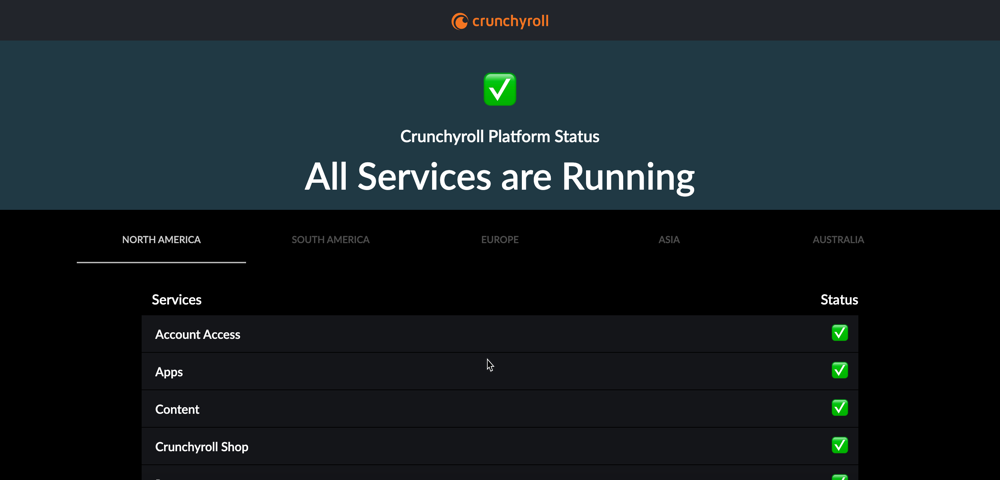
Tip: If Crunchyroll is down, troubleshooting won’t help. You simply have to wait for their engineers to fix the servers.
2. Fixing the “Oops! Something Went Wrong” Error
This highly common error usually pops up when your browser or app is trying to load corrupted temporary data, or your login session has timed out.
- Log Out and Back In: A stale session can trigger this error. Click your profile icon, log out completely, and log back in.
- Clear Browser Cache and Cookies:
- Chrome: Click the three dots > Settings > Privacy and Security > Clear browsing data. Select “Cookies” and “Cached images” and clear them.
- Firefox: Settings > Privacy & Security > Clear Data.
- Update the App: If you are on iOS, Android, or a smart TV, head to your app store and ensure you are running the latest 2026 build of the Crunchyroll app.
3. Crunchyroll Black Screen (Audio Plays, No Video)
If you can hear the anime but the video player is completely black, the issue is almost always related to your browser’s display rendering or interfering extensions.
- Disable Hardware Acceleration: This is the #1 fix for black screens on PC and Mac.
- In Chrome: Go to Settings > System > Toggle off Use graphics acceleration when available and relaunch the browser.
- Disable Ad Blockers: Crunchyroll’s video player frequently conflicts with ad blockers (even if you have a Premium account). Turn off your ad blocker or whitelist Crunchyroll, then refresh the page.
- Try Incognito Mode: Open a private window. If the video plays perfectly there, a browser extension is breaking the site. Disable your extensions one by one to find the culprit.
4. Endless Buffering & Dropping Resolution
Anime is best enjoyed in crisp 1080p. If your video looks like a pixelated mess or pauses every five seconds, you are dealing with network instability.
- Restart Your Router: Unplug your router for 30 seconds, then plug it back in to clear the network cache.
- Run a Speed Test: You need at least 5 Mbps for HD streaming. If you aren’t hitting that, disconnect other devices using bandwidth in your home.
- Change Your DNS Settings: Sometimes your ISP’s default DNS struggles to route streaming traffic efficiently. Switch your device’s DNS to Google’s Public DNS (8.8.8.8 and 8.8.4.4) or Cloudflare (1.1.1.1) for a faster, more stable connection to Crunchyroll’s servers.
5. Videos are “Missing” or Won’t Play (Regional & VPN Issues)
Have you ever searched for an anime you know is on Crunchyroll, but it doesn’t show up? Or perhaps the video player just spins endlessly? This is usually a regional licensing issue.
Crunchyroll restricts certain anime to specific countries. If you are traveling or living in a region where that show isn’t licensed, it will disappear.
Many users try to fix this with a standard VPN, but Crunchyroll actively blocks data center IP addresses used by most mainstream VPNs, resulting in login failures or blocked video players.
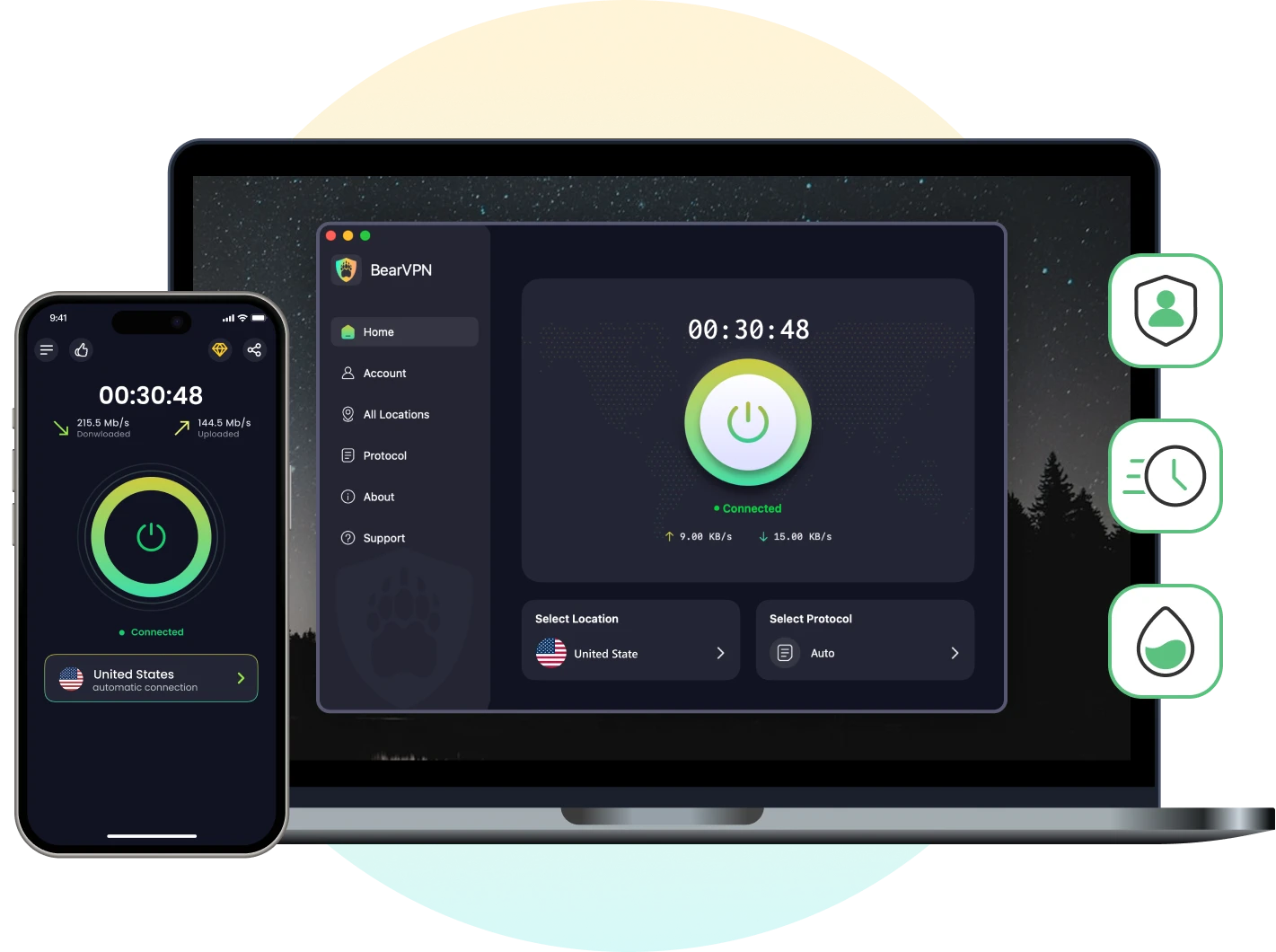
The Solution: You need a VPN equipped with IP addresses that streaming platforms can’t detect. We highly recommend using BearVPN.
- Bypass Blocks: BearVPN utilizes 2,000+ global servers optimized specifically for streaming, meaning Crunchyroll won’t detect the proxy and block your stream.
- Unblock Any Region: Connect to a BearVPN server in the US, UK, or Japan to safely access the complete Crunchyroll library no matter where you are traveling.
- Fast Speeds: BearVPN prevents ISP throttling, ensuring you get zero buffering while streaming in HD.
- RAM-only Diskless Servers
- Double VPN
- DNS Leak Protection
- AES-256 Encryption
6. Crunchyroll Not Working on Gaming Consoles (PS5, Xbox, Switch)
A large portion of anime fans watch via their gaming consoles. Console apps are notoriously prone to memory leaks. If the app crashes or refuses to load on your console:
- Hard Reset the Console: Don’t just put it in Rest Mode. Fully power down your PS5, Xbox, or Switch, wait one minute, and turn it back on.
- Clear the Console Cache:
- Xbox: Go to Settings > Devices & Connections > Blu-ray > Persistent Storage > Clear.
- PlayStation: Boot into Safe Mode and select “Clear Cache and Rebuild Database.”
- Reinstall: Delete the Crunchyroll app entirely from your console storage and redownload it from the store.
7. Crunchyroll Subtitles Not Showing Up
Watching subbed anime on Crunchyroll is impossible if the text disappears. If your subtitles are missing:
- Check the Language Settings: Click the gear icon in the Crunchyroll video player. Ensure the Subtitle/CC track is actually toggled “On” and set to your preferred language.
- Hard Refresh: Sometimes the subtitle track fails to load with the video. Press Ctrl + F5 (Windows) or Cmd + Shift + R (Mac) to hard refresh the page and force the subtitle script to redownload.
8. Free Up Device Storage If Crunchyroll Not Working
If you’re watching on a smartphone, tablet, or smart TV, low storage can slow things down or even prevent Crunchyroll from working properly.
Steps to Free Up Storage:
- Check Your Storage:
- On Android: Go to Settings > Storage.
- On iOS: Go to Settings > General > iPhone Storage.
- Clear Up Space:
If you’re low on storage, try deleting unused apps or moving files to cloud storage. Don’t forget to check for any large videos or downloads you can get rid of! - Restart Your Device:
Once you’ve cleared up some space, restart your device to refresh everything.
After freeing up some space, try launching Crunchyroll again. It should run a lot smoother now!
9. Disable Ad Blockers or Browser Extensions
If you’re watching on a browser, sometimes those ad blockers or other extensions can mess with Crunchyroll’s site. They might block certain scripts that Crunchyroll needs to function properly.
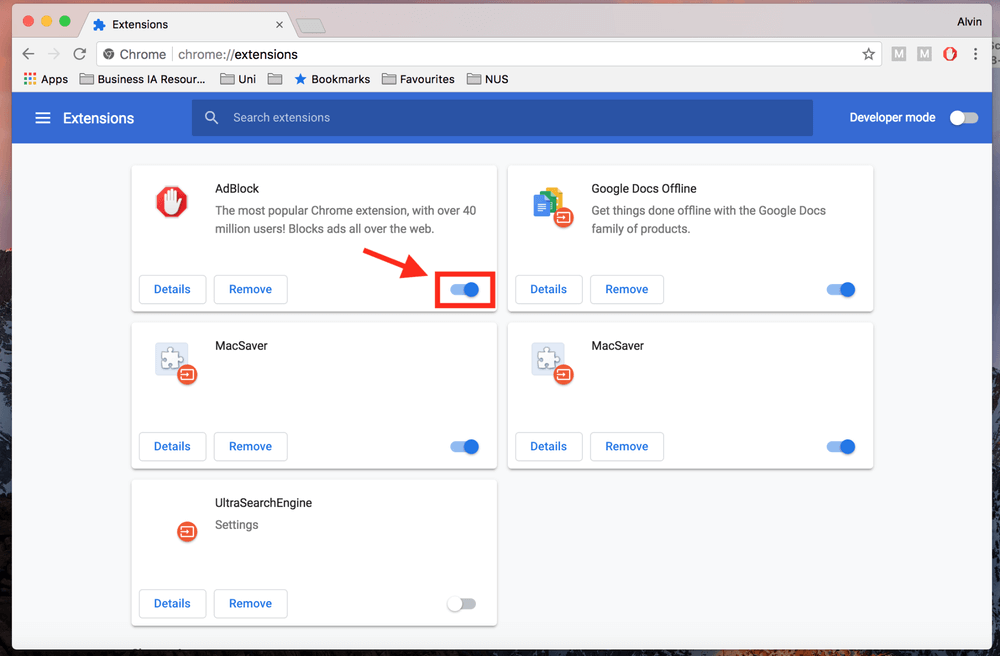
Steps to Disable Ad Blockers:
- Disable Your Ad Blocker:
- In Chrome: Go to More Tools > Extensions and disable the ad blocker.
- In Firefox: Go to Add-ons and turn off any extensions that could be causing issues.
- Try Incognito Mode:
- Open a private or incognito window to see if Crunchyroll works better without your extensions.
After disabling your ad blocker or using incognito mode, try reloading Crunchyroll and see if it fixes the issue.
10. Contact Crunchyroll Support
Still no luck? Fine. It might be time to reach out to Crunchyroll Support. They can help you sort out more complex issues of Crunchyroll not working.
- Go to the Crunchyroll support page in the app or on the website to send the feedback.
Conclusion
I know how frustrating it can be when Crunchyroll is not working, especially when you’re ready to dive into a new episode of your favorite anime. But don’t stress! With these simple steps and reliable free BearVPN, you’ll be back to streaming in no time—whether you’re dealing with buffering, login issues, or subtitles not showing up.
Remember, if all else fails, Crunchyroll Support is just a message away! Let’s get you back to enjoying your anime without interruption!
FAQs: Crunchyroll Not Working
A black screen usually means a graphics rendering failure or an ad blocker conflict. In browsers, disable “Hardware Acceleration” in your settings. On mobile, force-close the app, clear your phone’s cache, and reopen it.
This error typically occurs if your login session expired, you are trying to access Premium content on a free account, or your IP address has been flagged. Log out and log back in, or disconnect from unreliable proxies.
Yes, Crunchyroll blocks known VPN IP addresses to enforce regional licensing agreements. If your VPN is blocked, the site will fail to load. To fix this, use a streaming-optimized provider like BearVPN that regularly refreshes its IP addresses to bypass detection.
This frequent error is typically caused by a corrupted browser or app cache, an outdated app version, or a brief drop in your internet connection. To fix it, log out and log back in, clear your app data or browser cache, and check your device’s app store to ensure you are running the latest version of Crunchyroll.
If you recently upgraded but are still seeing ads or locked content, it can take a few minutes for third-party payment processors to sync with Crunchyroll’s system. Try logging out and logging back in. Most importantly, verify you are signed into the exact email address you used to purchase the subscription.


![How to Change YouTube TV Location [Still Works in 2026]](/_next/image/?url=https%3A%2F%2Fcms.bearvpn.com%2Fwp-content%2Fuploads%2F2026%2F06%2Fhow-to-change-location-youtube-tv.webp&w=640&q=75)