Nothing kills a lesson faster than a teacher assigning a YouTube video and the school Chromebook slamming back Blocked by your administrator. But dead proxy pages, URL tricks, and mystery extensions will not solve every type of block—and can turn one missing video into a stolen school login.
First identify whether YouTube is restricted by the school Google account, the managed Chromebook, Restricted Mode, or only the Wi-Fi network. If the lock follows the device or account, the administrator controls it. If it appears only on a network used by your own device, BearVPN may help protect and reroute that permitted personal connection.
You may also like: How to unblock websites on school Chromebook
Why Is YouTube Blocked on Your School Chromebook?
Fast answer: if the block follows the school Chromebook or school account, stop chasing network tricks. The administrator owns that switch. If the block exists only on a network used by your own device, you have a network problem—not a Chromebook-management problem.
Unblock YouTube on a School Chromebook with a VPN
If YouTube is blocked on your school Chromebook, the simplest and safest solution is to use a Virtual Private Network (VPN). A VPN encrypts your traffic and routes it through secure servers, hiding your real IP address and letting you access restricted sites like YouTube.
BearVPN is the practical option only when YouTube works on another connection but is blocked at the network level on a device you own and are permitted to use. It cannot remove management from a school Chromebook, change a school Google account, or unlock administrator-controlled Restricted Mode.
In that permitted personal-device scenario, BearVPN replaces risky proxy pages with an encrypted connection to the real YouTube site or app. AES-256 encryption protects traffic between the device and VPN server, public-IP masking changes the address YouTube sees, and DNS/IP leak protection helps keep requests inside the intended route. Kill Switch can stop traffic if the tunnel drops on supported platforms and plans.
Why choose BearVPN for Chromebook?
- Fast and stable connections: BearVPN has optimized servers in over 50 locations worldwide, including the United States, Germany, Japan, and the United Kingdom, giving you smooth, reliable speeds for watching HD YouTube videos without buffering.
- Strong privacy protection: With bank-level encryption and a strict no-log policy, BearVPN keeps your browsing completely private—even on public or school Wi-Fi networks.
- Easy to use: The interface is clean and straightforward, allowing anyone to connect with a single tap. No complicated setup or tech skills required.
- Multi-device support: One BearVPN account works across iOS, Android, Windows, macOS and you can connect up to 10 devices at once—perfect for students using multiple gadgets.
How to Watch YouTube With BearVPN
Confirm that the restriction is network-level by testing YouTube on the same personal device over another permitted connection. If the block follows a school account or managed Chromebook, contact the administrator instead.
Step 1. Download and Install BearVPN
Click Free Download and install BearVPN on your Chromebook.
Step 2. Connect to a Server
Select a nearby server for the fastest speed, then tap Connect. BearVPN will encrypt your traffic and hide your IP instantly.
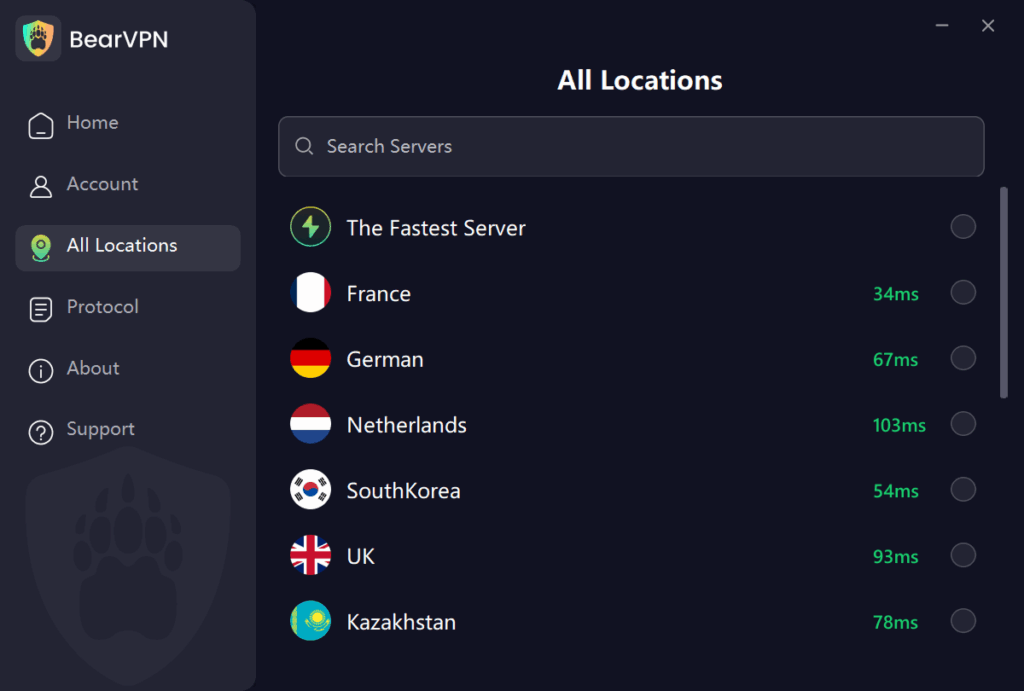
Step 4. Access YouTube
Once connected, open YouTube in your browser. You’ll now have unrestricted access to videos, even on your school Wi-Fi.
Pro tip: Some school Chromebooks block the Google Play Store and Chrome Web Store. If this is the case, you can set up on a personal phone and tether the connection for BearVPN download and installation.
- Use BearVPN on your own Android, iOS, Windows, or macOS device.
- Encrypt YouTube traffic on public or shared Wi-Fi.
- Mask your public IP without handing a proxy your Google login.
- Keep school account and device policies intact.
Unblock YouTube on a School Chromebook Without a VPN
If you can’t install a VPN on your school Chromebook, don’t worry—there are still plenty of ways to unblock YouTube and access the content you want.
In this part, we’ll explore effective ways to unblock YouTube on your Chromebook without needing a VPN, so you can enjoy your favorite videos anytime, anywhere.
Method 1. The Google Slides Embed Trick
This is one of the most successful workarounds for students. Because schools rely heavily on Google Workspace for education, they rarely block Google Slides.
- Open a blank presentation in Google Slides.
- In the top menu, click Insert > Video.
- Paste the URL of the blocked YouTube video into the search bar and hit Enter.
- Select the video and click Insert.
- The video will now play directly inside your Google Slide, completely bypassing the YouTube blocklist!
Method 2. Switch to a Secure DNS (Custom DNS)
Sometimes, school networks block YouTube at the Domain Name System (DNS) level. You can easily bypass this by changing your Chromebook’s DNS settings to a secure, public server.
- Open your Chromebook Settings (click the clock in the bottom right corner, then the gear icon).
- Click on Privacy and security, then select Security.
- Scroll down to Use secure DNS and toggle it on.
- Select With and choose a custom provider from the dropdown menu, such as Google (Public DNS) or Cloudflare (1.1.1.1).
- Refresh your browser and try loading YouTube again.
Method 3. Using a Proxy Website
A proxy website acts as an intermediary between your Chromebook and the internet, hiding your IP address and allowing you to access blocked sites like YouTube. This method can be quick and easy, as long as you pick a reliable proxy.
- Search for a free proxy website or choose one from the YouTube proxy website list.
https://www.youtubeunblocked.live
https://www.genmirror.com
https://www.croxyproxy.com/social
https://proxyium.com/youtube
https://www.proxysite.com/youtube
- Enter YouTube’s URL into the proxy’s input field.
- Enjoy watching YouTube through the proxy server.
School IT departments actively hunt down and block popular proxy sites. If the ones listed above are blocked on your network, search Google for “new web proxy” or “unblocked web proxy” to find fresh URLs the school hasn’t flagged yet.
Method 4. Modifying the YouTube URL
Sometimes, basic network filters only block the primary YouTube URL. Making a slight change to the web address can trick the filter.
Google Translate Trick: Paste [https://translate.google.com/translate?hl=en&sl=pt&u=](https://translate.google.com/translate?hl=en&sl=pt&u=) into your browser, then paste the full YouTube URL directly after the equal sign.
The Mobile Trick: Replace [www.youtube.com](https://www.youtube.com) with m.youtube.com in the URL bar.
The No-Cookie Trick: Instead of a standard link, try formatting it as an embedded link: [www.youtube-nocookie.com/embed/](https://www.youtube-nocookie.com/embed/)[videoID]
Method 5. Setting Up a Wireless Hotspot
If you have access to a mobile device with data, creating a wireless hotspot is one of the easiest ways to bypass school network restrictions entirely. This method doesn’t rely on the school’s Wi-Fi and allows you to access YouTube freely.
- Turn on your mobile hotspot feature.
- Connect your Chromebook to the mobile hotspot.
- Open YouTube and enjoy uninterrupted access to your favorite videos.
- These methods offer practical alternatives to using a VPN, making it possible to access YouTube on your school Chromebook without facing any restrictions.
Conclusion
When YouTube is blocked on a school Chromebook, the fastest fix is not another dead proxy or URL trick—it is identifying who controls the restriction. Ask the teacher or administrator to approve assigned videos, check whether Restricted Mode or the school account is responsible, and use Classroom or Player for Education when available.
If the block exists only on a permitted network used by your own supported device, BearVPN can protect and reroute that connection. It cannot unmanage a Chromebook, override a school account, or guarantee unrestricted YouTube playback.
FAQs
If you see a message stating the video is blocked by your administrator, it means your school’s Google Workspace admin has enabled “Restricted Mode” for student accounts. To bypass this, you will need to sign out of your school-managed Google account, use the “Guest Mode” on the Chromebook login screen, or use the Google Slides embed trick mentioned above.
The answer depends on local law, the school’s acceptable-use policy, the device owner, and what you do to bypass the control. It may violate school rules even when it is not a criminal offense. Do not disable management or security controls; ask for an educational video to be approved instead.
First identify the restriction. For a school account, managed Chromebook, or locked Restricted Mode, asking the teacher or administrator to approve the exact video is the easiest reliable fix. If only the network blocks YouTube on your own permitted device, BearVPN can test a different encrypted route. Google Slides, URL tricks, and random proxies are not reliable shortcuts.
A free VPN may work on a permitted personal device, but check its publisher, privacy policy, platform support, data limits, and permissions before trusting it. Avoid unknown Chrome extensions and proxy apps that request a Google login. BearVPN offers a mobile free option on Android and iOS with an automatically selected server; desktop apps, location choice, and advanced features may require Premium. No VPN overrides school-device or school-account controls.