Want to know how to unblock websites on a school Chromebook? First identify what is doing the blocking: the school Wi-Fi, a ChromeOS administrator policy, or a permission inside the website itself. The six methods below cover each case, from using BearVPN or a mobile hotspot for network-level blocks to fixing site permissions when YouTube, Roblox, Pinterest, Facebook, Hulu, or a research page opens but does not work correctly.
How to Unblock Websites on School Chromebook
Start with the method that matches the block. If the same site works on mobile data but fails on school Wi-Fi, use Method 1 or Method 6. If the page opens but video, cookies, sound, camera, or JavaScript fails, try Method 3. If the Chromebook says it is managed and will not let you install an app or change a setting, skip the device-level workarounds and use an approved alternative.
Method 1. Use BearVPN on an Allowed Chromebook
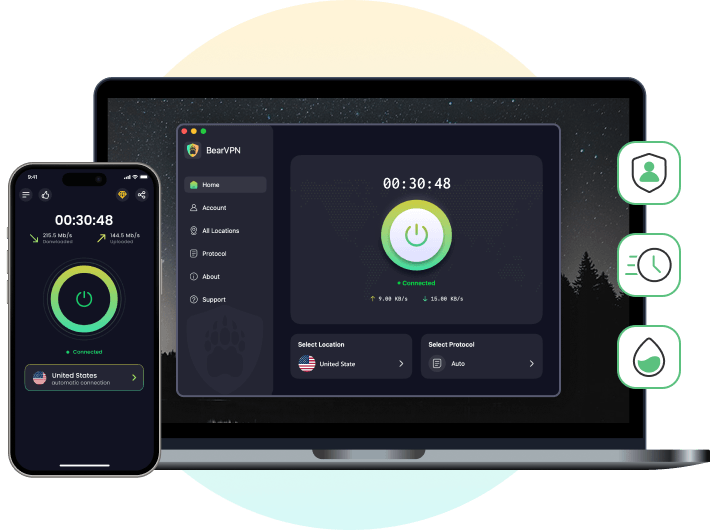
A VPN encrypts the connection and sends it through a different server, so a website sees the VPN server’s public IP instead of the school network’s IP. BearVPN goes further than a basic free proxy: Strong Obfuscation is built for networks that identify and block ordinary VPN traffic, while Smart Server Selection finds a suitable route without forcing you to test servers one by one.
BearVPN also uses AES-256 encryption, DNS leak protection, and a Kill Switch to keep the school or shared Wi-Fi route from being exposed if the VPN connection drops. Its network runs on physical bare-metal servers rather than cheap shared VPS infrastructure, with RAM-only operation and a no-logs policy for stronger infrastructure privacy.
Here’s how:
Step 1. Check whether app installation is available. On a personal Chromebook, open the Google Play Store and search for the official BearVPN app. If the Play Store or Install button is disabled by an administrator, do not try to remove device management; move to Method 6 or Alternative Solutions.
Step 2. Install BearVPN and open the app. BearVPN’s mobile app is free, requires no registration, and includes unlimited data, so you can connect without creating another account.
Step 3. Turn on the protection you need. Keep DNS leak protection and the Kill Switch enabled. Start with Smart Server Selection for the fastest nearby route. If the school network blocks the first connection, enable Strong Obfuscation and reconnect.
Step 4. Confirm the route changed. Check your public IP before and after connecting, then reopen the blocked website in a new tab. A different public IP and a normally loading page confirm that the network route changed.
Step 5. Try one controlled fallback. If the first server is slow, switch to another nearby location. If BearVPN connects but the website still shows the school block page, the restriction may be enforced by a ChromeOS policy or monitoring extension on the device rather than by Wi-Fi.
When to Use: Choose BearVPN when the site fails on school Wi-Fi, when you want the entire Chromebook connection protected rather than one proxy tab, or when an ordinary VPN is being detected. Double VPN is available for users who need an extra privacy layer, but a normal nearby server is the better default for streaming, games, and everyday browsing.
- Mask the school network’s public IP.
- Obfuscate VPN traffic on restrictive Wi-Fi.
- Reconnect fast with Smart Server Selection.
Method 2. Use a Proxy Website for a Quick, Low-Risk Page
A web proxy loads a page through an intermediary server, which can get around a simple URL or network block without installing an app. It protects only the page opened inside the proxy—not the rest of the Chromebook—and random free proxies may log activity, inject ads, or mishandle personal data.
Here’s how:
Step 1. Choose a reputable HTTPS web proxy. Avoid pages that demand a browser extension, executable file, notification permission, or payment details before they load a URL.
Step 2. Paste the full address of the blocked website into the proxy’s URL field.

Step 3. Open the page inside the proxy tab. Check that the address bar still shows the proxy service and an HTTPS connection.
Step 4. Close the session when finished. Do not enter school credentials, banking details, personal passwords, or other sensitive information through an unknown proxy.
When to Use: A proxy is suitable for a quick public text page when you cannot install an app. It is usually slower and less private than BearVPN, may break video or interactive features, and cannot override a policy enforced directly on a managed Chromebook.
Method 3. Fix Chromebook Site Permissions
Site permissions do not remove a school URL block. Use this method only when the website already opens but a required feature—such as JavaScript, cookies, pop-ups, sound, camera, or location—has been blocked inside Chrome.
Here’s how to do it:
Step 1. Click the lock icon in the address bar when you’re on the blocked site.
Step 2. Select “Site settings” from the dropdown menu.
Step 3. Review the permissions (e.g., location, JavaScript, cookies) and adjust them if they’re overly restrictive.
Step 4. Reload the page to see if access is restored.
When to Use: Use this fix when the page loads but a specific feature does not. On a managed school Chromebook, a setting may be locked or automatically restored by the administrator; if so, changing the site permission will not bypass that policy.
Method 4. Try an Approved Alternative Browser or Web App
A second browser can help only when the problem is specific to Chrome—for example, a broken extension, stale browser data, or a site that renders incorrectly. It will not reliably defeat a network filter or an administrator URL policy, but it is a useful test on a personal Chromebook or when the school already provides another approved browser or web app.
Here’s how:
Step 1. Check the Chromebook launcher and Play Store for a browser or web app already approved on the device.
Step 2. Open the same website in that approved alternative. Do not import school passwords or personal browser data just to run the test.
Step 3. Compare the result. If the page works in the second browser, the problem is probably Chrome-specific. Return to Chrome and clear that site’s data, review extensions, or use the working approved browser.
Step 4. Stop if the same block appears. That result points to a network-level or managed-device policy, so another browser will not solve it; move to Method 6 or request access.
When to Use: Use this method when the website is not categorically blocked but Chrome itself appears broken. Firefox Portable is a Windows application and does not launch directly from a USB drive on ChromeOS. Do not enable Developer Mode, remove device management, or attempt to boot another operating system on a school-owned Chromebook.
Method 5. Use Google Translate
Google Translate can sometimes open a public webpage through a translated Google URL, which may work when a basic filter blocks only the original domain. It is a page-viewing workaround, not a full encrypted tunnel.
Here’s how:
Step 1. Go to Google Translate.
Step 2. Click Websites and enter the URL of the blocked website.

Step 3. Select a target language (any language different from your default).
Step 4. Click the translated link, which will open the website with Google’s proxy-like function.

When to Use: Try this for a public, text-heavy page that does not require an account. Video players, games, downloads, forms, and interactive sites often break inside the translated version, and many school filters block translated URLs too. Do not enter passwords or sensitive information through this route.
Method 6. Connect to a Mobile Hotspot
A mobile hotspot takes the Chromebook off school Wi-Fi and routes it through your phone’s mobile carrier. It is both an access method and the quickest way to test whether the school network—not the website or Chromebook—is causing the block.
Here’s how:
Step 1. Enable the mobile hotspot feature on your smartphone.
Step 2. Connect your Chromebook to your phone’s Wi-Fi network.
Step 3. Access the blocked website as you normally would.
Step 4. Ensure you have sufficient data and a stable connection.
When to Use: Use a hotspot on your own or permitted device when the same website fails on school Wi-Fi. If it opens on mobile data, the school network was the likely cause. If the same block remains, a device policy, browser extension, account rule, or website restriction may be responsible. Check your carrier’s tethering allowance and data charges before streaming or gaming.
Alternative Solutions
If you need access to a blocked site for educational purposes, consider these alternatives:
- Request Temporary Access: Ask a teacher or IT staff for temporary access if the website is required for coursework.
- Use Approved Resources: Look for offline alternatives or school-approved resources that offer similar content.
Why Schools Block Websites on Chromebooks
Educational institutions use web filters and administrative controls to block specific sites, preventing distractions and potential security threats. These filters often restrict access to social media, streaming services, gaming platforms, and certain Google services.
Risks and Considerations
While these methods can help you bypass school filters, it’s important to be aware of potential consequences:
- School Rules: Accessing a blocked site can violate the school’s acceptable-use policy even when the method technically works. Use your own device where possible and keep access appropriate for the setting.
- Privacy: Random free proxies and unknown VPN extensions may log traffic or inject ads. Use a trusted service and never send school credentials through an unfamiliar intermediary.
- Device Security: Never install an executable, certificate, extension, “unblocked browser,” or USB image from an unknown source just to open one website.
- Management Limits: BearVPN can bypass network-level and IP-based restrictions, including networks that detect ordinary VPN traffic, but it cannot remove ChromeOS administrator policies enforced directly on a school-owned device.
Conclusion
You now have six practical ways to unblock websites on a school Chromebook. Start with BearVPN when the block comes from school Wi-Fi: it changes the public route, encrypts the connection, and uses Strong Obfuscation when ordinary VPN traffic is filtered. Use a mobile hotspot to confirm a network-level block, a proxy or Google Translate for a simple public page, site permissions for a feature that fails after the page opens, and an approved alternative browser for a Chrome-specific problem.
If app installation and settings are locked by a ChromeOS administrator, do not waste time on fake “unblocked browser” downloads or destructive USB tricks. Switch to your own permitted device or network, or request access when the site is needed for class.
Connect BearVPN on an allowed device, reopen the website, and leave the blocked route behind.