If Grindr isn’t working, first check Grindr’s official status page to see whether the service is down. If Grindr is operational, the problem is more likely related to your app, device, internet connection, location settings, or a network restriction.
This guide walks through the most common fixes, from restarting and updating the app to checking your connection and location permissions. If Grindr only stops working on a specific network or in a restricted region, we’ll also explain when a VPN may help—and when it won’t.
Is Grindr Down for Everyone or Just You?
Before making changes to your phone or network, determine whether the issue is widespread.
How to Check Grindr’s Status
- Official Grindr Status Page: Visit status.grindr.com for real-time updates.
- Downdetector: Check downdetector.com and search “Grindr” to see outage reports.
- Twitter/X Search: Look for recent tweets like “Grindr down” — widespread problems usually trend quickly.
If you see high outage reports or an announcement from Grindr, you’ll likely just need to wait until service is restored.
Why Grindr Might Not Be Working
Why Grindr Might Not Be Working
When Grindr won’t load, freezes, or prevents you from logging in, the cause usually falls into one of five categories: server outages, device or app issues, network problems, regional restrictions, or account glitches.
1. Grindr Server Issues
If Grindr’s servers are down or experiencing an outage, you may be unable to log in, load messages, or browse profiles. In this case, there’s nothing to fix on your device—you’ll need to wait for the service to recover.
First step: Check Grindr’s official status page to see whether there’s a known outage.
2. Device or App Problems
Issues on your phone can also prevent Grindr from working properly. Common causes include:
- Outdated app: An older version may cause compatibility or performance issues.
- Corrupted cache or app data: Stored data can interfere with loading or login.
- Limited storage: Low device storage can affect app performance.
- Missing permissions: Location or other required permissions may prevent certain features from working.
Updating Grindr, checking its permissions, or restarting the app can often resolve these problems.
3. Network Problems
A weak or unstable connection can prevent Grindr from loading messages or refreshing profiles. Network restrictions can also affect access, particularly on work, school, or public Wi-Fi.
Quick test: Switch between Wi-Fi and mobile data. If Grindr works on one network but not the other, the problem is more likely network-related.
4. Regional Restrictions
Grindr is restricted or unavailable in some countries and regions. Depending on the restriction, users may be unable to access the app, log in, or use certain features.
Traveling can also cause access issues if Grindr is available in your home country but restricted where you’re currently located.
5. Account or Temporary App Glitches
Some problems are specific to your account or current app session. Login errors, temporary sync issues, or session glitches can prevent messages and other features from working normally.
Signing out and back in, restarting the app, or reinstalling it may help resolve these issues.
The fastest way to troubleshoot Grindr is to identify which category your problem falls into first. Once you know whether it’s a server, device, network, or regional issue, you can try the most relevant fix instead of going through every solution.
Quick Fixes for “Grindr Not Working”
If Grindr isn’t working properly, don’t panic. Many issues can be resolved with simple troubleshooting steps. Here’s a detailed guide to help you get the app running smoothly again.
Step 1. Restart the App
One of the simplest fixes is to completely close Grindr and reopen it. Apps can sometimes hang due to background errors or memory conflicts.
On iOS, swipe up from the bottom of the screen (or double-click the Home button) to view open apps. Swipe Grindr off the screen. On Android, access the Recent Apps menu and swipe Grindr away.
This forces the app to reload fresh data from the server and clear temporary glitches.
Step 2. Restart Your Device
Restarting your phone or tablet refreshes system processes and network connections, often resolving persistent app issues.
Tip: After restarting, open Grindr first before launching other apps to ensure priority connectivity.
Step 3. Check Your Internet Connection
Grindr relies heavily on a stable internet connection. If your messages won’t load, it may be due to connectivity issues rather than the app itself.
- Switch networks: Toggle between Wi-Fi and mobile data to see if the problem persists.
- Test other apps: Open another app or website to confirm that your internet is working.
- Reduce bandwidth usage: Pause other high-traffic apps or downloads that may be slowing your connection.
Step 4. Update Grindr
Running an outdated version of Grindr can cause compatibility issues with the servers.
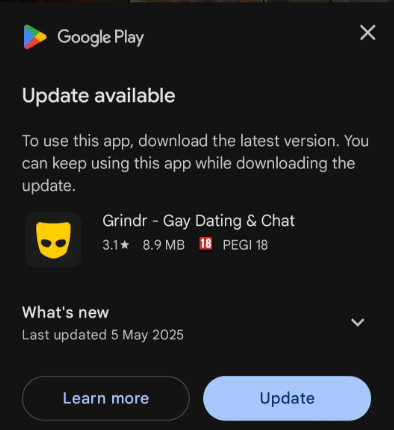
How to update:
- On iOS, go to the App Store > Updates > Find Grindr > Tap Update.
- On Android, open Google Play Store → My apps & games → Update Grindr.
Updates often include bug fixes, security patches, and improvements to messaging features.
Step 5. Clear Cache and App Data
Over time, cached files or corrupted app data can prevent messages from loading properly. Clearing these can fix a wide range of issues.
- Android: Go to Settings, click Apps > Grindr > Storage > and Clear Cache / Clear Data
- iOS: Go to Settings > General > iPhone Storage > Grindr > Offload App and click Reinstall
Clearing data will log you out, so ensure you remember your login credentials.
Step 6. Check App Permissions
Grindr needs access to certain features to function correctly. Without proper permissions, features like messaging or location may fail.
Key permissions to verify include location, storage, background app refresh, and notifications. To check these on iOS, open your device Settings, scroll to Grindr, and enable the necessary permissions. On Android, go to Settings, select Apps, find Grindr, and adjust the permissions accordingly. Ensuring these permissions are granted helps Grindr load messages, update your grid, and function properly in the background.
Step 7. Log Out and Back In
Sometimes the issue lies in a temporary account or session error. Logging out and back in can resync your messages with the server.
- Open Grindr > Profile > Settings> Log Out
- Close the app completely > Reopen > Log in again
Step 8. Reinstall the App
If all else fails, uninstalling and reinstalling Grindr can remove corrupted files that may be causing persistent issues.
How to do it safely: Backup any saved data if needed (for example, favorite profiles or albums). Delete the app → Restart your device → Install the latest version from the App Store or Google Play Store.
Step 9. Adjust Date and Time Settings
An incorrect date and time on your device can cause server authentication errors, which may prevent messages from loading. To fix this, enable automatic date and time settings.
- On iOS, go to Settings, tap General, select Date & Time, and turn on “Set Automatically.”
- On Android, open Settings, go to System, select Date & Time, and enable “Automatic date and time.”
This ensures your device stays synchronized with Grindr’s servers and helps avoid connection or login issues.
Step 10. Test on Another Device or Network
If the app still doesn’t work, try logging in on a different device or network. This helps determine if the issue is device-specific or related to your network.
By following these steps in order, most users can resolve common Grindr issues without waiting for a global outage fix. Proper troubleshooting not only restores functionality but also prevents repeated frustration in the future.
Summary Table of Fixes
Related articles:
How to Fix Grindr Error 76itwkq6 “Try Again Later”
Fix the “Grindr Registration Error”: Causes, Checks, and Real Fixes
How a VPN Can Help — Safely
A VPN can sometimes help when Grindr is restricted on your network or in your region, but it isn’t a universal fix. Grindr’s own troubleshooting guidance recommends turning off a VPN when troubleshooting some registration issues.
A Virtual Private Network (VPN) is a powerful tool for maintaining privacy, improving security, and bypassing restrictions when using Grindr. Many users encounter issues due to geo-blocks, network throttling, or public Wi-Fi limitations, and a VPN can help resolve these safely. Benefits of Using a VPN for Grindr
- Bypass Geo-Blocks: In some countries, Grindr is restricted or unavailable. A VPN may help when your ISP or local network restricts Grindr, but it cannot fix a Grindr server outage, app bug, account issue, or every type of regional restriction.
- Prevent ISP Throttling: Some internet providers slow down specific app traffic, causing slow load times or frozen messages. A VPN encrypts your data, preventing ISPs from identifying and throttling Grindr traffic, resulting in a smoother experience.
- Secure Public Wi-Fi Connections: Using public Wi-Fi can expose your personal information to hackers. A VPN encrypts all your internet traffic, ensuring your Grindr activity remains private and protected from potential intrusions.
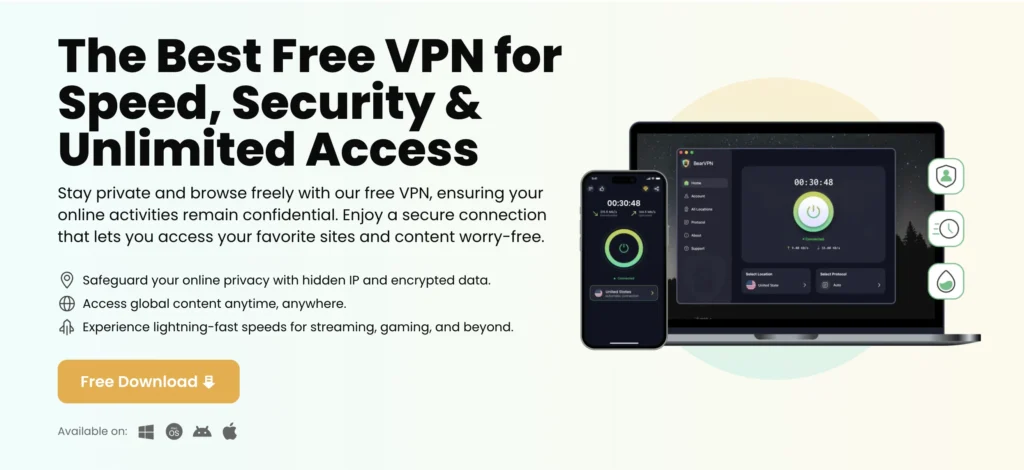
Utilizing a VPN like BearVPN encrypts your internet connection, protecting your privacy and enhancing your online security significantly. With over 2,000 global servers in 50+ regions, BearVPN ensures you always have a fast and stable connection with several standout features:
- Strong Encryption: All traffic is protected with high-level encryption, keeping your online activity private.
- Multiple Server Locations: BearVPN offers a wide range of servers worldwide, letting you access Grindr from virtually any country.
- No Activity Logs: BearVPN doesn’t store your browsing history or app usage, ensuring complete anonymity.
- Affordable Pricing: Compared to premium VPN services, BearVPN provides fast, reliable performance at a lower cost, making it accessible for regular users.
- Ease of Use: The app is user-friendly and allows one-click connection to your chosen server, making it simple even for first-time VPN users.
How to Use BearVPN with Grindr
Step 1. Free download and install the BearVPN app.
Step 2. Select a server in a country where Grindr is accessible. This will bypass any geo-restrictions.
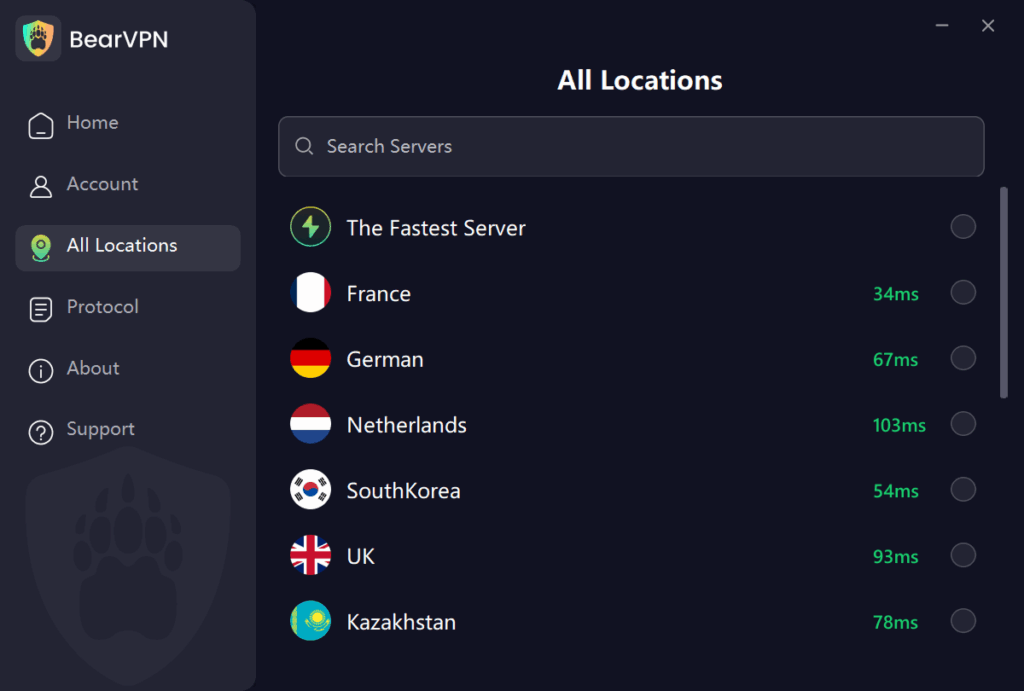
Step 3. Click “Connect” and wait for confirmation that your connection is secure.
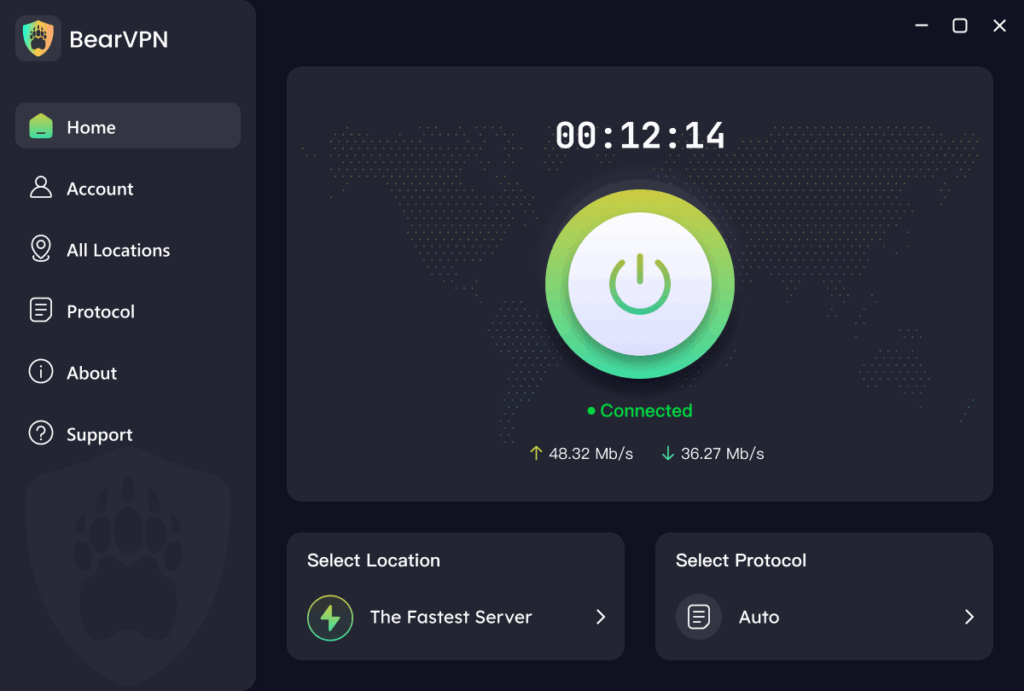
Step 4. Once connected, launch Grindr as usual. You should now be able to log in, send messages, and browse profiles without interruptions.
Frequently Asked Questions About Grindr Not Working
Is Grindr down right now?
Check Grindr’s official status page first to see whether there is a known service outage. If Grindr is operational, the problem may be related to your app, device, or network.
Why are my Grindr messages not loading?
Delayed or missing messages can result from an unstable internet connection, app issues, or temporary server problems. Try switching networks, restarting the app, and signing out and back in.
Why does Grindr work on mobile data but not Wi-Fi?
The Wi-Fi network may be blocking or restricting Grindr. Try switching to mobile data to confirm whether the problem is network-related. Work, school, and public networks may have additional restrictions.
Can a VPN fix Grindr not working?
A VPN may help if Grindr is affected by a network or regional restriction, but it cannot fix server outages, app bugs, or account issues. Its effectiveness also varies by country and the type of restriction involved.
Why isn’t Grindr available in my country?
Grindr is restricted or unavailable in some countries and regions due to local regulations, network restrictions, or app store availability. Check Grindr’s official information for the latest regional restrictions and follow applicable local laws.
Final Thoughts
When Grindr stops working, the first step is to determine whether the issue is with Grindr’s server, a problem with your device, or a network restriction. Many issues have quick fixes — clearing cache, updating the app, restarting your device.
For network or location-based issues, a trustworthy VPN like BearVPN is a safe and affordable option that maintains your privacy and stability without resorting to cracked or unsafe tools.
If all else fails, contact Grindr Support — and remember, sometimes the best fix is simply waiting for their engineers to restore service.


![How to Change YouTube TV Location [Still Works in 2026]](/_next/image/?url=https%3A%2F%2Fcms.bearvpn.com%2Fwp-content%2Fuploads%2F2026%2F06%2Fhow-to-change-location-youtube-tv.webp&w=640&q=75)