Running into a Grindr registration error can be frustrating, especially when all you want is to create an account and get started. Most sign-up failures trace back to a few common issues: verification codes that never arrive, “invalid phone number” prompts, email/account limits, device or region restrictions, and brittle network paths. This guide walks you through practical, low-risk steps that address the majority of cases. You’ll learn what to try first, when to switch tactics, how to test your network path safely, and when it’s time to contact support. Keep the fixes simple and sequential to avoid hitting rate limits or new blocks.
Why You’re Seeing the Grindr Registration Error
Before trying fixes, it helps to map the likely failure points. Most Grindr registration errors come from three places: identity checks (phone or email), platform protections (spam limits, device signals, account caps), and the path to Grindr’s servers (carrier or Wi-Fi rules, regional restrictions, edge routing). The clearer you are about your specific symptom—no verification code, an “invalid number” prompt, or a vague “something went wrong”—the faster you can match it to the right remedy.
In practice, trouble often starts with phone verification: SMS codes arrive late, short codes are blocked by your plan, or the country prefix is entered incorrectly. Sometimes the constraint is account-side, such as an email already tied to an existing profile or a limit on how many accounts can be created. Device markers also matter; an outdated app, a flagged device, or OS settings that mask identifiers can derail sign-up. Finally, the network itself can be the culprit, from captive portals and strict firewalls to DNS filtering or messy peering that interrupts the registration flow.
Quick Fixes for Grindr Sign-Up Errors
Start with low-effort checks that resolve a surprising share of Grindr sign-up issues. These steps avoid account churn and reduce the risk of new rate limits. Work through them in order, pausing briefly between attempts to prevent “too many tries” errors.
Actionable quick checks:
- Update & relaunch: Update Grindr, force-quit, then relaunch. Outdated builds cause subtle registration failures.
- Reboot device: Clears transient network and app-cache oddities.
- Swap networks: Switch between Wi-Fi and mobile data to rule out access controls on one path.
- Disable VPN/proxy for registration: If you’re using any VPN/relay, turn it off before you retry sign-up to avoid anti-abuse triggers.
- Wait between attempts: If you’ve retried multiple times, wait 20–30 minutes; for hard rate-limits, wait 24 hours.
- Check required fields: Email in lowercase, correct country code, and accurate time/date settings.
Grindr Verification Code or Phone Number Issues
When the verification SMS doesn’t arrive—or the app flags your number as “invalid”—solve the basics first. Most failures here are carrier routing or formatting problems, compounded by repeating attempts too quickly.
Try this sequence:
- Country code & format: Make sure your number includes the correct international prefix and local formatting rules.
- Short-code/SMS settings: Some carriers or plans block short-code messages by default. Ask your carrier if short-code SMS is enabled.
- Messaging filters: Disable “Message Blocking” or spam filters temporarily; ensure you haven’t blocked unknown senders.
- Don’t spam the button: Re-requesting codes repeatedly can trigger cooldowns. Wait a few minutes between requests.
- Try a different route: If your SIM supports VoLTE/Wi-Fi-calling toggles, switch modes and retry; also try the other network (Wi-Fi vs. cellular).
- Backup number: If permissible, test with a second, legitimate number. Avoid disposable/VoIP numbers—they’re commonly restricted.
- Clock & region settings: Incorrect device time zone or date can break OTP validation windows.
Quick facts worth knowing before you retry:
- Grindr keeps a 24-hour window to deliver your SMS code. If nothing arrives in that time, the number is likely incompatible, not just slow.
- You can verify a maximum of 5 accounts per phone number. Once you hit that cap, new sign-ups fail even if you deleted the older accounts.
- VoIP, landline, and free public/disposable numbers are routinely rejected. Use a real mobile number that accepts short-code texts.
- Enter the number in full international format — correct country code, and no extra leading zero unless the form specifically asks for local format.
When You See “Validation Failed,” “Invalid Form,” or “Something Went Wrong”
These messages look alarming, but they rarely mean your email or phone number is wrong. Grindr runs an anti-spam check during sign-up — sometimes a CAPTCHA, sometimes a silent network test — and when that check can’t complete, you get “Validation Failed, please try again,” an “invalid form” prompt, “Something went wrong. Tap to retry,” or a blank white screen that never finishes loading. Here’s the catch: the trigger is usually your network or a flagged pattern, not the details you typed.
Work through these in order:
- Drop the ad blocker, private DNS, or parental controls. A blank verification screen almost always traces back to a tool that blocks the scripts Grindr needs to load. Turn them off, then retry.
- Switch networks. Move from Wi-Fi to mobile data, or the reverse. Public and workplace Wi-Fi often filter the verification page.
- Turn off any VPN or proxy first — unless Grindr is censored where you are. A VPN can make a clean connection look suspicious and trip the spam check.
- Slow down. Several sign-up attempts within a few minutes can lock you out. Wait, then try once more instead of hammering the button.
- Try a third-party sign-in. Continuing with Google or Apple skips the SMS step entirely and clears many validation blocks.
If the same message survives all five, the block is likely tied to your device or number rather than this session — the next two sections cover those cases.
Using Google/Apple/Facebook to Complete Sign-Up
Third-party sign-in (Google, Apple, or Facebook) can sometimes sidestep email or OTP friction, but it comes with its own constraints. Choose this route only if your email is valid and you’re comfortable linking an external account; otherwise, stabilize phone verification first to avoid splitting identities across methods. Be consistent with the same provider you started with—switching later often triggers “account not found” confusion.
Make sure pop-ups and in-app browser permissions aren’t blocked so the OAuth screen can load properly, and temporarily disable aggressive DNS or content filters that might break the redirect. Finally, confirm you can access the email shown by the identity provider; if it’s different from what you intend to use, update it before proceeding to prevent mismatches.

“Email in Use” or “Too Many Accounts”
A persistent Grindr registration error tied to email or account limits usually signals that your address is already linked to a profile or that a per-device/per-identity cap has been reached. Don’t rush to spin up a fresh profile—creating new identities can complicate recovery and prolong lockouts. It’s almost always better to reclaim the original account first.
Start by running the “forgot” or recovery flow on the existing address; if that fails, switch to a long-term email you control rather than a disposable one. Give the system time to reset—rapid retries can extend cooldown windows—and keep a simple log of which email or sign-in method you used on each attempt so you don’t create duplicate trails or confuse future recovery.
Device Flagged or Banned: Next Steps
Some users encounter persistent failure even after clean attempts, suggesting the device may be flagged. This is rare, but it happens when anti-abuse systems detect unusual patterns (automation indicators, repeated disposable numbers, extreme retry loops). If you suspect a device-level block, move cautiously—creating more signals can deepen the flag.
Safer approaches to test and recover:
- Fresh environment: Update OS, clear app data/cache, and reinstall.
- Different hardware test: If available, try registering on a second device you trust (your own, not borrowed). Once the account is created, log in on the original device.
- Avoid risky numbers/tools: Don’t use VoIP/disposable numbers or automation apps; they often trigger permanent restrictions.
- Document attempts: If you later contact support, a concise timeline helps them distinguish genuine users from scripted sign-ups.
Region/Network Restrictions: Tests & VPN Notes (Mobile Only)
Occasionally, region or network policies interfere with account creation—think ISP firewalls, campus/corporate filters, captive portals, or problematic DNS. You should register with VPN off (that’s the safest baseline). However, if you can’t tell whether the failure is your local network or something else, it’s reasonable to run brief, neutral tests from your phone to compare paths—then return to a clean setup for the final sign-up.
For controlled, mobile-only testing, consider the following approach:
- Baseline first: Try over mobile data, then over a different Wi-Fi. Captive portals and DNS filters are common culprits.
- Short comparison test on iOS/Android: If you need to check whether your path is throttled or misrouted, you can momentarily use a reputable, lightweight VPN app on your phone to see if the error pattern changes.
- Then register without a VPN: If a VPN appears to bypass a network quirk during testing, revert to a standard connection (VPN off) before submitting the actual registration to minimize false positives.
Optional mobile network test with BearVPN (keep it brief and neutral)
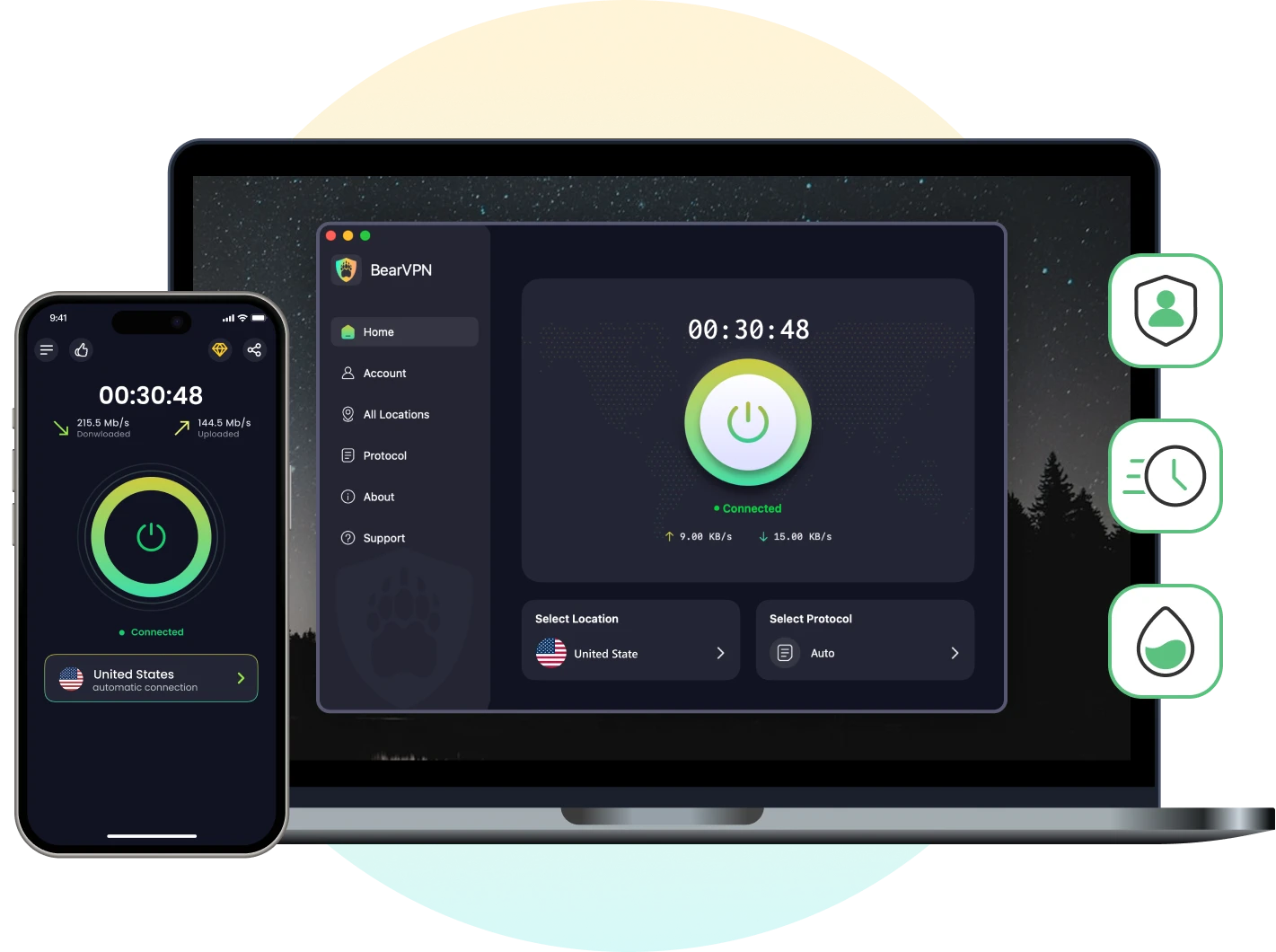
If you suspect the problem is your local network, a lightweight VPN can help you compare routes without changing devices. BearVPN is a practical option for a one-minute check: you can tap to connect, try another region to see if the error pattern changes, and—thanks to per-app control—route only Grindr during diagnostics while leaving your other apps untouched.
If the sign-up error disappears on that alternate path, you’ve likely found a network-side cause; note the result, then disconnect and complete registration without the VPN to stay aligned with platform policies.
Use it only where local rules allow, and remember that a VPN for Grindr can’t guarantee access or account creation.
Run a one-minute check, connect, route only Grindr with per-app control, and switch regions to see if the sign-up error clears.
When to Contact Grindr Support
If you’ve followed the steps above—updated, switched networks, corrected number formatting, waited out rate-limits, and tested on a second device—and the Grindr registration error persists, it’s time to contact support. Prepare a short timeline of what you tried and the exact on-screen messages. Clear, concise details help isolate whether you’re hitting an account cap, a device flag, or a provider-side routing issue.
What to include in your ticket:
- Exact wording of the error and when it appears (e.g., after code entry, at email submit, or on third-party redirect).
- Your country code and carrier, plus whether short codes are enabled.
- Network context: Wi-Fi vs. cellular, and whether different networks behaved differently.
- Cooldowns observed: Note any wait periods you honored to avoid “too many attempts.”
Grindr Registration Error: Fast FAQs
Grindr only sends codes to real mobile numbers that accept short-code SMS, so VoIP, landline, and free public numbers usually fail silently. Check that your number is in full international format, ask your carrier whether short-code or “Message Blocking” is on, and request the code just once — repeated taps trigger a cooldown. Grindr holds a 24-hour delivery window; if nothing arrives in that time, the number is likely incompatible rather than slow.
An “invalid number” prompt almost always comes down to formatting or number type, not a typo. Re-enter it with the correct country code and no extra leading zero, and make sure carrier spam filters aren’t stripping the message. If a genuine, correctly formatted mobile number still gets rejected, it has probably been flagged or hit its account limit — switch to a different real mobile number.
These are anti-spam or network blocks, not a problem with the details you typed. Turn off ad blockers, private DNS, and parental controls (a blank verification screen is the classic sign), switch between Wi-Fi and mobile data, and disable any VPN unless Grindr is censored where you are. Signing in with Google or Apple skips the check entirely and clears most of these blocks.
You can verify a maximum of five accounts per phone number. Once you reach that cap, new sign-ups fail even after you delete the older accounts, and you’ll need to wait out the cooldown or use a different real mobile number. The same applies to email — each address can only anchor a limited number of profiles.
In most regions, yes — a VPN can make a clean connection look suspicious and trip Grindr’s anti-spam check, so keep it off for the final sign-up. The exception is a country where Grindr is censored: there, you may need to connect to a region where it works normally just to reach the registration screen. Use it for that purpose, then complete sign-up on the most stable path you have.
Wrap-Up: Safe Steps to Resolve Sign-Up
Most Grindr registration errors come down to a few predictable issues: OTP delivery, identity limits, device signals, or restrictive networks. Start simple—update, relaunch, and change networks—then focus on your specific symptom (SMS, email, device, region). If you run a brief VPN test to compare routes, remember to turn it off before you submit the actual registration. And if you still can’t create an account after cooldowns and a second-device test, share concise details with support so they can verify caps or flags on their side. Step-wise, patient troubleshooting usually wins here.


![How to Change YouTube TV Location [Still Works in 2026]](/_next/image/?url=https%3A%2F%2Fcms.bearvpn.com%2Fwp-content%2Fuploads%2F2026%2F06%2Fhow-to-change-location-youtube-tv.webp&w=640&q=75)