The “This app is not available in your country” message can come from the store account, payment profile, developer release settings, device compatibility, or network region. Turning on a VPN solves only the IP part of that decision.
This guide separates the Android, iPhone and iPad, Windows, macOS, and official web options, while explaining the account and security requirements that still apply.
You may also like: How to fix “This video is currently unavailable”
Quick Summary: Best Fixes at a Glance
Here is a quick breakdown of the most effective ways to bypass app region restrictions based on your device and situation:
Why Does the “This App Is Not Available in Your Country” Error Happen?
When you encounter region-locked apps, it is rarely a technical glitch. Instead, it comes down to deliberate choices made by app developers, digital storefronts, or government bodies. Here are the three main reasons:
Reason 1. Regional Restrictions
Some apps are only accessible in specific countries or regions. This happens because developers or app stores, like Google Play or the App Store, limit app availability based on geographic location.
These restrictions are usually tied to factors like market demand, language preferences, or the compatibility of the app with devices in different regions. Essentially, an app may simply not be available where you are because the developer has chosen to focus on certain markets.
Reason 2. Licensing Agreements
Licensing agreements are another common reason why an app may not be available in your country. Developers often sign deals with content providers or distributors that limit where and when an app can be offered.
For instance, some apps might be restricted to certain regions due to exclusive content rights, distribution deals, or local copyright laws. This can be especially common with streaming services (like HBO Max), where the app is only accessible in countries where the content is legally licensed.
Reason 3. Local Laws and Regulations
In some cases, local laws or government regulations can prevent an app from being available. These laws can vary significantly from one country to another and may involve issues like data privacy, security concerns, or censorship.
Some countries have strict rules that apps must follow to be allowed on platforms like Google Play or the App Store, and if the app doesn’t comply, it may be banned or restricted from being downloaded in that region.
Many users turn on a VPN, open their app store, and are confused when the app is still blocked. Here is why: Simply changing your IP address with a VPN does not automatically change the region tied to your Google Play or Apple ID account. To bypass store restrictions, you must use a VPN in combination with updating your store account settings or creating a secondary regional account.
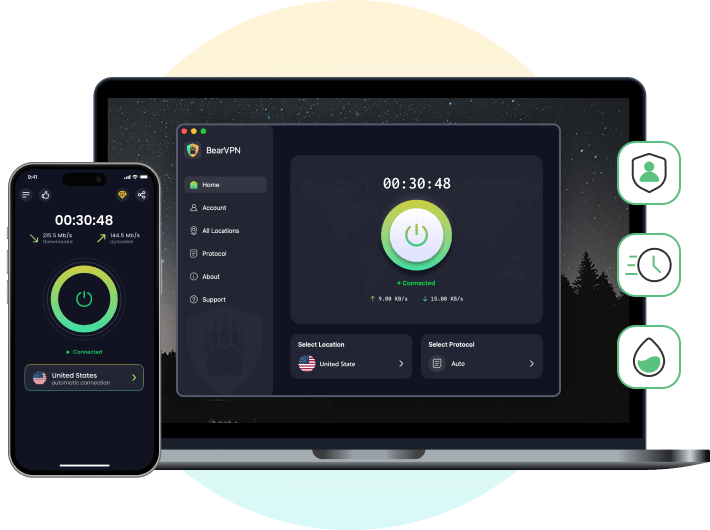
Connect BearVPN to a country where the app is available, then use a Google Play, Apple, or desktop-store account that meets that region’s requirements. BearVPN does not automatically change the account country, payment profile, or app eligibility.
How to Fix “This Item Isn’t Available in Your Country” on Android (Google Play Store)
If you are getting the “This item isn’t available in your country” or “This app isn’t available on Google Play in your region” error on an Android device, try these four methods:
Method 1: Create a New Regional Google Account Using BearVPN (Recommended)
Changing your primary Google Play region comes with strict limitations. The cleanest, hassle-free way to download foreign apps is to create a secondary Google account dedicated to that specific country.
Step 1. Download and launch BearVPN on your Android device.
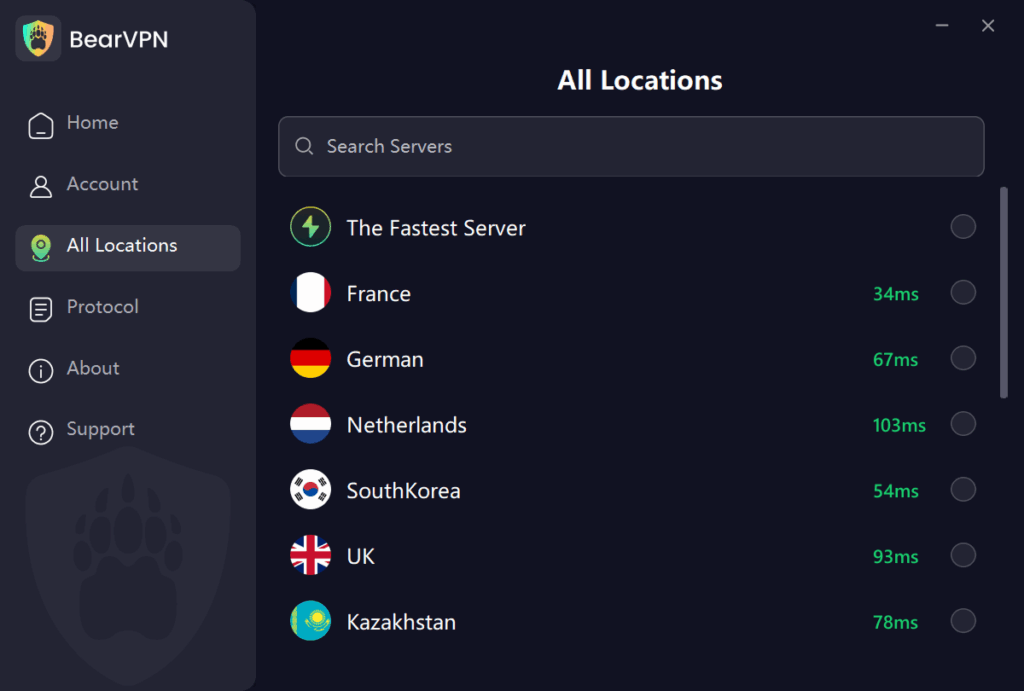
Step 2. Connect to a VPN server in the target country where the app is available (e.g., Japan, USA, or UK).
Step 3. Open your phone’s Settings > Accounts > Add account > Google.
Step 4. Follow Google’s current account-creation prompts. Complete any phone, identity, or security verification that Google requires; do not assume it can be skipped.
Step 5. Open Google Play, switch to the new account, and check the storefront country. If it still shows the old region, review Google’s current country, eligibility, device-location, and payment-profile requirements instead of repeatedly creating accounts.
Method 2: Change Your Existing Google Play Country Settings
If you have permanently moved to a new country, you should update your primary account’s region.
- Open the Google Play Store and tap your profile icon.
- Navigate to Settings > General > Account and device preferences > Country and profiles.
- Tap the country you want to switch to and follow the on-screen instructions to add a local payment method.
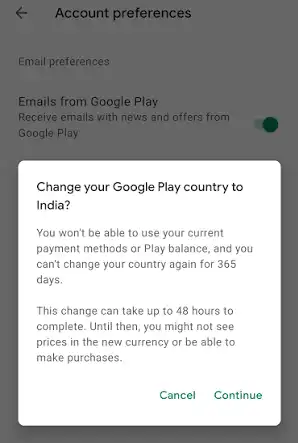
Before changing a Google payment profile: Review how the change may affect subscriptions, purchases, balances, family features, and other Google services. Use only a real payment method and address that you are authorized to use in the new country. Manage eligible payment profiles through Google Payments rather than closing an old profile solely to force a store change.
Method 3: Clear Play Store Cache and Data
Sometimes, even after switching accounts or turning on a VPN, the Google Play Store holds onto your old location data. Forcing a cache reset will refresh the storefront.
- Go to your Android phone’s Settings > Apps (or Apps & Notifications).
- Scroll down and select Google Play Store.
- Tap Storage & cache.
- Tap Clear Cache, and then tap Clear Data (or Clear Storage).
- Reopen Google Play while BearVPN is connected, then check the storefront country. Clearing cached data can refresh an already eligible account, but it does not change the account country or create a local payment profile.
Method 4: Sideload the App via Trusted APK Websites
Prefer the developer’s official website or official repository when it provides an Android package. A third-party marketplace name does not prove that every uploaded file is authentic or safe.
- Confirm the developer’s official package name, current version, and approved download source.
- Download the exact APK only from the developer or another source you can independently verify.
- Compare the signing certificate or hash when the developer publishes one, scan the exact file, and keep Google Play Protect enabled.
- Review the requested permissions before installation and stop if Android shows a warning you cannot explain.
- After installation, turn off “Allow from this source” for the browser or file manager you used.
BearVPN protects the network connection used for the download; it cannot detect malicious code or make an altered APK safe. Installing the file also does not guarantee that the app’s account, payment, phone, GPS, or service-region checks will pass.
How to Fix “App Not Available in Your Country or Region” on iPhone & iPad (App Store)
If you’ve recently moved to a new country and are unable to download certain apps from the App Store, you’re not alone. This issue often arises when attempting to access region-restricted content. Here are two straightforward methods to help you resolve the “App Not Available” problem and get the apps you need.
Method 1. Create a Secondary Apple ID for the Target Region (Recommended)
A separate Apple Account for Media & Purchases can avoid changing the country on the primary iCloud account, but it must still meet Apple’s current region, payment, contact, and terms requirements. Updates or purchases may continue to depend on that account.
- Connect BearVPN to the country where the app is officially available.
- Open Apple Account and follow Apple’s current process to create an account with an unused email address.
- Select the correct Country/Region and provide only truthful contact, billing, and payment information that you are authorized to use.
- On the iPhone or iPad, sign out of Media & Purchases only if appropriate; do not sign out of the entire iCloud account unless you understand the consequences.
- Sign in to Media & Purchases with the eligible regional account, reopen the App Store, and check whether the app is available.
- Remember which account obtained the app, because future updates or purchases may require it again.
Method 2. Change Your Existing App Store Country & Region
Changing your country or region on the App Store is one of the most effective ways to solve this issue. Here’s how:
Step 1. Open Settings on your iPhone.
Step 2. Tap on your Apple ID and select Media & Purchases.
Step 3. Click View Account > Country & Region.
Step 4. Accept the Terms and Conditions.
Step 5. Enter a valid payment method and billing address for your new country.
Important Tips Before Changing Your App Store Country:
- Spend any remaining balance on your Apple account.
- Cancel any subscriptions you have.
- Redownload apps, music, books, and movies on your other devices for future access.
- Make sure you have a payment method for the new country/region.
- If you’re part of a Family Sharing group, you’ll need to leave the group before you can change your country or region.
Method 3. Use Apple’s Official Family Sharing Options
Do not ask a family member to share an Apple Account password or sign their account directly into your device. If an eligible app or purchase can be shared, use Apple’s official Family Sharing and Purchase Sharing features. Availability still depends on the app, region, account settings, and developer rules.
Follow the steps below:
Step 1. Go to Settings > Apple ID > Media & Purchases.
Step 2. Log in with your family member’s Apple ID.
Step 3. Download the apps you need from the App Store.
Step 4. After downloading, sign out and log back into your own Apple ID.
The app will remain on your phone and function normally, though you may need to log back into your account briefly if the app requires a major update in the future
How to Bypass Region Restrictions on Windows PC & Mac
Region locks aren’t exclusive to mobile devices. If you are trying to download desktop software, PC games from the Microsoft Store, or desktop apps from the Mac App Store, use these simple desktop tweaks:
For Windows (Microsoft Store):
Microsoft Store availability may depend on the Windows region, Microsoft account country, payment information, device compatibility, and the developer’s release settings—not only the IP address.
- Click the Start Menu and open Settings.
- Navigate to Time & Language > Language & region.
- Under the Region section, click the dropdown menu next to Country or region and change it to the target country (e.g., United States).
- Restart Microsoft Store and check the app page again. If it remains unavailable, review the Microsoft account and payment region or use the developer’s official Windows download page when one exists.
For macOS (Mac App Store):
- Open the App Store on your Mac.
- Click your name or profile picture at the bottom left, then click Account Settings.
- Click Change Country or Region.
- Select your new region, agree to the terms, and enter billing details (or switch to a secondary Mac Apple ID created via the steps in the iOS section above).
Changing a Windows or macOS system region does not guarantee store eligibility. The store account, payment method, hardware or OS compatibility, and developer-supported countries may still control the result.
Alternative Workaround: Check for a Web or PWA Version
Before you spend time switching app store regions, ask yourself: Do I actually need to install the native app?
Today, many major streaming platforms, online tools, social platforms, and rewards programs offer Progressive Web Apps (PWAs) or fully functional mobile web versions.
- Simply turn on BearVPN and connect to the appropriate country server.
- Open your mobile browser (Safari or Chrome) and navigate directly to the service’s official website.
- Log in and use the platform directly through your browser.
- If the official web version provides the features you need, use Add to Home Screen to create a shortcut. A web or PWA version may still lack native-app features such as offline access, push notifications, background activity, payment support, DRM, or device integrations.
Conclusion
Start by identifying which region signal is blocking the download. BearVPN can match the network IP to a supported country, while Google Play, the Apple App Store, Microsoft Store, or Mac App Store may still require an eligible account, payment profile, subscription status, and compatible device.
Use a secondary store account only when it meets the platform’s rules, change a primary country after a genuine move, and prefer an official developer download or web version when available. Installing the app does not guarantee that its own account or service-region checks will pass.
FAQs
If you cannot tap “Change Country or Region,” it is usually because you have an active Apple subscription, a pending store balance, or you are part of a Family Sharing plan. You must cancel active subscriptions, spend remaining store credit, or leave the family group before the system will allow a region switch.
Eligibility can depend on Google’s current country-change policy, your recent region history, physical location, payment profile, balances, subscriptions, and family or managed-account status. Check the current Google Play help page for the waiting period and requirements shown for your account.
Sideloading always adds risk. Prefer the developer’s official package, verify the package name and signing information, scan the exact file, keep Play Protect enabled, review permissions, and disable unknown-source installation afterward. A familiar repository name or a VPN cannot certify an APK as safe.
A VPN changes the network IP, but the store may rely on the account country, payment profile, subscriptions, family settings, device location, and developer-supported regions. Use an eligible account for the target storefront. Clearing cache can refresh old local data, but it does not change the account country by itself.
If Apple’s current rules allow it, a separate eligible account for Media & Purchases can avoid changing the primary iCloud account. Use truthful regional information and remember that updates, purchases, or subscriptions may still require the account that obtained the app.
VPN use and store-region changes are permitted in many places, but laws, platform terms, payment rules, tax obligations, and app licenses differ. Use truthful information, do not misuse regional pricing or payment details, and check the rules that apply to your account and location.
Ready to match your IP with the app’s supported region? Connect BearVPN before reopening the store.


![How to Change YouTube TV Location [Still Works in 2026]](/_next/image/?url=https%3A%2F%2Fcms.bearvpn.com%2Fwp-content%2Fuploads%2F2026%2F06%2Fhow-to-change-location-youtube-tv.webp&w=640&q=75)