The wording matters. If it says “temporarily unavailable”, test the player, browser, app, or upload status first. If one title fails everywhere, it may be private, deleted, still processing, outside your subscription, or unavailable on that device. If every video fails only on one Wi-Fi network, the network or ISP is probably blocking the route. And if the message explicitly says “in your location,” the platform is reading your visible IP region.
Work through the fixes in order instead of refreshing blindly. The browser and app checks below solve local playback failures; the BearVPN method targets regional blocks, ISP filtering, and restricted school, office, hotel, or public Wi-Fi.
The Quick Fixes: Troubleshooting YouTube & Browser Errors
If you are streaming on a desktop browser (like Chrome, Firefox, or Edge) or using the YouTube web player, the error is frequently caused by a temporary data conflict rather than a hard regional block. Try these immediate solutions first:
1. Drop the Video Quality (Bypass Server Overload)
When YouTube servers experience massive traffic spikes, high-resolution streaming (1080p or 4K) can fail, triggering a temporary unavailability error.
- Click the gear icon on the YouTube player.
- Change the quality setting from “Auto” to a lower resolution, such as 480p or 360p.
- This forces the platform to connect to a different, less congested content delivery server, often bypassing the glitch instantly.
Related post: how to watch members-only videos on YouTube
2. Disable Ad-Blockers and Browser Extensions
Third-party extensions, particularly aggressive ad-blockers like uBlock Origin or privacy shields, frequently interfere with HTML5 video rendering scripts. If the player cannot load its tracking or ad scripts, it will simply block the main video and display the error.
- Open an Incognito or Private window (which disables extensions by default) and try loading the video again.
- If it plays flawlessly, disable your ad-blocker specifically for that streaming domain.
3. Purge Corrupted Browser Cache and Cookies
Outdated cookies can misreport your geographical location or session ID, leading the platform to believe your connection is invalid.
- Head to your browser’s settings (
Ctrl + Shift + Delon Windows orCmd + Shift + Backspaceon Mac). - Select Clear Browsing Data.
- Check the boxes for “Cookies and other site data” and “Cached images and files.”
- Restart the browser to force a fresh connection.
4. Disable Hardware Acceleration
Sometimes, your computer’s graphic drivers clash with the web player, causing the stream to crash before it even begins.
- Go to your browser settings and search for “Hardware Acceleration.”
- Toggle off the option that says “Use hardware acceleration when available.”
- Relaunch the browser and reload the media page.
5. Wait for Google Drive to Finish Processing the Video
Google Drive uses the exact message “This video is currently unavailable” when a video is not ready to play. Wait a few minutes and reload it. For a large or newly uploaded file, processing can take longer.
If it still fails, sign in to your Google Account, test an Incognito window, disable conflicting extensions, and try another supported browser. A different message points to a different cause: “Video is still processing” means wait; “Video is unplayable” can mean the file is corrupt or uses an unsupported format; a playback-limit message requires unsigned viewers to sign in. A VPN will not finish Drive’s file processing, but BearVPN can help when Drive itself is blocked or throttled on the current network.
related post: unblocked game websites
App-Specific Glitches: Fixing Prime Video & Netflix
If you are streaming on a smart TV, mobile device, or dedicated application, browser fixes will not help. Streaming services like Amazon Prime and Netflix have rigid app ecosystems. When you see the error “this video is not available on this platform.”, it usually points to a compatibility or localized cache issue between your specific device and the streaming servers.
1. Force Update the Application
Outdated mobile or smart TV apps frequently fail to sync with newly updated DRM (Digital Rights Management) protocols. Navigate to your device’s app store (whether on Android, iOS, or your TV’s built-in store) and verify that you are running the absolute latest version of the application.
2. Clear App Data and Cache
Just like browsers, apps store temporary data that can become corrupted.
- On Android devices or Smart TVs, navigate to
Settings > Apps > [Prime Video/Netflix] > Storageand tap Clear Cache. - On iOS (iPhone/iPad), Apple does not offer a direct “clear cache” button for most apps, so the most effective method is to delete the app entirely and reinstall it from the App Store.
3. Verify Account Regional Settings
Amazon Prime Video is notorious for locking content based on your billing address. If you recently traveled or moved, your account settings might conflict with your physical IP address. Log into your account settings via a web browser and ensure your “Country/Region” matches your current physical location.
Test one more title before changing the network. If only one movie or episode is unavailable on every device, check whether it left the catalog, requires a separate channel/subscription, expired from a rental, or is blocked by the profile’s maturity settings. If every title fails in the app but works in a browser, reinstalling the app is the stronger fix.
If the message names your location—or the same title plays on mobile data but not on the current Wi-Fi—move to the BearVPN steps below. If Netflix reports that it cannot determine your country while a VPN is already connected, reconnect or select a different BearVPN server; stale cookies, DNS results, and a flagged route can conflict with the new IP location.
Unblocking Restricted or Private Media Sites
Sometimes the error is not a glitch at all, but a deliberate block by your ISP (Internet Service Provider) or a local network administrator. If you are searching for niche content and encounter the xxx videos video is currently unavailable error, this is a clear indicator of network-level censorship or strict adult-content filtering applied by your network provider.
Run one fast test: open the same page on mobile data. If the video plays there but returns “xxx videos video is currently unavailable” on school, office, hotel, or home Wi-Fi, the local network or ISP is blocking the site or media route. BearVPN encrypts the connection with AES-256, masks your public IP, and uses strong obfuscation to break through restrictive firewalls without exposing the destination to the local network.
The Ultimate Fix: Bypass Geo-Blocking with BearVPN
If you cleared the browser data, updated the app, and the message still says “this video is currently unavailable to watch in your location,” stop repeating device fixes. That wording points to your visible IP region or the route the platform is seeing.
BearVPN changes your visible IP address and sends the stream through a supported server location, allowing you to bypass IP-based regional restrictions and local network blocks. Smart Server Selection can choose a suitable route automatically, while 2,000+ servers across 50+ locations give you alternatives when one route is slow or rejected.
This is not a generic privacy add-on pasted into a troubleshooting guide. Each BearVPN feature answers a specific video problem:
Turn “Unavailable” Back into Play
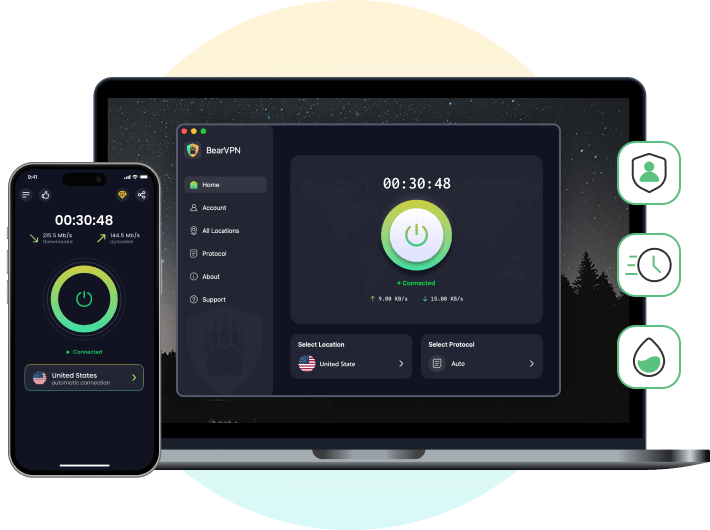
- Reach the right region: Mask your IP across 50+ global locations.
- Break through blocked Wi-Fi: Strong obfuscation defeats restrictive network filters.
- Find a working route faster: Smart Server Selection avoids manual trial and error.
- Keep your real location sealed: Kill Switch and DNS Leak Protection prevent exposure.
How to Fix the “Video Unavailable” Error with BearVPN (Quick Setup)
You do not need to guess through dozens of settings. Use this five-step setup to match BearVPN to the error you actually see.
Step 1: Download and Install
Install BearVPN on Windows, macOS, Android, or iOS, then open the app. The mobile apps let you start without creating an account, so you can test the blocked video immediately.
Step 2: Let Smart Selection Test the Route—Then Choose the Region
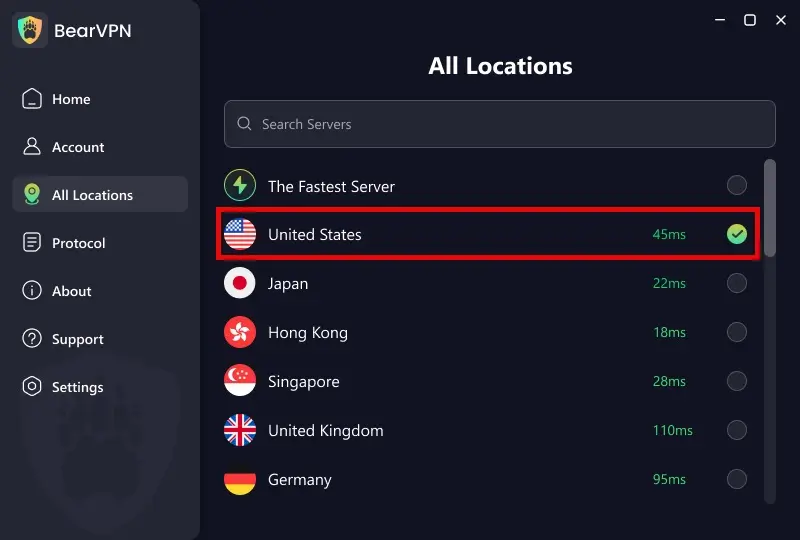
Start with Smart Server Selection when the error is caused by a slow, filtered, or unstable route. If the message explicitly says the video is unavailable in your location, choose a server in a country where that title or service is available to you. BearVPN provides 2,000+ servers across 50+ locations, so you can change routes instead of repeatedly reconnecting to the same congested endpoint.
Step 3: Match the Protocol to the Block
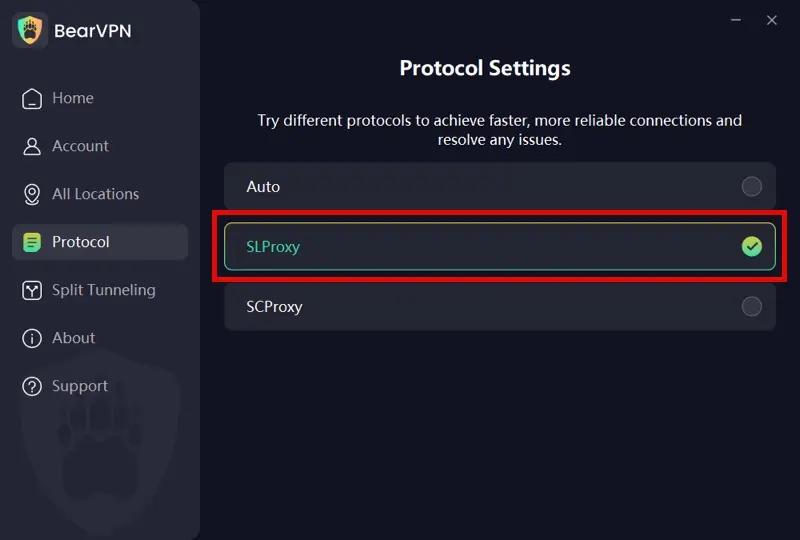
Open Settings → Protocols. The right choice depends on whether you are fighting buffering or a network that blocks VPN traffic.
- Auto: Let BearVPN choose the protocol for the current network. This is the best first attempt for most users.
- SLProxy: Use the low-latency streaming route when the site opens but playback stalls or buffers.
- SCProxy: Use strong obfuscation on school, office, hotel, or ISP networks that block the site or detect ordinary VPN tunnels.
Step 4: Prevent an IP or DNS Location Conflict
Before reloading the video, close the streaming app or tab, clear that site’s cookies if it still remembers the old region, and reconnect BearVPN. Keep DNS Leak Protection enabled so the platform does not receive a DNS route that conflicts with the masked IP. If one server is rejected, switch to another server in the same target location or return to Smart Server Selection.
Step 5: Configure Split Tunneling (Optional but Powerful)
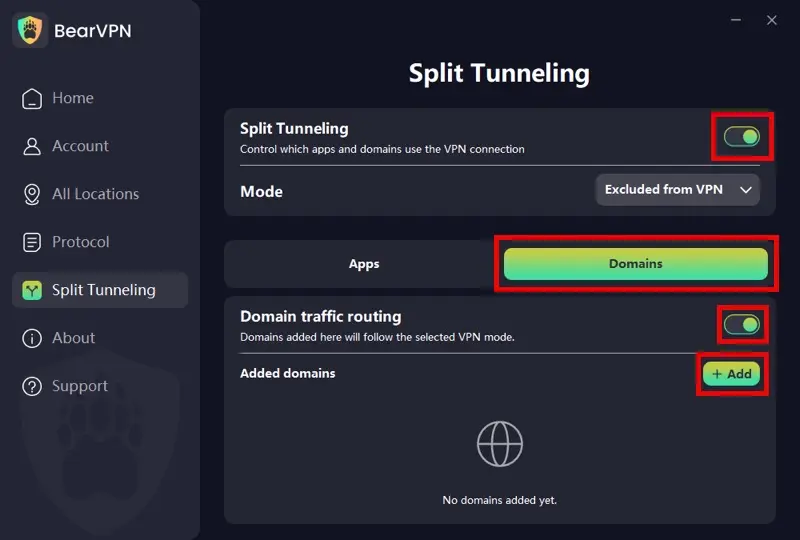
Use Split Tunneling when only the browser or streaming app needs the new route. Send Chrome, the streaming app, or the specific video domain through BearVPN while banking, local devices, work tools, or latency-sensitive apps stay on the regular connection.
- App Mode: Select specific applications (like Chrome or the Netflix app) to either strictly use or bypass the VPN tunnel.
- Domain Mode: Enter specific website URLs (e.g., youtube.com or amazon.com ) to route only that website’s traffic through the VPN, leaving the rest of your system untouched.
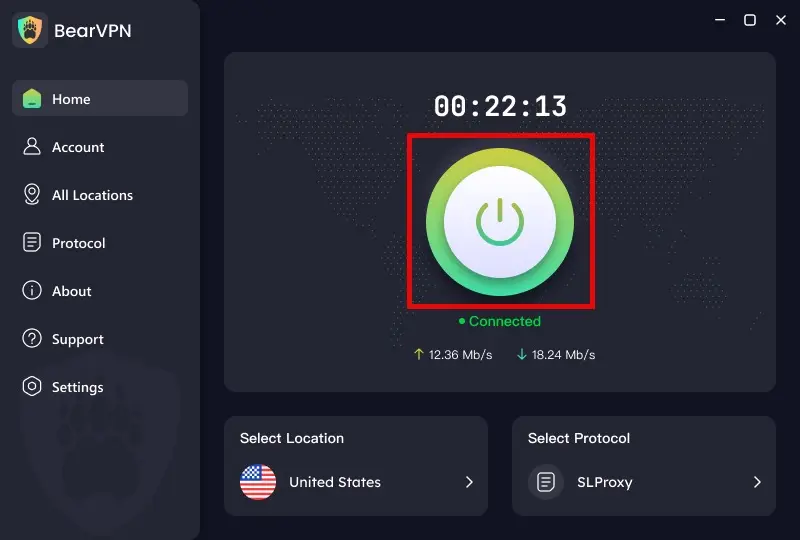
Connect, enable the Kill Switch, and refresh. The Kill Switch stops the device from falling back to the exposed connection if the VPN tunnel drops. Return to the official player, reload the page, and test the same video. If the error was caused by the visible IP region, DNS route, or local network block, playback should now start; if the title was deleted, private, unfinished, or outside the account’s subscription, return to the matching diagnostic section above.
Behind the stream, AES-256 encryption protects the connection, RAM-only infrastructure limits persistent server-side data, and BearVPN’s no-logs policy keeps the product focused on access without building an activity history. Double VPN remains available for higher-privacy sessions, while a single smart-selected server is the better default for ordinary streaming performance.
Frequently Asked Questions
The region may be correct while the browser session, account, app, DNS route, or video itself is not. Test an Incognito window, clear the site’s cookies, update the app, and try another title. If every video fails only on one network, connect BearVPN and retry through Smart Server Selection; if one title fails everywhere, it may be private, removed, unfinished, or outside your subscription.
You will typically encounter this specific error on live broadcasting platforms (like Twitch) or interactive web players. It means the specific video rendering method or source server the platform is trying to use has temporarily failed. To fix this, try lowering the stream quality (e.g., from 1080p to 480p), turning off hardware acceleration, or switching from the mobile app to a desktop browser.
Changing a device clock or language does not change the public IP address a platform uses for location checks. For an IP-based regional block, a VPN is the most direct fix: BearVPN masks the current IP and routes the connection through a supported server location. A VPN cannot restore a deleted/private video or add a title to an account that lacks the required subscription.
Any VPN adds some routing overhead, but the right route can also avoid a congested or throttled path. BearVPN uses bare-metal servers, Smart Server Selection, and streaming-focused protocols to keep the route fast. Choose the nearest suitable location, use SLProxy when the site opens but playback buffers, and switch servers if one endpoint is overloaded.
Google says this exact message usually means the video is not ready to play. Wait a few minutes and try again; large uploads may need longer. If Drive shows a processing, unsupported-file, or playback-limit message instead, follow that specific instruction. Use BearVPN only when Drive itself is blocked or the current network route is failing—it cannot speed up Google’s file processing.
Final Thoughts & Next Steps
“This video is currently unavailable” is not one error with one fix. Browser-only failures usually point to cookies, extensions, hardware acceleration, or playback quality. Google Drive may still be processing the file. A single missing title can be private, removed, expired, or outside the account’s subscription.
But when the message names your location—or the same video works on mobile data and fails on the current Wi-Fi—the problem has moved from the player to the network. BearVPN masks your IP, changes the visible region, bypasses local restrictions, and uses smart routing plus strong obfuscation to get the stream moving again.
Stop cycling through the same cache reset when the network is the real blocker. Choose the right BearVPN route, reconnect the player, and press Play.
The Player Is Ready. Fix the Route.Connect BearVPN to change your visible IP, break through blocked networks, and find a cleaner streaming route. AES-256 encryption, DNS Leak Protection, and an automatic Kill Switch keep the connection protected while you watch.


![How to Change YouTube TV Location [Still Works in 2026]](/_next/image/?url=https%3A%2F%2Fcms.bearvpn.com%2Fwp-content%2Fuploads%2F2026%2F06%2Fhow-to-change-location-youtube-tv.webp&w=640&q=75)