This guide is for informational and troubleshooting purposes only. We do not condone using a VPN to violate platform terms of service or engage in malicious behavior. Always chat responsibly.
OmeTV problems can look similar even when they have different causes. A VPN warning may involve the current server IP, while a black screen can come from camera or microphone permissions. Endless loading may point to latency, cached site data, a browser issue, or a temporary OmeTV problem.
Use the symptom table below before changing tools. If several servers from the same VPN continue to trigger the same warning after the basic checks, testing a different VPN becomes a reasonable next step.
Why is OmeTV Blocking My VPN?
OmeTV may restrict a connection when the current IP has a poor reputation, is shared by many users, or is identified as belonging to a proxy or VPN service. Account history, session cookies, browser data, and platform behavior can also affect the result. A blocked shared IP does not mean that every address from the provider is permanently blocked.
Changing the server or connection method may help, but it cannot fix camera permissions, an OmeTV outage, or an account- or device-level ban. Match the symptom to the first action below.
Quick Fixes: How to Fix OmeTV VPN Not Working
If OmeTV shows a black screen or a “VPN detected” message, work through these four checks in order. The result will help you distinguish a server problem from cached data, hardware permissions, or a connection-method issue.
1. Switch to Another Server
If OmeTV shows a VPN warning while the rest of your connection works, the current server IP may be restricted or overcrowded.
- First test: Disconnect and choose another server in the same target country. This changes one variable without changing the region you want.
- Then compare: If several nearby servers fail, try another available connection method before deciding that the device or account is blocked.
2. Clear Browser Cache, Cookies, and Use Incognito Mode
OmeTV doesn’t just track your IP address; it also leaves digital footprints on your device. If you get banned or blocked, OmeTV stores session cookies in your browser. Even if you turn on a VPN to change your IP, those lingering cookies will snitch on your real identity, causing the new connection to fail.
- Clear OmeTV site data: Remove OmeTV cookies, cache, and stored site permissions, then close and reopen the browser.
- Use a private window as a test: It starts without the old local session data, but it does not change your IP, account history, device identity, or an existing platform ban.
3. Check Camera and Microphone Permissions
Sometimes, your VPN is working perfectly, but OmeTV still shows a black screen or a loading loop due to a hardware permission conflict. If your screen is flashing the specific OmeTV you have denied access error block, it means your browser has automatically revoked the site’s access to your hardware.
- When you switch networks or clear browser data, your browser may automatically revoke OmeTV’s access to your webcam and microphone.
- How to fix it: Check the camera icon in the address bar or open the browser’s site settings. Allow OmeTV to use the camera and microphone, reload the page, and test the video again.
4. Toggle Your VPN Protocol
A network or service may handle one VPN connection method differently from another. Changing the protocol can help with a blocked or unstable connection, but it does not guarantee that OmeTV will accept the server IP.
- How to test it: Open the protocol or connection settings in your current VPN app, choose a different option that is actually available, reconnect, and test OmeTV again. If the app shows no alternative, continue to the next section.
What is the Best VPN for OmeTV in 2026?
If you have already changed servers, cleared OmeTV site data, checked camera and microphone permissions, and tested another available connection method, the current VPN may be the remaining problem.
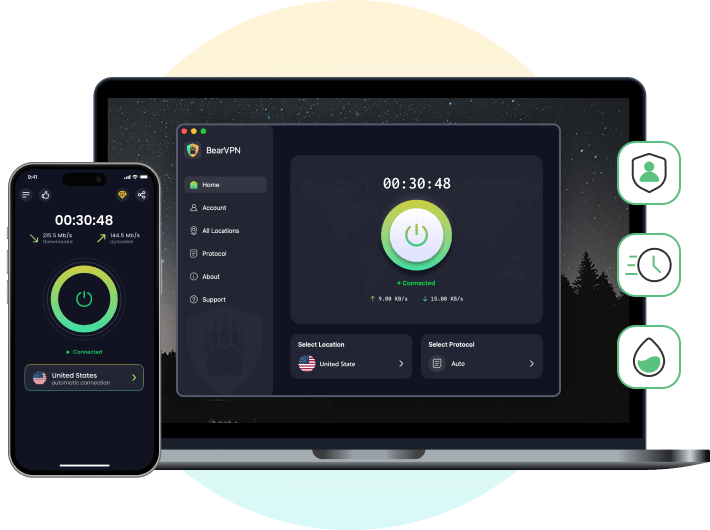
BearVPN gives you another network route to test without promising to fix an unrelated camera problem or remove an account ban:
- Switch servers when the current IP is blocked or crowded.
- Use a stable encrypted connection for live video chat.
- Keep Kill Switch and DNS/IP leak protection enabled during connection changes.
If several servers from your current VPN fail, try a BearVPN server and connect before opening OmeTV. If the problem is a camera permission or account ban, fix the permission or use OmeTV’s official appeal process instead.
How to Fix the Wrong OmeTV Location
If OmeTV shows the wrong country or regional flag, first verify the public IP address created by the VPN. Then clear OmeTV’s old site data and check whether the browser or device is still sharing location information.
Changing Your Virtual Location for Better Matches
If OmeTV is locking you into the wrong country or showing an incorrect regional flag, it is reading outdated location markers.
- Verify the VPN IP: Connect to a server in the intended country and use an IP-checking page to confirm that the public IP has changed.
- Clear old location signals: Remove OmeTV site data and review browser or device location permission. WebRTC can reveal network-address information in some setups, but it is not the same as GPS coordinates.
Can a VPN Unban You from OmeTV?
A VPN changes the public IP address, so it may help only when the restriction is limited to that IP. It cannot guarantee removal of an account-, device-, cookie-, or behavior-based penalty, and a private window does not erase server-side enforcement.
Read the ban message, check any stated duration, and use OmeTV’s official support or appeal process when the restriction is tied to your account or device. Do not rely on repeated reconnections to bypass a platform decision.
FAQs About OmeTV and VPNs
A black screen can come from a restricted VPN IP, a slow or unstable route, blocked camera or microphone permission, browser data, or a temporary OmeTV problem. Check permissions first, then clear site data and test another nearby server.
Choose a VPN that lets you switch servers easily, maintains a stable connection for live video, and includes DNS/IP leak protection. BearVPN supports Android and iOS and can be tested when several servers from the current VPN keep triggering OmeTV’s warning.
A free VPN may work, but crowded servers and heavily shared IP addresses are more likely to be slow or restricted. Check the provider’s data limits, privacy policy, server choices, and leak protection. No free or paid VPN can guarantee access or remove an account-level ban.


![How to Change YouTube TV Location [Still Works in 2026]](/_next/image/?url=https%3A%2F%2Fcms.bearvpn.com%2Fwp-content%2Fuploads%2F2026%2F06%2Fhow-to-change-location-youtube-tv.webp&w=640&q=75)