If you’ve ever tried to join a server and saw “This server’s content is unavailable on iOS” in Discord, you’re not alone. Apple’s policies, Discord’s NSFW rules, and your own iPhone settings all interact here. This guide walks you through how to remove the iOS age restriction on Discord safely if you’re 18+, fix common errors, and protect your privacy while you do it.
What the iOS Age Restriction on Discord Actually Means
Before you can fix the problem, you need to understand what Discord and iOS are actually blocking. Many users assume the “Discord age restriction iOS” issue is just a bug, but it’s usually a mix of App Store rules and Discord’s own content policies working together behind the scenes.
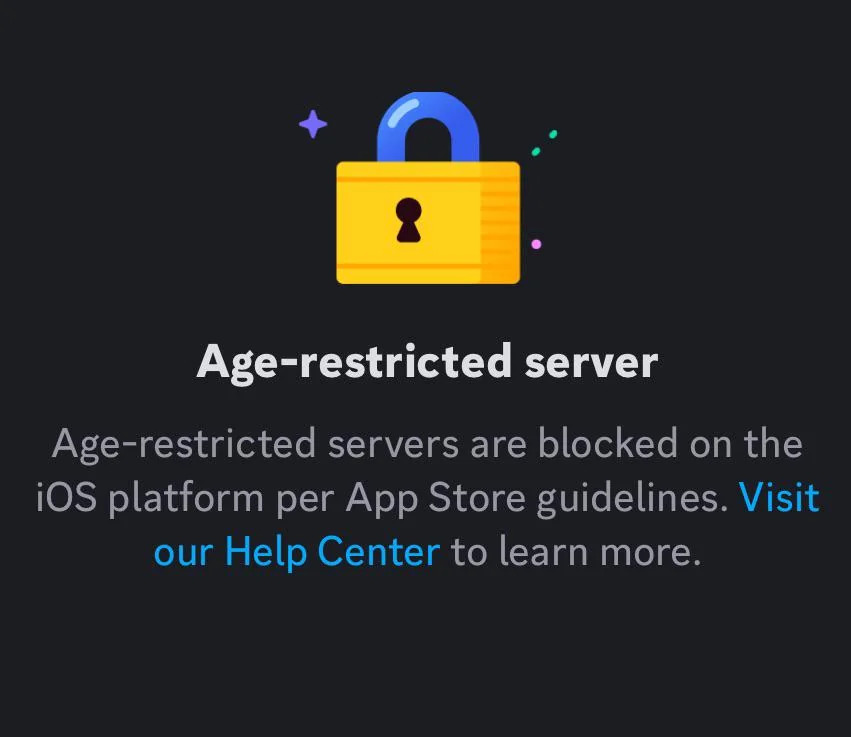
Discord marks certain channels and servers as age-restricted (often called NSFW) when they contain mature themes. On a desktop, adults can simply accept a warning and continue. On iPhone or iPad, you’ll often see messages like “This server’s content is unavailable on iOS” or “Age-restricted servers are blocked on the iOS platform per App Store guidelines.”
Apple requires stricter handling of explicit content in iOS apps, so Discord limits what you can see in the iOS client even if you’re 18+. That’s why “how to remove iOS age restriction Discord” is less about “hacking” something and more about configuring your account correctly and understanding what iOS will never show.
Check iPhone Screen Time and App Store Age Limits First
Before you dive into Discord settings, it’s smart to rule out basic iOS content restrictions. If Screen Time or App Store age limits are too strict, Discord may not behave as expected, especially when you try to access age-restricted servers on iOS.
Open Settings → Screen Time and confirm whether Screen Time is enabled. If it is, check Content & Privacy Restrictions, then Content Restrictions → Apps, and make sure apps rated 17+ are allowed. Discord sits in that 17+ category, so if the cap is too low, your iPhone can quietly block parts of the app.

If your device is managed by a parent, school, or company (via a configuration profile or MDM), those policies can also lock down NSFW access. In that case, even if you fix the Discord age restriction on iPhone, the system-level rules may still win.
How to Remove the Discord iOS Age Restriction If You’re 18+
Once you’ve confirmed your iPhone isn’t blocking mature apps outright, you can work on your Discord account itself. The core fix for most “Discord age restriction iOS” and NSFW errors is enabling a specific toggle on desktop and making sure your age is correctly verified.
Enable “Allow Access to Age-Restricted Servers on iOS” on Desktop
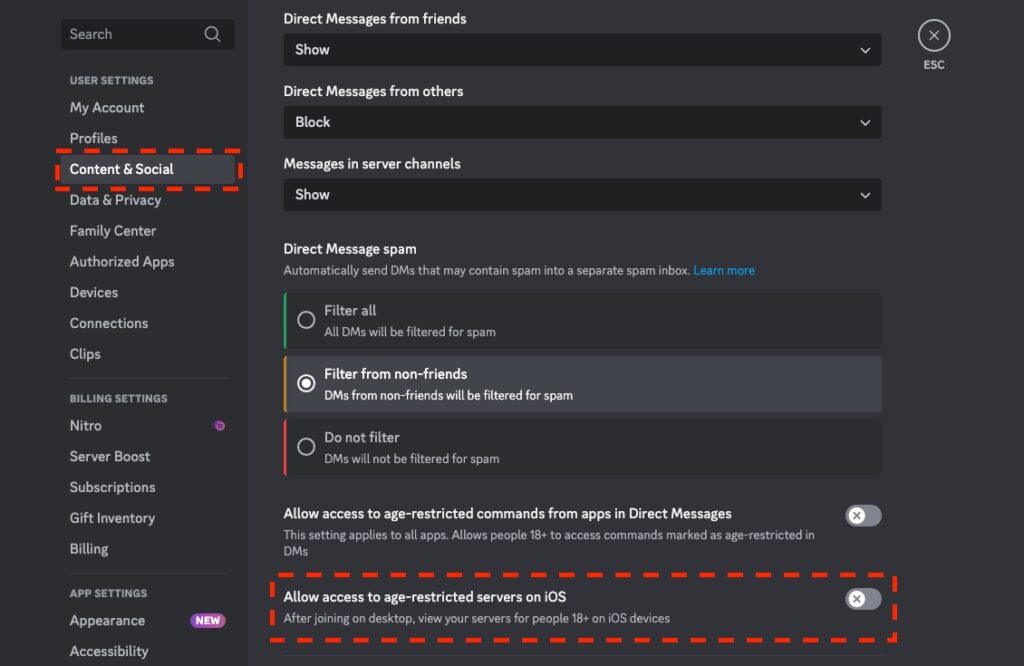
This is the account setting most people miss, but it works only when your age and iPhone restrictions are already configured correctly. You can’t switch on age-restricted access from the iPhone app — the toggle simply doesn’t exist there. You have to change it on a desktop app or in a desktop browser:
- Open Discord on Windows, Mac, or a browser like Chrome or Edge, and log into the same account you use on your iPhone.
- Click the gear icon next to your username to open User Settings.
- Select Content & Social in the left menu. (Discord moved this option here — older guides still point to “Privacy & Safety,” which no longer holds the toggle.)
- Find “Allow access to age-restricted servers on iOS” and turn it on.
- Here’s the part guides skip: the change won’t reach your phone on its own. Swipe Discord fully closed on your iPhone — or offload it under Settings → General → iPhone Storage → Discord → Offload App and reinstall — then open it again.
Once the setting syncs, the servers you already belong to should load on iOS. If one specific server still refuses to open in the app’s search, paste its invite link straight into Safari and join from there — the app often recognizes your membership only after that first browser handoff.
Verify Your Age Correctly on Discord
If Discord thinks you’re under 18, you can turn on every toggle you like, and it still won’t let you into age-restricted servers. When you see repeated blocks, it’s worth checking whether Discord has actually confirmed your age.
In your My Account settings on desktop, look for any prompts to complete Discord age verification. Depending on your region, Discord may ask for:
- A photo of a government-issued ID
- A selfie holding that ID
- Or a verification flow powered by a third-party provider
If you’ve accidentally set the wrong birthdate, submitted blurry photos, or skipped verification in the past, you may need to go through the process again or open a support request. There’s no legitimate way to “bypass Discord age verification without ID” if the platform explicitly requires it for your account and region.
Understand iOS-Only Hard Limits You Can’t Bypass
Even if you follow every step, some content simply won’t load on iOS. Discord still has to obey Apple’s App Store guidelines, which can mean:
- Certain servers with explicit NSFW material remain blocked in the iOS app.
- You may need to use Discord on desktop or web to view some channels.
This is why “how to turn off age restriction on Discord iPhone” has a frustrating answer: you can reduce restrictions and fix misconfigurations, but you can’t convert the iOS app into a no-limits client. Where iOS enforces hard rules, your best option is to use a desktop for the most explicit servers and use an iPhone for everything else.
Still Blocked on iOS After Changing the Setting?
So you flipped the toggle, restarted the app, and Discord still throws “This server’s content is unavailable on iOS.” Frustrating — but the message is misleading. It almost never means the server is down or the invite is broken. Run through these in order:
- Your birthday was never verified. This is the most common cause by far. If Discord still reads your account as under 18 — or you skipped age verification entirely — no toggle will let you in. Open User Settings → My Account on desktop and confirm your date of birth is correct and verified.
- Your email isn’t verified. An unverified email can make age-gated invites read as “Expired or Invalid,” which people misread as a dead link. Verify it from your account settings.
- Screen Time is quietly capping the app. If Content & Privacy Restrictions blocks 17+ apps, iOS strips part of Discord before you ever reach the server. Allow 17+ apps and try again.
- The server is explicit-only. Servers organized entirely around pornographic content stay blocked on iOS by Apple’s rule, full stop. Open those on desktop or web instead.
- A VPN in the wrong region is interfering. Helpful as a VPN is for privacy, connecting through a region with stricter NSFW handling can make an invite look invalid. If you hit a wall, disconnect, join the server once, then reconnect.
Work down that list and the “18+ not working on iOS” error usually resolves at one of the first two points — long before Apple’s hard limit is even the issue.
Regional Age Verification vs. iOS Limits on Discord
Sometimes the real problem isn’t strictly iOS, it’s the country you’re connecting from. New and proposed age-verification laws in places like the UK and EU mean services may require ID, facial verification, or other proof of age that exceeds Discord’s own settings.
If you’re in a region with aggressive age-verification rules, you might hit extra prompts even after you remove the Discord iOS age restriction through desktop settings. In practice, that looks like:
- “Verify your age to continue” pop-ups that won’t go away
- Requests to upload identity documents through a third-party provider
- Confusing loops where you verify once and still get blocked later
These flows are often tied to IP-based geolocation, not just your Discord profile. That’s one reason people search for “Discord age verification without ID” or “Discord age verification VPN” when they feel uncomfortable sharing personal documents.
For a deeper dive into these laws and their privacy implications, refer to this Discord age verification guide, which outlines common age-check scenarios and privacy-preserving options.
Using a VPN for Discord Age Verification Safely – BearVPN
Once your iPhone and Discord account are configured correctly, the remaining question is how to protect your privacy when age checks or regional rules come into play. A VPN for Discord age verification can help with this, but only if you use it with realistic expectations and within the rules.
A Discord age verification VPN mainly does three things: it encrypts your traffic, hides your real IP address, and can make you appear to be connecting from another region. That can reduce how much your network or ISP can see, and in some cases, it changes how websites apply location-based age prompts. What it cannot do is overwrite Discord’s own age data, remove hard iOS NSFW blocks, or turn an underage account into an adult account.
Used properly, a VPN is a privacy and safety layer around the steps you’re already taking. You still need to fix “how to remove iOS age restriction Discord” through desktop settings, confirm your age honestly, and respect Discord’s Terms of Service as well as local law.
Why BearVPN Works Well for Discord on iPhone
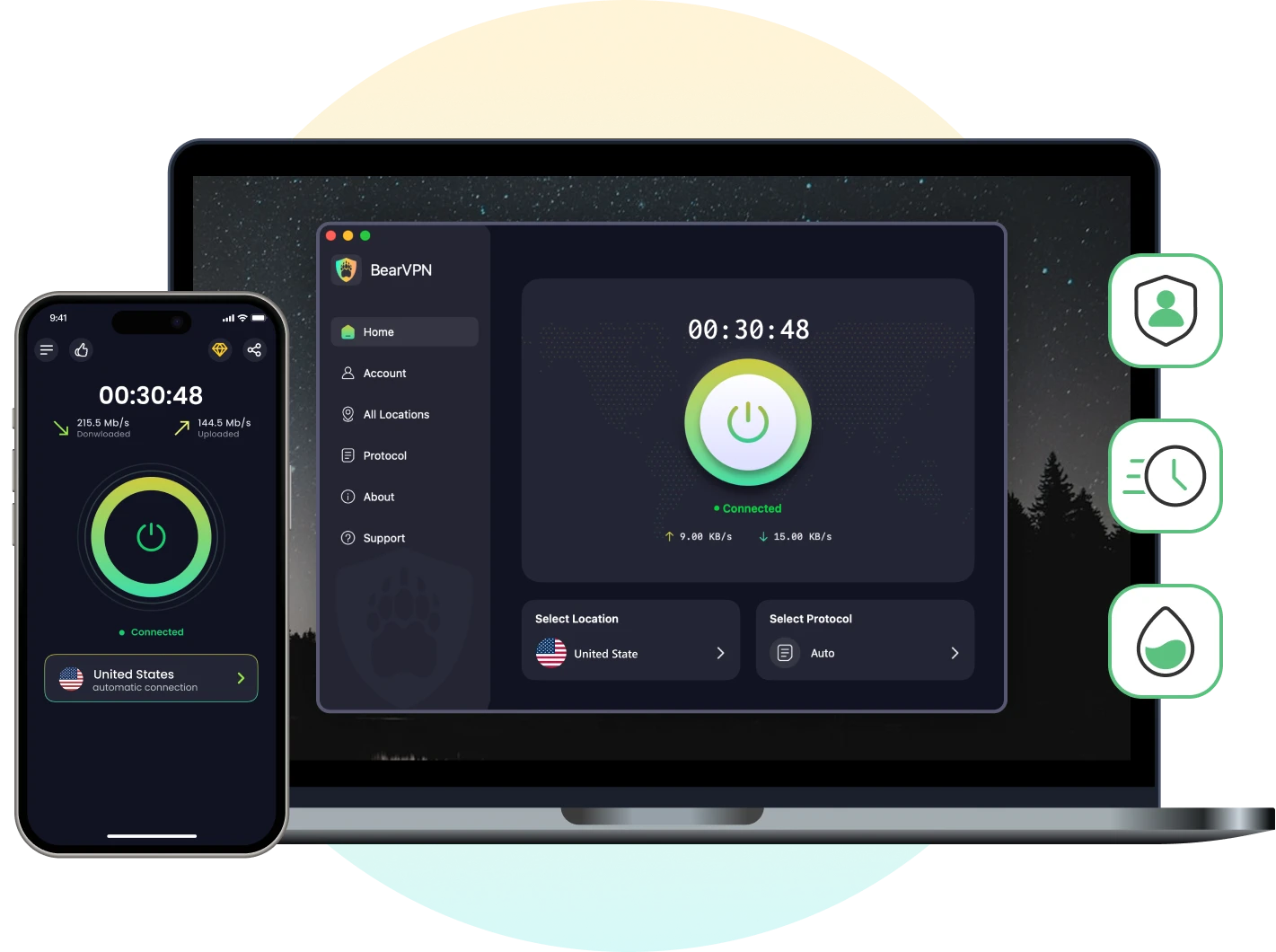
For Discord users who spend most of their time on iPhone or iPad, a mobile-first VPN makes things simpler. BearVPN is built around that use case: it offers native apps for iOS and Android, plus Mac and Windows support when you switch back to desktop.
In practice, that means you can secure your Discord sessions on public Wi-Fi, rely on strong encryption and DNS-leak protection, and still keep voice and video calls usable instead of painfully laggy. When you’re dealing with age verification flows or region-specific prompts, that added privacy matters.
BearVPN encrypts traffic between your device and the VPN server and masks your public IP on public Wi-Fi. It cannot change your Discord birthday, skip a required age check, or remove Apple’s iOS content limits.
Quick Safe-Use Flow: VPN and Discord on iOS
To keep things simple, you can follow a short, repeatable flow whenever you use a VPN with Discord on iOS:
- Install a reputable VPN app such as BearVPN on your iPhone.
- Connect to a server in a country where Discord is fully available and VPNs are legal.
- Open Discord, confirm that your NSFW and age verification settings are already correct on desktop.
- Use Discord normally—avoiding any attempt to evade bans, falsify age, or access illegal content.
This way, the VPN supports your privacy and security when handling Discord age verification and regional restrictions, instead of trying to fight the platform or its iOS limits.
Quick Discord iOS Age Restriction Troubleshooting Checklist
By now, you’ve seen that “how to remove iOS age restriction Discord” involves multiple moving parts. When you hit a new error or can’t remember what you’ve already tried, a simple checklist keeps you from chasing your tail.
Use the following quick review when you see errors like “This server’s content is unavailable on iOS Discord” again:
- Confirm Screen Time and Content Restrictions allow 17+ apps.
- Make sure Discord is updated to the latest iOS version.
- On desktop, enable “Allow access to age-restricted servers on iOS.”
- Check that your Discord age verification is complete and accurate.
- Accept that some NSFW servers will stay blocked on iOS and must be used on a desktop instead.
- If you care about privacy during age checks or on public Wi-Fi, connect to a trustworthy mobile VPN such as BearVPN before opening Discord.
If you’ve gone through all of these and the problem persists, it’s worth checking Discord’s official support articles or reaching out to their support team with screenshots and details about your device and region.
FAQs
Apple’s App Store rules require Discord to hide most age-restricted content inside the iOS app. Even if you’re over 18, the toggle that unlocks these servers lives in Discord’s desktop settings, not on your phone. Until you enable it there and your account age is verified, iOS keeps those servers hidden.
No. The “Allow access to age-restricted servers on iOS” option only appears in Discord’s Content & Social settings on a desktop app or browser. Once you turn it on there and force-close the app on your phone, the servers you already belong to will load on iOS.
If Discord requires an ID for your account and region, there’s no legitimate way around it. Any tool claiming to skip ID verification is usually unsafe, against Discord’s rules, or both. The safer path is to complete verification honestly and use a VPN only to protect your connection while you do it.
Yes, as long as you’re 18 or older and stick to Discord’s Terms of Service. The toggle only changes what your own account can see — it doesn’t expose you to anything, and it doesn’t break any rules. For added privacy during regional age checks, you can route your connection through a VPN.
Discord doesn’t ban people simply for using a VPN. Many users rely on VPNs for privacy. Problems arise if you use a VPN to evade bans, break the law, or abuse the platform. Stick to normal use, and you should be fine.


![How to Change YouTube TV Location [Still Works in 2026]](/_next/image/?url=https%3A%2F%2Fcms.bearvpn.com%2Fwp-content%2Fuploads%2F2026%2F06%2Fhow-to-change-location-youtube-tv.webp&w=640&q=75)