You can watch an unavailable YouTube video only when the original video still exists and the condition blocking access can be resolved. If YouTube says the uploader has not made the video available in your country, changing your apparent location with a VPN may help. If the video is private, you must be invited and signed in to the correct account. If it was deleted, its URL may help you identify the video or find an authorized reupload, but it cannot restore the original file.
When many or all YouTube videos suddenly become unavailable, the cause is more likely to be your browser, app, account, network, Restricted Mode, or a temporary YouTube problem. Use the table below to avoid applying the wrong fix.
How to Watch Unavailable YouTube Videos: Match the Fix to the Error
Once you know which situation applies, use the matching method below.
Method 1: How to Watch a Geo-Blocked YouTube Video
A VPN may help when the video still exists but YouTube limits it according to your IP location. It cannot make a deleted or private video public, remove an age restriction, or override a restriction attached to your Google account.
Before using a VPN, check the exact message. This method is intended for errors such as “The uploader has not made this video available in your country.” If every video is unavailable or the message identifies a different cause, skip to Method 3.
How to Try a Different Region With BearVPN
Step 1: Save the YouTube URL
Copy the full video URL before changing networks or closing the page. This gives you a direct way to reload the same video and preserves its video ID if you need to investigate it later.
Step 2: Install BearVPN on Your Device
Download BearVPN from the official website or your device’s official app store. BearVPN is available on Windows, macOS, Android, and iOS.
The free mobile plan uses an automatically selected server. If the video requires a particular country, you will need a plan that allows manual server selection. Windows and macOS access also requires a subscription.
Step 3: Connect to a Suitable Country
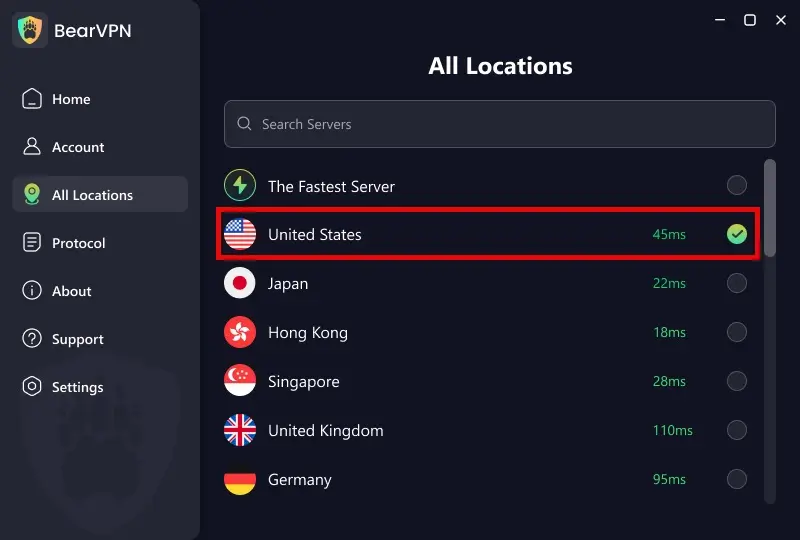
Open BearVPN and select a server in a country where the rights holder or uploader makes the video available. BearVPN will replace the public IP address seen by YouTube with the IP address of the selected VPN server.
Do not choose a country at random if you already know where the program, music release, sports broadcast, or channel is officially distributed. Selecting a relevant nearby location can also help reduce unnecessary latency.
Step 4: Choose the Right BearVPN Protocol
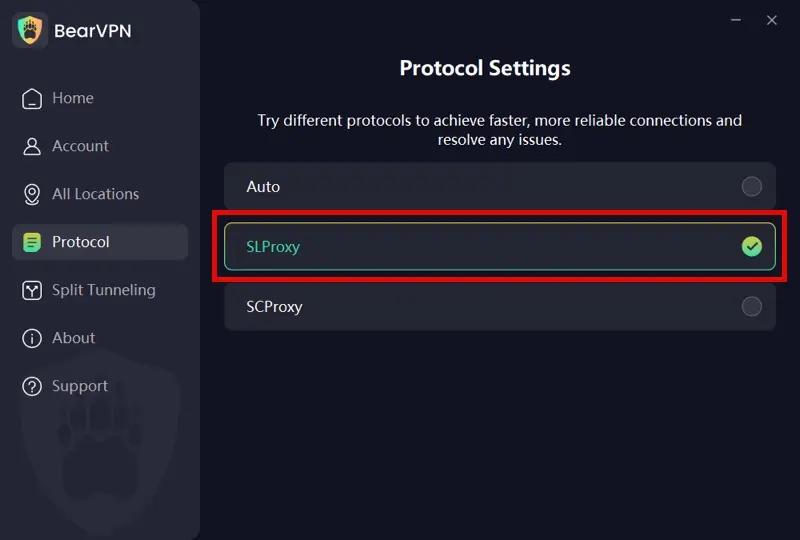
Before connecting, start with Auto. If playback is unstable or the network interferes with the VPN connection, choose the protocol that matches the problem:
- Auto: Lets BearVPN select protocol settings for the current network.
- SLProxy (Best for Streaming): Use BearVPN’s low-latency protocol for smoother 4K or 1080p playback when the server and your connection can support the stream.
- SCProxy (Best for Strict Firewalls): Use stronger obfuscation when a restrictive network interferes with recognizable VPN traffic.
Step 5: Route Only YouTube Through the VPN With Split Tunneling
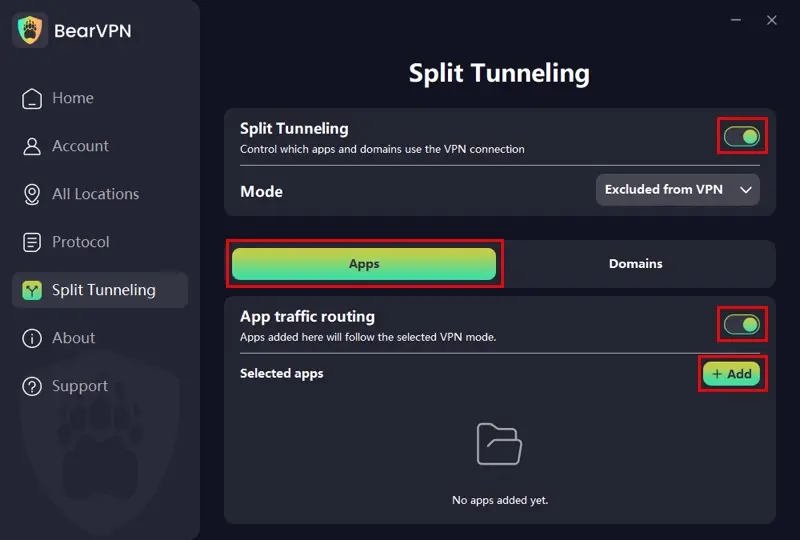
If you want to access a region-blocked YouTube video without routing every desktop app through the VPN, open BearVPN and go to Settings > Split Tunneling.
On Windows and macOS, BearVPN supports two routing options:
- App Mode: Select a browser such as Chrome, Edge, Firefox, or Safari and route that app through the VPN. Other desktop apps can continue using your regular internet connection.
- Domain Mode: Add youtube.com to route YouTube traffic through the VPN without sending unrelated browsing traffic through the same server.
This is useful when you want YouTube to use the selected VPN location while games, local services, or other apps stay on your normal connection. After saving the rule, reconnect BearVPN and reload the unavailable video.
On Android and iOS, Split Tunneling works at the app level rather than by individual domain.
Step 6: Connect and Refresh
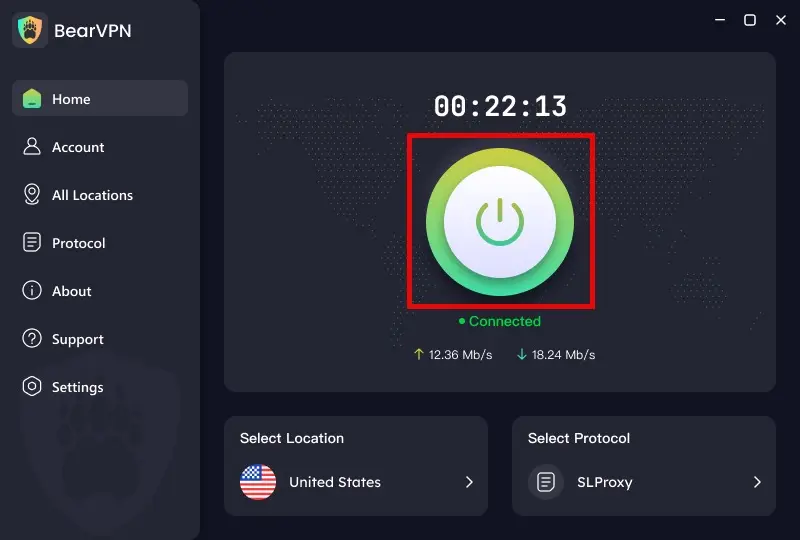
Return to the BearVPN dashboard and connect. Once the selected country appears as active, reopen the saved YouTube URL and refresh it. If the video is blocked only by the detected IP region and the uploader offers it in that country, it should load without the country error.
If the same error remains:
- Confirm that the VPN is connected to the intended country.
- Open the URL in a private browsing window to avoid an old location cookie or extension conflict.
- Try another server in the same country.
- Read the error again to confirm the video is not private, deleted, age-restricted, or blocked for another reason.
- Follow Method 3 if other YouTube videos are also failing.
A different IP location may resolve an IP-based regional block, but availability still depends on YouTube, the uploader, licensing rights, your account, and local rules. Follow applicable laws and YouTube’s terms.
Method 2: How to Find an Unavailable YouTube Video With Its URL
A URL cannot unlock a private video or restore a deleted file, but it can help you identify what disappeared. This is useful when an unavailable video is still listed in Watch Later, a playlist, browser history, a message, or an old webpage.
Step 1: Copy the Full YouTube URL
Open the unavailable playlist entry or find the link in your browser history, bookmarks, messages, or saved posts. Copy the complete URL before removing the unavailable entry from your playlist.
A standard link may look like this:
https://www.youtube.com/watch?v=VIDEO_ID
A shortened link may look like this:
https://youtu.be/VIDEO_ID
The 11-character VIDEO_ID is the most useful part of the link.
Step 2: Search the Exact Video ID
Put the video ID inside quotation marks and search for it on Google or another search engine. Old articles, forum posts, embeds, social posts, and playlist pages may reveal the original title, uploader, thumbnail, or description.
You can then search the confirmed title and creator name to see whether the creator, record label, broadcaster, or another authorized channel has published a replacement.
Step 3: Check an Archived Version of the Page
Paste the full URL into the Wayback Machine. An archived page may preserve the title, thumbnail, description, channel name, or surrounding page content.
Do not assume that an archived YouTube page contains a playable copy of the video. Web archives frequently preserve page metadata without preserving the underlying media file.
Step 4: Determine Whether the Video Is Private or Deleted
If YouTube says the video is private, only the uploader and invited viewers can watch it. You must sign in to the Google account that received the invitation. A VPN, modified URL, downloader, archive, or embedded player cannot grant permission.
If the video was deleted or removed, it is no longer playable from its original YouTube URL. Search for an authorized reupload or contact the creator. Avoid unknown “unavailable video downloader” websites that request account credentials, browser extensions, notifications, or executable downloads.
Related article: how to watch members-only videos on YouTube
Method 3: How to Fix “YouTube Video Unavailable” Playback Errors
Use this checklist when the video should still be public, when several videos fail, or when YouTube suddenly says that all videos are unavailable.
- Test Another Public Video
Open two or three videos from established public channels. If only one URL fails, the problem is probably specific to that upload. If every video fails, continue with the steps below.
- Reload YouTube and Restart the App or Device
Refresh the page or fully close and reopen the YouTube app. If the problem continues, restart the phone, computer, TV, or streaming device. Temporary connection and app errors often clear after a restart.
- Sign In and Check the Correct Account
Some content requires the viewer to be signed in. If a private video was shared with you, make sure you are using the exact Google account that received the invitation.
For age-restricted content, YouTube requires the viewer to be signed in and meet its age requirements. Do not attempt to bypass an age restriction with a VPN or third-party website.
- Check Restricted Mode
Open YouTube settings and check whether Restricted Mode is enabled. It may be controlled by your account, Family Link, school, workplace, library, or network administrator. If the setting is enforced by an administrator, you may not be able to change it yourself.
- Try a Private Browsing Window
Paste the video URL into an Incognito or Private window. Most extensions are not active there unless you specifically allowed them.
If the video works, disable browser extensions in the normal window one at a time, starting with ad blockers, script blockers, privacy tools, and YouTube-related extensions.
- Update the Browser or YouTube App
Install the latest available browser or YouTube app update. On a smart TV or streaming device, also check for system or firmware updates.
- Clear YouTube Cache and Cookies
Clear cached files and cookies for YouTube, then reopen the site. Clearing cookies may sign you out, so make sure you can access your Google account before doing this.
On Android, you can also clear the YouTube app cache from the device’s app settings. On iPhone or iPad, restarting or reinstalling the app may be necessary if the app data is corrupted.
- Test Another Network and Review DNS Settings
Switch temporarily between Wi-Fi and mobile data. If YouTube works on one connection but not the other, the problem may come from the router, DNS configuration, ISP, or network filtering.
Restart the router and confirm that no security application or third-party tool has unexpectedly changed your DNS settings. On a managed school or workplace network, contact the administrator instead of changing protected settings.
- Check for a Wider YouTube Problem
If the same error appears across multiple accounts, devices, and networks, YouTube may be experiencing a temporary service issue. Wait and try again later before repeatedly changing device settings.
- Disable Hardware Acceleration Only for Display Problems
If the video produces sound but the player remains black, green, or visually corrupted, disable hardware acceleration in your browser and relaunch it. This is a display troubleshooting step, not a solution for private, deleted, or geo-blocked videos.
Related article: How to Fix “YouTube Playback Speed Not Working”
What to Do When a YouTube Video Is Unavailable
Start with the exact error message. Use a VPN only when the video is blocked according to location. If it is private, sign in to the invited account or contact the uploader. If it was deleted, use the URL to identify it and look for an authorized replacement. When many videos fail, troubleshoot the browser, app, account, device, and network before assuming the content is restricted.
Identifying the cause first is faster than repeatedly clearing your cache, changing countries, or trying unsafe downloader websites.
Connect BearVPN to a country where the uploader offers the video, then reopen the saved URL after the VPN connects. This can fix an IP-based country block; it cannot open private, deleted, members-only, or age-restricted content.
FAQs About Unavailable YouTube Videos
A video may be unavailable because of geographic licensing, a private or deleted upload, an age restriction, Restricted Mode, copyright action, an account requirement, or a temporary browser, app, network, or YouTube error. Read the exact message and test another public video before choosing a solution.
If the uploader still hosts the video but limits it by country, connect a VPN to a region where the video is officially available and reload the URL. This may resolve an IP-based location restriction, but availability is not guaranteed and still depends on the uploader, licensing rights, your account, and YouTube.
The URL may help you recover the video ID, title, thumbnail, channel name, archived page, or an authorized reupload. It does not grant access to a private video or restore a deleted file. For a private video, you must be invited and signed in to the correct account.
If every video fails, the problem is unlikely to be one deleted or geo-blocked upload. Restart YouTube and your device, sign in again, test a private window, disable extensions, update the app or browser, clear the cache, switch networks, and check for a wider YouTube service problem.
The uploader may have made it private, deleted it, restricted it by country, or lost the right to publish it. YouTube may also have removed or restricted it. Save the URL before deleting the playlist entry, then search its 11-character video ID to identify the missing video.
No. A VPN is relevant to IP-based regional blocks and, in some situations, network filtering. It cannot restore deleted content, grant permission to private videos, remove members-only access, or bypass age and account requirements. If all videos fail, troubleshoot the app, browser, account, and network first.