You may want to check a public profile for competitive research, recruiting, or a quick professional lookup without creating an account. The methods below show what can still be viewed in 2026, when LinkedIn may display a login wall, and when its official Private Mode is the better option.
The Best Ways to View LinkedIn Profiles Without an Account (Free & Easy)
If your goal is to browse LinkedIn profiles without signing in, these methods leverage publicly available information indexed by search engines. They are straightforward and require no special tools or subscriptions.
Method 1: Google Search (Incognito Mode Recommended)
Using a search engine like Google is one of the most reliable and free ways to view LinkedIn profiles that are publicly accessible. Google indexes billions of web pages, including many public LinkedIn profiles.
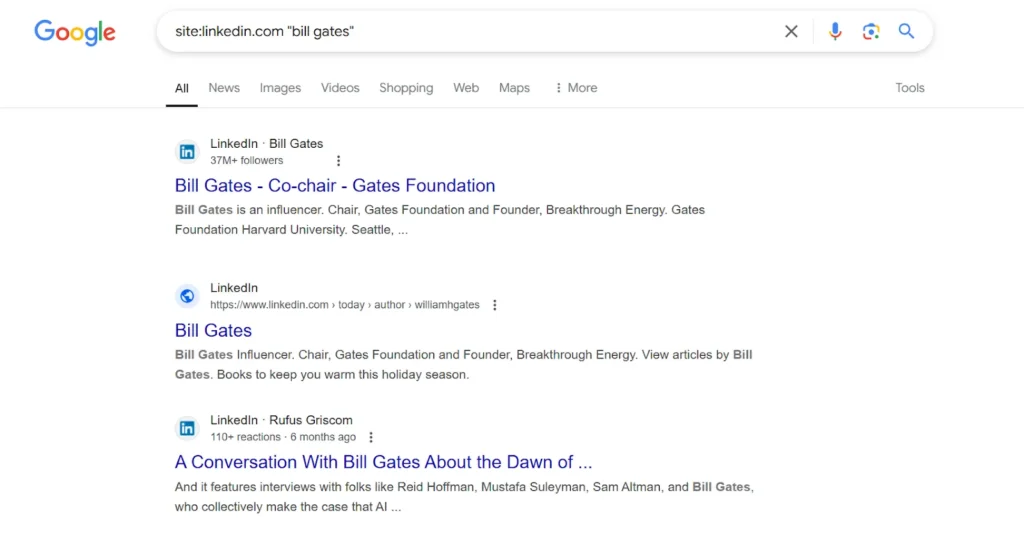
How it Works (Step-by-Step with Visuals):
- Open Incognito Mode: Open a private browsing window to keep the session out of your normal browser history and start without most existing LinkedIn cookies. Private mode does not hide your IP address, make you anonymous, or stop LinkedIn and search engines from receiving connection data.
- Formulate Your Search Query: In the Incognito search bar, type site:linkedin.com “Name of the Person”. Replace “Name of the Person” with the full name of the individual you’re trying to find.
- Pro Tip: For common names, you can add more specifics to refine your search, such as their job title or company: site:linkedin.com “John Smith” “Marketing Manager” “Acme Corp”
- Browse Search Results: Click on the LinkedIn link that corresponds to the person or keyword you’re interested in. Public profiles should open directly without a login prompt.
Advantages:
- Quick & Accessible: This method is fast, straightforward, and can be done from any device with internet access.
- No Account Needed: You don’t need a LinkedIn account, making it ideal for occasional or quick lookups.
- Ethical: You are viewing publicly indexed information, not circumventing any security measures.
Limitations:
- Privacy Settings Dependent: This method only works if the LinkedIn user has set their profile to be publicly visible. Many users choose to restrict their LinkedIn privacy settings, making their full profile viewable only to logged-in members or connections.
- Limited Information: Even for public profiles, the information displayed may be basic. You’ll typically see the user’s name, current job title, current company, and potentially their headline. More detailed information (like full work history, recommendations, connections list, or activity feed) is usually restricted.
- Login Wall: LinkedIn may sometimes present a login wall after viewing a few profiles, even in Incognito Mode, to encourage account creation.
Method 2: Using Yandex Translate (A Clever Workaround)
Yandex Translate, while primarily a translation service, has been known to serve as a LinkedIn bypass method by rendering webpage content for translation purposes. While its reliability has decreased due to LinkedIn’s evolving security, it can sometimes still work for viewing LinkedIn profiles without signing in where direct Google searches fail.
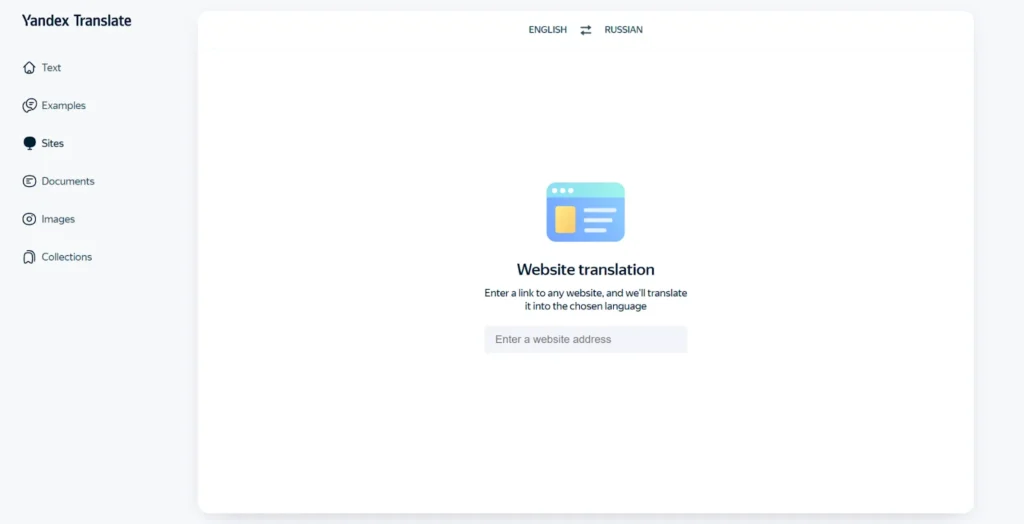
How it Works (Step-by-Step with Visuals):
- Copy the LinkedIn Profile URL: Obtain the direct URL of the LinkedIn profile you wish to view. This usually starts with https://www.linkedin.com/in/.
- Go to Yandex Translate: Navigate to translate.yandex.com.
- Paste the URL: Paste the copied LinkedIn profile URL into the input box on the left side of the Yandex Translate interface.
- Select Languages & Translate: Choose any language for translation (you can even select the same language as the original profile). Click the “Translate” button or the link that appears to view the translated page.
Advantages:
- Potential Bypass: Can occasionally render profile content even if a direct browser visit triggers a login wall.
Limitations & Important Considerations:
- Diminishing Reliability: As of mid-2025, the effectiveness of the Yandex Translate method is inconsistent and significantly less reliable than in previous years. LinkedIn continuously updates its platform to prevent such bypasses, so this method may not work for all profiles or at all times.
- Formatting Issues: The layout and formatting of the profile might appear distorted or simplified due to the translation overlay.
- No Interaction: You cannot interact with the profile (e.g., connect, message).
Method 3: Using LinkedIn Profile Viewer (Third-Party Tool)
Besides the 2 methods above, you can also use a LinkedIn viewer to check LinkedIn profile without login. These online tools designed specifically to extract and display public LinkedIn data without an account. One such option is LinkedIn Profile Viewer.
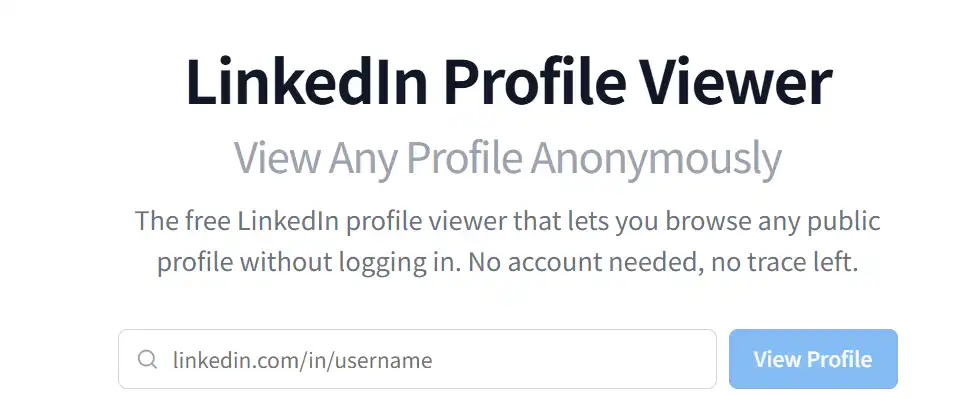
How it Works (Step-by-Step with Visuals):
- Access the Tool: Open your web browser and navigate to linkedprofileviewer.com.
- Enter Profile Details: In the search bar provided on the homepage, paste the exact LinkedIn URL of the person you want to view.
- Initiate the Search: Click the search or view button. The tool will fetch the publicly available data and present the profile directly on their website.
Advantages:
- User-Friendly Interface: Designed with a single, clear purpose, making it incredibly straightforward to use.
- Avoids Login Pop-ups: No need to log in or create an account.
Limitations & Important Considerations:
- Data Availability: Just like search engines, this tool can only display what the user has made entirely public. If a user has strict privacy settings, the tool will yield little to no information.
- Tool Reliability: LinkedIn actively combats third-party scrapers. As a result, these viewer tools may experience downtime or stop working entirely when LinkedIn updates its security protocols.
- Privacy Considerations: You are entering your search data into a third-party site. While generally safe for public lookups, it is always wise to exercise caution when using external scraping tools.
According to Reddit user feedback, this tool can redirect you to random websites. Remember not to click the pop-ups or irrelevant links.
BearVPN hides your home IP and encrypts the connection, but it cannot make the viewer trustworthy or unlock private LinkedIn data.
Viewing LinkedIn Profiles Anonymously (Requires a LinkedIn Account)
If you have a LinkedIn account but want to browse LinkedIn anonymously without notifying others of your profile views, LinkedIn’s built-in “Private Mode” is your solution. This is distinct from viewing without an account, as it requires you to be logged in.
LinkedIn’s Built-in Private Mode
Private Mode allows you to view profiles discreetly, preventing your name and other identifying information from appearing in the “Who’s viewed your profile” section of the individuals you visit.
Why Use Private Mode?
- Discretion: Perfect for researching competitors, exploring potential job opportunities, or simply gathering information without alerting others.
- Privacy: Ensures your profile viewing options are set to maximize your anonymity within the LinkedIn ecosystem.
- Flexibility: You can switch between anonymous, semi-private, and public viewing modes anytime, offering full control over your visibility.
How to Enable Private Mode (Step-by-Step with Visuals):
The menu names can change between LinkedIn versions, but the setting is available on desktop and mobile under Visibility → Profile viewing options.
On Desktop:
- Log in to your LinkedIn account.
- Click on your profile picture (the “Me” icon) in the top-right corner of your LinkedIn homepage.
- From the dropdown menu, select “Settings & Privacy.”
- In the left-hand navigation pane, click on “Visibility.”
- Under the “Visibility of your profile & network” section, locate and click on “Profile viewing options.”
- Choose “Private mode” from the list of options. When selected, your profile views will appear as “Anonymous LinkedIn Member.”
- Note: You can also select “Private profile characteristics” (e.g., “Someone in the Finance industry,” “Someone at [Your Company]”) if you prefer a semi-anonymous approach.
On Mobile App:
- Open the LinkedIn app and log in.
- Tap your profile picture in the top-left corner.
- Tap “Settings” (the gear icon) at the bottom of the menu.
- Tap “Visibility.”
- Tap “Profile viewing options.”
- Select “Private mode.”
Key Trade-offs & Limitations of Private Mode:
- Reciprocal Privacy: When in Private Mode, you cannot see who has viewed your own profile. This is a deliberate design choice by LinkedIn – you gain anonymity, but you lose insights into your own profile’s visitors.
- Premium Account Nuance: While Private Mode hides your specific identity, LinkedIn Premium users will still see that an “Anonymous LinkedIn Member” viewed their profile. They just won’t see your name, headline, or company.
- No Impact on Interactions: Private Mode only affects profile views. Your likes, comments, shares, and posts will still be visible with your name and profile information. For full activity privacy, you would need to adjust other individual LinkedIn privacy settings.
Tips: Use Private Mode strategically when performing competitive analysis, discreet job searching, or general market research. Remember to switch back to “Your name and headline” mode when you want to actively network, build connections, and be visible to your target audience. LinkedIn does not notify users when you change your profile viewing mode.
What You Cannot See Without Logging In (Limitations & Why)
While viewing LinkedIn profiles without an account or in Incognito Mode offers some access, it’s crucial to understand the limitations. LinkedIn’s primary purpose is professional networking, which relies on logged-in user engagement. Therefore, much of the detailed information is restricted.
Here’s a comprehensive overview of what is generally not visible when you try to see a full profile without logging in:
LinkedIn restricts this information to protect user data, encourage active participation on the platform, and to differentiate the experience for logged-in members who contribute to the network. Their terms of service explicitly prohibit unauthorized data scraping, reinforcing these limitations.
Pro Tip: Enhancing Your Overall Online Privacy & Security
While the methods above focus on viewing LinkedIn with or without an account, maintaining broader online privacy and security is a continuous effort. For an extra layer of protection, especially when browsing on public Wi-Fi or accessing sensitive information, consider using a Virtual Private Network (VPN).
A reliable VPN, like BearVPN, encrypts your internet connection and masks your IP address, making your online activities more private and secure. It’s a valuable tool for anyone serious about digital security, extending beyond just LinkedIn Browse to all your online interactions.
Conclusion
You can still uncover public LinkedIn details without an account, but no trick turns a public search result into a full private profile. Start with Google, treat Yandex as unreliable, and never trust a third-party viewer that promises hidden work history, contacts, or activity.
If you need full profile features, use a LinkedIn account and its official Private Mode. Private Mode hides your name from profile-view notifications; it does not make the session completely anonymous.
Whether you use a public search or LinkedIn itself, BearVPN can mask your home IP and encrypt the connection—without pretending to unlock data LinkedIn has not made public.
- Mask your home IP during public-profile research.
- Encrypt traffic on office, hotel, or café Wi-Fi.
- Keep LinkedIn visibility controlled by its own settings.
FAQs
Yes, you can view public profiles without an account by using Google Incognito searches or third-party tools. However, full details, work history, and connections will remain hidden.
Yes, you can view LinkedIn as a guest. You will be able to see limited public profiles and company pages, but advanced features and full histories require an account.
If you are not signed in, your name should not appear as a LinkedIn profile viewer because the visit is not tied to a logged-in profile. That does not make the visit invisible: LinkedIn, the network, and other services may still receive technical data such as your IP address, cookies, or browser details.
Yes, if your profile visibility is set to public, anyone can find and view a limited version of your profile through search engines like Google without logging in.
Yes, it is generally legal as long as you use publicly available methods (like Google Search) and do not violate LinkedIn’s terms of service. This means avoiding automated tools or methods designed to scrape large amounts of data. Using the methods outlined in this article respects user privacy and LinkedIn’s policies.
No, you generally cannot see the full LinkedIn profile without logging in. Public profiles often show limited information like name, job title, and current company. To access full details, such as complete work history, recommendations, skills, and activity, signing up for a LinkedIn account is typically required.
LinkedIn allows users granular control over their profile visibility. Many users choose to restrict their profiles to logged-in members or their connections for privacy reasons. This prevents their entire professional history from being exposed to the general public or uninvited viewers.
Google searches and LinkedIn’s official Private Mode are lower-risk than unknown third-party viewers, but private browsing does not create anonymity. Third-party tools may redirect, track searches, request credentials, or violate platform rules. Never enter LinkedIn credentials, cookies, or payment information into an unknown viewer.
The methods for viewing LinkedIn profiles on mobile without an account are similar to desktop. You can use your mobile browser’s incognito or private Browse mode and perform Google searches (e.g., site:linkedin.com “Name”). The effectiveness of Yandex Translate on mobile browsers mirrors its desktop limitations.


![How to Change YouTube TV Location [Still Works in 2026]](/_next/image/?url=https%3A%2F%2Fcms.bearvpn.com%2Fwp-content%2Fuploads%2F2026%2F06%2Fhow-to-change-location-youtube-tv.webp&w=640&q=75)