“Unblocked games g+” is a moving target: links change, mirrors pop up, and school or office filters tighten with little warning. This guide keeps you focused on what actually matters—safe access, workable backups, and mobile-first tactics. You’ll learn how to securely navigate the G+ Unblocked platform, reduce input lag, and, where allowed, protect your traffic on public or restricted networks.
What “Unblocked Games G+” Means in 2026
Before jumping in, it helps to define the term. “Unblocked games g+” refers to a specific, widely popular browser-based gaming hub. Students and casual players use this platform to access popular HTML5 titles when mainstream game portals are blocked on institutional networks. Because school and office filters constantly target these domains, the official links and proxy mirrors for G+ must circulate quickly and change addresses frequently to stay online.
In practice, the G+ platform and its various mirrors act as a direct portal for embedded titles like ‘Slope’. While its minimalist layout and custom search bars might look like a low-profile utility tool, it is actually an independent game hub designed for fast loading. Your job is to choose secure HTTPS links from this hub, keep working backups on hand, and expect some trial and error as domains rotate.
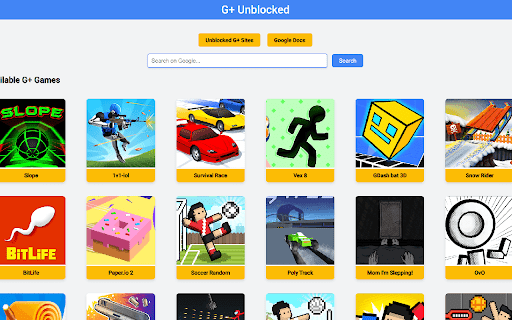
As displayed on the official G+ Unblocked interface above, the hub acts as an instant launcher for trending HTML5 games. Some of the most frequently searched titles you can play directly include Slope, 1v1.LOL, Survival Race, Vex 8, and BitLife, etc.
Safety and Policy Basics: Is It Safe or Allowed?
Before you click anything, align with your school or workplace’s acceptable-use policy. If gaming is prohibited on that network, you should not attempt to bypass the rules. If personal or public Wi-Fi is allowed, you still need to keep yourself safe from shady mirrors and pop-ups.
Treat “unblocked games g+” like any unknown download—only you’re not downloading. Prefer HTTPS pages, avoid sites that force installers or browser extensions, and be skeptical of aggressive ads or redirects. Keep your device updated, use a modern browser with tracking protection, and close any page that asks for credentials, permissions, or notifications unrelated to gameplay.
How People Access Unblocked Games G+ on School, Work, and Home Networks
Different networks block in different ways. Schools often filter by domain lists and categories; offices may combine domain filters, DNS filtering, and traffic inspection; home networks are typically the least restrictive. That’s why a G+ mirror might load at home and time out at school.
Your workflow should adapt. On restrictive networks, test multiple mirrors, try short sessions, and clear your browser cache between attempts. On friendly or personal networks, set up a small list of trusted G+ links and keep them in bookmarks so you don’t rely on random search results every time.
Chromebook and Classroom Networks: Practical Tips That Actually Work
Chromebooks are common in classrooms, and they’re good at running HTML5 games. The downside is that many schools lock them down with managed policies. You can still optimize your chances without breaking rules.
Start with housekeeping: use a current version of Chrome, clear site data if a page half-loads, and ensure you’re using HTTPS URLs. If your admin allows guest mode or personal profiles, keep game bookmarks separate from schoolwork. Turn off unnecessary extensions that inject scripts into pages—ad blockers, VPN extensions, or user-script tools can cause blank canvases or failed loads on game embeds.
Mobile-First Guide: Playing Unblocked Games G+ on iOS & Android
Phones are often the easiest way to use “unblocked games g+,” especially on personal data or trusted Wi-Fi. Mobile browsers handle most HTML5 games fine, but some titles are made for landscape screens and expect keyboard inputs.
To improve results, open links in a mainstream browser, rotate to landscape, and enable “request desktop site” only when the layout breaks on mobile. Keep a shortlist of mirrors that are light on ads and heavy scripts. If a game offers a low-graphics toggle, use it; and if a site supports adding to the home screen as a web app (PWA), try that for faster relaunches.
When G+ Is Blocked or Not Working: Fast Fixes and Backups
Sometimes “unblocked games g+” stops working without warning. Don’t waste time hammer-refreshing a dead mirror—switch tactics quickly.
Try these fast fixes:
- Test a second mirror from your shortlist. Popular alternatives include well-known “unblocked games” hubs and “classroom”-style mirrors; keep two or three on hand.
- Clear site data (cookies/cache) for the failing page only, not your whole browser. Firefox(desktop): Go to the site for which you want to clear cookies, click the padlock next to the URL, and select Clear Cookies and Site Data.
Safari(desktop): Go to Safari > Preferences > Privacy > Manage Website Data. Choose the website and select Remove. Mobile: Tap your browser settings menu (usually the three dots or gear icon) > navigate to site settings or privacy > clear the data for that specific domain name. - Trim the URL to the root if you landed on a nested, outdated subpage.
- Use a different connection (personal hotspot vs. campus Wi-Fi) if policy allows.
- Check HTTPS—many clones exist; prefer secure versions and avoid HTTP pages.
- Use a lightweight gaming VPN: If a mirror is completely dead due to a local network ban, toggling on a secure option like BearVPN can instantly route you around the block.
Alternatives and Mirrors: How to Evaluate Before You Click
The phrase “unblocked games G+” brings up a mix of official links and low-quality clone mirrors. If the main G+ Unblocked platform is down, you don’t need to chase every new sketchy domain. Instead, you can switch to other well-known, independent gaming hubs that offer a similar experience.
Before you click on any alternative game site, evaluate its safety using these signals:
- Sane layout and HTTPS: Clean, readable pages with a valid certificate are a baseline.
- No forced installs: Legit mirrors don’t make you add extensions or run EXEs.
- Minimal redirects: One or two ad jumps are common; constant bouncing is a red flag.
- Stable URLs for popular games: Dead links and missing assets suggest a short-lived clone.
- Reasonable loading time: HTML5 games are lightweight; endless spinners mean trouble.
Best G+ Unblocked Alternative Sites
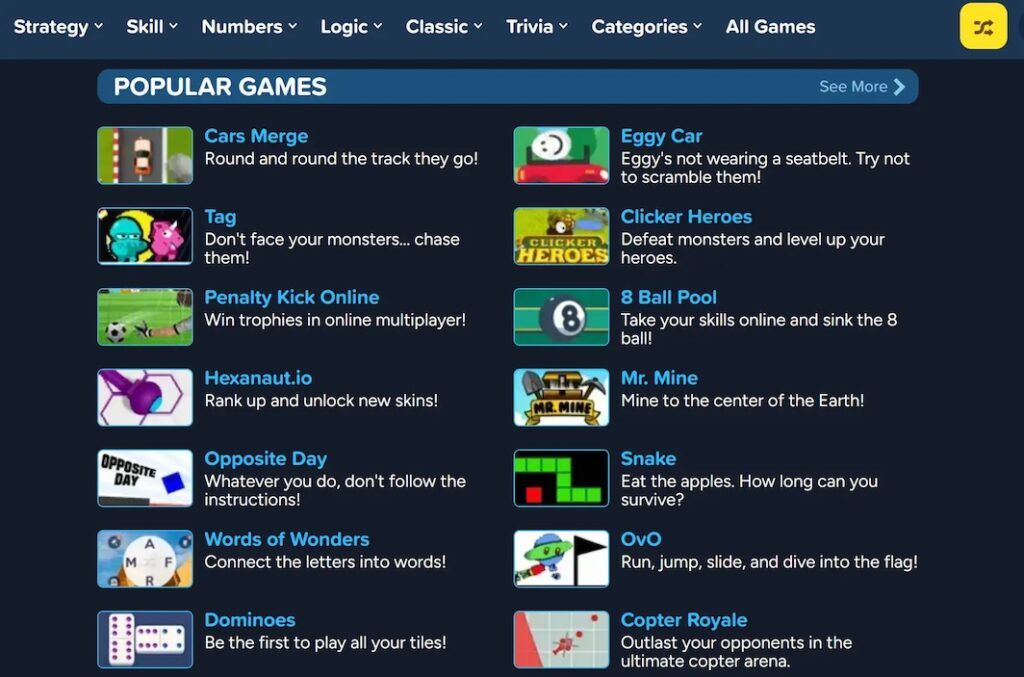
Cool Math Games
Cool Math Games ranks as a trusted name in the unblocked-games space. The site pairs education with entertainment at a level acceptable to most administrators, without sacrificing fun.
Unblocked Games 66
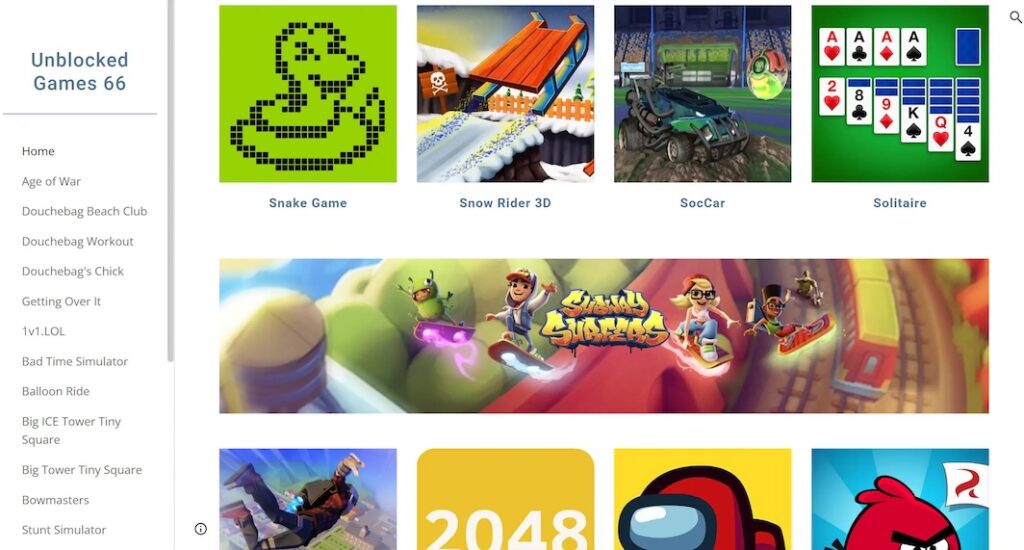
Unblocked Games 66 is a full-featured gaming hub built for networks with access limits. It offers 500+ titles across genres like action, adventure, puzzles, and sports.
Optional: Use a Mobile VPN Responsibly (If Your Network Policy Allows)
Sometimes you just want a more private, consistent connection—especially on public Wi-Fi at cafés, libraries, or transit hubs. A mobile VPN can encrypt your browsing, mask your IP, and route around some basic filtering. It won’t magically “unblock everything,” and some networks actively restrict VPNs, so always check local rules before you switch it on.
If you decide to use a VPN on your phone, focus on low-latency routing, fast connect/disconnect, and simple controls. You don’t need a complicated setup for browser games—what you need is stability, nearby servers, and the ability to route only your browser through the tunnel so other apps keep using your normal connection.
Mobile VPN Tips for “Unblocked Games G+” (Featuring BearVPN on iOS & Android)
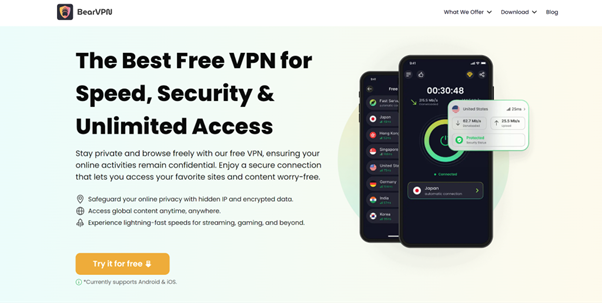
A lightweight, phone-first VPN is usually the best fit for casual browser gaming. BearVPN runs on iOS and Android, so it matches a “mobile-only” setup. You can connect with one tap, pick a nearby or neighboring region for lower ping, and rely on DNS-leak protection and IP masking for a bit more privacy on public Wi-Fi. If a page won’t load, disconnect and try a second nearby location.
For smoother gameplay, try split tunneling (per-app VPN) so only your browser uses the VPN while other apps stay on the regular network—this can cut background chatter and reduce lag. BearVPN also uses RAM-only servers and a no-logs policy, and it supports traffic obfuscation to blend in on over-zealous networks. It may help with region quirks, but—as with any VPN—access isn’t guaranteed on every site.
Quick setup pattern you can reuse:
- Connect to the closest available location.
- Launch your preferred mobile browser and open a known-good “unblocked games g+” mirror.
- If input lag spikes, switch to a neighboring region (same continent) and route only the browser through VPN.
- If a mirror dies, disconnect, refresh your DNS cache (toggle airplane mode), and try your backup list.
Lightweight Gaming Settings: Reduce Lag and Data Use
Mobile browsers are fast, but small tweaks make a big difference when you’re loading canvas-based HTML5 games and ad frames.
Try these adjustments:
- Disable data saver only if pages break. Data saver can strip assets that some games need.
- Turn off background tabs and downloads. Keep one game tab open during play.
- Limit notifications and permissions on unknown mirrors (camera, mic, location).
- Use reader-mode blockers sparingly. Over-aggressive blocking can hide game canvases.
- Prefer Wi-Fi over unstable cellular if you’re stuck at 1–2 bars; HTML5 lag comes from packet loss as much as from raw speed.
- Rotate to landscape and lock orientation to avoid accidental reloads.
Quick FAQ: Unblocked Games G+, Mirrors, and Mobile Play
1. Is “unblocked games g+” legal to use?
Accessing a website isn’t illegal by itself, but bypassing institutional rules can violate your school or employer’s policies. Always respect local policies and laws.
2. Why do some G+ Unblocked mirrors stop working overnight?
Filters update, domains get taken down, and hosts throttle bandwidth. Keep two or three reliable alternatives and expect mirrors to rotate.
3. Can a VPN guarantee access to unblocked games g+?
No. A VPN may improve privacy and routing, especially on public Wi-Fi, but some networks block VPNs, and some sites block known VPN ranges. Treat a VPN as an optional tool—not a guarantee.
4. What about Chromebook at school?
Managed devices and networks can block entire categories. If gaming is against policy, don’t attempt it. If it’s allowed on personal time, stick to HTTPS mirrors, keep extensions minimal, and clear site data between sessions.
5. Which mirrors are “safe”?
There’s no universal whitelist. Prefer HTTPS, stable layouts, and pages that don’t demand installs or permissions. If a site behaves oddly, leave.
6. Can I play on my phone without downloading anything?
Yes. Most “unblocked games g+” titles are HTML5 and run directly in the browser. Add the page to your home screen if the site supports PWA for faster relaunches.
Conclusion
“Unblocked games g+” is workable if you approach it like a moving target: verify pages, maintain backups, and keep your device safe. On mobile, small choices—nearby servers, clean mirrors, and per-app routing—go a long way toward reducing lag and avoiding surprises. Respect network rules, expect sites to rotate, and you’ll spend more time playing than troubleshooting.


![How to Change YouTube TV Location [Still Works in 2026]](/_next/image/?url=https%3A%2F%2Fcms.bearvpn.com%2Fwp-content%2Fuploads%2F2026%2F06%2Fhow-to-change-location-youtube-tv.webp&w=640&q=75)