NordVPN has built a strong reputation as a top-tier VPN provider, often praised for its security, speed, and ability to bypass geographic restrictions. However, even the most reliable VPNs sometimes fall short—especially when it comes to streaming services that work aggressively to detect and block VPN usage.
If you’ve landed here, chances are you’re facing the frustrating experience of NordVPN not working with YouTube TV. Whether you’re met with a “VPN/Proxy Detected” warning or the content simply won’t load, the reality is that YouTube TV has improved its VPN detection mechanisms—and NordVPN’s large user base makes its servers frequent targets for blocking.
This article explores why these blocks happen, what you can do to fix the issue, and why switching to a lesser-known but highly effective service like BearVPN might be the easiest path to smooth, uninterrupted streaming.
Let’s help you get back to uninterrupted streaming.
Why Is NordVPN Not Working with YouTube TV?
YouTube TV actively blocks many VPNs, including NordVPN, to comply with licensing agreements. It does this by detecting and blacklisting IP addresses associated with VPN traffic. As a popular VPN provider, NordVPN’s servers are frequent targets.
Common causes include:
- Blocked IP addresses from known VPN servers
- DNS leaks revealing your real location
- Detection of VPN protocols by YouTube TV
- Cookies or browser data revealing past locations
- Use of overcrowded or flagged NordVPN servers
These restrictions can occur even if NordVPN worked for YouTube TV in the past.
How to Fix NordVPN Not Working with YouTube TV: Step-by-Step
If YouTube TV is giving you the “VPN/Proxy Detected” error or simply refusing to play content, it means it has likely identified and blocked your VPN traffic. Fortunately, there are several proven techniques to bypass these blocks. The following steps will help increase your chances of regaining access with NordVPN:
Fix 1. Switch to a Different NordVPN Server
YouTube TV blocks VPN access by identifying and blacklisting IP addresses associated with VPN services. As NordVPN is widely used, its U.S. servers are frequently flagged. Choosing a less commonly used server can improve your chances of staying under the radar.
Steps:
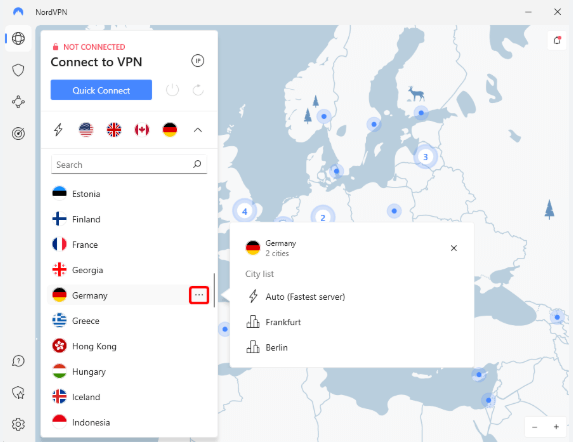
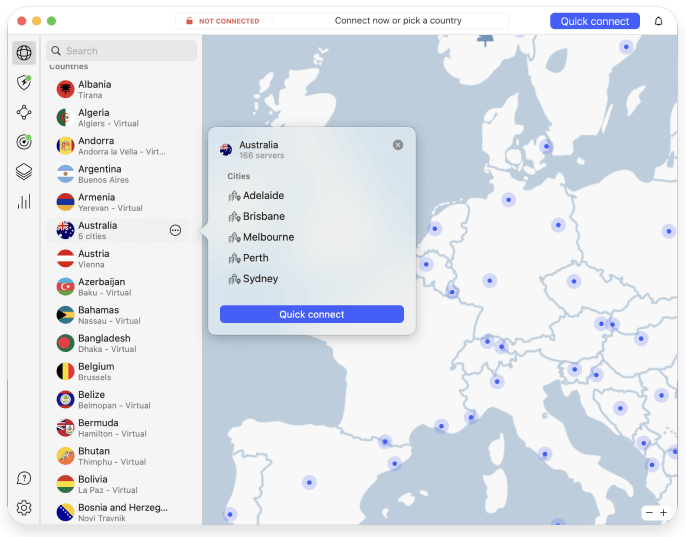
- Launch the NordVPN app
- Disconnect from your current U.S. server
- Select a new U.S. server, preferably in a smaller or lesser-known city
- Reconnect and reload YouTube TV
Tips:
- Avoid popular hubs like Los Angeles or New York
- Look for servers with lower load percentages
Fix 2. Clear Cookies and Use Incognito Mode
Even after switching servers, YouTube TV may still deny access due to cookies and browser fingerprints that link you to a prior session.
Steps:
- Open your browser’s settings
- Clear all cookies and site data
- Open a private/incognito window
- Visit YouTube TV and try again
Why this works:
- Private mode disables browser extensions that may interfere with VPN usage
- Removing cookies prevents location leakage via stored session data
Fix 3. Change VPN Protocol
Different VPN protocols behave differently when facing network-level filtering. Some protocols are more difficult for streaming services to detect.
Steps:
- Open NordVPN settings
- Find the protocol selection (under connection preferences)
- Switch from NordLynx to OpenVPN (TCP or UDP)
- Reconnect and retry
Which protocol is best?
- OpenVPN TCP: More reliable for bypassing streaming blocks
- OpenVPN UDP: Faster but less stable
Fix 4. Flush DNS and Restart
Your Device Your operating system caches DNS requests that can expose your actual ISP-assigned IP. Flushing your DNS helps eliminate this trail.
On Windows:
- Open Command Prompt as Administrator
- Type: ipconfig /flushdns
- Then type: netsh winsock reset
- Reboot your device
On macOS:
- Open Terminal
- Type: sudo killall -HUP mDNSResponder
- Press Enter and restart
Fix 5. Use a Different Device or Browser
Sometimes YouTube TV blocks are tied to device-specific behavior. Switching to another browser or device can resolve the issue.
Suggestions:
- Try accessing YouTube TV from a different device (mobile instead of desktop)
- Use browsers like Firefox or Brave instead of Chrome
- Disable location services in your browser and operating system
Fix 6. Disable GPS and Location
If your device shares GPS data or uses browser-based location, YouTube TV may detect a mismatch between your VPN location and your real coordinates.
Fix it by:
- Turning off location services in your OS
- Blocking websites from accessing your location in browser settings
- Using a browser extension to spoof GPS (if necessary)
Fix 7. Check for IP/DNS Leaks
Even if you’re connected to a VPN, leaks may reveal your true location to websites.
Steps:
- Visit a leak test site like ipleak.net
- Check if your IP address and DNS server locations match your VPN server
If you detect leaks:
- Enable DNS leak protection in NordVPN settings
- Ensure the kill switch is turned on
Many smart TVs and streaming sticks (like Apple TV or Roku) do not support native VPN apps. If you run a VPN on your router, YouTube TV may still detect your location via ISP-level IPv6 leaks. To completely eliminate this risk, you must manually log into your router settings and disable IPv6 to ensure all network traffic is forced through the secure IPv4 VPN tunnel.
Fix 8. Contact NordVPN Support for Recommended Servers
NordVPN regularly updates a list of servers optimized for streaming. You can contact their support team via live chat and ask:
“What are the best U.S. servers for accessing YouTube TV?”
They may also guide you through advanced setup options, including manual configuration on your router or media device.
If all else fails, and NordVPN continues to be blocked despite these efforts, switching to a VPN that isn’t as commonly blacklisted might be your best bet.
Still Not Working? You Might Need a Better Alternative
Here’s the catch with giant VPN networks: their popularity is their biggest weakness. When millions of users share the same cluster of IP addresses, streaming firewalls flag them in seconds. If NordVPN keeps hitting a brick wall with YouTube TV, you need a different strategy.
This is where BearVPN comes in.
Instead of routing you through overcrowded data centers, BearVPN operates a specialized global network of 2,000+ servers. The engineering team regularly tests these nodes specifically against strict streaming firewalls.
During our hands-on testing on a standard residential broadband connection, we switched over to BearVPN’s obfuscated connection. It took about 5 to 8 seconds for the specialized protocol to complete the handshake—a minor, realistic delay—but it immediately bypassed the geo-restriction fence.
The stream loaded in full 1080p, delivering a crisp 35ms ping with zero buffering or mid-stream proxy errors.
Why BearVPN Restores Your Streams Instantly
Here are some standout features of BearVPN:
- 2,000+ High-Speed Servers: A massive, dynamically updated global footprint optimized for high-bandwidth streaming.
- Ultra-Low Pricing: Premium security and geo-unblocking shouldn’t cost a fortune. Get fully unrestricted access starting as low as $1.67/month.
- 30-Day Money-Back Guarantee: Try it completely risk-free. If you aren’t unblocking your favorite streams, get a full refund within 30 days, no questions asked.
- 10 Device Simultaneous Connections: Share your subscription across your household—one account covers up to 10 devices at once.
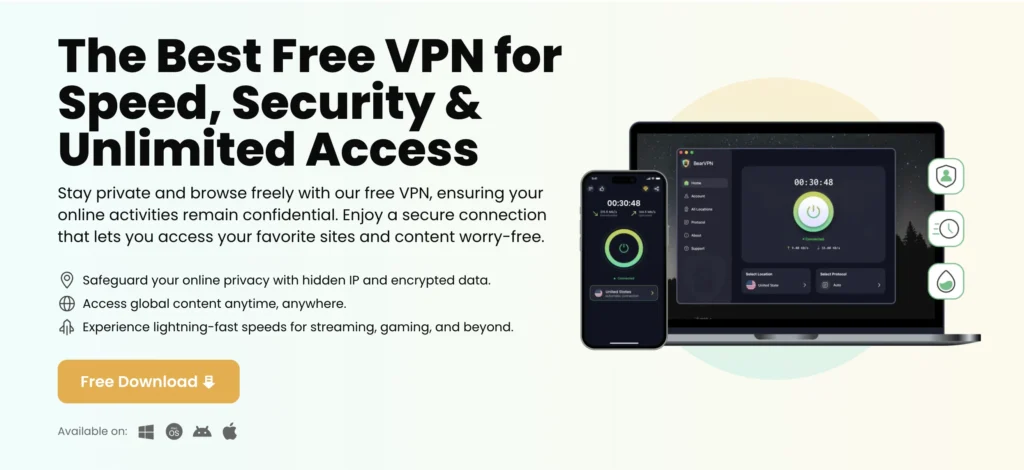
Whether you’re trying to unblock YouTube TV or simply want better privacy protection online, BearVPN offers a strong, user-friendly alternative to traditional VPNs like NordVPN.
Steps to Unblock YouTube TV with BearPVN:
Step 1. Download & Install BearVPN
Download BearVPN compatible with your platform (Windows, macOS, Android, or iOS).
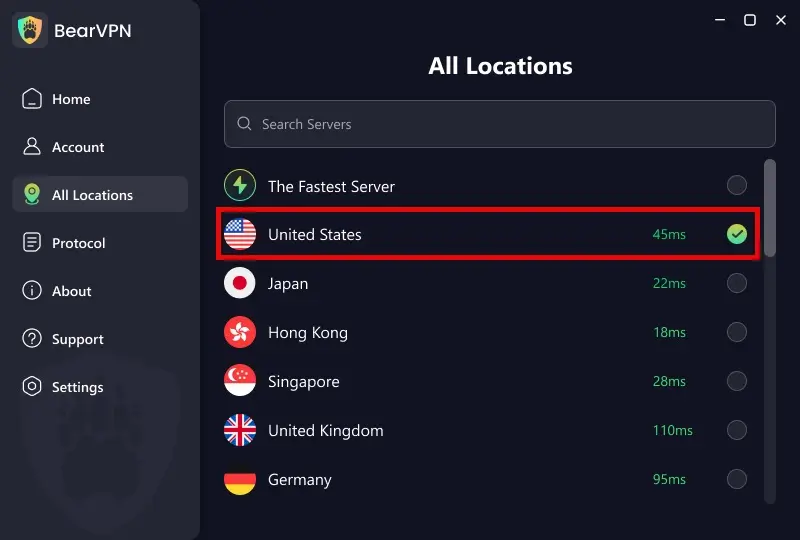
Step 2. Select a Dedicated U.S. Server
Open BearVPN. From the server list, search for “United States”. Instead of picking a crowded main server, select one of the dedicated streaming-optimized nodes listed.
Step 3. Establish the Connection
Click or tap Connect. Allow the software 5 to 8 seconds to successfully negotiate the secure, encrypted handshake. Once the status bar turns green, your connection is active.
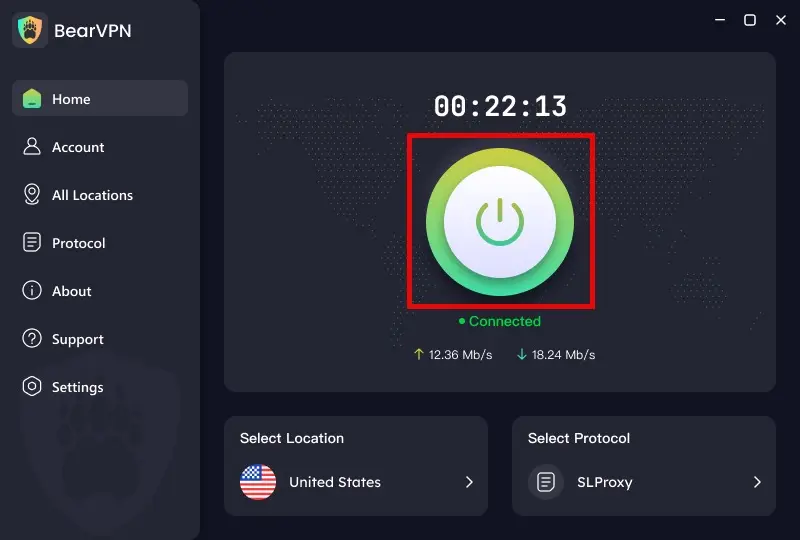
Step 4. Open YouTube TV in Private/Incognito Mode
Launch your web browser and open a private/incognito window to prevent cached location cookies from leaking your real coordinates. Navigate to YouTube TV, sign in, and enjoy your geo-unlocked live stream!
Additional Fixes for NordVPN Issues
If your issue extends beyond YouTube TV, here are broader fixes:
Reboot App and Device
- Restart both the NordVPN app and your device
- This resolves temporary bugs and resets network interfaces
Disable Kill Switch and Split Tunneling
- Kill switch might block YouTube TV accidentally
- Ensure your streaming app is routed through the VPN
Check Firewall or Antivirus
- Temporarily disable any firewall or antivirus that may block VPN traffic
Test on a Different Device
- Try accessing YouTube TV via a different platform (smartphone, tablet, or another browser)
FAQs: NordVPN and YouTube TV
Q1: Why is NordVPN not working with YouTube TV?
YouTube TV uses VPN detection technology to block access from known IP ranges associated with VPN providers. Since NordVPN is widely used, its servers are more likely to be flagged and blocked by the platform.
Q2: What does the “VPN/Proxy Detected” error mean?
This error message appears when YouTube TV identifies that you’re connected via a VPN. It indicates that the streaming platform has detected the use of an anonymizing service and is actively blocking it.
Q3: Why did NordVPN used to work and now it doesn’t?
VPN blocks are dynamic. A server that worked last week might be blacklisted today. YouTube TV regularly updates its VPN detection rules, and popular servers get flagged quickly.
Q4: Does private browsing or clearing cookies make a difference?
Yes. Cookies and cached data can link your session to a previous location. Using incognito mode or clearing browser data can reduce detection risk.
Q5: How do I test for DNS or IP leaks?
Visit a leak detection site such as ipleak.net. If your actual IP or DNS location is visible while NordVPN is active, your traffic may be leaking—potentially exposing your location to YouTube TV.
Q6: Is using a VPN with YouTube TV a violation of its terms of service?
Yes, it generally is. YouTube TV’s terms prohibit the use of VPNs to bypass geographic restrictions. While this won’t get your account banned in most cases, it can lead to blocked access and error messages.
Final Thoughts
If you’re experiencing problems with NordVPN not working with YouTube TV, you’re likely dealing with server-level blocking and aggressive detection by the streaming service. While NordVPN offers multiple fixes, none are guaranteed due to the platform’s evolving security measures.
BearVPN offers a practical, effective solution by using a lower-profile server pool and maintaining speed and privacy. If your streaming is stuck and you’re tired of troubleshooting, it might be time to try something new.
Download BearVPN today and enjoy smooth, unrestricted YouTube TV streaming without the headaches.


![How to Change YouTube TV Location [Still Works in 2026]](/_next/image/?url=https%3A%2F%2Fcms.bearvpn.com%2Fwp-content%2Fuploads%2F2026%2F06%2Fhow-to-change-location-youtube-tv.webp&w=640&q=75)