You search for a video, click play, and instead of content, you see “This video is age-restricted” or a stubborn Restricted Mode switch stuck on. It’s frustrating, especially when you’re already an adult and just want YouTube to work normally. This guide walks you through how to turn off age restrictions on YouTube, fix Restricted Mode issues, and watch videos safely without oversharing your personal data.
What YouTube Age Restriction Actually Means
Before you start flipping switches, it helps to understand what YouTube means by “age restriction.” There are three main concepts you’ll run into:
- Restricted Mode – A filter you or an administrator can turn on to hide potentially mature content. This is what most “how to turn off age restriction on YouTube” tutorials are really talking about.
- Age-restricted content – Videos that YouTube’s systems or reviewers flag as 18+; they require you to be signed in with a confirmed adult account.
- Age verification – Extra checks (ID, card, selfie, etc.) that prove you’re over 18 in some countries before certain videos will play.
How to Turn Off Restricted Mode on YouTube (All Devices)
Most users searching “how to turn off age restriction on YouTube” actually just want Restricted Mode off. The exact steps differ a little between desktop, mobile apps, and smart TVs, but once you know where to look, it only takes a few seconds per device.
Turn Off Age Restriction on YouTube PC
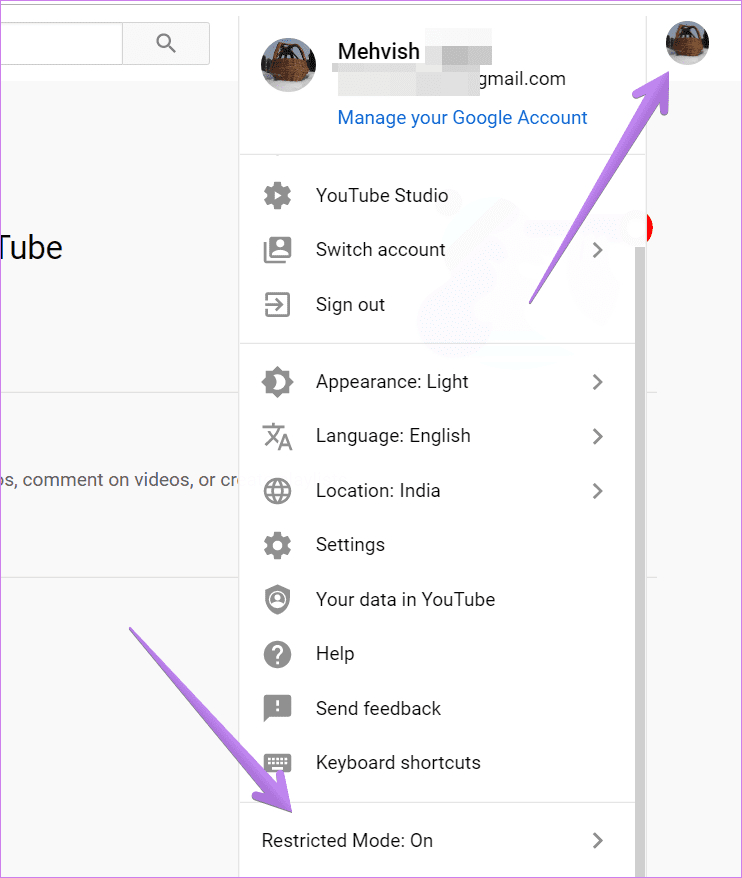
On desktop, YouTube hides Restricted Mode at the bottom of its menu, so it’s easy to miss if you don’t know where to scroll.
- Sign in to your YouTube account in a browser.
- Click your profile picture in the top-right corner.
- Scroll all the way down the menu.
- Click Restricted Mode.
- Toggle the switch to Off.
- If you see a “Lock Restricted Mode on this browser” option, make sure it isn’t enabled.
If you see “Restricted Mode is enabled by your network administrator,” your school, work, or ISP is enforcing DNS-level blocking. Jump to the BearVPN network fix section below.
If the toggle is greyed out or says it’s controlled by your organization, you may be on a managed work or school account, in which case you’ll need a different approach (covered in the troubleshooting section).
Turn Off Age Restriction on YouTube App (Android & iPhone)
On phones, YouTube moves Restricted Mode into the app’s general settings, and the path is slightly different on Android vs iOS, but the idea is the same: find the toggle and disable it.
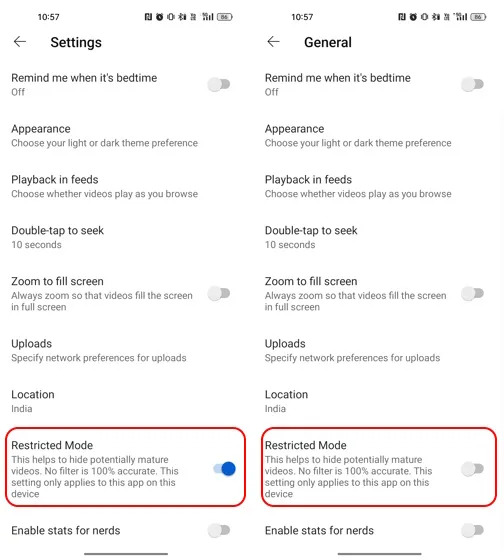
- Open the YouTube app and make sure you’re signed in.
- Tap your profile picture in the top-right corner.
- Go to Settings.
- Choose General (or General → Restricted Mode on some versions).
- Toggle Restricted Mode to Off.
If you use both Android and iPhone or an iPad, repeat this on each device; the setting is not always synced perfectly, so a different phone or tablet can still show age-restricted content differently.
Turn Off YouTube Age Restriction on Smart TV, Streaming Box, or Game Console
When you search “how to turn off age restriction on YouTube on Smart TV” or on a PS5/Xbox, you’re still dealing with Restricted Mode—just in a TV-style interface.
On most TV and console apps:
- Open the YouTube app.
- Go to Settings (gear icon or left-side menu).
- Look for Restricted Mode or Safety Mode.
- Set it to Off.
- Restart the app if the change doesn’t apply immediately.
Keep in mind that some smart TVs and set-top boxes also have their own parental controls outside of YouTube. If Restricted Mode keeps turning back on, you may need to adjust those system settings as well.
When Age Restriction Won’t Go Away: Troubleshooting Checklist
Sometimes you follow every guide on how to turn off restricted mode on YouTube, and it still refuses to stay off. At that point, the problem is rarely a simple toggle—something else is forcing restrictions behind the scenes. A structured checklist helps you find what’s actually blocking you.
1. Check Your Google Account Age and Region
If your Google account says you’re under 18, YouTube will treat you as a minor no matter what you do in the app.
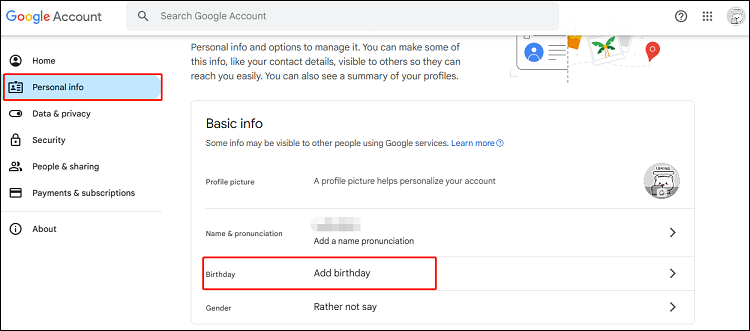
- Open your Google Account → Personal info.
- Check the Birthday field and update it if it’s wrong.
- If you recently changed it from a child’s date of birth to your real age, it may take some time or extra verification before restrictions relax.
Region also matters. Some countries apply stricter age-verification rules, so even adult accounts see more “This video is age-restricted” prompts than others.
2. Complete Official Age Verification (If You’re Comfortable)
In some regions, YouTube now asks adults to prove their age with an ID, a small credit-card check, or similar methods. If you’re comfortable with that and want full access via the official route, you can follow the prompts and complete verification.
That said, you’re never forced to upload documents; you can always decide not to watch specific videos or use less invasive privacy tools later. The important thing is to avoid shady third-party sites that promise to “bypass YouTube age verification” in exchange for your personal data.
3. Clear App Data, Cache, and Cookies
Outdated login tokens or corrupted cache can make it look like Restricted Mode is stuck on when it’s really just your browser or app getting things wrong.
Try this:
- On mobile: clear the YouTube app cache (and if needed, data) in your phone’s settings.
- On desktop: clear cookies and site data for youtube.com and sign in again.
- Try a different browser or device to see if the issue is account-wide or device-specific.
If Restricted Mode is off on one device but permanently on in another, the problem is almost always local to that device.
4. Check Network-Level Filters and Admin Controls
If you’re on a school, office, or library network, the real answer to “why can’t I turn off Restricted Mode on YouTube?” is often: you’re not supposed to. Network administrators can force safe search and Restricted Mode at the DNS or router level.
Clues this is happening:
- Every account on the same Wi-Fi sees Restricted Mode stuck on.
- The toggle says it’s “controlled by your network administrator.”
- Other content filters or blocked sites show up too.
In that case, you can:
- Connect to a different network you control (home or mobile data hotspot).
- Ask the admin if they’re willing to lower restrictions on your device.
- Accept that on that particular network, age-restricted content will remain blocked.
5. Review Parental Controls and Supervised Accounts
If your account is part of a Family Link setup or a supervised family group, parents can override your YouTube settings. Even if you switch Restricted Mode off, their controls can turn it back on instantly.
Check whether:
- Your Google account is marked as a child or supervised account.
- Family management apps on your phone or laptop are enforcing filters.
- Child profiles on smart TVs are being used instead of an adult profile.
Only the family manager or parent account can relax these restrictions; as the child account, you won’t be able to permanently disable them on your own.
How to Watch Age-Restricted YouTube Videos Safely with BearVPN
If you decide a VPN is the right tool for your setup, it’s worth choosing one that’s actually focused on privacy and streaming stability, not just flashy marketing. BearVPN is designed with everyday streaming and browsing in mind, so you can keep YouTube usable without turning your network into a slow, unusable maze.
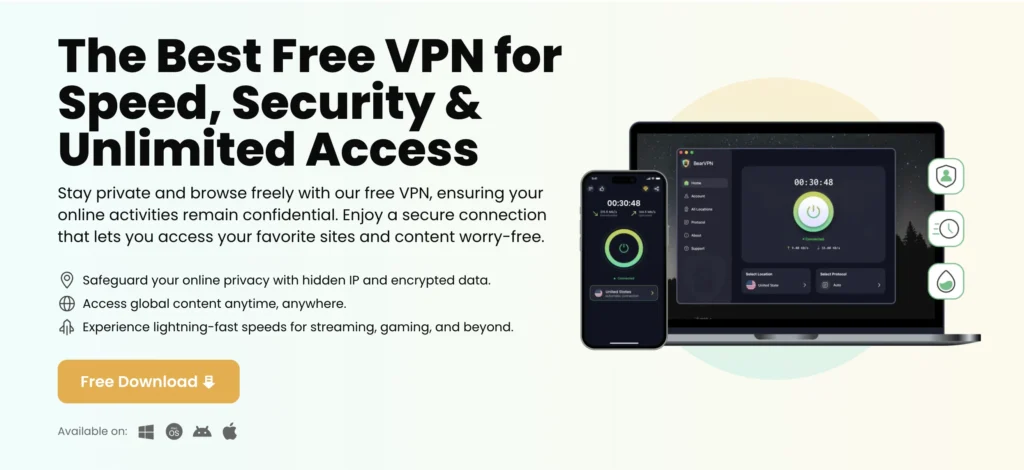
Here are a few practical ways it helps:
- Bypass ISP & School Network Filters: BearVPN routes your connection through an encrypted tunnel, bypassing local network firewalls that lock Restricted Mode on.
- High-speed servers – Optimized for streaming, gaming, and browsing, so HD and 4K YouTube videos don’t constantly buffer.
- Traffic Obfuscation: Disguises VPN traffic as standard HTTPS browsing, preventing school or public Wi-Fi from detecting or throttling your VPN.
- Fast HD & 4K Streaming: High-speed, unthrottled servers ensure smooth video playback without constant buffering.
- No-Logs Guarantee: BearVPN operates RAM-only servers that wipe session data upon reboot, keeping your viewing history strictly private.
- Content access and gaming support – Designed to handle popular streaming platforms and online games, so you don’t have to disconnect just to play or watch something else.
You should only use it as an adult in regions where VPNs are legal, and you should respect platform guidelines and age rules. The goal is not to help minors bypass restrictions, but to give adults safer, more private ways to enjoy the content they’re already allowed to watch.
FAQs
Click your profile icon on YouTube, scroll to the bottom of the menu, click Restricted Mode, and toggle it to Off. On mobile, navigate to Settings > General > Restricted Mode.
Blurry thumbnails or age warnings occur when Restricted Mode is active or when you are signed out. Sign in with an adult account (18+) and turn off Restricted Mode in your account settings.
This happens if your Google account birthday is incorrect, if you are browsing on a restricted network (school/work Wi-Fi), or if your local country requires mandatory document age verification.
Yes. Using BearVPN encrypts your connection, allowing you to bypass school network firewalls that lock Restricted Mode on.
Conclusion
Turning off age restrictions on YouTube usually takes more than flipping one switch. You start with the basics—disabling Restricted Mode, checking your account age, and ruling out network or parental controls. Once those are sorted, you can decide how you want to handle the rest. If you’re an adult who cares about privacy, pairing those settings with a VPN like BearVPN gives you a safer, more predictable way to watch the videos you’re already allowed to see, without handing over more personal data than you’re comfortable with.


![How to Change YouTube TV Location [Still Works in 2026]](/_next/image/?url=https%3A%2F%2Fcms.bearvpn.com%2Fwp-content%2Fuploads%2F2026%2F06%2Fhow-to-change-location-youtube-tv.webp&w=640&q=75)