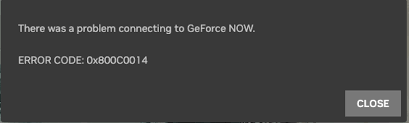
You wait through the GeForce NOW queue, hit Play, and get thrown back by There was a problem connecting to GeForce NOW — Error Code: 0x800C0014. Do not reinstall everything or reset the router blindly.
NVIDIA does not publish one official cause for this code. The same screen can appear during a service or game incident, a blocked native-app connection, a bad Wi‑Fi or ISP route, or a client-specific failure. The fastest way out is to compare one variable at a time: another game, browser versus app, and the current network versus a hotspot.
This guide keeps the original full troubleshooting path for Windows, macOS, Android, and iOS. It also shows where a GeForce NOW VPN can bypass a restrictive route—and where a VPN would only add latency without fixing the real problem.
What Does GeForce NOW Error 0x800C0014 Mean?
The visible message means GeForce NOW could not start or maintain the requested connection. It does not identify the failed layer. NVIDIA currently provides no public code-specific definition proving that 0x800C0014 always means a cloud handshake, corrupt cache, authentication token, regional server, or ISP failure.
Treat it as a session-start symptom. If several games and devices fail, check the service. If one game fails, check that title. If the browser works but the native app fails, inspect the client and firewall path. If a hotspot works but the original Wi‑Fi fails, focus on the network route.
Quick Checks You Should Try First
Start with comparisons that isolate the failure without deleting data or changing several settings at once. Stop as soon as one test identifies the branch.
- Check NVIDIA’s service status. Look for regional and game-specific incidents before changing the device.
- Launch a second game. If it works, the original title or store backend is the problem—not the whole GeForce NOW connection.
- Turn off every VPN or proxy, set
Server LocationtoAuto, and run GeForce NOW’s built-in network test. This is NVIDIA’s baseline. - Try
play.geforcenow.comin a supported browser on the same device and network. Browser success narrows the issue to the native-client path, but does not prove the cache is corrupt. - Compare the original network with Ethernet, 5 GHz Wi‑Fi, or a phone hotspot. Change only the connection so the result is meaningful.
- Restart the app and device once. Power-cycle your own router if every device fails only on that home network.
- Update or reinstall the official client only after the comparisons point to it. Repeated reinstalls cannot fix a service outage, game maintenance, or blocked network.
Fix the Network Path (Home Wi-Fi, Dorms, Offices, Public Hotspots)
Use GeForce NOW’s built-in network test as the primary measurement. A generic speed test may connect to an unrelated nearby server and miss the exact route to NVIDIA. GeForce NOW reports bandwidth, packet loss, jitter, and ping to the data center it selected.
Begin with the official baseline: turn off VPNs and proxies, set Server Location to Auto, then run the test. NVIDIA currently requires at least 15 Mbps for 720p/60 FPS and 25 Mbps for 1080p/60 FPS, with latency below 80 ms to an NVIDIA data center. Zero packet loss and low jitter matter just as much as headline download speed.
If the original Wi‑Fi fails, compare Ethernet, 5 GHz Wi‑Fi, and a phone hotspot. When the hotspot works on the same device and game, the home, dorm, office, or public network has become the leading suspect. Restart equipment you own; on a managed network, do not attempt to defeat administrator controls by changing firewall rules yourself.
GeForce NOW native apps use fixed streaming ports, while browser streaming does not use the same port requirement. NVIDIA lists UDP 49003–49005 and TCP/UDP 49006 for native-app traffic, with additional guidance for school and corporate firewalls. If the browser works but the app fails, ask the network owner or administrator to review NVIDIA’s current port guidance. Do not disable the entire firewall for a game.
Only after the Auto baseline should you test one nearby NVIDIA Server Location. A nearby alternative can avoid a regional incident or bad path; repeatedly jumping to distant regions usually adds latency and makes the diagnosis harder.
Repair the App State (Windows & macOS)
Repair the client only when the evidence points there—most clearly when a supported browser works on the same device and network but the native app does not. First confirm the operating system is supported, close every GeForce NOW process, install the latest official client, and restart the device once.
Next, check whether a security suite or firewall is blocking the native-app ports while the browser remains allowed. Keep the protection enabled and authorize only the official GeForce NOW app or NVIDIA’s documented ports. Run as administrator is not a routine network repair and should not be required just to stream a game.
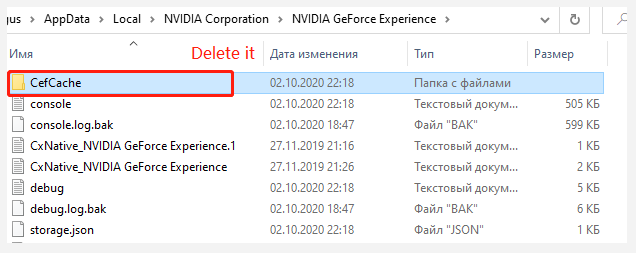
If the app still fails, use an official Reset/Repair option when the operating system provides one, or uninstall and reinstall the latest client from NVIDIA. Do not manually delete CefCache or related folders unless a current NVIDIA instruction identifies the exact path and explains what will be reset; old cache locations can change, and deletion may remove more state than intended.
Re-link Steam, Epic Games, or Ubisoft only when GeForce NOW shows a store authorization error. 0x800C0014 by itself is not evidence of a token mismatch, so account relinking should not sit in the generic repair path.
Platform Notes: Windows, macOS, Android, and iOS
Although 0x800c0014 shows up across platforms, patterns differ slightly by device, so tailor your triage accordingly.
On Windows, compare the native client with a supported browser on the same network. Update Windows and the official GeForce NOW app, check the authorized firewall path, and reinstall only when the failure stays app-only. Browser success is a strong client-path clue; it is not proof that cache deletion or administrator mode is the cure.
On macOS, run the same app-versus-browser comparison, confirm the current macOS version is supported, and update or reinstall the official app if necessary. Check firewall or security-software prompts rather than manually deleting undocumented support folders.
On Android, update the official app, set the service location to Auto, run the in-app network test, and compare Wi‑Fi with mobile data. Clear cache only after the simple comparisons; clearing app storage signs the user out and resets settings, so reserve it for an app-specific failure.
On iPhone and iPad, GeForce NOW runs through the supported Safari/PWA flow. Confirm iOS or iPadOS 15.4 or later, refresh the session, and compare Wi‑Fi with cellular. If cellular works but one Wi‑Fi does not, investigate that route rather than resetting the account.
Game-Specific Triggers Worth Checking
Sometimes 0x800c0014 rides along with a single title when a patch or backend update conflicts with cloud sessions. Scan the game’s official forums or recent threads; players occasionally report the code alongside crashes or black screens during specific windows (for example, with Path of Exile and other titles). If it’s noisy across the community and narrow to one game, waiting for a hotfix can save you hours of local tinkering.
Can BearVPN Fix GeForce NOW Error 0x800C0014?
Yes—when the error follows one Wi‑Fi or ISP route. If the same device, account, and game launch through mobile data or another network but fail on the original connection, BearVPN can encrypt the stream, bypass restrictive local filtering, replace the visible IP, and send GeForce NOW through a different route.
First establish NVIDIA’s official baseline with every VPN off and Server Location set to Auto. A VPN adds another network hop, so it should not be used to hide an NVIDIA outage, game maintenance, account problem, or app-only failure. Use it after the hotspot comparison proves that changing networks changes the result.
BearVPN is useful in this branch because the product capabilities match the obstacle:
- Smart Server Selection: Starts with a responsive route instead of forcing the user to guess between distant locations.
- 2,000+ servers across 50+ locations: Provides nearby alternatives when the current ISP path to NVIDIA is unstable or filtered.
- Strong obfuscation: Helps BearVPN connect when a school, hotel, office, or public Wi‑Fi identifies and blocks ordinary VPN traffic.
- Split tunneling: On supported platforms and plans, sends only GeForce NOW through BearVPN while other apps remain on the normal connection.
- DNSleak protection and KillSwitch: Keep DNS requests inside the protected route and stop fallback to the failing connection if the tunnel drops.
How to Test a BearVPN Route Without Making the Error Worse
Having the right order matters. Work through these steps until the error disappears.
- Record the VPN-off baseline. Set GeForce NOW
Server LocationtoAuto, run its network test, and save bandwidth, packet loss, jitter, ping, and the selected data center. - Prove the network difference. Launch the same game through a phone hotspot or another permitted network. Continue only if that path works better than the original Wi‑Fi or ISP.
- Connect BearVPN before reopening GeForce NOW. Start with Smart Server Selection or the nearest suitable location; do not jump across several distant countries.
- Use obfuscation only when the network blocks the VPN connection itself. If BearVPN already connects normally, keep the route as simple as possible.
- Reopen GeForce NOW with
Server Locationstill onAuto. Repeat the same built-in network test and then launch the same game. - Compare real results. Keep the BearVPN route only if launch success, packet loss, jitter, ping, and actual stream stability improve. Try one other nearby BearVPN server if necessary; disconnect if latency or jitter becomes worse.
Connect BearVPN through a nearby route, reopen GeForce NOW, and compare the official network test. Keep the route only when the numbers—and the game—improve.
Step-by-Step Fix Path (Put It All Together)
Run these steps in order. Each comparison removes one cause, so do not change three settings at once or repeat a repair that has already failed.
- Check the service. Open NVIDIA’s status page and inspect any regional or game-specific incident.
- Try another game. If it launches, wait for or report the affected title instead of rebuilding the network.
- Create the official network baseline. Turn VPN and proxy off, set
Server LocationtoAuto, and run GeForce NOW’s built-in test. - Compare browser and native app. If the supported browser works on the same device and network, update the client and inspect its authorized firewall path.
- Compare networks. Test Ethernet, 5 GHz Wi‑Fi, or a phone hotspot without changing the device, account, or game.
- Repair only the layer that failed. Restart once; update the official app; use Reset/Repair or reinstall only for an app-only failure.
- Test one nearby NVIDIA location only if needed. Use this after Auto when status or repeated results point to the selected data center.
- Run the BearVPN route test only after a network difference is proven. Compare the same NVIDIA measurements before and after; keep it only if it improves.
- Escalate with evidence. Send NVIDIA the code, date/time, game, platform, selected data center, browser/app result, network comparison, and test metrics.
FAQ: Fast Answers for Common 0x800c0014 Scenarios
Before you wrap, check these quick clarifications—many cases look different but share the same cure.
If a lot of people report it at once or your game’s forum flags a known issue, it’s likely server-side or game-side. If the web app works but the desktop doesn’t, fix the desktop client. If your mobile data works while Wi-Fi fails, fix or bypass that network.
A nearby NVIDIA data center can avoid a regional incident or bad route, but switching regions is not a universal fix. Start with Server Location: Auto; if status information or repeated network tests point to one location, try one nearby alternative. A distant region usually adds latency.
Stop reinstalling. Check NVIDIA status, launch another game, turn VPN off, select Auto, run the built-in network test, and compare browser versus app and Wi‑Fi versus a hotspot. Those results show whether the failure belongs to the service, game, client, or network.
Check the title’s forum or social feed; if many GFN players see the code after a patch, wait for a hotfix and avoid burning time on local tweaks.
Conclusion
GeForce NOW error 0x800c0014 feels opaque, but it rarely demands guesswork once you narrow it down. First, separate service/region blips from your environment by checking status, trying the web app, and switching regions. Next, stabilize your network path—swap networks, reboot the router, and avoid filters or proxies that garble real-time traffic. If the network looks healthy, repair the client state with a cache reset or clean reinstall.
Keep VPN off and Server Location on Auto for the baseline. If the same device and game launch through a hotspot but die on one Wi‑Fi or ISP, BearVPN can bypass that failing route and give GeForce NOW another path. Measure the result instead of guessing: keep it when launch success, packet loss, jitter, ping, and stream stability improve; disconnect it when they do not.


![How to Change YouTube TV Location [Still Works in 2026]](/_next/image/?url=https%3A%2F%2Fcms.bearvpn.com%2Fwp-content%2Fuploads%2F2026%2F06%2Fhow-to-change-location-youtube-tv.webp&w=640&q=75)