Discord Error 3002 means your microphone is connected, but Discord is not receiving any sound from it. You may see a warning such as: “Discord is not detecting any input from your mic” or “Error: 3002.”
Before changing drivers or reinstalling Discord, check three things: make sure the microphone is not physically muted, raise its input volume in your operating system, and select it under User Settings > Voice & Video > Input Device. Then use Discord’s Mic Test to confirm whether the input meter responds.
This guide covers the fixes in the order you should try them, including separate checks for Windows, macOS, Linux, browsers, and mobile devices. It also explains when a voice problem is network-related—and when a VPN will not help.
What Is Discord Error 3002?
Discord classifies Error 3002 as Silent Audio Input. It appears when a microphone is connected or recognized, but Discord receives no usable sound from it.
Do not confuse it with Error 3001:
Error 3002 is normally caused by a muted microphone, input volume set too low, the wrong input device, blocked microphone permission, or a Discord voice setting. It is not a login, account authentication, or general Discord outage error.
If the microphone meter moves in Discord’s Mic Test but you still cannot join or speak in a voice channel, you may be dealing with a separate channel-permission or network-connection problem rather than Error 3002.
Common Causes of Discord Error 3002
The most common causes of Discord Error 3002 are:
- The microphone is physically or digitally muted. Check the mute button on the headset, microphone, keyboard, and operating-system sound controls.
- Input volume is too low. Discord may recognize the device but receive no usable signal.
- Discord is using the wrong input device. This often happens after connecting a USB mic, Bluetooth headset, webcam, docking station, or virtual audio device.
- Microphone permission is blocked. Windows, macOS, mobile operating systems, and browsers can prevent Discord from accessing the mic.
- Voice Activity or input sensitivity is misconfigured. A high manual threshold can prevent quieter speech from registering.
- Noise suppression or audio enhancement is removing the input. Krisp, voice changers, mixers, and manufacturer audio utilities can conflict with the microphone signal.
- Another application is using or controlling the microphone. Recording, meeting, streaming, and virtual-audio apps are common examples.
- Discord’s voice settings are corrupted or outdated. Resetting Voice & Video settings can restore the default input configuration.
- The operating system or audio driver is not handling the device correctly. This is more likely if the microphone also fails outside Discord.
A network problem is less likely when Discord’s Mic Test detects no input at all. Investigate the network only if the mic test works but voice channels fail to connect, disconnect repeatedly, or have severe packet loss.
How to Fix Discord Error 3002
Try these fixes in order. After each step, open User Settings > Voice & Video > Mic Test and select Let’s Check. If Discord plays your voice back, Error 3002 has been resolved.
1. Unmute and Reconnect the Microphone
Start with the device itself:
- Check the physical mute switch on your headset or microphone.
- Make sure Discord’s microphone icon is not muted.
- Disconnect and reconnect USB, USB-C, or 3.5 mm devices.
- If possible, try another USB or audio port.
- For a Bluetooth headset, disconnect and reconnect it, then verify that its microphone profile is active.
- Restart Discord completely—not just minimize it to the system tray.
If the microphone does not appear in the operating system at all, you may be dealing with Error 3001 or a hardware problem rather than Error 3002.
2. Check the System Input Volume
Error 3002 can appear when the microphone is connected but its input level is muted or too low.
- Windows: Go to Settings > System > Sound > Input. Select the microphone, speak normally, and watch the input-volume meter.
- macOS: Go to System Settings > Sound > Input. Select the microphone and check whether the input-level meter moves.
- Linux: Open Settings > Sound > Input, select the correct device, remove mute, and raise the input level.
- Mobile: Open a recorder or camera app and make a short recording to confirm that the microphone captures sound.
If no input meter moves outside Discord, fix the device, system setting, or driver before changing Discord settings.
3. Select the Correct Input Device in Discord
Open User Settings > Voice & Video and:
- Choose the actual microphone under Input Device instead of leaving it on Default.
- Raise Input Volume.
- Set Input Mode to Voice Activity for testing.
- Select Let’s Check under Mic Test and speak into the microphone.
- If Voice Activity is enabled, turn on automatic input sensitivity or lower the manual threshold.
Discord’s Mic Test is available on desktop and in supported browsers. Discord officially recommends checking the selected input device and using this test when no microphone signal is detected. Discord Mic Testing
4. Allow Discord to Use the Microphone
Windows 11
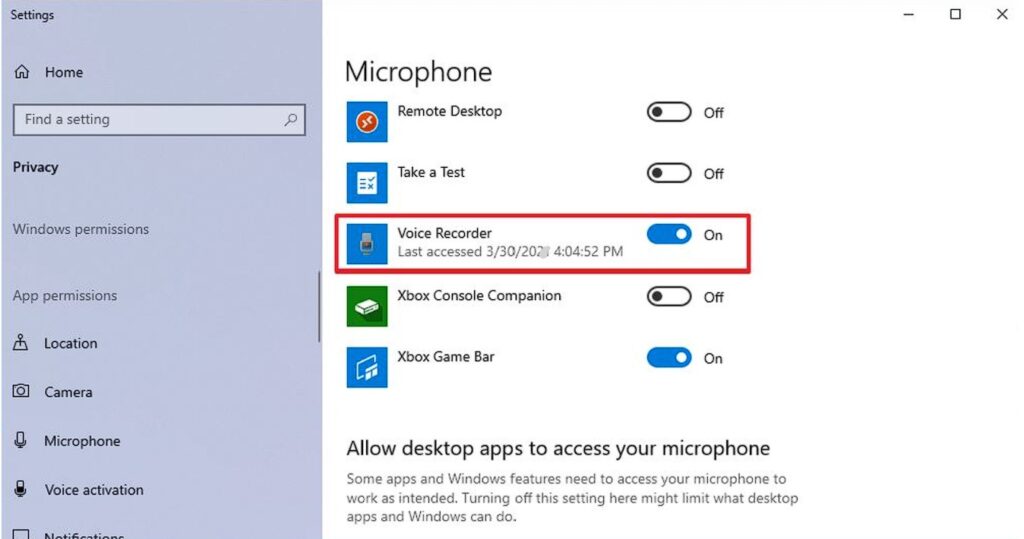
Go to Settings > Privacy & security > Microphone and enable:
- Microphone access
- Let apps access your microphone
- Let desktop apps access your microphone
The desktop version of Discord may not appear as an individual app in the permission list, so the desktop-app toggle is especially important. Microsoft microphone permissions
macOS
Go to System Settings > Privacy & Security > Microphone and enable Discord. Quit and reopen Discord after changing the permission. Apple microphone access
Browser
Select the lock or site-settings icon beside the address bar, allow microphone access for discord.com, reload the page, and select the correct microphone in Discord.
iPhone, iPad, and Android
Open the device’s privacy or app-permission settings and allow Discord to access the microphone. Then force-close and reopen the app.
5. Close Apps and Audio Tools That May Be Taking the Mic
Completely close recording, calling, streaming, and virtual-audio applications such as Zoom, Teams, OBS, VoiceMeeter, voice changers, and audio-routing utilities.
Then reopen Discord and run Mic Test again. If the mic starts working, reopen the other applications one at a time to identify the conflict.
On Windows, also check the microphone’s advanced sound properties if another application repeatedly takes exclusive control of it.
6. Disable Noise Suppression and Audio Enhancements
In Discord, go to User Settings > Voice & Video and temporarily disable Krisp Noise Suppression. You can also test with Echo Cancellation, Noise Reduction, and Automatic Gain Control disabled if those options appear in your client.
On Windows, temporarily disable microphone enhancements in the recording-device properties. Re-enable features one at a time after the microphone starts working.
Discord specifically recommends testing with Krisp disabled when troubleshooting voice input. Discord Voice and Video Troubleshooting
7. Reset Discord’s Voice and Video Settings
If the microphone works in other apps but Discord still shows Error 3002:
- Open User Settings.
- Select Voice & Video.
- Open or scroll to the Debugging section.
- Select Reset Voice and Video Settings.
- Confirm the reset, reselect your microphone, and run Mic Test.
On Windows, you can also switch Audio Subsystem from Standard to Legacy, or from Legacy back to Standard, and test again.
8. Update the Operating System and Audio Software
On Windows, install available system updates and update the microphone or audio-device driver through Windows Update, Device Manager, or the hardware manufacturer.
On macOS, use System Settings > General > Software Update. Do not install generic third-party Mac audio drivers unless the microphone manufacturer specifically provides and requires them.
On Linux, install current system and Discord updates, then verify that the correct input device is selected in both the desktop sound panel and Discord. If the browser version works but the desktop client does not, the problem is more likely limited to the Discord client or its audio integration.
9. Clear Discord Data or Reinstall the App
Try this only after resetting Voice & Video settings.
- Windows: Fully close Discord. Press Win + R, enter
%appdata%\Discord, and remove the Cache, Code Cache, and GPUCache folders. - macOS: Quit Discord, open
~/Library/Application Support/Discord/, and remove the corresponding cache folders. - Android: Use the app-storage settings to clear Discord’s cache.
- iOS: Update or reinstall Discord because iOS does not provide the same per-app cache-clearing control.
If the error remains, download a fresh copy from Discord’s official website and reinstall the application.
10. Contact Discord Support
If Discord still receives no sound, submit a support request and include:
- Error code 3002 and a description of the problem
- Operating system and version
- Discord client and version
- Microphone or headset model
- Whether the mic works in other applications
- Screenshots of Voice & Video settings
- Discord debug logs, if available
- The troubleshooting steps already attempted
Discord requests this information when unresolved audio problems are escalated. Use the official Discord Support page.
Can a VPN Fix Discord Error 3002?
Usually, no. Error 3002 means Discord is receiving no sound from a connected microphone, so the first fixes should be the device mute switch, system input level, microphone permission, Discord input selection, and voice settings. Changing your IP address cannot repair a muted microphone, blocked permission, faulty cable, or broken audio driver.
A VPN becomes relevant only when:
- Discord’s Mic Test successfully detects and plays back your voice;
- the microphone works on one network but voice channels fail on another;
- Discord voice connections are restricted on a school, workplace, hotel, or other managed network; or
- voice chat connects but repeatedly fails because of a routing problem.
In that situation, switching between Wi-Fi and mobile data is the quickest diagnostic test. If voice chat works on the alternative connection, the original network may be interfering with Discord rather than the microphone itself.
You can then try a Discord VPN such as BearVPN to route the Discord connection through a different network path. This may help with network-based access or routing problems, but it will not fix Error 3002 when Discord’s Mic Test receives no microphone input.
FAQs About Discord Error 3002
Discord Error 3002 means a microphone is connected or recognized, but Discord is not receiving sound from it. Check the device’s mute switch, system input volume, selected Input Device, and Discord’s Mic Test before changing network settings.
Error 3001 means Discord cannot detect an audio input device. Error 3002 means the input device is present but is silent. For 3001, reconnect or select the microphone. For 3002, check mute controls, input volume, permissions, and voice settings.
Discord may be using the wrong Input Device, lack microphone permission, have an incorrect Voice Activity threshold, or be affected by noise suppression or corrupted voice settings. Select the mic manually, run Mic Test, and reset Voice and Video Settings if necessary.
First confirm that the microphone is selected, unmuted, and producing input in the Linux sound settings. Then select the same device under Discord’s Voice & Video settings and run Mic Test. Update Discord and your audio system if the browser version works but the desktop client does not.
Open System Settings > Privacy & Security > Microphone and allow Discord access. Then go to System Settings > Sound > Input, select the mic, and verify that the input-level meter moves. Reopen Discord, select the same device, and run Mic Test.
A VPN will not fix a microphone that is muted, blocked by system permissions, or producing no input. It may help only if Discord detects the microphone correctly but voice channels fail on a particular network. Test another connection before trying a VPN.
Usually not. Error 3002 specifically describes silent microphone input. If Mic Test works but calls or voice channels fail, check Discord’s service status and investigate channel permissions or network connectivity separately.
Conclusion
Discord Error 3002 means Discord recognizes a microphone but receives no sound from it. Check the hardware mute switch and system input level first, then select the correct Input Device and run Discord’s Mic Test.
If the mic works outside Discord, review permissions, disable conflicting audio processing, and reset Discord’s Voice and Video Settings. Investigate the network only when Mic Test works but voice channels fail to connect. In that separate situation, testing another connection—or trying BearVPN—can help determine whether the network path is the problem.


![How to Change YouTube TV Location [Still Works in 2026]](/_next/image/?url=https%3A%2F%2Fcms.bearvpn.com%2Fwp-content%2Fuploads%2F2026%2F06%2Fhow-to-change-location-youtube-tv.webp&w=640&q=75)