


Frustrated because you don’t know how to join Discord on Xbox? No worries, since many other Xbox users have also reported the Discord not working on Xbox error. It can be a bit tricky, but we’re here to help you understand “why can’t I join a Discord server on Xbox,” plus solutions to all situations.
Let’s walk through them one by one and see which might help you!

1. Check Your Discord–Xbox Connection
Before troubleshooting server access, make sure your Discord account is properly linked to your Xbox account. Discord on Xbox works through account integration rather than a standalone Discord app.
- Check the connection: On Xbox, go to Profile & System → Settings → Account → Linked social accounts → Discord and make sure your Discord account is connected.
- Update your Xbox: Make sure your Xbox console is running the latest system software. An outdated system can cause connection or feature issues.
- Reconnect if needed: If Discord is already linked but you still can’t join or use Discord features, try unlinking and reconnecting your Discord account before moving on to network troubleshooting.

2. Check If You Link Discord to Xbox
Did you know that you need to link your Discord account to your Xbox, or else Discord won’t work on Xbox?
If you forget to link your Discord account to Xbox, or it’s disconnected, simply go to your Discord settings and look for the option to connect your Xbox account. This helps in syncing your activity. To link a Discord server to an Xbox, you can do the following:
- Open the Guide by pressing the Xbox button on your controller
- Go to Profile & system > Settings > Account > Linked social accounts
- Select Link under the Discord tile
- Follow the instructions to link your Discord account
Sometimes, you might think you’ve linked it, but a quick double-check can save you a lot of hassle!
3. Check if Discord Server is Private/Full/Down
You know, not all Discord servers are open to the public. Some Discord servers not working on Xbox simply are because of strict privacy settings or are out of the member capacity, which might be the reason why you can’t join a Discord server on Xbox. In this case, it’s not about both platforms but the server’s owner.
If you’re trying to join a server that’s invite-only, you need to reach out to a friend for an invite link!
Also check Discord’s status page or social media channels for any outages. If the server is down, you’ll just have to wait it out.
And let’s admit that sometimes you can’t access a Discord server on Xbox just because your account is not qualified for the server rules and guidelines—some communities have specific requirements for joining, so review them before applying.
4. Check Network if Discord Not Working on Xbox
Ensure you have a stable and reliable internet connection. A weak or fluctuating connection can hinder your ability to join Discord servers.
What’s more, you need to check your Network Address Translation (NAT) type. A strict NAT type can limit incoming connections, preventing you from joining certain servers. Try adjusting your router settings or contacting your internet service provider to improve your NAT type.
An inappropriate firewall setting is another main reason why you can’t join a Discord server on Xbox. To set this up, verify that your Xbox’s firewall or your network’s firewall isn’t blocking Discord’s communication. Temporarily disable your firewall to see if it resolves the issue.
5. Check Your VPN Connections
Wait! Are you using a VPN to access Discord or Xbox? This matters. VPN can complicate things when it comes to online gaming and chat apps. If this is your case, you can try these solutions:
- Disconnect the VPN: If you’re using a VPN, try turning it off. Sometimes, it can block Xbox access to certain Discord servers in a specific region.
- Choose Another Server Location: Ensure your VPN server is located in a region that allows access to Discord servers. If not, simply switch it to the right one.
- Try Another VPN: If a VPN is necessary for you to access Discord and Xbox while the installed VPN is not working, maybe you should uninstall it and try another product like BearVPN for a better gaming experience and dedicated IP address.
6. Check Privacy Settings Xbox Discord Not Working
Sometimes, your Xbox privacy settings might be too restrictive for joining servers. As a result, you can’t join a Discord server on Xbox. But fortunately, you can check and adjust settings by going to your Xbox privacy settings and ensuring that you allow for online interactions and communication.
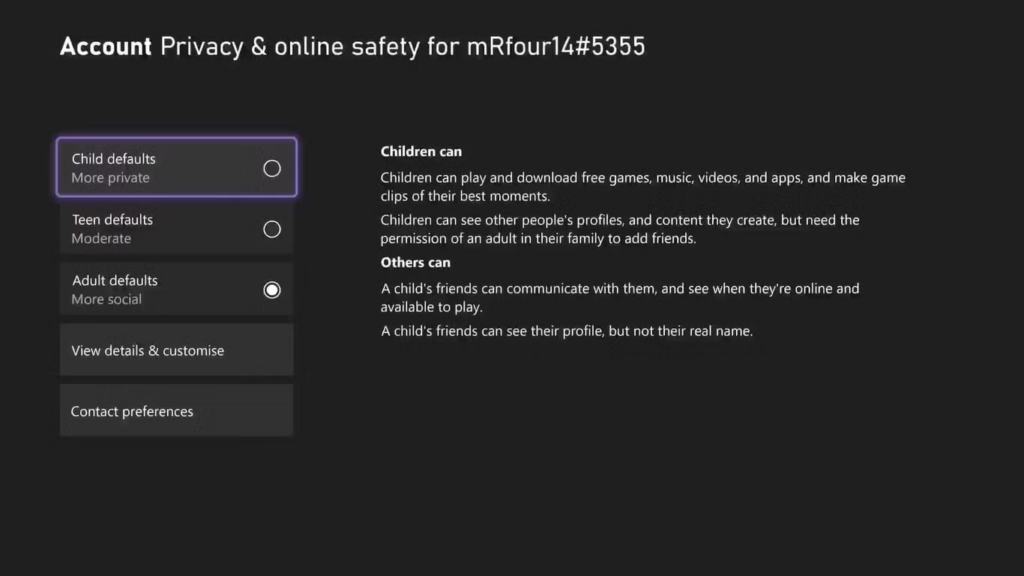
You can also try test mode in Xbox to switch to a more relaxed setting temporarily to see if it resolves the issue.
7. Check If Discord Server Is Restricted in Your Region
We know Discord is not available or restricted in some countries (As of October 9, 2024, both Turkey and Russia have blocked access to Discord). Some servers may restrict access based on geographic location or age.
- Check Server Region: If the server is region-locked, you may need to join a different server that’s open to your area, or you can unblock it with a Discord VPN.
- Community Feedback: Ask friends if they’re having similar issues with that server; it might be a server-wide problem.
8. Check If Something Is Outdated
Outdated software can lead to compatibility issues. It could be the system of Xbox, the Disacord, or your VPN client!
- Check for Updates: Regularly update your Xbox system and the Discord app to the latest versions to avoid bugs.
- Restart: A simple restart of your console or router can sometimes solve temporary glitches.
9. Check Platform Limitations
Remember that the Discord app on Xbox may not support all features available on other platforms.
- Feature Awareness: Familiarize yourself with the limitations of the Xbox version. Some functionalities may differ from mobile or desktop.
- Explore Alternatives: If you find it too limiting, consider using Discord on your phone or computer while gaming. It will work as well.
Final Thoughts
If you’ve gone through all these troubleshooting steps and still are facing the error—Discord Not Working on Xbox, don’t hesitate to reach out to Discord support. They have resources and support to help you navigate any lingering problems. Gaming and chatting with friends should be a breeze, so let’s get you back in the conversation!
Frequently Asked Questions
Why can’t I join a Discord server on Xbox?
First, make sure your Discord and Xbox accounts are properly linked and that your Xbox is updated to the latest version. Then check whether you can join the server or voice channel from another device. If Discord works elsewhere but not on Xbox, check your Xbox privacy settings and network connection before troubleshooting further.
Why is Discord not working on Xbox?
“Discord not working on Xbox” can refer to several issues, including problems linking your accounts, joining a Discord voice channel, transferring voice chat, or using Discord features on the console. Start by checking your Discord–Xbox connection and updating your Xbox. If those are working, move on to privacy settings and network troubleshooting.
Do I need the Discord app on Xbox?
No. Discord is not a standalone app on Xbox. Instead, you connect your Discord and Xbox accounts to use Discord voice chat on your Xbox console. Depending on how you transfer voice chat, you may also need the Discord and Xbox mobile apps.
How do I reconnect Discord to my Xbox?
On Xbox, open the guide and go to Profile & System → Settings → Account → Linked social accounts. Select Discord and follow the prompts to link your accounts. If you previously connected Discord and Xbox but still can’t use Discord Voice, Discord recommends relinking the accounts in some cases.
Can a VPN fix Discord not working on Xbox?
A VPN may help if the problem is caused by a network or regional restriction, but it won’t fix every Discord or Xbox problem. If the server is down, your account isn’t properly linked, or your Xbox software has an issue, changing your IP address won’t solve the underlying problem. Check the connection and network first, then consider a VPN only when the evidence points to a network or regional restriction.



![How to Change YouTube TV Location [Still Works in 2026]](/_next/image/?url=https%3A%2F%2Fcms.bearvpn.com%2Fwp-content%2Fuploads%2F2026%2F06%2Fhow-to-change-location-youtube-tv.webp&w=640&q=75)

