


Roblox now uses age checks to control access to chat, Voice Chat, age-restricted experiences, and other social features. Users may be asked to complete Facial Age Estimation or verify their age with a government-issued photo ID, depending on their age, region, and the feature they want to use.
Nothing kills the vibe faster than opening a Voice Chat-enabled experience only to see “Verification Failed,” a blank camera page, or a loading screen that never finishes. If Roblox age verification is not working, the problem is often caused by poor lighting, camera permissions, an unreadable ID, an expired session, or an unstable network connection.
This guide shows you how to identify the cause, fix the most common errors, and use BearVPN when Wi-Fi, DNS, ISP routing, or regional network problems interrupt the verification page.
Quick Check: Where Does Roblox Verification Fail?
- The camera never opens: Check the Roblox app or browser camera permissions.
- Your face cannot be estimated: Improve the lighting, remove glare, and keep your full face visible.
- Your ID is rejected: Use your own unexpired government-issued photo ID and make sure every requested side is clear.
- The page is blank or keeps disconnecting: Switch between Wi-Fi and mobile data. If mobile data works but Wi-Fi fails, connect to BearVPN and retry through a more stable route.
- Your age was estimated incorrectly: Use ID verification or the available age-correction options in your Roblox account.
BearVPN works best for network-related failures. It cannot change your age or make an unsupported ID pass Roblox’s checks.
How Roblox Age Verification Works
Before fixing the error, identify which verification method Roblox is asking you to complete. Roblox currently supports Facial Age Estimation and government ID verification.
Step 1. Start the Age Check
Log in to Roblox and go to:
Settings → Account Info → Age Group
Select Continue with selfie to start Facial Age Estimation. Users who are at least 13 may also see Continue with ID.
The exact buttons available can depend on your account age, region, and the feature you are trying to unlock.
Step 2. Allow Camera Access
Roblox or its verification provider needs camera access to capture your face or ID.
When the camera does not open, check whether camera permission is blocked in:
- Your browser settings.
- The Roblox mobile app permissions.
- Your phone’s privacy settings.
- An in-app browser opened from Roblox.
Close other apps that may already be using the camera before retrying.
Step 3. Complete Facial Age Estimation
For Facial Age Estimation, follow the on-screen instructions and keep your face centered in the frame.
Use bright, even lighting and avoid:
- Strong light behind your head.
- Heavy glare on glasses.
- Hats, masks, or objects covering your face.
- A dirty or blurry camera lens.
- Moving out of the frame before capture finishes.
Roblox currently works with Persona to capture a short selfie-style video and estimate your age group. If the system cannot estimate your age confidently, Roblox may direct you to another age-check option.
Step 4. Complete ID Verification
Government ID verification is available only to users aged 13 or older.
Roblox accepts supported government-issued photo identification, such as a:
- Passport.
- Driver’s license.
- Residency card.
- National or state-issued photo ID.
Allow camera access and capture the entire document clearly. If the ID has a barcode or requested information on the back, scan that side as well.
You will then be asked to take a live photo so the verification service can check that you are the person shown on the ID.
Student cards, birth certificates, screenshots, photocopies, and documents without an accepted government-issued photo format should not be used unless Roblox specifically lists them as supported in your country.
Step 5. Return to Roblox
After submitting the required images, return to the original Roblox session.
Roblox displays the verification status there and eventually shows a pass or failed result. ID verification may finish within a few minutes, but unclear documents or country-specific document formats may take longer to process.
If verification succeeds, the age group or birthday shown on the account may be updated based on the verified result.
Where the Verification Process Usually Fails
The failure point usually reveals the cause:
- The verification option is missing: Your account, age, region, or selected feature may not currently qualify for that method.
- The camera does not open: Camera permission is blocked, another app is using the camera, or the browser cannot start the capture tool.
- Facial Age Estimation cannot finish: The image may be too dark, blurry, obstructed, or unstable.
- The ID cannot be processed: The document may be expired, unsupported, partly outside the frame, unreadable, or missing a requested side.
- The page is blank or disconnects: The browser session, app cache, Wi-Fi connection, DNS, or network route may be interrupting the verification page.
- Verification remains pending: The document image may require additional processing, especially when the photo is unclear or the document format is harder to read.
Roblox does not publish one universal five-minute expiration limit for ordinary age checks. If the page has been open for a long time or stops responding, close the failed attempt and start a fresh session instead of repeatedly submitting through the same frozen page.
Why Roblox Age Verification Fails (Complete Breakdown)
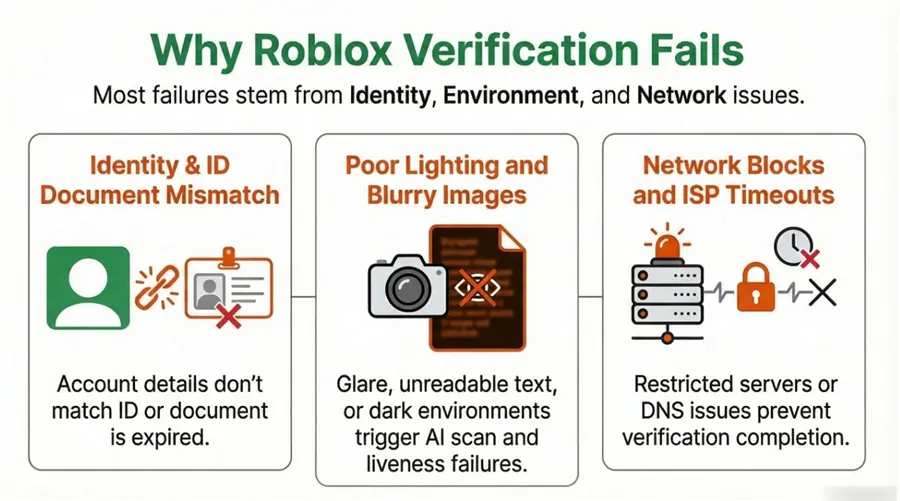
Most verification errors fall into four groups: account eligibility, camera or image quality, document problems, and connection failures.
1. The Verification Method Is Not Available
You may not see the same options as another Roblox user.
ID verification is available only to users aged 13 or older, and Facial Age Estimation may be subject to regional availability or parental-consent requirements.
The feature you want to unlock also matters. Roblox may require an age check for chat, Voice Chat, Restricted Content, Trusted Connections, or other age-gated features, but the exact access rules can vary by age group, region, and product.
If the button is missing, first confirm that:
- Your Roblox app is updated.
- You are signed in to the correct account.
- Your account birthday is entered correctly.
- The verification method is available for your age and region.
- The feature itself is supported in your location.
2. The Camera or Facial Scan Cannot Read You Clearly
Facial Age Estimation relies on clear images of your face.
The scan may fail when:
- The room is too dark.
- A bright window or lamp is behind you.
- Your face is partly outside the frame.
- Glasses create strong glare.
- A hat, mask, hair, or another object hides part of your face.
- The camera lens is dirty.
- The phone moves during capture.
- Camera permission is disabled.
Use a well-lit room, face a soft light source, clean the lens, and keep the phone at eye level.
If Roblox cannot estimate your age, eligible users can use government ID verification instead. If your age is estimated incorrectly, Roblox also provides account age-correction options.
3. The ID Is Invalid or Difficult to Read
Roblox requires a supported, government-issued photo ID for document verification.
Common document problems include:
- The ID is expired.
- The entire document is not visible.
- Text or the photo is blurry.
- Flash or overhead lighting creates glare.
- The front or requested back side is missing.
- The document has no usable government-issued photo.
- The document type is not supported in your country.
- The live photo does not clearly match the ID photo.
Place the ID on a flat, dark surface and capture it in bright, even light without flash. Keep all four edges inside the frame.
A birthday difference does not automatically mean Roblox will reject the verification. Roblox says that after a successful ID verification, it may correct the birthday on the account using the date shown on the verified document.
4. The Browser, App, or Network Interrupts the Session
A blank page, frozen loading screen, camera page that never opens, or repeated connection error may be caused by the device or network rather than the face or document.
Possible causes include:
- Roblox or the browser is outdated.
- Camera permission is blocked.
- Old cookies or an incomplete verification session are interfering.
- A content blocker, privacy extension, firewall, or filtered network blocks part of the page.
- Public Wi-Fi requires an unfinished login.
- The Wi-Fi connection has packet loss or unstable international routing.
- DNS cannot reliably resolve a required verification domain.
First, close the failed page, restart Roblox, and try again in an updated browser. Then switch between Wi-Fi and mobile data.
If verification works on mobile data but repeatedly fails on Wi-Fi, the document and camera are probably not the main problem. Connect to BearVPN and retry through a nearby server to bypass the unstable Wi-Fi, DNS, or ISP route.
Choose a nearby server rather than a distant country. BearVPN can fix the connection path, but Roblox will still perform the same facial or document checks.
Why Roblox Now Requires Age Checks
Roblox uses age checks to separate users into appropriate age groups and control access to communication, social, and restricted features.
Starting in January 2026, users must complete an age check before using Roblox communication features such as Experience Chat, Voice Chat, and Party Chat. After the check, Roblox generally limits communication to users in similar age groups, while Trusted Connections provide additional options for eligible users.
Age checks are also used for features such as Restricted Content and certain collaboration or social tools.
Roblox says this system is designed to create more age-appropriate experiences and reduce unsafe communication between adults and minors. That is why changing a birthday field, using another country’s IP address, or reinstalling the app cannot replace a successful age check.
The stricter process can be frustrating, but it also makes troubleshooting easier: image problems require a better capture, document problems require a valid ID, and connection problems require a cleaner route to the verification service.
Step-by-Step Fixes for Roblox Verification Errors
Fix 1 – Restart the Verification Session
Start here if the page is blank, frozen, or stuck loading.
- Fully close Roblox and the verification page.
- Restart your phone or computer.
- Update the Roblox app and your browser.
- On Android, go to Settings → Apps → Roblox → Storage → Clear Cache.
- In a browser, clear the Roblox site cookies or retry in a private window.
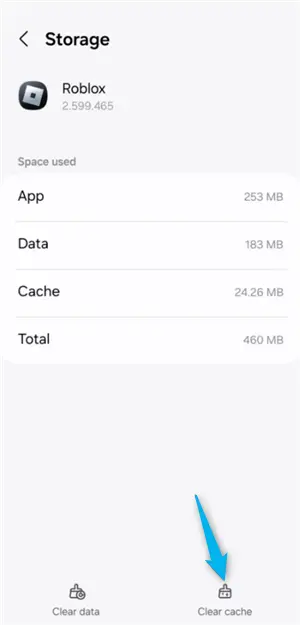
On iPhone and iPad, there is no universal “Clear Cache” button for Roblox. Restart the app first and reinstall it only if the problem continues.
Then begin a completely new age-check session instead of reopening the frozen page.
Fix 2. Improve the Facial Scan
Use bright, even lighting and keep your entire face visible.
For the best result:
- Face a window or soft light.
- Avoid strong light behind you.
- Clean the camera lens.
- Hold the phone at eye level.
- Remove hats, masks, and glasses that create glare.
- Keep your face centered until the capture finishes.
If Roblox still cannot estimate your age, use government ID verification if the option is available.
Fix 3. Capture a Clear, Valid ID
Use your own unexpired, government-issued photo ID. Roblox lists passports, driver’s licenses, residency cards, and other supported government photo IDs as possible options.
Place the document on a dark, flat surface and make sure:
- All four edges are visible.
- The text and photo are sharp.
- Flash glare does not cover important details.
- You scan the back when requested.
- Your live photo clearly matches the ID photo.
Do not submit a student card, screenshot, photocopy, edited document, or another person’s ID.
Fix 4. Check the Camera and Browser
If the camera never opens:
- Allow camera access for Roblox or your browser.
- Close Zoom, FaceTime, or other apps using the camera.
- Try the latest Chrome, Safari, or your phone’s default browser.
- Disable a content blocker or privacy extension temporarily.
- Switch from a weak webcam to a newer smartphone camera.
Retry from the official Roblox settings page rather than an old verification link.
Fix 5. Test a Different Connection
Switch from Wi-Fi to mobile data and retry.
If verification succeeds on mobile data but repeatedly fails on Wi-Fi, the problem is probably your Wi-Fi, DNS, firewall, or ISP route—not your face or ID.
In that case:
- Reconnect to Wi-Fi.
- Open BearVPN.
- Choose a nearby server.
- Start a fresh Roblox verification session.
This is the fastest way to test whether a cleaner network route fixes the blank page, disconnection, or loading error.
Avoid public Wi-Fi during verification. If neither mobile data nor BearVPN works, return to the camera, document, account, or Roblox service checks instead of repeatedly changing networks.
Fix Roblox Verification Connection Errors with BearVPN
A VPN will not repair a blurry selfie or make an unsupported ID valid. But when the verification page works on mobile data and fails on Wi-Fi, changing the network route can solve the problem immediately.
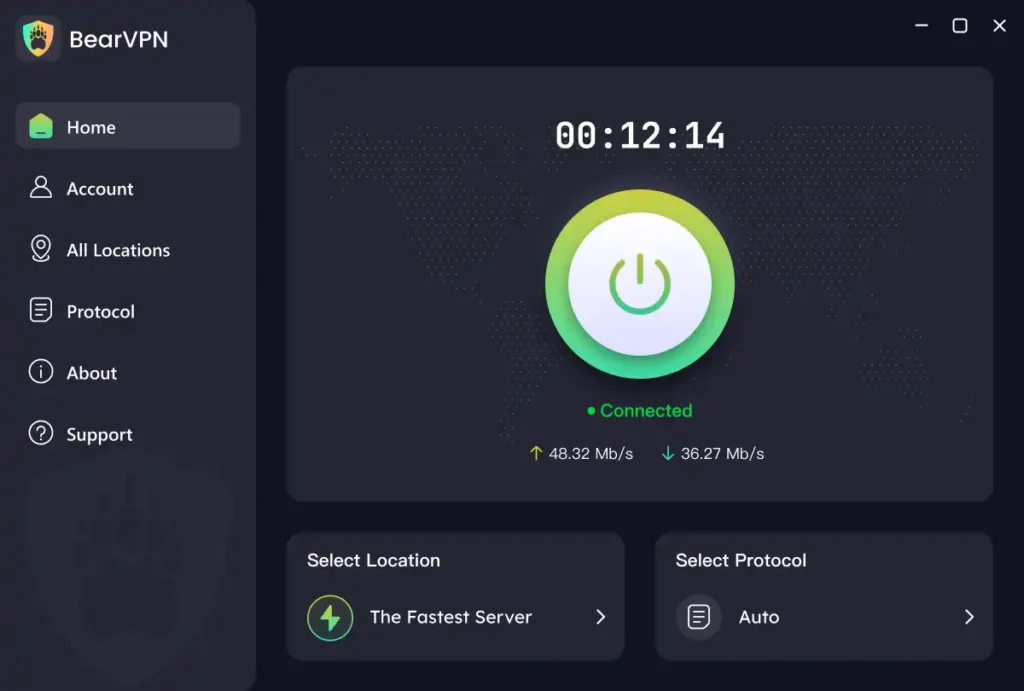
BearVPN encrypts your connection and routes it through a different server. This can help when your normal connection is affected by:
- Unstable ISP routing.
- Slow or unreliable DNS.
- Packet loss on Wi-Fi.
- A filtered school, hotel, or public network.
- A verification page that repeatedly disconnects on one connection.
How to Retry with BearVPN
- Close the failed verification page.
- Connect BearVPN to a nearby server.
- Reopen Roblox and start a new age check.
- Keep BearVPN connected until Roblox displays the result.
Use the closest reliable server first. A nearby route normally gives you a better chance of maintaining a stable camera upload than a distant server.
Why BearVPN Is the Best Choice for Roblox Players
If you are a serious Roblox player, especially one involved in the developer community or 17+ social circles, a stable connection is non-negotiable.
- 2000+ Servers: Connect to any region to match your account settings.
- Gaming-Optimized: Low ping and high stability, perfect for the high-bandwidth requirements of 2026 Roblox.
- Privacy First: BearVPN’s no-logs policy ensures your verification sessions remain private.
- Multi-Device: Verify on your phone, then play on your PC—all under one protected connection.
If your verification works after connecting, keep BearVPN installed for future Roblox connection errors and unstable gaming sessions.
If Verification Gets Worse with a VPN
Use a nearby BearVPN server and avoid switching countries repeatedly during the same attempt.
If the page worked before connecting but becomes blank or slower afterward:
- Disconnect BearVPN.
- Close the failed verification page.
- Try mobile data.
- Reconnect to another nearby BearVPN server only if the normal network still fails.
A VPN fixes network-route problems. It does not fix poor lighting, denied camera access, an expired ID, or an unsupported document.
How Long Does Roblox Age Verification Take?
Roblox says ID verification normally takes a few minutes. Clear images are usually processed faster, while blurry documents and some country-specific document formats may take longer.
Facial Age Estimation should also finish quickly when the camera, lighting, and connection work correctly. A frozen loading screen or repeated connection error is more likely to indicate a failed session than normal processing.
Roblox does not publish a universal rule stating that three failed attempts cause a 24-hour lockout. If you repeatedly see “Try Again Later,” stop submitting the same images and fix the likely cause first:
- Improve the lighting or document photo.
- Check camera permissions.
- Restart Roblox and begin a fresh session.
- Switch from Wi-Fi to mobile data.
- If mobile data works, retry the Wi-Fi connection with BearVPN.
Check Settings → Account Info for the verification result. Roblox Support cannot manually approve an ID on your behalf.
Common Roblox Age Verification Errors
What BearVPN Cannot Bypass
BearVPN can fix a broken network route, but it cannot change Roblox’s age-check result.
You still need to:
- Show your real face during Facial Age Estimation.
- Use your own supported government-issued ID when ID verification is required.
- Meet the age requirement for the feature you want to access.
- Follow any regional or parental-consent requirements shown by Roblox.
Do not use another person’s ID, an edited document, a static photo, or an emulator to imitate a live check. These methods are unlikely to pass and may put your Roblox account at risk.
Use BearVPN to fix blank pages, disconnections, or unstable network access—not to fake eligibility.
Will Roblox Ban You for a Failed Age Check?
A normal failed age check does not automatically mean your Roblox account will be banned. If the camera cannot read your face or ID, the result will usually remain failed or pending, and the age-restricted feature will stay locked.
Do not submit an edited document, another person’s ID, or a static photo. Roblox requires your own official ID and a live photo when ID verification is used. False documents may fail the fraud checks and put your account at risk.
Is Roblox Age Verification Safe?
Roblox uses Persona to process age and identity checks. For ID verification, Persona captures your ID and selfie and compares facial information to confirm your identity and age.
Roblox says it does not receive or access the biometric data created during ID verification. Persona deletes that biometric data within 30 days unless the law requires longer retention.
For Facial Age Estimation, Roblox says the submitted images and video are deleted after processing. Review the current Roblox and Persona privacy notices before submitting sensitive information.
Conclusion
Most Roblox age verification errors come from poor lighting, blocked camera access, unreadable documents, expired sessions, or an unstable connection.
Fix the image or permission problem first. If verification works on mobile data but fails on Wi-Fi, connect BearVPN to a nearby server and start a fresh age check. A cleaner route can quickly fix blank pages, loading failures, and interrupted uploads.
BearVPN cannot change your age or make an invalid ID pass, but it can remove the network problem standing between you and Roblox.
FAQs
An age check is required for Roblox chat and certain restricted, social, or collaboration features. Normal gameplay may still be available without verification, depending on your age, account settings, and region.
Facial Age Estimation may let you complete the age check without an ID. If Roblox cannot estimate your age or you need to correct the result, users aged 13 or older can verify with a supported government photo ID.
The camera permission, browser, old session, content blocker, Wi-Fi, DNS, or ISP route may be interrupting the page.
Try mobile data. If mobile data works but Wi-Fi does not, connect BearVPN to a nearby server and restart the verification.
A distant or overloaded VPN server can add latency. A nearby BearVPN server may provide a faster or more stable route when your ISP connection is congested or unreliable.
No. Roblox requires your own supported government-issued photo ID and a live photo. An edited document or another person’s ID may fail verification and put your account at risk.



