If your WARP VPN is not working, first identify the exact failure: Cloudflare WARP may stay on Connecting, show Connected while Google or every website remains offline, or fail only on one Wi-Fi network. The most common causes are an unfinished captive-portal login, blocked WARP traffic, another VPN or DNS profile, security software, an outdated client, or a local DNS problem. The 10 fixes below start with reversible checks and move to resets or reinstallation only when the evidence points there.
You may also like: How to fix Urban VPN not working

How to Fix Cloudflare WARP VPN Not Connecting (10 Solutions)
Do not apply all 10 fixes at once. Turn WARP off and confirm that the base connection works, note the exact WARP status or error code, and then use the matching method below. After each change, reconnect WARP and test both https://google.com and one unrelated website so you can tell a Google-only problem from a complete connection failure.
Method 1. Confirm Whether WARP, the Network, or Google Is Failing
Start here before changing DNS, firewall rules, or VPN apps.
- Turn WARP Off.
- Open Google and one unrelated website, such as Cloudflare.com.
- If neither site loads with WARP off, fix the Wi-Fi or mobile-data connection first. Restart the router if you control it, or test another trusted network.
- If both sites work with WARP off but fail after WARP connects, continue with Methods 2–7.
- If WARP shows Connected and other sites work but Google does not, test Google in a private window and another browser, then clear the local DNS cache in Method 3.
- If WARP works on mobile data or home Wi-Fi but not on school, office, hotel, or airport Wi-Fi, the current network or its captive portal is the likely cause.
Also check Cloudflare’s official system-status page before resetting the app. A confirmed service incident is a reason to wait or use the normal connection temporarily—not to delete every local network setting.
Method 2. Check for Specific Error Codes and Update the App
Do not ignore the code shown beneath the WARP status. It identifies the connection stage that failed. Update WARP from Cloudflare’s official download page, Apple App Store, or Google Play before diagnosing an old build, then restart the app and reproduce the error once.
- CF_HAPPY_EYEBALLS_MITM_FAILURE: A router, firewall, antivirus tool, or another security product is blocking UDP on WARP ports. Reboot a router you control and allow WARP traffic in your own security software. On a managed network, do not change administrator controls; test another permitted network.
- CF_CAPTIVE_PORTAL_TIMED_OUT or a Wi-Fi login page: Turn WARP off, open a browser, complete the hotel/airport/café Wi-Fi login, confirm ordinary browsing works, and then reconnect WARP.
- CF_NO_NETWORK: Confirm the device has working internet access without WARP and that a captive portal is not intercepting DNS.
- Your device is not authenticated: Reopen WARP and complete the requested registration or sign-in. If this is an organization-managed device, contact its administrator rather than deleting the profile.
- No code appears: Note whether the app says Connecting, Disconnected, or Connected with no internet, then continue with the matching methods below.
Method 3. Clear DNS Cache
Use this method when WARP connects but Google or a small set of domains still fails, or after switching between DNS-only and full WARP modes. Flushing the cache removes stale local answers; it will not fix a tunnel that cannot connect at all.
Steps for Windows:
- Press Windows + R to open the Run dialog.
- Type
cmdand press Enter to open Command Prompt. - In the Command Prompt, type:
ipconfig /flushdns- Press Enter. You should see a message confirming the DNS cache has been flushed.
- Reconnect Warp and try accessing Google again.
Steps for macOS:
- Open Terminal (you can find it via Spotlight Search).
- Type the following command:
sudo killall -HUP mDNSResponder- Press Enter and enter your admin password if prompted.
- Restart Warp and check if Google works.
Steps for Mobile Devices:
- Mobile devices: First enable Airplane Mode for 10 seconds, turn it off, and restart the 1.1.1.1 app. A full network-settings reset removes saved Wi-Fi passwords, paired Bluetooth devices, and other settings, so use it only after the lighter checks and make sure the needed Wi-Fi credentials are available.
- iPhone/iPad: If a reset is still necessary, go to Settings > General > Transfer or Reset iPhone > Reset > Reset Network Settings.
- Android: The wording varies by manufacturer; look under Settings > System > Reset options > Reset Wi-Fi, mobile & Bluetooth.
Method 4. Switch WARP Mode or Connection Options
A mode switch is a useful diagnostic because DNS-only mode and full WARP mode do different jobs. In WARP mode, app traffic and DNS traffic go through Cloudflare. In 1.1.1.1/DNS-only mode, only DNS queries use Cloudflare’s resolver.
- Open the WARP app and select the cog or menu icon.
- Note the current mode before changing it.
- Switch temporarily from WARP to 1.1.1.1/DNS only and test Google.
- If DNS-only works but full WARP does not, the DNS resolver is reachable but the full traffic tunnel is failing. Continue with firewall, conflicting-app, and alternate-network checks.
- On desktop versions that expose connection options, open Preferences/Settings > Connection and test another available tunnel or DNS protocol. Menu names vary by operating system and app version, so do not promise a universal
Reset All Settingsbutton. - Return to the original mode after the test unless DNS-only is all you intended to use.
Method 5. Check Firewall or Antivirus Settings
Security software can block or inspect the connection WARP needs. This is especially relevant when WARP shows CF_HAPPY_EYEBALLS_MITM_FAILURE or works after the security product is removed from the path.
Steps:
- Fully disconnect WARP.
- Open the firewall, antivirus, web-filtering, or endpoint-security settings on a device you manage.
- Check whether Cloudflare WARP is blocked. Add only the official WARP application to the allowed-app list or follow Cloudflare’s published WARP IP and port requirements.
- Do not permanently disable antivirus or a firewall merely to make WARP connect.
- Save the permitted change, restart WARP, and test again.
- If the device or network is managed by a school or employer, ask the administrator. Do not remove certificates or controls you do not own.
Method 6. Switch Between WARP and WARP+
WARP+ provides access to a larger Cloudflare network, which may reduce latency, but it does not guarantee that every connection will be faster or eliminate a local firewall, captive portal, or app conflict. Use the mode change as a controlled test rather than assuming a WARP+ outage.
- Confirm the app recognizes the active WARP+ subscription or license.
- Note the current setting, then test standard WARP if the app permits the switch.
- Test the same two sites on the same network.
- If only one mode fails, record the time, network, app version, and mode for the support report.
- If both modes fail but DNS-only works, focus on the full tunnel path rather than repeatedly changing DNS servers.
Method 7. Disable Conflicting VPNs or Custom DNS Profiles
Running multiple VPNs or custom proxy configurations simultaneously will confuse your operating system’s network adapter. Disconnect and fully close every other VPN, proxy, filtering app, or security tunnel before starting WARP; two tools competing for the same route can leave WARP connected without usable internet. On mobile devices, ensure you don’t have a custom “Private DNS” overriding the WARP app.
Method 8. Change DNS Settings Manually
Treat manual 1.1.1.1 DNS as a WARP-off diagnostic or DNS-only fallback, not as a universal repair for a broken full WARP tunnel. First disconnect WARP, record the device’s current DNS setting, and then use the platform steps below. If Google works with manual Cloudflare DNS but full WARP still fails, the resolver is reachable and the problem is more likely in the traffic tunnel, firewall, or another network tool.
Steps for Windows:
- Open Control Panel > Network and Sharing Center > Change Adapter Settings.
- Right-click your active network connection and select Properties.
- Select Internet Protocol Version 4 (TCP/IPv4) and click Properties.
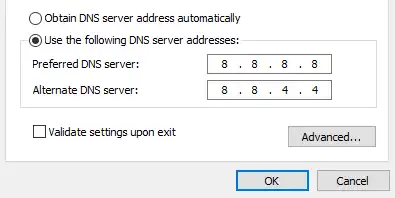
- Choose Use the following DNS server addresses and enter:
- Preferred DNS server:
1.1.1.1 - Alternate DNS server:
1.0.0.1
- Preferred DNS server:
- Click OK and restart your device.
Steps for macOS:
- Go to System Preferences > Network.
- Select your active network connection and click Advanced.
- Go to the DNS tab and add:
1.1.1.11.0.0.1
- Click OK and restart your Mac.
Steps for Mobile Devices:
- For iOS: Go to Settings > Wi-Fi > Tap your network > Configure DNS > Manual and add
1.1.1.1and1.0.0.1. - For Android: Go to Settings > Network & Internet > Advanced > Private DNS and set it to
dns.cloudflare.com.
After the test, either restore Obtain DNS server address automatically or remove the manual mobile DNS entry before re-enabling full WARP. Leaving several DNS layers active can create the same conflict you are trying to diagnose.
Method 9. Reinstall the Warp App
Reinstall only after an update, mode test, conflict check, and alternate-network test fail. Reinstallation clears application files and may remove the current registration, so managed-device users should confirm that they can enroll again.
Steps:
- Windows: Open Settings > Apps > Installed apps, find Cloudflare WARP, select the three-dot menu, and choose Uninstall.
- macOS: Use the uninstall script included with the official package rather than merely dragging the app to Trash. In Terminal, run
cd /Applications/Cloudflare\ WARP.app/Contents/Resourcesand then./uninstall.sh; enter administrator credentials if prompted. - iOS/Android: Touch and hold the app icon, then choose Remove/Delete App or Uninstall.
- Restart your device.
- Download the latest version of Warp from the official website or your app store.
- Install the app, log in (if applicable), and reconnect.
- Test Google to see if the issue is resolved.
Method 10. Contact Cloudflare Support
A useful support report needs more than “WARP is not working.” Reproduce the failure once, note the exact time, and include enough information to separate a device problem from a network or Cloudflare problem.
Steps:
- Record the operating system, WARP version, current mode, network type, exact status/error code, and whether the same device works on another trusted network.
- On desktop, run
warp-diagin Terminal, Command Prompt, or PowerShell. It creates awarp-debugging-info-<date>-<time>.zipcontaining status, settings, connectivity checks, and logs. - Open WARP and use Settings/Preferences > Help/Feedback > Report an Issue when that option is available. Include debug information, but review any diagnostic archive before sharing it.
- State what changed, what you expected, what happened, how often it occurs, and every fix already tested.
- Check Cloudflare’s official status page while waiting. If the error occurs only on a managed network, also contact its administrator.
When WARP Still Fails: Try BearVPN as an Alternative
If Cloudflare’s status is normal, your ordinary internet connection works, and WARP still fails after the methods above, a different VPN can test whether the problem is specific to WARP’s client or route. BearVPN is most relevant when you want a conventional VPN with selectable server locations, device-wide encryption, IP and DNS leak protection, and a Kill Switch—not when the underlying Wi-Fi is offline or a captive portal is unfinished.
Use BearVPN Without Creating Another Conflict
- Turn WARP fully Off and close the app. Do not run both VPN tunnels at the same time.
- Download BearVPN only from the official BearVPN website or official app store.
- Open BearVPN and start with Smart Location or a nearby server for lower latency.
- Connect and wait for the app to show Connected.
- Open Google and one unrelated site. If both work, the earlier failure was likely specific to WARP or its route.
- If neither works, disconnect BearVPN and test another trusted network. The base network, security policy, or device configuration may be the real problem.
BearVPN cannot repair an offline network, complete a Wi-Fi login page for you, or override a school or workplace policy. Use it only on devices and networks where you have permission.
- Connect through 2,000+ physical servers.
- Encrypt traffic with AES-256 protection.
- Use IP/DNS leak protection and a Kill Switch.
How 1.1.1.1, WARP, and WARP+ Differ
The names are easy to confuse, but the mode determines which traffic Cloudflare handles. Knowing the difference also tells you why DNS-only mode can work while the full WARP connection fails.
1.1.1.1 or DNS-Only Mode
DNS-only mode sends DNS queries to Cloudflare’s 1.1.1.1 resolver using encrypted DNS. It does not tunnel the rest of the device’s traffic. If this mode works while WARP does not, DNS resolution is available and the fault is more likely in the full traffic tunnel, firewall path, or a competing network tool.

WARP or Traffic and DNS Mode
Full WARP mode encrypts and sends device traffic, including DNS traffic, through Cloudflare’s network. Cloudflare’s current consumer documentation describes this mode as using MASQUE. WARP replaces the original public IP seen by websites with a Cloudflare IP that represents the user’s approximate location, but it is not designed for anonymity or for pretending to browse from a different country.
WARP+ Unlimited

WARP+ is the paid version. It provides access to a larger Cloudflare network and more cities, which may reduce latency when a closer route is available. It does not guarantee higher speed on every connection and cannot fix a captive portal, local firewall rule, conflicting VPN, or broken base connection.
Conclusion
When Cloudflare WARP is not working, the fastest route to a real fix is to identify the state before changing settings. Test the connection with WARP off, complete any captive portal, read the exact error code, update the client, and remove competing VPN or DNS tools. Use DNS flushing or manual DNS only when the symptoms point to name resolution; save network resets and reinstallation for later.
If WARP works on one network but not another, the network path or policy is probably the deciding factor. If it fails everywhere after the official checks, collect warp-diag data and report the issue. BearVPN can provide a separate encrypted route when WARP itself is the problem, but it cannot repair an offline network or override rules on a device or network you do not control.
FAQs: Warp VPN Not Working
Common causes include an unstable internet connection, outdated WARP software, DNS conflicts, firewall restrictions, or another VPN or proxy interfering with WARP.
First confirm that the internet works with WARP off. On public Wi-Fi, complete the captive-portal login before reconnecting. Then update WARP, read the exact error code, close other VPN or DNS tools, and test another trusted network. If CF_HAPPY_EYEBALLS_MITM_FAILURE appears, check whether a router or security product you control is blocking WARP traffic.
A conflicting DNS configuration, custom proxy, firewall, or other VPN may block traffic after WARP connects. Disable these services temporarily and check whether WARP works normally.
Open the WARP app, select the cog or menu icon, and look under Preferences/Settings > Connection or Advanced > Connection options. Available DNS and tunnel options vary by operating system, client version, and whether the device is managed. Record the original setting, change one option at a time, reconnect, and restore it if the test does not help.
Yes. Some schools, workplaces, hotels, or public Wi-Fi networks restrict VPN traffic. Test WARP on mobile data or another trusted network to determine whether the network is causing the problem.