Trying to launch your VPN and getting stuck? Whether it’s endless loading, disconnection, or a server timeout, a VPN that won’t connect can interrupt your work, browsing, or streaming. The upside? Most connection issues have practical fixes. This guide walks you through them—clearly and efficiently. Whether you’re on a laptop in a café, using hotel Wi-Fi while traveling, or connecting from a mobile device at home, we’ve got you covered.
Why Your VPN Won’t Connect (Root Causes)
VPN connection issues are incredibly common—and thankfully, often easy to fix once you understand what’s behind them. Here’s a breakdown of the most typical root causes, categorized by their origin so you can pinpoint the problem faster:
- No internet connection
- Expired or incorrect login credentials
- VPN server overload or downtime
- Firewall or antivirus blocking VPN traffic
- Outdated or buggy VPN software
- Device-specific settings (especially after OS updates)
- Blocked VPN protocols or ports
- Geographic restrictions or network-level censorship
Some of these issues are device-specific, while others are related to your ISP or the VPN service itself.
Step-by-Step Fixes for Common VPN Problems
Fixing a VPN connection issue can often feel like trying to untangle a knot—you need to go step-by-step to identify where things are going wrong. Below are the essential actions you can take:
1. Test Internet Connection First
Before blaming your VPN, make sure your internet connection is stable. Open your browser and visit the tool page: what is my IP. If those pages don’t load, your issue likely lies with your ISP or Wi-Fi network, not the VPN.
Pro tip: Try switching between Wi-Fi and mobile data to test which works better. If both fail, restart your router or modem.
Your VPN needs a working internet connection to function. Disconnect the VPN and verify you can browse sites normally. If your internet isn’t working, troubleshoot your Wi-Fi or cellular data first.
2. Recheck Your VPN Credentials
Some VPN apps won’t notify you if your login has failed—they’ll just keep spinning. Go to your VPN account in a web browser and confirm:
- Your account is active
- Your subscription hasn’t expired
- You’re using the right email and password
Also, check for typos, saved credentials, or auto-fill errors.
Mistyped usernames or expired subscriptions are easy to overlook. Log in to your VPN account from a browser to verify your credentials and status.
3. Switch Server Location
The problem might not be your device—it could be the server you’re connecting to. Servers go down for maintenance, get overloaded, or become blocked by regional filters. Open your VPN app and:
- Choose a server in a different city or country
- Look for servers labeled “Streaming” or “Low load”
- Avoid servers located too far geographically for faster speeds
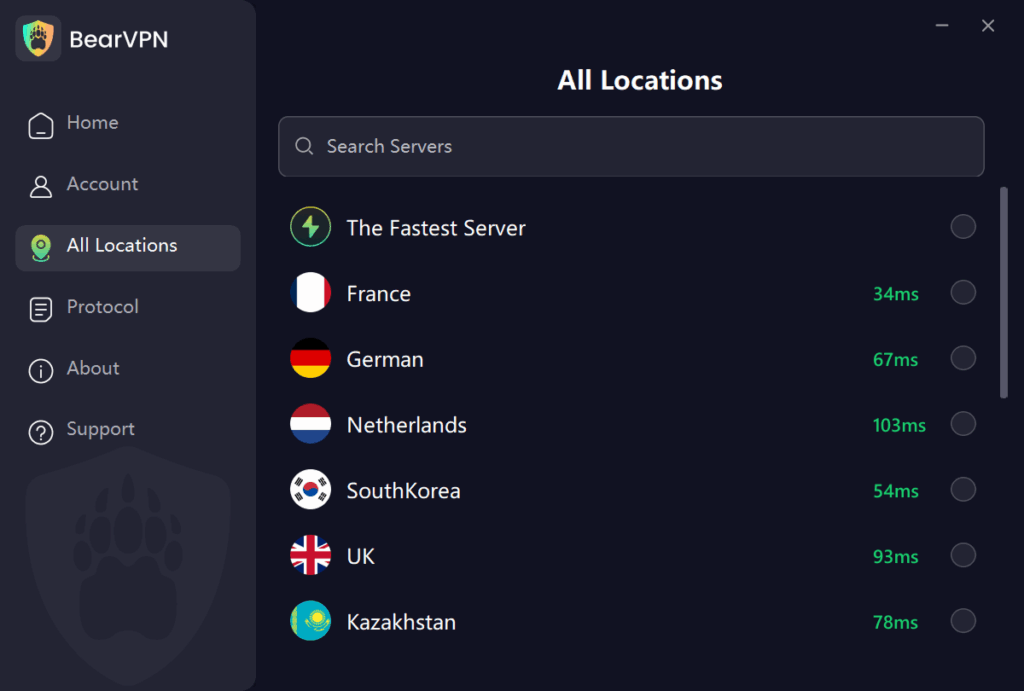
Your chosen VPN server may be experiencing high traffic or maintenance. Switch to a different server or region. This is especially useful for users trying to bypass content restrictions.
4. Change VPN Protocol
VPN protocols are like tunnels. If one is blocked or broken, try another. In your VPN settings, switch between options such as:
- OpenVPN (UDP): Fast but blocked more often
- OpenVPN (TCP): Slower but more reliable
- WireGuard: Lightweight and efficient
- IKEv2: Great for mobile stability
VPNs use different protocols to transmit data securely. If one fails, another might work better on your network:
- OpenVPN: Reliable and secure, widely supported.
- WireGuard: Fast and lightweight, newer protocol.
- IKEv2/IPSec: Great for mobile stability.
Switch protocols via your app’s settings. Try multiple until you find one that works reliably.
5. Restart Everything
You’d be surprised how often this works. Fully close the VPN app, restart your device, then open the VPN again. This clears temporary bugs and memory issues that may prevent the VPN from initializing correctly.
Fully close your VPN app and restart your device. This simple action often resolves caching or temporary bugs.
6. Update or Reinstall the VPN App
Check your app store or the VPN’s official website to see if there’s a newer version available. Developers often patch bugs quietly. If updating doesn’t work, uninstall and reinstall the app. This resets corrupted config files and clears misbehaving cache data.
An outdated app may contain bugs or incompatibilities. Update it via your device’s app store. If problems persist, uninstall and reinstall the app to reset all configurations.
7. Adjust Security Software
Firewalls and antivirus programs are designed to block suspicious incoming and outgoing traffic. Sometimes, they misinterpret encrypted VPN tunnels as a security threat and cut the connection entirely.
To determine if your security software is the culprit, temporarily disable your firewall and real-time antivirus scanning, then try connecting your VPN again. If it connects successfully, you don’t need to leave your device unprotected—simply add your VPN app as an “Exception” or “Whitelisted App” in your antivirus settings.
Pro Technical Tip for Advanced Firewalls:
If you are using a third-party firewall (like ZoneAlarm, Bitdefender, or Windows Defender Advanced Firewall), you might need to manually allow specific ports and protocols that VPNs rely on to establish a handshake. Ensure the following rules are set to “Allow”:
- Port 443 (TCP): The standard port for HTTPS traffic. Most stealth or TCP-based VPN protocols use this because it rarely gets blocked.
- Port 1194 (UDP/TCP): The default port used globally by the OpenVPN protocol.
- Port 51820 (UDP): The standard port designated for the cutting-edge, lightweight WireGuard protocol.
- Ports 500 and 4500 (UDP): Essential if you are using the IKEv2/IPSec protocol on mobile devices.
8. Reboot and Check Router Settings
If your VPN fails to connect on your home Wi-Fi but works perfectly on mobile data, your router’s built-in firewall is likely blocking the secure tunnel.
First, power-cycle your router (unplug it for 60 seconds and plug it back in) to clear its temporary memory cache. If that fails, you need to log into your router’s admin dashboard (usually by typing 192.168.1.1 or 192.168.0.1 into your browser address bar) and check the following advanced network settings:
- Enable VPN Passthrough: Look under the “Security”, “Firewall”, or “Advanced” tabs. Ensure that IPSec Passthrough, PPTP Passthrough, and L2TP Passthrough are all set to Enabled.
- Disable Multicast Filtering: Some routers have a feature called “Filter Multicast” turned on by default, which can inadvertently drop encrypted VPN data packets. Try disabling it.
- Port Forwarding: If your router is highly restrictive, manually open the specific ports mentioned in the previous step (such as UDP 1194 or UDP 51820) to ensure your local network routes VPN traffic to the internet smoothly.
9. Flush DNS Cache (for Desktops)
Your operating system stores DNS records to help you load sites faster. But outdated or incorrect DNS can prevent your VPN from resolving addresses. Clear it manually:
Windows: ipconfig /flushdns
macOS: sudo killall -HUP mDNSResponder
After this, restart your VPN and reload the site you were trying to access.
Still No Luck? Try BearVPN
If you’ve tried everything and your VPN is still stuck, your current provider might simply be outdated. Constantly toggling protocols, flushing DNS, or tweaking router ports is exhausting. If you’re tired of troubleshooting and just want a network that works, it’s time to switch to a more resilient service.
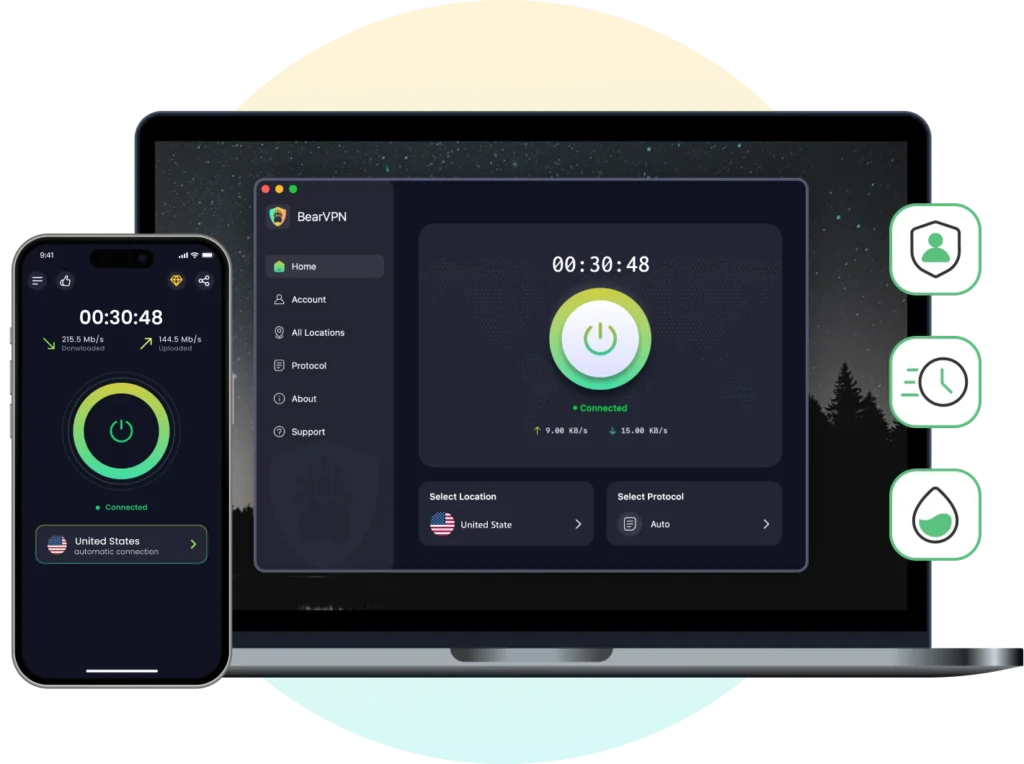
BearVPN is designed for users who value simplicity, reliability, and speed. Whether you’re streaming, working remotely, or safeguarding your data on public Wi-Fi, BearVPN helps you stay connected without hassle.
Why Choose BearVPN?
- Over 2,000 Global Servers: Access high-speed servers in 50+ countries, including optimized nodes for streaming, gaming, and secure browsing.
- Smart Protocol Switching: You don’t need to guess whether OpenVPN or WireGuard works best on your current network. BearVPN automatically detects restrictive firewalls and switches to the optimal tunnel protocol in milliseconds.
- No Logs, Ever: We take privacy seriously. BearVPN does not track your browsing activity, IP address, or connection history.
- One-Click Simplicity: Even if you’re new to VPNs, BearVPN’s interface makes connection easy—just tap to connect.
Cross-Platform Support: Use BearVPN on Windows, macOS, Android, and iOS. Protect all your devices at once.
Download BearVPN — connect securely and effortlessly, wherever you are.
Device-Specific Fixes: VPN Not Connecting on iPhone, Android, Laptop, or iPad
If general fixes fail, your device’s specific operating system might be blocking the tunnel. Use these quick formulas to restore your connection.
VPN Not Connecting on iPhone & iPad (iOS)
If you are facing a VPN not connecting on iPhone or VPN not connecting on iPad error, it is usually caused by corrupted network settings, parental controls, or iOS blocking the configuration profile.
- Refresh Configuration Profile: Go to Settings > General > VPN & Device Management, delete the existing BearVPN profile, then re-open the app to reinstall a clean one.
- Turn Off iCloud Private Relay: Apple’s built-in proxy can conflict with third-party VPNs. Disable it via Settings > [Your Name] > iCloud > Private Relay.
- Reset Network Settings: If cellular data or Wi-Fi routing is glitched, navigate to Settings > General > Transfer or Reset > Reset > Reset Network Settings.
VPN Not Connecting on Android
When dealing with a VPN not connecting on Android, the culprit is often aggressive battery optimization, background app restrictions, or cache build-ups unique to Android operating systems.
- Disable Battery Optimization: Android often kills background VPNs to save power. Go to Settings > Apps > BearVPN > Battery and change the setting to “Unrestricted.”
- Clear App Cache: Go to Settings > Apps > BearVPN > Storage and tap Clear Cache to remove corrupted temporary data.
- Check “Always-on VPN” Conflicts: Ensure no other VPN apps have “Always-on VPN” enabled under Settings > Network > VPN, as this blocks BearVPN.
VPN Not Connecting on Laptop (Windows & Mac)
If you are experiencing a VPN not connecting on laptop or desktop PC, the issue usually stems from sleeping network adapters, conflicting Wi-Fi profiles, or rigid desktop OS permissions.
- Fix Network Sleep (Windows): Open Device Manager, right-click your Network Adapter, select Properties, and under Power Management, uncheck “Allow the computer to turn off this device to save power.”
- Reset Network Location (Mac): Go to System Settings > Network, click the three-dot icon, select Locations, and switch to a fresh “Automatic” profile to clear corrupt routing tables.
- Reinstall TAP/TUN Drivers: If your laptop stays in a “Connecting…” loop, uninstall older VPN software to resolve virtual network card conflicts.
Special Use Cases to Avoid VPN Not Connecting Issue
On Public Wi-Fi
Public networks often restrict encrypted traffic to prevent tunneling. If your VPN won’t connect:
- Use your mobile hotspot temporarily
- Enable “stealth mode” or obfuscation features
- Choose TCP protocol for greater reliability
While Streaming
Streaming platforms like Netflix and Hulu actively block VPN IPs. To stay connected:
- Use a server optimized for streaming
- Clear browser cache and cookies
- Disable GPS/location tracking in device settings
Stuck on “Connecting”
This happens when the handshake between app and server fails. Fix it by:
- Cancelling the connection
- Switching to another server or protocol
- Restarting the VPN app and device
FAQs: Troubleshooting Your VPN Connection
Conclusion
A VPN that won’t connect doesn’t mean it’s broken—it means something in the chain (internet, server, software, or settings) needs attention. By following these steps methodically, you’ll fix the problem, understand its cause, and avoid similar issues in the future.
Still frustrated? Consider switching to BearVPN- a secure, easy-to-use solution trusted by users worldwide for fast, reliable connectivity.