Quick Answer:
DraftKings uses GeoComply, GPS, and Wi-Fi checks to detect and block VPN traffic. Spoofing your location violates the platform’s ToS and risks account suspension. To stay compliant while protecting online privacy, turn off your VPN or use split tunneling to exclude DraftKings during betting sessions.
When traveling with a secure device setup, maintaining network privacy on public Wi-Fi is essential. DraftKings, however, operates under strict state-by-state regulatory mandates that require verified proof of your physical location before allowing any real-money wagering.
Because geolocation systems are engineered to reject encrypted or rerouted traffic, treating a VPN for DraftKings as an “unblock anywhere” tool leads to verification failures and account friction. The goal of this guide is to explain how DraftKings verifies your location, why typical VPN connections trigger errors, and how to configure your privacy settings so you remain protected online without violating sportsbook compliance rules.
How DraftKings Verifies Location and Flags VPNs
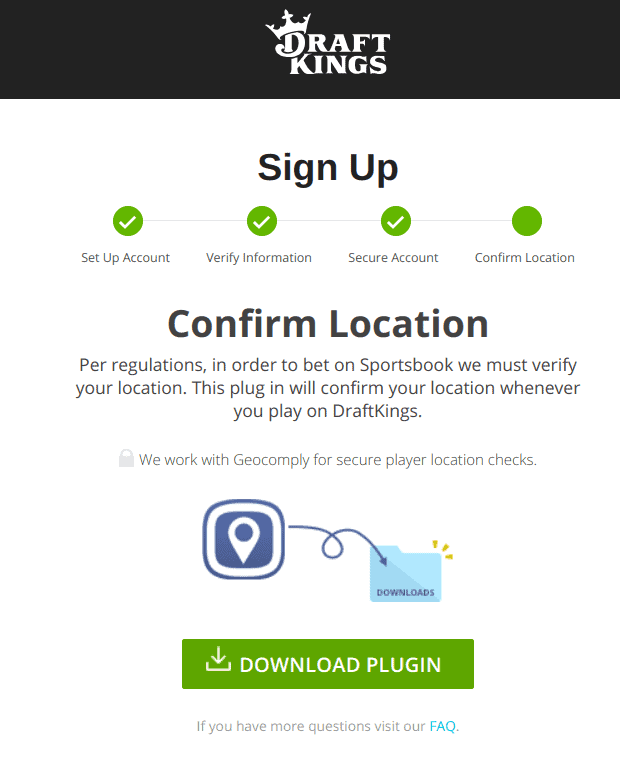
DraftKings relies on multi-factor physical location signals to satisfy state-level regulatory mandates. On mobile devices, the app aggregates native GPS, Bluetooth, and local Wi-Fi data. On desktop browsers without dedicated GPS hardware, DraftKings requires the GeoComply Player Location Check plug-in to validate your exact position.
In our testing on Windows 11 using Google Chrome, an active VPN connection triggered an immediate location failure via the GeoComply plug-in—even when routing traffic through a server located inside a legal betting state. GeoComply actively scans for virtual network adapters, proxy headers, and known VPN IP blocks to halt verification before a wager can be initiated.
Risks, Rules, and What the ToS Actually Says
Compliance isn’t optional; sportsbooks operate under state-level rules. If your network setup hides or falsifies location, DraftKings will block you.
DraftKings’ support materials emphasize that location verification must succeed and that tools which obscure it—VPNs, proxies, or remote desktop software—can prevent you from passing. On desktop, the GeoComply plug-in enforces this by blocking spoofing tools outright. The platform also reminds users to keep Wi-Fi and location services ON; otherwise, location cannot be confirmed.
Treating a VPN for DraftKings as an “unlock anywhere” tool is therefore risky. You’re likely to encounter failed logins, repeated geolocation prompts, and account friction. The compliant pattern is simple: use a VPN to protect your general browsing if you want, but disable it while DraftKings validates your location, then re-enable the VPN for everything else.
VPN Features That Matter for DraftKings Access
If you still plan to keep a VPN installed—for privacy on hotel Wi-Fi, for example—some features can reduce friction without violating the rules. None of these is a bypass; they just make everyday networking smoother while you let DraftKings see your true location.
- Split tunneling/per-app control: Route the DraftKings app or betting browser outside the tunnel while keeping the rest of your traffic protected. This approach respects DraftKings’ geolocation requirements while preserving privacy for other apps. (Many modern VPNs provide per-app routing.)
- Leak protection (DNS/IPv6): Inconsistent IP/DNS answers can trigger errors even when you’re in a legal state. Strong DNS handling lowers the chance of “mixed signals.”
- Low latency and nearby servers: When you’re traveling within legal states, nearby VPN servers keep other activities responsive; just make sure the betting session itself is off-tunnel.
- Multiple protocols & a reliable client: Being able to switch protocols can stabilize flaky hotel or airport networks.
- Kill switch (for non-betting activity): Useful for privacy generally, though you’ll want the VPN off when DraftKings performs the check.
These attributes help you maintain privacy and stability around your DraftKings sessions, not inside them.
Set Up Tips and Common Fixes When VPN Fails
Most “Location not verified” errors have mundane causes. Work through them in order. Your target is to pass legitimate checks—not to disguise your location.
1. Turn off VPN/proxy/RDP entirely before launching DraftKings. On desktop, quit background services and ensure no tunnel or extension auto-reconnects. GeoComply is designed to block spoofing tools.
2. Enable Wi-Fi and Location Services. DraftKings’ troubleshooting emphasizes that if Wi-Fi or location is off, detection fails. Turn both on (even if you’re on Ethernet) and allow the app/site to use your location.
3. Install/Update GeoComply when prompted. If you’re on a web or a device without full location hardware, install the Player Location Check plug-in and restart your browser.
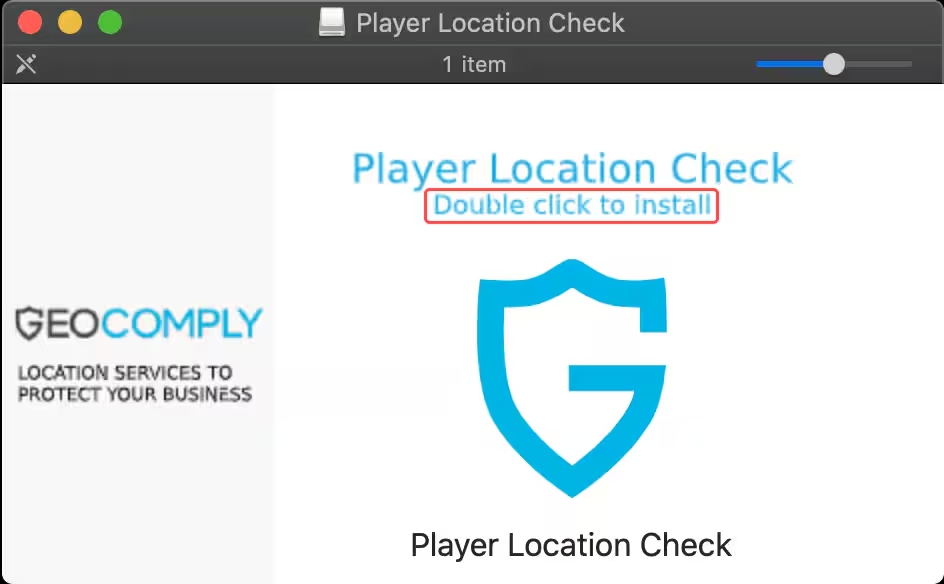
4. Confirm the plug-in is active (Mac example). DraftKings documents how to verify the plug-in in System Settings; if missing, reinstall.
5. Clear browser cache & permissions. Old location permissions and cached network state can cause false negatives—reset and re-grant.
6. Try another network. Some enterprise networks and hotel routers interfere with location services; switch to a mobile hotspot (with VPN off) for the check. (Community reports and router forums frequently note this difference between Wi-Fi and wired connections.)
7. Reboot after removing conflicts. Security suites, enterprise agents, or leftover virtual adapters can persist.
8. Consult platform guides. DraftKings hosts platform-specific location-enabled instructions and Wi-Fi enablement steps.
Follow this list before you wager. It aligns with the provider’s own documentation and avoids Terms-of-Service conflicts.
Safer Alternatives: Travel Use, DFS vs. Sportsbook, and Local Options
When a VPN for DraftKings won’t pass checks, redirect to options that keep you compliant while still meeting your goals.
- Travel within legal states. If you’re on the road, you can secure your connection with a VPN for general privacy—but turn it off for DraftKings itself. This keeps you safe on public Wi-Fi while respecting the platform’s geolocation rules.
- DFS vs. Sportsbook. In some states, Daily Fantasy Sports (DFS) is available while the Sportsbook/Casino is not. Check DraftKings’ availability page and use DFS where permitted. A VPN won’t convert a non-permitted state into a permitted one.
- Use location properly. Rather than chasing “servers that work,” focus on making the platform detect your real, compliant location—Wi-Fi on, GPS on, VPN off—and respond to any additional verification requests promptly.
This approach avoids account-level friction and lines up with the documentation you agree to when you play.
When a VPN Still Helps: Privacy, Public Wi-Fi (with a VPN pick)
So, where does a VPN make sense here? For privacy and security around your DraftKings session, not inside it. Use a VPN on hotel Wi-Fi, airports, cafés, or while syncing finances—then disable it for the brief moments when DraftKings needs to confirm location.
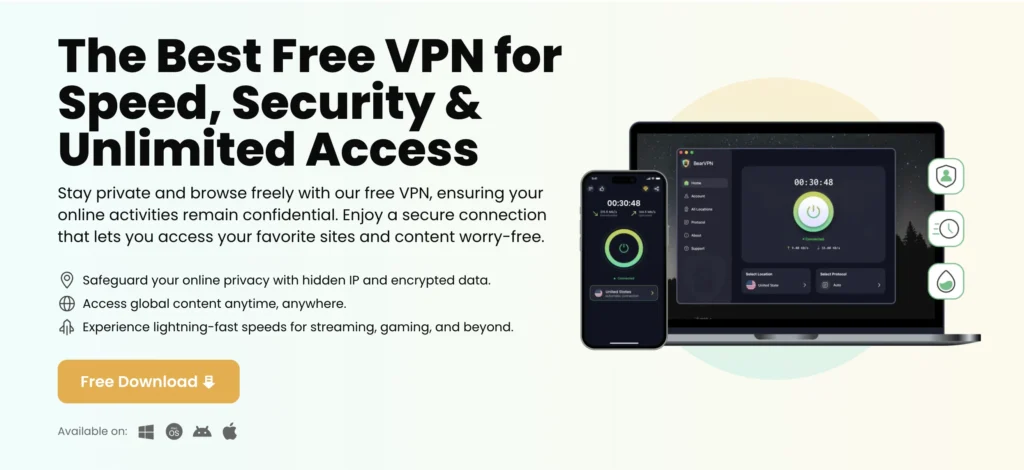
If you want a privacy-focused tool for these legitimate scenarios, consider BearVPN. Based on its official materials, BearVPN emphasizes a low-friction setup along with privacy safeguards:
- One-tap connection on all platforms, including iOS, Android, Mac, plus Windows support—great for quick on/off switching before and after a DraftKings session.
- Global servers and fast routing for smooth browsing outside your wagering window (e.g., banking, fantasy research), keeping latency low on the nearest location.
- DNS-leak protections and traffic obfuscation to help on restrictive networks; these protect privacy, but should be off while the app checks your location.
- RAM-only infrastructure and per-app VPN (split tunneling) so you can exempt the DraftKings app from the tunnel while protecting everything else. This matches DraftKings’ requirement to disable VPNs during verification without sacrificing overall privacy.
Again, this is not a promise that a VPN for DraftKings will bypass geofencing—DraftKings’ and GeoComply’s documentation is clear that such tools are blocked. Use a VPN to secure your broader online activity, then disable or split-tunnel before you wager.
Conclusion
Treat a VPN for DraftKings as a privacy tool, not a bypass key. DraftKings’ geolocation stack—GPS/Bluetooth/Wi-Fi and the GeoComply plug-in—explicitly blocks VPNs and similar software during wagering. The smartest strategy is simple: secure your general browsing with a reputable VPN, then disable it (or split-tunnel) while DraftKings checks your location. Use the setup tips above to fix common errors, explore DFS or local options where appropriate, and always follow the platform’s rules and your local laws.
FAQ
Q1: Can DraftKings detect active VPN connections?
Yes. DraftKings uses the GeoComply plug-in and device-level checks (GPS, Wi-Fi, Bluetooth) to actively detect and block virtual network adapters, proxies, and encrypted VPN traffic.
Q2: Is using a VPN on DraftKings illegal?
Using a VPN itself is legal, but masking your location to place wagers violates DraftKings’ Terms of Service and state gaming regulations. Doing so can result in account suspension or frozen funds.
Q3: How does Split Tunneling help with DraftKings?
Split tunneling allows you to exclude the DraftKings app or web browser from the VPN tunnel so GeoComply can verify your true physical location, while keeping the rest of your online traffic fully encrypted.
Q4: Why do I get “location not verified” when I’m physically inside a legal state?
This is usually caused by an active background VPN service, disabled Wi-Fi/GPS services, outdated GeoComply plug-ins, or local network firewalls. Turn off proxies, enable Wi-Fi, and clear browser permissions to resolve it.