Quick Answer
Opera GX has a free built-in VPN on desktop, but not on Opera GX Mobile. On Windows, Mac, and Linux, go to Settings → Advanced → Privacy & Security → Enable VPN, then use the VPN badge next to the address bar to control it.
Does Opera GX have a built-in VPN? Yes, on desktop. Opera GX includes a free built-in VPN on desktop, while Opera GX Mobile does not currently offer the same built-in VPN feature.
If you’re using Opera GX on Android or iOS, you can instead use the regular Opera browser, which has its own built-in VPN on mobile, or install a standalone VPN app if you want VPN protection beyond your browser.
Opera’s current documentation confirms that its free browser VPN is available across its desktop and mobile browsers, while Opera GX’s free VPN is specifically built into the GX browser experience.

In this guide, I’ll show you how to use the VPN on Opera GX desktop and suggest alternatives for securing your mobile browsing.
Does Opera GX Have a VPN on Your Device?
Opera GX’s free VPN is a browser VPN. It protects activity inside Opera GX rather than providing VPN protection for every app on your device.
How to Enable Opera GX VPN
Take macOS as an example.
Step 1. Launch Opera GX on your computer.
Step 2. Click the three horizontal icons in the top-right corner.
Step 3. Scroll down to the PRIVACY & SECURITY section, and find the VPN option.

Step 4. Click the Enable in Settings button. A pop-up will appear—check the box for “Don’t show again” and click I Understand.

Step 5. The VPN will now be activated! You’ll see the VPN icon in the address bar, where you can toggle it on or off as needed.

How to Change Opera GX VPN Location
Want to change your Opera GX VPN location for better browsing? Follow these steps:
Step 1. Click the VPN icon in the address bar to open the VPN settings.
Step 2. Click on Optimal location to open the VPN location list. The free version offers three options: Americas, Asia, and Europe. Select your desired location from the list.

Does Opera GX VPN Protect Your Whole Device?
No. Opera GX’s free VPN is a browser-level VPN. It protects your browsing activity inside Opera GX, but it does not automatically route traffic from other apps through the VPN.
For example, if you turn on the VPN in Opera GX:
- Websites opened in Opera GX use the VPN connection.
- Your public IP appears as the VPN’s virtual IP to those websites.
- Other apps on your computer are not automatically covered by Opera GX’s browser VPN.
If you need VPN protection for other apps and connections on your device, you’ll need a device-wide VPN service instead. Opera itself distinguishes its free browser VPN from VPN Pro, which provides protection for the entire device.
Alternative Ways to Use a VPN on Mobile
Opera GX mobile doesn’t have a built-in VPN, but there are still a couple of ways you can secure your browsing on mobile. Here are two effective options:
Method 1. Use Opera Browser with Built-In VPN
Although Opera GX for mobile doesn’t have a VPN, you can still use the regular Opera browser on your mobile device, which comes with a free VPN feature.
To enable the VPN in Opera for mobile:
- Open the Opera browser.
- Go to the Settings menu.
- Tap on VPN and turn it on.
This option is ideal if you don’t want to rely on third-party apps and prefer something simple and free.
Method 2. Use a Third-Party VPN like BearVPN
Another option is to use a third-party VPN app, like BearVPN, which provides stronger security features and more control over your connection.
Advantages of using a third-Party VPN:
Stronger privacy: More advanced encryption and privacy protection than Opera’s built-in VPN.
More server locations: Choose from a broader selection of server locations around the world.
Faster speeds: Third-party VPNs often provide faster connection speeds, ideal for streaming or gaming.
To use BearVPN or any third-party VPN:
Step 1. Download and install the VPN app from Google Play (Android) or the App Store (iOS).
Step 2. Open the app and choose your preferred server location.
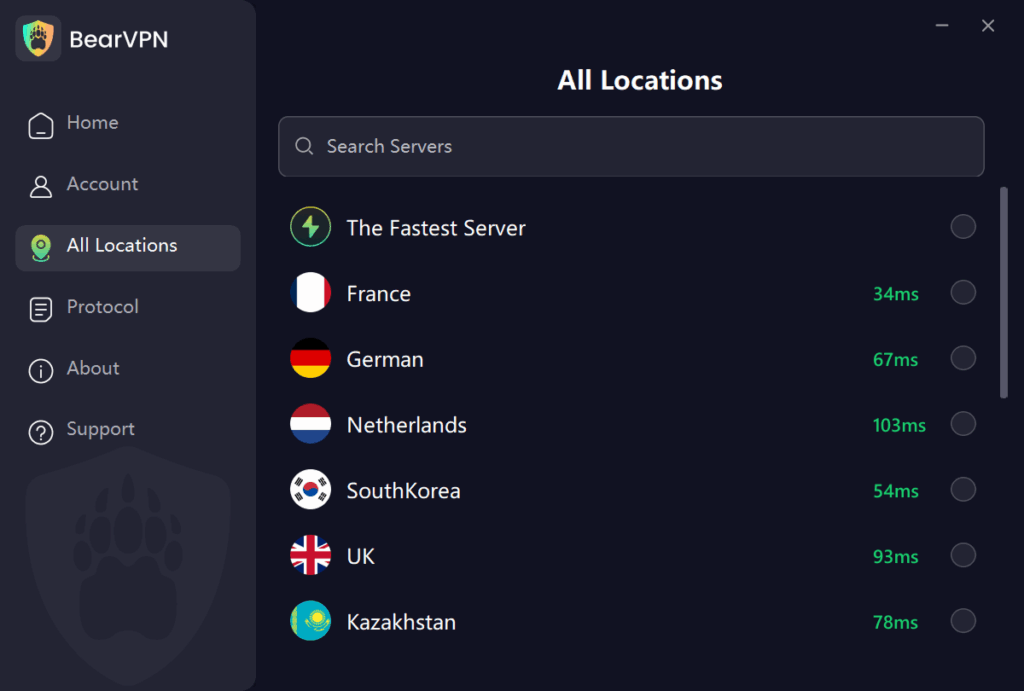
Step 3. Enable the VPN, and you’ll have secure browsing on your Opera GX mobile.
Benefits of Using a VPN for Browser
Using a VPN with your browser can greatly improve your online experience. Here are some of the main benefits:
- Privacy protection: A VPN hides your real IP address, making it difficult for websites and trackers to monitor your activities.
- Security on public Wi-Fi: VPNs encrypt your internet connection, making it safer to browse on public Wi-Fi and protecting you from cyber threats.
- Access geo-blocked content: Unlock region-restricted content, including streaming services and websites, so you can enjoy a wider range of content.
- Avoid targeted ads: A VPN reduces the amount of personal data advertisers can collect, helping you avoid unwanted ads.
With a VPN, you can browse the web more securely, privately, and freely.
Conclusion
To wrap up, Opera GX mobile does not have a built-in VPN, unlike the regular Opera browser. For mobile browsing with VPN, Opera is the better choice, offering an easy-to-use, free VPN on both mobile and desktop. If you’re using Opera GX, consider third-party VPNs like BearVPN for added security.
Whichever option you choose, a VPN will protect your privacy and give you access to restricted content, making your online experience safer and more secure.
FAQ: Opera GX VPN
Does Opera GX Mobile have a VPN?
No. Opera GX Mobile does not currently have a built-in VPN. On Android or iOS, you can use the regular Opera browser’s built-in VPN or a standalone VPN app instead.
Is Opera GX VPN free?
Yes. Opera GX’s built-in VPN is free on desktop. It is available directly in the browser without requiring a separate VPN app.
Does Opera GX VPN protect my whole device?
No. Opera GX’s built-in VPN protects browsing activity inside Opera GX. It does not automatically protect traffic from other apps on your device.
Why can’t I find the VPN option in Opera GX?
Make sure you’re using the latest version of Opera GX, then check Settings → Advanced → Privacy & Security → VPN. You can also try opening opera://settings/vpn directly. If you’re using Opera GX Mobile, the VPN option isn’t available because GX Mobile doesn’t currently include the desktop VPN feature.
What should I do if Opera GX VPN isn’t working?
First, make sure the VPN is enabled and try switching to another available location. Then restart Opera GX and check for browser updates. If the problem continues, check whether the website works without the VPN or on another network to determine whether the issue is with the VPN or the website itself.