If Fortnite works on your own network but not on school Wi-Fi, the block may come from the school’s DNS or firewall. A VPN may help on a personal or permitted device, but it cannot remove administrator controls from a managed Chromebook. If Fortnite is down everywhere, check the service and your account before changing network settings.
Why Is Fortnite Blocked on School Wi-Fi?
Schools block Fortnite mainly to keep students focused and protect their networks. Here’s why:
- Distraction Control: Fortnite’s fast-paced gameplay can divert attention from learning, so schools restrict access during class.
- Bandwidth Usage: Fortnite consumes heavy data, which can slow down school networks and interfere with essential educational tools.
- Network Filters: Schools use firewalls, DNS filters, and content blockers (like GoGuardian) to block gaming sites and apps. Some even use Deep Packet Inspection to detect and block encrypted traffic, including VPNs.
- Platform Issues: Fortnite returned to the iOS App Store in the U.S. as of May 2025 but can still be blocked on school Wi-Fi. Chromebook users often face restrictions on installing Fortnite or using cloud gaming services due to network blocks.
- Regional Restrictions: Some countries enforce geo-blocks or legal limits on Fortnite, adding extra barriers.
In short, school networks are set up to block games like Fortnite—but with the right approach, you can bypass these barriers safely.
- Use BearVPN on a personal or permitted device.
- Encrypt traffic on shared Wi-Fi.
- Try a nearby server when the network blocks Fortnite.
5 Best Websites to Play Fortnite at School
If Fortnite is blocked on your school Wi-Fi, don’t worry—you still have a few workarounds to play the game or experience similar gameplay. We’ve reviewed five popular platforms often associated with Fortnite online, cloud gaming, or unblocked Fortnite browser games.
Here’s what each one offers and whether it’s worth trying:
1. Xbox Cloud Gaming (Official Fortnite Streaming)
Website: https://www.xbox.com/play
This is by far the most legitimate and secure way to play Fortnite on a school Chromebook or browser. With Xbox Cloud Gaming, you can stream the full version of Fortnite directly from Microsoft’s servers—no installation required. Even better, Fortnite is free to play and doesn’t require a Game Pass subscription. All you need is a free Microsoft account linked to an Xbox profile.
Pros:
- Safe and official platform
- Full Fortnite experience with cross-platform support
- Works on most modern browsers
Cons:
- May be blocked by your school’s firewall (due to xbox.com domain)
- Requires stable internet for smooth gameplay
Verdict: ★★★★★ – Best option if your school doesn’t block Xbox domains
2. GeometryLite.io – Fortnite Unblocked Browser Version
Website: https://geometrylite.io/fortnite-unblocked
This site offers a lightweight, browser-based Fortnite clone designed to work on school networks. It’s not the full Fortnite game from Epic Games, but rather a simplified version mimicking the core mechanics like shooting and building.
Pros:
- Doesn’t require downloads
- Designed to bypass network restrictions
- Loads quickly in-browser
Cons:
- Not the official Fortnite game
- Limited graphics and gameplay depth
Verdict: ★★★★☆ – Good for casual Fortnite-style fun at school
3. 1Games.io – Fortnite-Style Online Play
Website: https://1games.io/fortnite-unblocked
1Games.io hosts various unblocked shooting games, and its Fortnite Unblocked entry delivers a similar build-and-shoot experience. Like GeometryLite.io, this is a clone—not the actual game. However, it runs well on school computers and is easy to access.
Pros:
- Easy to access on many networks
- Fortnite-inspired mechanics
- No login needed
Cons:
- Basic gameplay compared to real Fortnite
- May display ads or unrelated pop-ups
Verdict: ★★★☆☆ – Decent backup for Fortnite-like gameplay
4. GitHub Pages – Fortnite Game
Website: https://fortnite-game.github.io/
This is a community-hosted site on GitHub Pages. It may contain a basic Fortnite emulator or clone, possibly open-source or fan-made. While the concept is interesting, the site’s reliability and game quality can vary depending on the developer.
Pros:
- Lightweight and fast loading
- Sometimes replicates building mechanics
Cons:
- Not official or verified by Epic Games
- Risk of downtime or broken links
Verdict: ★★☆☆☆ – Use with caution; not always functional
5. The Game Compilation (Google Sites – Fortnite Online)
Website: https://sites.google.com/site/thegamecompilation/fortnite-online
Hosted on Google Sites, this page lists links to various unblocked games, including Fortnite Online or similar titles. It’s often used by students to access games disguised as educational content.
Pros:
- Hosted on Google Sites (less likely to be blocked)
- Multiple game links in one place
Cons:
- Might redirect to external or unreliable sources
- Inconsistent gameplay quality
Verdict: ★★☆☆☆ – Better as a directory, not a game hub itself
How to Play Fortnite Unblocked at School
Method 1: Use a VPN to Unblock Fortnite at School
A VPN can help when Fortnite works on another network but is blocked by the current Wi-Fi. It encrypts traffic between your device and the VPN server and replaces your public IP, but it cannot remove device-management rules or guarantee access on a network that blocks VPN connections.
Why a VPN May Help with Fortnite:
- Private Connection: Encryption prevents the local network from directly reading traffic inside the VPN tunnel, although managed-device software may still monitor or restrict activity.
- Network-Level Blocks: A VPN may get around DNS or firewall rules when VPN apps and connections are permitted.
- Routing Options: A nearby server may provide a more reliable route, but a VPN cannot guarantee lower ping.
- Obfuscation: Stealth mode may help on networks that block ordinary VPN traffic, but advanced filters may still detect or stop the connection.
Why Choose BearVPN for Fortnite?
- Free & Unlimited: BearVPN offers unlimited data and no speed caps—great for gaming without limits.
- Strong Security: Military-grade encryption keeps your activity private from school filters.
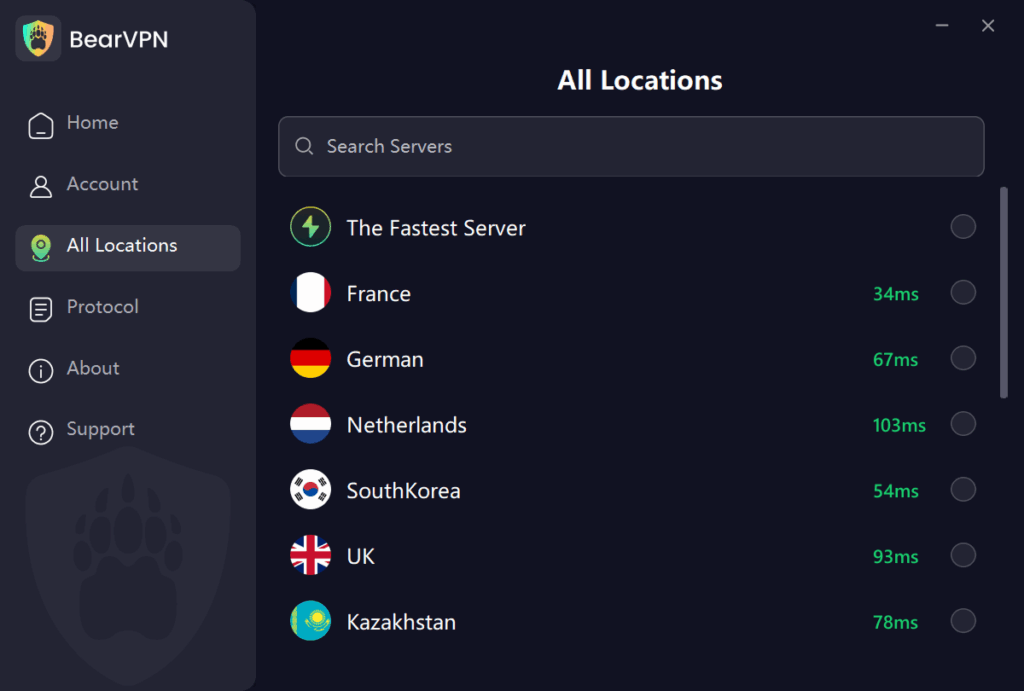
- 2,000+ Servers: Multiple servers ensure you find fast, low-latency connections.
- DNS Leak Protection & Kill Switch: Keeps your connection secure even if the VPN drops.
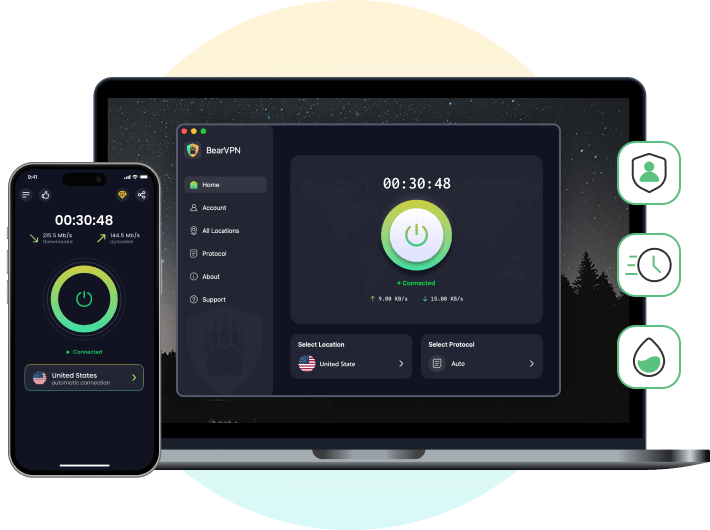
- Works Across Your Devices: Use BearVPN on Windows, macOS, iOS, or Android. Chromebook use requires Google Play and app-installation permission.
How to Use a VPN for Fortnite at School:
Step 1. Get BearVPN on your personal Windows, macOS, iOS, or Android device. On a Chromebook, install the Android app only when Google Play and app installation are permitted. BearVPN cannot remove administrator restrictions from a managed school device.
Step 2. Open the app and connect to a server close to your location.
Step 3. Visit the IP checking tool to confirm your IP address is hidden.
Step 4. Launch Fortnite and test the connection. If it still does not work, the network may be blocking VPN traffic, the device may be managed, or Fortnite may be experiencing a service or account issue.
Method 2: Play via Cloud Gaming (No Installation Needed)
Services like NVIDIA GeForce NOW allow you to play Fortnite without downloading anything. Everything runs on remote servers—no need to bypass your school’s ban on Epic Games downloads.
How to Use GeForce NOW at School:
- Go to https://www.nvidia.com/en-us/geforce-now/
- Sign in or create an NVIDIA account.
- Add Fortnite to your library.
- Click Play to stream the game instantly.
Works on: Chromebook, browser, and even low-end PCs.
Bonus: It’s browser-based, which often slips past school filters.
Method 3: Try a Browser with Built-In VPN
Some browsers come with built-in VPNs. Opera Browser, for example, lets you toggle a VPN inside the browser settings.
How to Use Opera VPN:
- Download Opera from https://www.opera.com/
- Go to Settings > Privacy & Security > Enable VPN
- Launch Fortnite through cloud services or browser-based launchers.
Method 4: Use a Mobile Hotspot
If all else fails, consider tethering your phone’s data to your laptop or Chromebook.
Steps:
- Enable mobile hotspot on your phone.
- Connect your school device to it via Wi-Fi.
- Open Fortnite or access Epic Games.
Warning: This will eat into your mobile data fast. Only use it occasionally.
10 Unblocked Games Like Fortnite to Try at School
If Fortnite isn’t working or you want more options, here are 10 similar action-packed games you can try on school Wi-Fi:
- Krunker.io – Fast pixel shooter that loads instantly in any browser
- Shell Shockers – Funny egg-themed shooting game with multiplayer battles
- 1v1.LOL – Build walls and ramps like Fortnite, then fight other players
- ZombsRoyale.io – 100-player battle royale you can play right now
- Surviv.io – Top-down survival shooter with weapons and gear to find
- Venge.io – Smooth team-based shooting with cool character abilities
- War Brokers – Drive tanks and helicopters in big 3D battles
- Kirka.io – Minecraft-style shooting game with blocky graphics
- Narrow.One – Medieval archery battles that need teamwork to win
- Stabfish.io – Underwater spear fighting that’s surprisingly fun
Quick Tips:
- All games work in Chrome, Firefox, or Edge
- No downloads needed—just click and play
- Try different servers if one is slow
- Works on school computers and Chromebooks
Final Thoughts: Is It Safe to Unblock Fortnite at School?
The safest option depends on what is actually blocking Fortnite. If a managed school device does not allow app installation, use a school-approved browser or official cloud gaming service and follow the institution’s Acceptable Use Policy. A VPN cannot remove administrator controls.
If Fortnite works on other networks and the problem is limited to school Wi-Fi, BearVPN may help on your own or otherwise permitted device by encrypting the connection and letting you try a nearby server. It will not fix an Epic Games outage, an account restriction, or a device-level block.
Playing on your own device? Protect your Fortnite connection with BearVPN before reconnecting to the game.
FAQs
The best way is using browser-based cloud gaming services like Xbox Cloud Gaming, GeForce NOW, or Amazon Luna. These platforms stream real Fortnite directly inside your browser tab without requiring file downloads or administrative installation access.
Yes. If your school Chromebook supports the Google Play Store, you can install the BearVPN Android app to encrypt your traffic and bypass network firewalls. If app downloads are blocked by school administrators, you can use BearVPN on a personal laptop or smartphone hotspot instead.
Bypassing network filters is generally not illegal, but it may violate your school’s Acceptable Use Policy (AUP). To avoid getting your device flagged or losing internet privileges, only play during breaks and keep your browsing private using encrypted connections.
School IT administrators configure firewalls and filters (such as GoGuardian) to preserve network bandwidth and prevent classroom distractions. They block both game launchers (Epic Games) and official cloud gaming URLs.
If the official streaming domains are blocked by your school DNS, connect to a privacy tool like BearVPN on your personal device or switch your Chromebook connection to your smartphone’s Mobile Hotspot to bypass local Wi-Fi domain blocks.