Key Takeaways
- Main Causes: YouTube not working with your VPN is mainly caused by IP blacklisting, cookie conflicts, DNS leaks, and ISP throttling.
- Quick Fixes: You can switch to a specific IP address, change the protocol, clear your browser cache, or disable IPv6 in your network settings to quickly fix YouTube not working with a VPN.
- Ultimate Solution: Switch to a more specialized VPN like BearVPN to bypass deep packet inspection with a higher success rate and get your YouTube streaming back to normal.
Is your YouTube video stuck in an endless buffer, or worse, showing a “You seem to be using a proxy” error message? You are not alone. In 2026, YouTube significantly ramped up its detection efforts, waging a quiet war against VPN users attempting to bypass geo-restrictions or simply protect their privacy.
This YouTube not working with VPN issue is frustrating. You paid for a VPN to access restricted content on YouTube, but you’re locked out of the platform. The good news is that this issue can usually be fixed with several proven ways. We have tested dozens of configurations to find the most reliable ways to bypass these blocks. Here is your ultimate guide to fixing YouTube VPN issues, featuring real-world testing and advanced troubleshooting steps.
Why Is YouTube Not Working with Your VPN?
Before diving into the fixes, it is crucial to understand why YouTube is not working with your VPN. YouTube does not provide privacy protection; strict regional licensing agreements for movies, music videos, and YouTube TV content bind it. To enforce these, they employ sophisticated detection methods to prevent unauthorized access. Here are the main causes:
1. IP Blacklisting
This is the most common cause. When thousands of users connect to the same VPN server (especially in free VPNs), they all share a single IP address. YouTube’s algorithms notice the abnormal traffic volume from a single location and flag the IP address as a proxy/VPN. Once flagged, anyone using that server gets blocked or throttled.
2. Cookie and Location Conflicts
Your browser stores personal information, including your location. Even if your VPN says you are in London, your browser cookies might still be holding data from your previous session in Singapore. When YouTube detects an IP address but receives cookies associated with a different location, it reports a discrepancy and blocks access.
3. DNS and IPv6 Leaks
A high-quality VPN should route all your traffic through an encrypted tunnel. However, Windows and macOS devices sometimes try to be helpful by routing DNS requests or IPv6 traffic through your default ISP connection for speed. This leak reveals your true identity to YouTube, rendering the VPN useless.
4. ISP Throttling and Deep Packet Inspection (DPI)
In many regions, such as Turkey and India, ISPs use Deep Packet Inspection (DPI) to identify VPN traffic signatures. Instead of blocking you, they might simply throttle your speed to a crawl, causing endless buffering. This is where advanced obfuscation protocols become essential.
How to Fix YouTube Not Working with VPN
We have conducted extensive tests from high-censorship environments (simulating restricted networks) to see which methods actually restore access to YouTube. Here are the steps you can try one by one.
Method 1. Switch to an Optimized Server
If you are seeing the Proxy Detected error, the specific server IP you are on has likely been blocked. Then you can change to another server and see if it works for YouTube.
Step 1. Open your VPN client.
Step 2. Connect to a different server. If you are connected to the United States – Miami, try switching to the United States – Chicago, or choose a server in another country.
Method 2. Change the VPN Protocol
As YouTube has optimized its detection mechanism, standard protocols often struggled with speed throttling. Sometimes, switching to proprietary protocols solved this instantly. Here’s how:
Step 1. Go to your VPN Settings > Protocols.
Step 2. Choose SLProxy (optimal for speed) or SCProxy (optimal for bypassing heavy censorship).
Step 3. Refresh your connection on the server page.
- Real-World Test: In our tests for unlocking YouTube content on restricted networks, SLProxy reduced buffering time by nearly 40% compared to standard OpenVPN UDP connections. These protocols are designed to disguise VPN traffic as normal HTTPS traffic, bypassing DPI systems.
Method 3. Clear Browser Cache & Cookies
Besides switching to an optimized server and proprietary protocols, you can also clear your browser cache and cookies to remove your online trace. Follow the steps in different browsers:
- Chrome: Press Ctrl + Shift + Delete > Select “Cached images and files” and “Cookies” > All times.
- Edge/Firefox: Go to Privacy settings and clear site data for YouTube.
Pro Tip: Alternatively, open an Incognito/Private window when accessing YouTube content. This forces a fresh session without any conflicting location data.
Method 4. Activate Leak Protection
Most VPNs provide DNS Leak Protection and a Kill Switch, ensuring your privacy is always protected. This ensures that if your VPN connection drops for even a microsecond, your internet is cut, preventing YouTube from seeing your real IP.
- In your VPN settings, verify that DNS Leak Protection and the Kill Switch features are toggled on.
Method 5. Use BearVPN
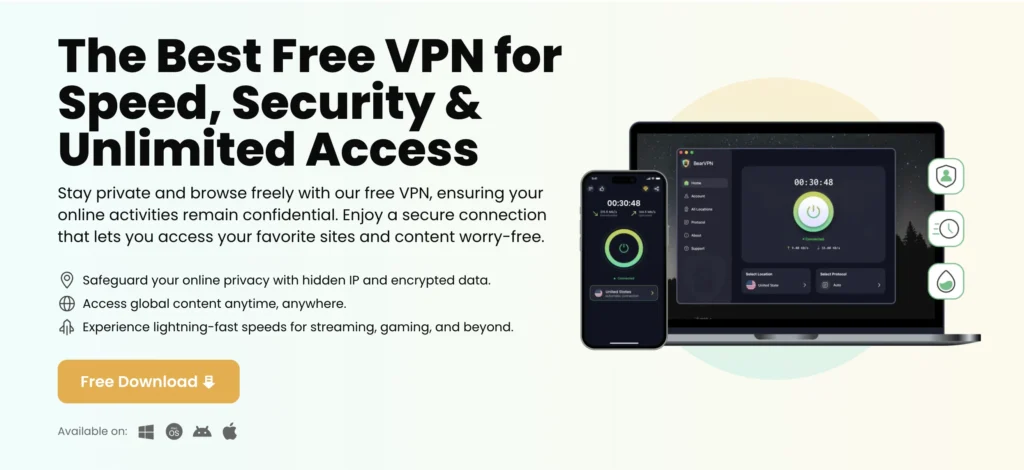
If you feel troubled trying the above methods, you can also turn to a more specialized VPN for YouTube. BearVPN is recommended as the best tool to fix YouTube not working with a VPN. It is specifically engineered for high-bandwidth streaming and bypassing difficult firewalls. With BearVPN, you can easily resolve the YouTube VPN issues and regain access to its content.
Why BearVPN is the Best Choice for YouTube
- Prevents ISP Throttling for 4K Streaming: By hiding your video data, BearVPN stops your Internet Service Provider from slowing down your connection, guaranteeing smooth and buffer-free 4K playback.
- Bypasses Strict Network Restrictions: BearVPN offers obfuscation to disguise your VPN connection as regular web browsing, easily slipping past network blocks at schools, offices, or in restricted regions.
- Offers Flexible Split Tunneling: You can choose to route only your YouTube traffic through the VPN, allowing you to stream videos securely while other apps or services stay on your direct internet connection.
- Supports 10 Simultaneous Devices: A single account covers up to 10 devices at once, so you can unblock YouTube on one device while your family streams on others.
Steps to restore YouTube access with BearVPN:
Step 1. Download and install BearVPN on your mobile or computer device.
Step 2. Open the BearVPN app and register an account with your email. Then log in.
Step 3. On the server list page, connect to a server with low ping.
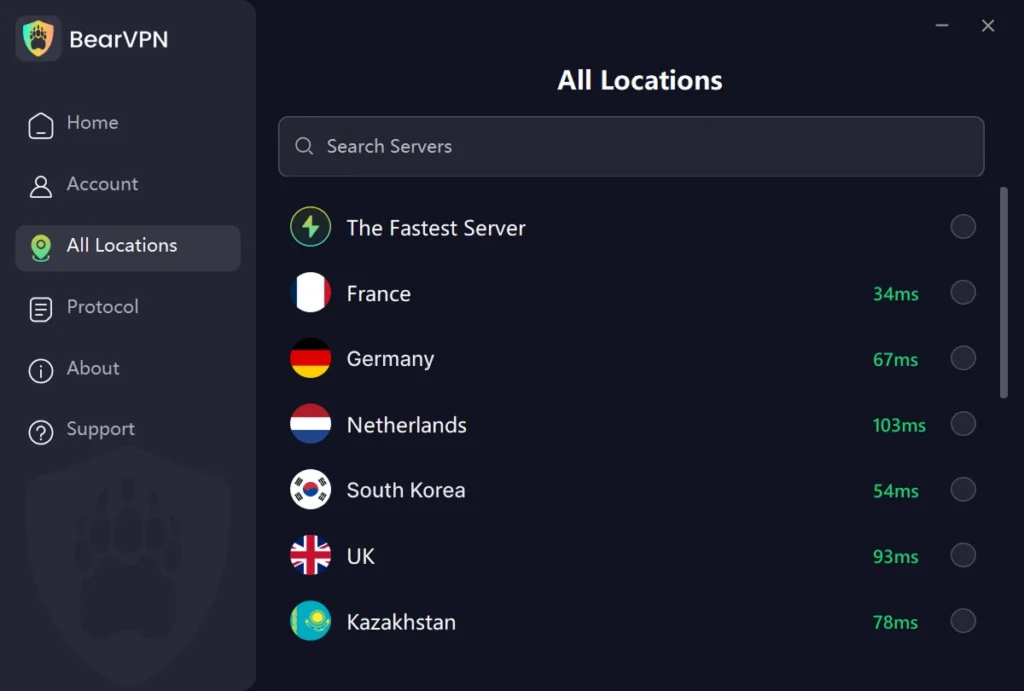
Step 4. Go to your browser and open an incognito window, then access the YouTube website tracelessly.
Troubleshooting More YouTube Not Loading Issues 2026
Besides the YouTube not working with a VPN issue, some users also reported that YouTube would not load on Reddit. If you are facing such problems, try these advanced fixes.
1. Check for IPv6 Leaks
Many ISPs are rolling out IPv6, but most VPNs only tunnel IPv4. If your computer uses IPv6 to connect to YouTube, the VPN is effectively bypassed.
- Fix: Go to your device’s Network Adapter settings and uncheck Internet Protocol Version 6 (TCP/IPv6). Force your connection to use IPv4 and help load YouTube successfully.
2. Smart Routing for YouTube TV
If you are trying to access YouTube TV (which requires a US Zip Code), you face stricter checks.
- Fix: Ensure you are using a dedicated US streaming node. BearVPN often marks these in the server list. Note that you may also need to update your home area in YouTube TV settings if the GPS data on your mobile device conflicts with your IP.
3. Restart the VPN Service
Sometimes software glitches prevent YouTube from loading on your devices. You can perform a restart to refresh the connection in your VPN app.
The Bottom Line
YouTube not working with VPN is annoying, but it’s always fixable. By simply clearing your browser cookies, changing the servers, switching the protocols, or activating DNS leak protection, you can resolve the problems most of the time. For more stubborn cases, switching to BearVPN helps you gain access to a network of 2000+ servers and advanced protocols like SLProxy that are built to keep your connection fast, private, and unrestricted. Try BearVPN now and enjoy buffer-free YouTube streaming on up to 10 devices at once.
Frequently Asked Questions
1. Has YouTube blocked VPNs?
YouTube hasn’t explicitly banned VPNs, but it increasingly blocks specific VPN IP addresses to prevent regional price spoofing and bypass geo-restrictions, often resulting in “VPN/proxy detected” errors.
2. Is it legal to use a VPN for YouTube?
Yes, using a VPN to watch YouTube is completely legal in most countries for privacy and security purposes. Please note that you can’t use a VPN for YouTube to engage in illegal activities.
3. Does a VPN slow down my YouTube speed?
Generally, no. If your ISP is throttling video traffic, BearVPN can actually increase your streaming speed. Its high-speed servers are optimized for 4K playback on YouTube.
4. Why does YouTube TV say “Proxy Detected” but regular YouTube works?
YouTube TV has much stricter geo-fencing because it deals with live broadcast TV contracts. It checks not just your IP, but potentially your GPS data on mobile and browser history. You must use a high-quality US server and ensure all location services on your device are turned off.
5. Does BearVPN work in high-censorship areas for YouTube?
Yes. For users in regions with strict internet censorship (like the UAE, Russia, or school networks), BearVPN’s SCProxy protocol is specifically designed to bypass deep packet inspection and unblock social platforms like YouTube.