Key Takeaways
1. Denied Access Meaning on OmeTV:
It usually means your browser or OS has blocked OmeTV from using your camera or microphone. If it insists, your IP address can be flagged.
2. Possible Fixes for Denied Access on OmeTV:
- Check Permissions: Go to your account settings and enable your camera or microphone for normal pairing.
- Clear Browser Data: Old cookies and cached site data can trigger false flags, causing the site to forget that you previously allowed access.
- Bypass IP Bans: If permissions are clear but you’re still blocked, your IP address is likely blacklisted. BearVPN is the fastest way to get a new IP and rejoin the chat.
- Don’t Pay Unban Fees [Important]: Changing your digital location is safer and often cheaper than paying random third-party unban fees.
It’s a common case that you’re ready to meet new people, load up OmeTV, but suddenly, the screens go black. Instead of chatting with a stranger, what you get is a frustrating error message: “You have denied access to your device.” This is one of the most annoying interruptions on the OmeTV platform. According to user discussion on Reddit, they didn’t mean to deny anything but were unable to make a connection. What does the denied access mean? How can you get connected on this random video chat platform?
This article introduces the possible causes and several proven ways to resolve OmeTV denied access on your device. Whether it’s a simple browser permission glitch or a more stubborn IP block, it will walk you through exactly how to get your camera working and your connection back online on OmeTV.
You may also like: Best OmeTV alternatives 2026
Why Does OmeTV Say “You Have Denied Access”?
Before we dive into the fixes, it’s essential to know why this is happening. In our testing across different devices and browsers, we found that this error stems from three distinct causes. Identifying which one applies to you will save you time in choosing a solution.
Cause 1: Browser Permission Conflict (The Most Common)
OmeTV runs directly in your browser. To work normally, it needs explicit permission to hook into your webcam and microphone. If you accidentally clicked the block button on the pop-up notification the first time you visited, or if your browser’s privacy settings automatically blocked it, OmeTV won’t be able to recognize your device. It interprets the connection and shows the denied access message.
Cause 2. Corrupt Cache
Browsers store temporary data to load sites faster. If OmeTV updated its script but your browser is trying to load an old, corrupted version of the site’s code, the permission request might fail to trigger entirely, leaving you stuck in a deny loop.
Cause 3. IP Ban or Shadowblock
Sometimes, the denied access message is a misleading symptom of a deeper account issue: an IP ban. OmeTV moderates its platform heavily. If your IP address was flagged, especially when a previous user on your shared Wi-Fi violated a rule, or OmeTV’s AI flagged innocent behaviors, the server will reject your connection request.
- How to check the IP ban: If you reset all your camera permissions, clear the cache on your browsers or the app, but still see the error, you are likely dealing with an IP ban.
Related topic: How to get unbanned from OmeTV
How to Fix Denied Access on OmeTV (Step-by-Step)
According to the possible reasons why OmeTV says “You have denied access to your device”, we have structured 3 effective fixes, from the easiest to the most robust. After each step, you can try to connect again in your OmeTV account. Follow them in order.
Step 1. Reset Browser Camera & Mic Permissions
The most likely culprit is that your browser remembers a block setting. Here is how to reset it and grant permissions to the camera and microphone.
For Google Chrome / Edge (Desktop)
- Locate the Lock Icon: Look at the address bar. On the far left, you will see a small “Lock” or “Settings” icon. Click it.
- Check Permissions: You should see rows for Camera and Microphone.
- Toggle to Allow: If the switch is off or says “Block,” toggle it to Allow.
- Reset Site Settings: If you don’t see the toggles, click Site Settings. This will open a dedicated page. Find the Camera option and select Allow or Ask (Default).
- Reload: Close the tab and open OmeTV again. It should ask for permission one more time – click Allow.
For Safari (iPhone/Mac)
Apple’s privacy settings are stricter and exist in two places: the browser and the OS.
- System Preferences: Go to Apple Menu > System Settings > Privacy & Security. Ensure your browser has a checkmark next to Camera.
- Safari Website Settings: Open Safari. In the top menu bar, click Settings > Websites.
- Find OmeTV: Look for the OmeTV website in the list. Change the dropdown menu from Deny to Allow.
Step 2: Clear Browser Cache and Cookies
If permissions were already set to Allow and it still doesn’t work, your browser’s saved data might be glitching. Check the following clearing steps:
- Open History: Press Ctrl + H (Windows) or Cmd + Y (Mac).
- Clear Browsing Data: Click “Clear browsing data.”
- Select Essentials: You don’t need to delete your history. Just check “Cookies and other site data” and “Cached images and files.”
- Time Range: Select All time to ensure no old scripts remain.
- Restart: Completely close the browser and restart it.
Step 3: Bypass IP Bans with BearVPN
If you have reset your permissions, cleared your cache, and confirmed your camera works in other apps, but OmeTV still says access is denied, your IP address has been banned.
OmeTV tracks users by their IP addresses. When they ban a user, they don’t just ban the account, but also the internet connection. This means you cannot access the site even in Incognito mode. The only reliable fix is to mask your IP address with a VPN. This is where BearVPN becomes essential.
BearVPN allows you to swap your blocked IP address for a fresh, anonymous one from over 2000 servers. By connecting to a BearVPN server, your real IP will be hided and you appear to OmeTV as a completely new user connecting from a different location.
How to bypass OmeTV IP ban with BearVPN:
Step 1. Download and install the app on your phone or computer. BearVPN supports all major platforms (Windows, Mac, iOS, and Android).
Step 2. Open the app. Then sign up for the BearVPN app with your email address.
Step 3. Connect to a server. For the best video chat speed, choose a server in your own country or a nearby region.
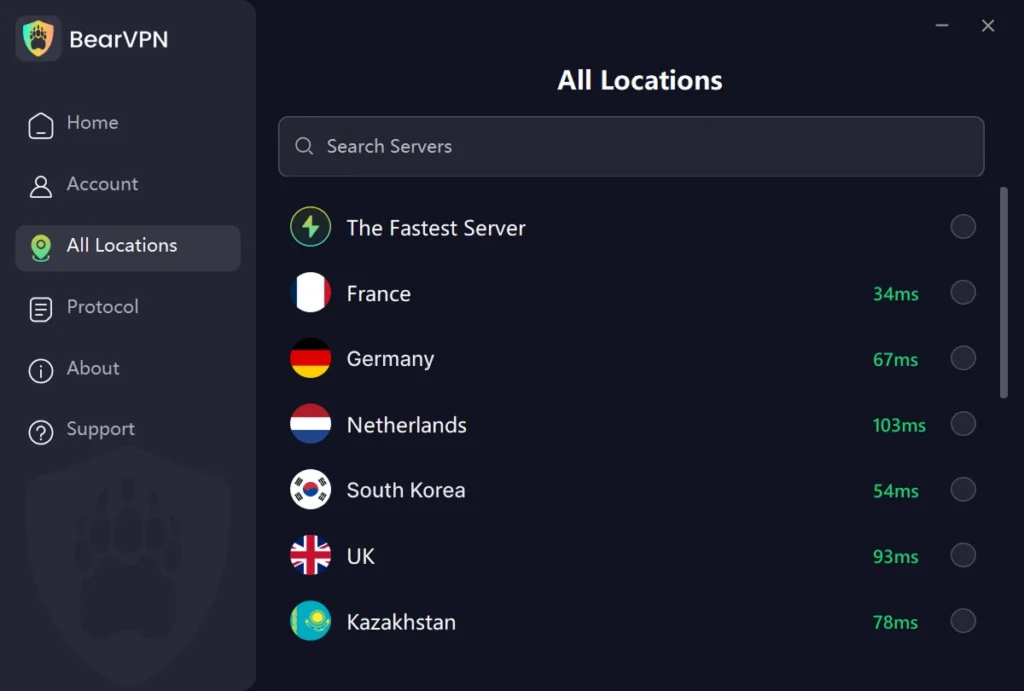
Pro Tip: BearVPN’s “Smart Route” feature will automatically pick the fastest server for you.
Step 4. Once the VPN is connected, reload the OmeTV website or app.
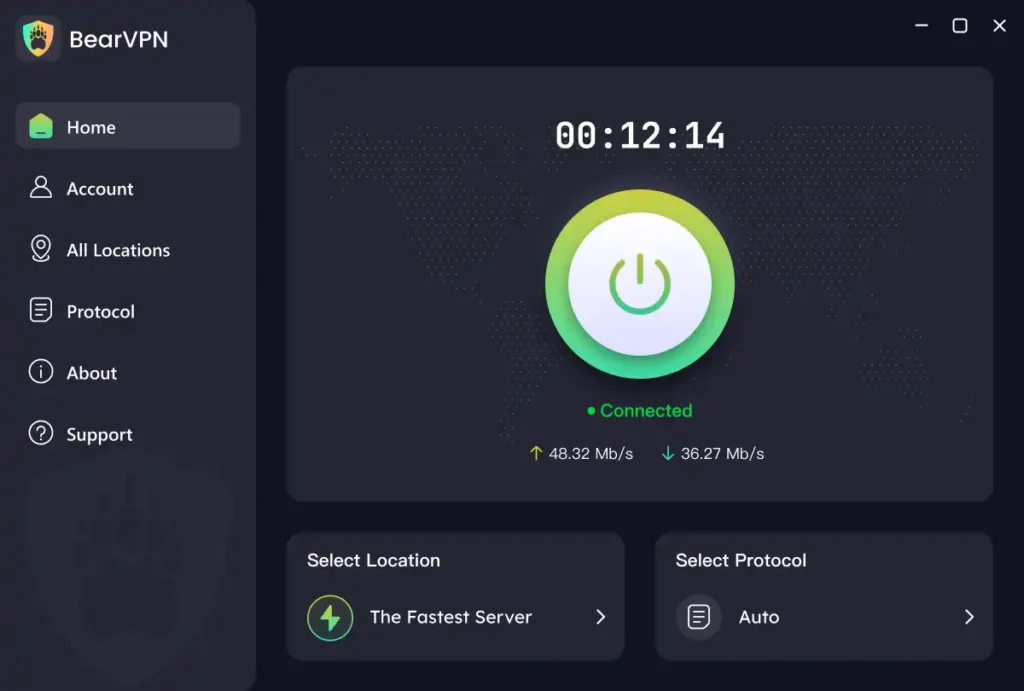
Now the OmeTV denied access error should be fixed with a dedicated IP address in BearVPN.
Why BearVPN is the Best Choice for OmeTV
We tested several VPNs against OmeTV’s detection systems in different places. Many free VPNs failed because their IP addresses were already blacklisted. BearVPN stood out for three key reasons tailored to random video chat users (not only for OmeTV):
1. No Lag Video Streaming
Video chat requires consistent bandwidth. Nothing kills a conversation faster than a pixelated face or lagging audio. BearVPN provides 4K-level bandwidth reserves, ensuring your video stream remains crystal clear. Unlike free proxies that throttle your speed, BearVPN is built for high-demand video streaming.
2. Massive IP Pool & Privacy
With a network of 2000+ servers covering more than 50 global cities, you have virtually unlimited attempts. If OmeTV blocks one IP address, you can switch to another in just a few seconds. Plus, BearVPN’s strict No-Logs Policy ensures your chats and IP history are never recorded, offering privacy that OmeTV’s default connection lacks.
3. Multiple Devices Supported
You can simply log in to the BearVPN account on 10 devices simultaneously. It’s available to use on Windows, Mac, iOS, and Android, covering all your digital needs. Additionally, it offers an unbeatable price compared with common VPN services on the market, which is significantly cheaper than paying repeated fees while providing enhanced security.
Tips to Avoid OmeTV Denied Access with a VPN
Sometimes, when you have enabled camera and microphone permissions, cleared the cache, and connected to BearVPN, you still face the access denied error. You can check the following tips to avoid further errors in OmeTV.
| Solution | Details |
| Try Incognito Mode | Browser extensions can sometimes interfere with OmeTV’s script. You can open an incognito or private window to load a clean browser version. |
| Switch VPN Protocols | Go to Settings > Protocols. Switch to SLProxy or SCProxy. These proprietary protocols are designed to blend in with normal HTTPS traffic, making your VPN usage harder to detect while maintaining speed. |
| Check for WebRTC Leaks | WebRTC is the technology that powers browser video chat, but it can sometimes “leak” your real IP address even when a VPN is on. Ensure you have enabled BearVPN’s built-in DNS/IP leak protection to prevent your real location from slipping through. |
Final Words
The OmeTV “You have denied access” error stops you from chatting with strangers. But no worry, it’s not a dead end. In most cases, a quick check of your browser permissions or a cache clear-out can get you back online. If those fail to work, you are likely facing an IP block that can only be fixed with a VPN.
BearVPN is highly recommended for its worldwide servers, advanced protocols, and unlimited bandwidth. As one of the best VPNs for OmeTV, it ensures that you always have a fresh IP address, high-speed connection, and privacy protection ready to go. Try BearVPN now and say goodbye to the OmeTV denied access error immediately.
FAQs about OmeTV Access & Bans
1. Is it legal to use a VPN on OmeTV?
Yes. Using a VPN on OmeTV is legal in most countries for privacy protection and network security. You have a right to protect your IP address from strangers on the internet. However, you should always adhere to OmeTV’s community guidelines regarding conduct.
2. How long does an OmeTV ban last?
OmeTV Bans can range from a few hours to several months, depending on the severity of the alleged violation. It does not typically inform users of the duration. Using BearVPN allows you to bypass this waiting period instantly.
3. Can I use a free VPN to fix the Denied Access error?
It can work, but we do not recommend it. Free VPNs have very limited server pools that are often already banned by OmeTV. Furthermore, they often have data caps that will run out after a few minutes of video chat, and many sell user data to cover costs.
4. How to allow permissions on OmeTV?
To allow permissions on OmeTV, click the lock icon in your browser’s address bar, or go to Settings > Apps > OmeTV > Permissions on mobile, then enable Camera and Microphone access.
5. Can I use BearVPN on my phone to unblock the OmeTV app?
Yes. BearVPN has dedicated apps for iOS and Android. You can simply use it to unlock the OmeTV app or fix the denied access on your Android phone or iPhone without effort.