Nothing is more frustrating than getting ready for a video chat, only to find OmeTV not working. It can be a black screen, an endless spinning circle, or a frozen camera feed on your iPhone. The reasons vary from a simple connection error to hidden IP bans. Whatever it is, technical glitches can ruin the fun instantly.
In this guide, we will look into why OmeTV is not loading on your device, troubleshoot several possible causes, and then show you exactly how to fix OmeTV loading issues in 2025.
Why Is OmeTV Not Loading?
OmeTV is a WebRTC-based platform, meaning it relies heavily on real-time data transmission between your browser and the stranger’s device. This complex connection makes it sensitive to even minor disruptions. Here are the most common reasons why OmeTV is not working:
| Cause | Details |
| 1. Browser Cache & Cookie Corruption | When chatting on OmeTV in a browser, it continuously stores temporary data to load sites faster. If this data becomes corrupted or outdated, it can conflict with OmeTV’s live video scripts, causing the interface to fail to work. |
| 2. Permission Conflicts | OmeTV requires explicit access to your camera and microphone. If a recent system update reset these permissions, or if another app is using the camera, OmeTV cannot start the video feed. |
| 3. Network Restrictions | Some public Wi-Fi networks, such as schools or offices, might block P2P connections or video chat sites to save bandwidth. If you are on these restricted networks, the video chat will fail to load. |
| 4. Ad-Blockers and Extensions | Some ad-blockers or privacy extensions often aggressively block the scripts OmeTV uses to match users, leading to a broken site. |
| 5. IP Bans | OmeTV has a strict and often automated moderation system. If your IP address has been flagged, the site or app will refuse to load or connect you to partners. |
| 6. OmeTV Server Down | In rare cases, you may encounter the OmeTV not working issue due to its server outage for maintenance or unexpected traffic spikes. |
How to Fix OmeTV Not Working Issues
After explaining why OmeTV fails to work, you may wonder how to fix this issue effectively. Most issues can be resolved with a few simple troubleshooting steps. Just follow the methods below to restore your connection on OmeTV.
Method 1. Restart Your Router
A simple restart of your network router is the first step for network-related glitches. OmeTV requires a stable, low-latency connection. If your router has been running for weeks, it may have accumulated errors, which disrupt the real-time video stream.
How to restart your router:
- Unplug your router’s power cable from the wall outlet.
- Wait for 1 to 3 minutes. This drains the capacitors and ensures a full reset of the device’s temporary memory.
- Plug it back in and wait for all the indicator lights to turn solid green.
- Reconnect your device and try loading OmeTV again.
Tip: If you are on mobile data, toggle the airplane mode on for 10 seconds or restart your device to reset your connection to the cell tower.
Method 2. Clear Cache on OmeTV
If your OmeTV is not working due to corrupted cache files, clearing this data will force your browser or app to download fresh and working scripts from the server. Here’s how to clear cache on OmeTV:
For Google Chrome (Desktop):
- Simultaneously press the Shift+Ctrl+Delete buttons.
- Select time range: All time.
- Check cookies and cached images/files.
- Click Delete data.
For OmeTV App (Android):
- Go to Settings > Apps.
- Find OmeTV in the list.
- Tap Storage & Cache.
- Tap Clear Cache.
Note: You can’t clear the cache for iPhone apps directly. You can only reinstall the OmeTV app from the App Store, during which the caches will be cleared.
Method 3. Disable Ad-blocker in Browser
OmeTV is free to use, but it displays ads for commercial concerns. Additionally, it has built-in mechanisms to detect ad-blockers. If your ad-blocker accidentally blocks the video signaling server, you may need to disable it temporarily.
How to disable ad-blockers in the browser:
- Look for your ad-blocker icon in your browser’s extension bar.
- Disable it in the settings.
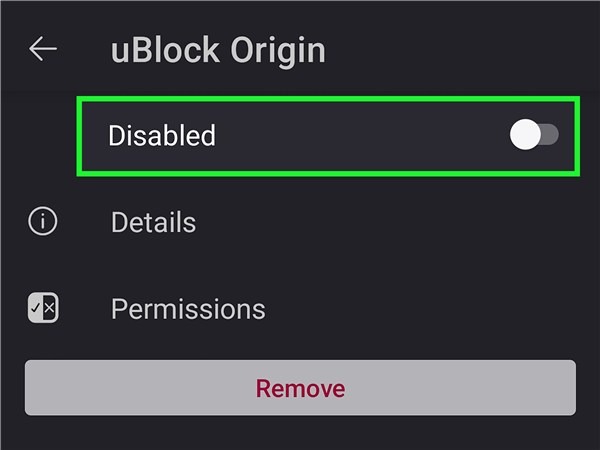
- Refresh the OmeTV page.
If the site loads, keep the ad-blocker disabled while chatting.
Also read: Is OmeTV safe
Method 4. Reinstall the OmeTV App
If you use the mobile app and it keeps crashing or freezing on the logo, the installation files might be corrupt. This is common after a major Android or iOS update. You can reinstall the OmeTV app to get it to work normally.
How to reinstall the OmeTV app:
- Long-press the OmeTV app icon and select Remove App or Uninstall.
- Restart your phone to clear any residual temporary files from the RAM.
- Go to the Google Play Store or Apple App Store and download the latest OmeTV app.
- Open the app and log in. You will be prompted to allow permissions again. Simply allow them for future use.
Method 5. Use a VPN
If you have tried everything above and OmeTV keeps loading forever or showing a grey screen, you are likely facing an IP Ban or a Network Block. OmeTV bans are tied to your IP address. If you are banned, the site often pretends to load but never connects you. Similarly, if you are at school or work, the firewall might be blocking the site. To solve this problem effectively and regain access to the OmeTV server, you can use BearVPN to unblock.
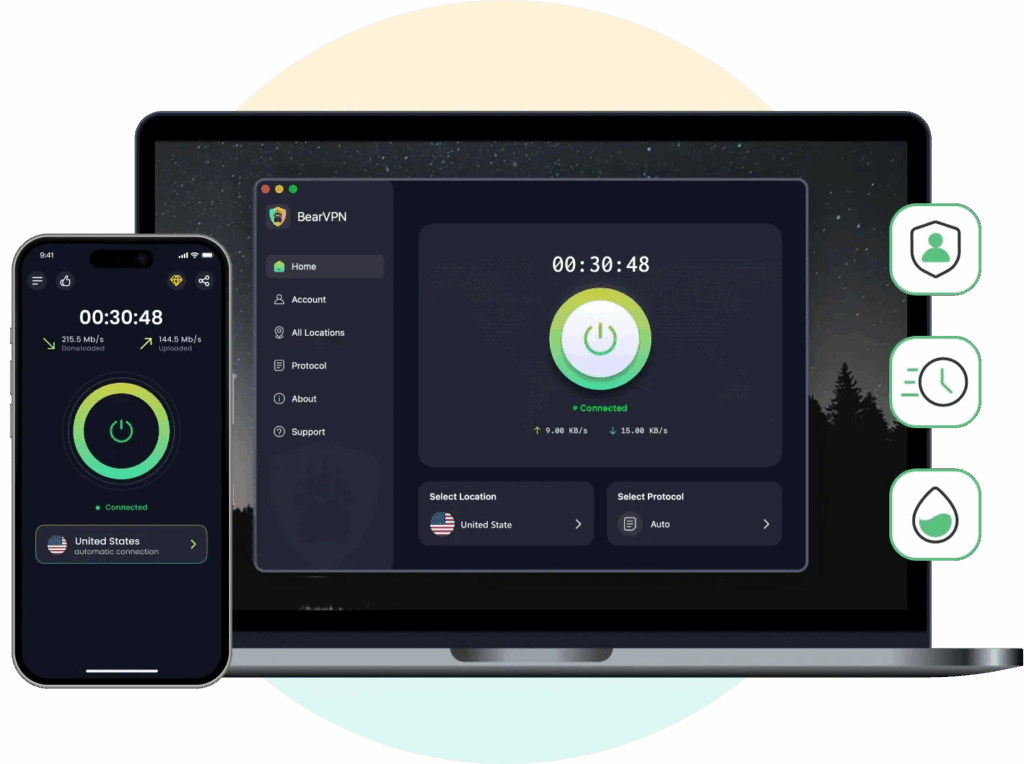
What Makes BearVPN Outstanding:
- Bypasses IP Bans: BearVPN assigns you a new, clean IP address. To OmeTV, you appear as a completely new user, bypassing the ban instantly.
- Unblocks Networks: It encrypts your traffic so your school or ISP can’t discover that you are using OmeTV, allowing the connection to pass through firewalls.
- Fixes Routing Issues: Easily fixes lag and connection timeouts with optimized servers.
Download BearVPN and fix OmeTV not working issues now!
Method 6. Check OmeTV Server Status
Sometimes the problem isn’t on your end at all. If OmeTV’s central matching servers are down, no one can connect.
How to verify:
Go to the server check websites like downforeveryoneorjustme and search for OmeTV. It will show you the current status of the OmeTV server. If it’s down, you have to wait for the official recovery and use it again.
Method 7. Enable Camera & Microphone Permissions
OmeTV will strictly refuse to load the chat interface if it cannot detect the camera and microphone. If you accidentally clicked the block option when first visiting the platform, it will appear broken.
For Chrome:
- Click the Lock icon in the address bar.
- Look for the Camera and Microphone.
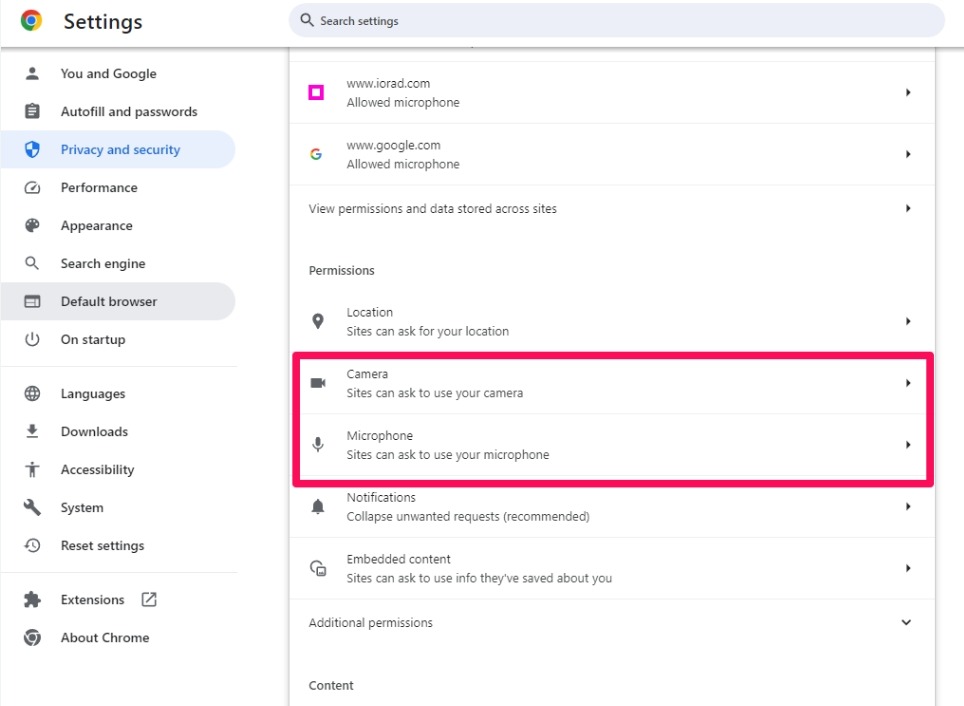
- Toggle the switches to On or select Allow from the dropdown menu.
- Reload the page.
For iPhone/Android:
- Go to Settings > Privacy & Security.
- Tap Camera.
- Find OmeTV and ensure it is enabled.
- Repeat the above steps for the Microphone.
Is OmeTV Down? – Server Check
When you can’t access the OmeTV website or pair with strangers, you may wonder if the OmeTV server is down. While OmeTV does not have an official status page, there are some reliable ways to check.
1. Browser Error Codes:
- 500 Internal Server Error: The server is broken. Come back later.
- 403 Forbidden: You are likely banned.
- 404 Not Found: The URL is wrong, or the page has been moved.
2. Social Media:
- Go to X and search for “OmeTV down”. If there is something wrong with the servers, you will see plenty of tweets within minutes because OmeTV has millions of active users.
3. Third-Party Detectors:
Search for “Is OmeTV down”, you can get several detection sites, including:
downforeveryoneorjustme.com
downdetector.com
isdownorblocked.com
Related Tip: How to change your name on OmeTV
FAQs About OmeTV Not Working
1. Why is OmeTV not loading on iPhone?
The most common reason for OmeTV not loading on iPhone is Safari’s strict privacy settings. Apple’s Advanced Privacy Protection can sometimes interfere with WebRTC. You can clear the cache in the browser or use a VPN to fix this issue on the iPhone.
2. Will reinstalling OmeTV delete my account?
No. Reinstalling the OmeTV app only deletes the application files and temporary cache from your phone. Your account information, friends list, and profile data are always stored on OmeTV’s cloud servers and linked to your social media or Google account.
3. Why is the OmeTV camera not working on iPhone?
The OmeTV camera not working on iPhone issues are mainly caused by camera permissions. You should make sure that the camera access for OmeTV is enabled in iPhone privacy settings.
Conclusion
When you find OmeTV not loading, it is usually a solvable problem rather than a permanent outage. In most cases, it’s caused by a cached glitch, a missing permission, or a soft IP ban. By systematically restarting your router, clearing your browser data, and ensuring your camera permissions are active, you can fix some of the loading errors.
If these basic fixes don’t work and your OmeTV still fails to load, you are likely dealing with a network restriction or an IP ban. In these scenarios, an ultimate tool like BearVPN is your best choice. It not only restores access by masking your IP address but also secures your connection against prying eyes. Try BearVN now and go back to your video chat on OmeTV without lag!