

Key Takeaways: Quick Fixes for xCloud Issues
If you are short on time, here is the quick diagnostic summary to get you back in the game.
| Issues | Quick Solutions |
| Browser Conflicts | Clear the cache or disable AdBlocker temporarily. |
| Network Stability | Switch from 2.4GHz to 5GHz Wi-Fi or use a wired Ethernet connection. Aim for >20 Mbps. |
| Region Blocks | If you see the “Incorrect region” error, a VPN is the only fix to change your virtual location. |
| Server Status | Before changing settings, always verify if Microsoft Azure servers are online. |
| The Ultimate Fix | BearVPN resolves region blocks and bypasses ISP throttling for lag-free gaming. |
Imagine this: You’ve settled in for a session of Halo Infinite or Forza Horizon 5. You launch Xbox Cloud Gaming, ready to start the game instantly without a massive download. But instead of the game lobby, you’re greeted by a black screen, unbearable input lag, or the horrible “Region Not Supported” error.
Why does this happen? How can you fix the Xbox cloud gaming not working issues? Cloud gaming is the future, but it relies heavily on a delicate balance of network stability and server proximity. When that balance tips, the experience becomes unplayable. In this guide, we will troubleshoot the most common Xbox Cloud Gaming issues from browser cache conflicts to ISP throttling. More importantly, we will show you 5 proven ways to fix them and help you regain access to your favorite games on Xbox Cloud.
You may also like: Best Xbox Game Pass VPN
Why is Xbox Cloud Gaming Not Working?
Understanding why xCloud game fails is the first step to fixing it. Unlike running a game on your local console hardware, Xbox cloud gaming streams video frames from a Microsoft server to your device while sending your controller inputs back in real-time. This two-way traffic is sensitive to several factors, mainly including:
1. Browser/App Conflicts
In your browsers, like Microsoft Edge or Google Chrome, corrupted cache data or outdated extensions (especially AdBlockers) are frequent causes of the black screen of death where audio plays but the video feed remains dark.
2. ISP Throttling
This is a hidden cause. Many Internet Service Providers inspect your data packets. If they detect high-bandwidth streaming, like cloud gaming, they may intentionally slow down your connection to manage network congestion. This results in sudden input lag or screen tearing even if you have a fast internet plan.
3. Geo-Restrictions
Xbox Cloud Gaming sets a geo-fence and is currently available in only about 28 countries. If you are traveling for work or living in unsupported regions like parts of Southeast Asia, Eastern Europe, or the MENA region, the service will simply refuse to load.
4. Server Outages
Besides the above factors, Xbox server down can also lead to Xbox cloud gaming not working. Microsoft’s Azure data centers occasionally undergo maintenance or suffer outages, during which you can’t do anything on your end.
How to Fix Xbox Cloud Gaming Not Working – Basic Troubleshooting
You can first go through some basic troubleshooting for Xbox cloud gaming before trying more technical efforts.
Step 1: Optimize Your Network Connection
Xbox Cloud Gaming requires low latency, not just high speed. To reduce your gaming ping:
- Switch to 5GHz: If you are on Wi-Fi, ensure you are connected to the 5GHz band, not 2.4GHz. The 2.4GHz band is often crowded with interference from microwaves and Bluetooth devices.
- Go Wired: If possible, connect your PC or console directly to the router via an Ethernet cable. This drastically reduces packet loss.
Step 2: Clear Browser & App Cache
Clearing the cache helps remove temporary logs and corrupted data on Xbox. Here’s how you can do this on the browser and the app.
If you use the browser version of xCloud:
- Edge/Chrome: Go to Settings > Privacy, search, and services > Clear browsing data.
- Select Cached images and files and Cookies.
- Restart the browser.
If you use the Xbox App on PC:
- Go to Windows Settings > Apps > Installed Apps.
- Find the Xbox App, click the three dots, and select Advanced Options.
- Click Repair or Reset. Then restart the app and try again.
Step 3: Update Drivers
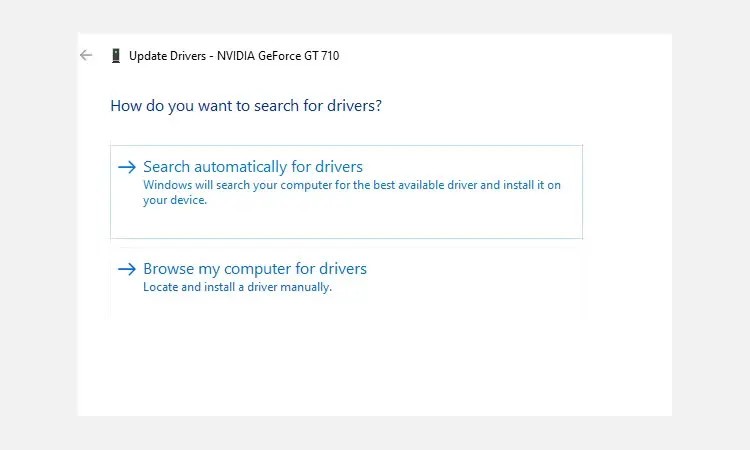
An outdated graphics driver can cause decoding errors in the video stream. Ensure your GPU drivers are always updated to the latest version.
- Open Device Manager and expand the Display adapters option.
- Right-click the graphics driver (NVIDIA/AMD/Intel) and select Update Driver.
- Choose Search automatically for drivers. Then click Search for updated drivers on Windows Update.
Step 4: Check Xbox Server Status
If the Xbox game server is down, there’s nothing you can do to fix the error. To check the live status of Xbox cloud gaming:
- Visit the official Xbox Status page. Look for the Cloud Gaming & Remote Play section. If you see a red or yellow warning icon, you will have to wait for Microsoft to resolve the issue.
How to Fix Xbox Region Blocks & Reduce Lag – Ultimate Solution
The above steps resolve basic connecting or performing issues in Xbox Cloud Gaming. For those facing the “Incorrect region” error or if your ISP is throttling your connection, causing persistent lag, a VPN is the ultimate solution.
BearVPN stands out as the best VPN to unlock region-exclusive games while maintaining high-speed traffic on Xbox Cloud. The professional encryption technique and advanced protocols help you access a full gaming experience, thus ensuring a smooth and secure gameplay.
Steps to bypass Xbox cloud gaming region blocks and reduce lag with BearVPN:
Step 1. Download and install BearVPN on your Windows, macOS, Android, or iOS device.
Step 2. Create an account with your email.
Step 3. Launch BearVPN. You need to connect to a country where Xbox Cloud Gaming is officially supported. For optimal performance, select a server located geographically closest to your actual location to minimize ping.
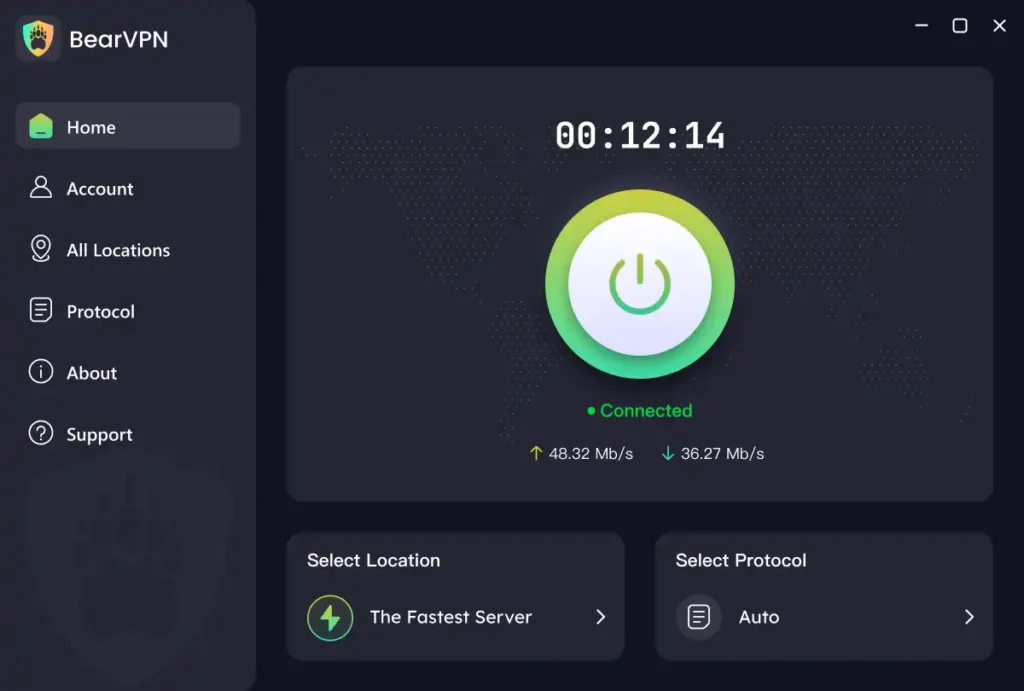
Step 4: Open the Xbox Game Pass app or navigate to the Xbox cloud gaming website. The Play button should now be active, and the region lock warning will disappear.
Pro Tip: Use Split Tunneling
Once the game stream starts, the region check is often complete. You can use BearVPN’s Split Tunneling feature to ensure only the Xbox app traffic goes through the VPN, or disconnect the VPN if you find the raw connection is stable enough for streaming.
Why BearVPN is the Best Choice for Xbox Cloud Gaming
Not all VPNs are built for gaming. Some users choose free ones to access geo-locked games or reduce lag on Xbox cloud gaming. However, free VPNs usually cap bandwidth or lack the server infrastructure to handle the heavy data load of cloud gaming. Here is why BearVPN is the superior choice for xCloud:
1. Low Latency with SLProxy/SCProxy Protocol
Standard VPN protocols can add significant delay, which is fatal for gaming. BearVPN supports the SLProxy protocol, specifically engineered to balance high-speed data transmission with anonymity, ensuring your button presses register instantly.
2. Massive Global Network
With 2000+ servers covering core countries globally, you can always find a low-load server nearby. This is crucial for users in critical zones like Southeast Asia or MENA who need to hop virtual borders to access gaming content.
3. Truly Unlimited Bandwidth
BearVPN adheres to a strict no-logging policy and offers unlimited bandwidth. This means you can game for hours without worrying about data caps or your ISP throttling your speed during peak hours.
4. Cost-effective Choice
Compared with most VPN services, BearVPN offers plans starting as low as $1.67 / month, making it one of the most competitive options on the market. Additionally, you can use it simultaneously on up to 10 devices, ensuring a smooth gaming experience on all platforms.
Troubleshooting Specific xCloud Errors
Even with a good connection, you might run into specific glitches. Here is how to handle them.
| Errors | Causes | Fixes |
| Black Screen / Infinite Loading | Often caused by browser extensions interfering with the video player script. | Disable AdBlockers or privacy extensions for the Xbox website. Alternatively, try running xCloud in an Incognito/Private window. |
| Unsupported Region | Microsoft detects that your IP address originates from a country where xCloud is not licensed. | This confirms your IP is blocked. Enable BearVPN and connect to a supported server immediately to mask your location. |
| Input Lag / Controller Delay | High ping or Bluetooth interference. | First, wire your controller to your device using a USB cable. Wireless Bluetooth adds roughly 5-10ms of delay. If lag persists, try switching your BearVPN server to a location physically closer to you. |
| Pixelated Graphics / Screen Tearing | Packet loss or unstable bandwidth. | Pause any background downloads. If your ISP is throttling gaming traffic, turning on BearVPN can actually improve quality by encrypting your traffic so the ISP cannot classify and throttle it. |
Conclusion
The Xbox Cloud Gaming not working issue can be frustrating, but don’t let network issues, ISP throttling, or geographic borders stop you from enjoying your Game Pass library. Whether you are dealing with a black screen or simply trying to play cloud games while traveling in an unsupported region, the solutions are within reach.
For the most reliable, lag-free experience that unlocks the full potential of Xbox Cloud Gaming, we recommend securing your connection with a premium tool like BearVPN. Download it now to unlock Xbox Cloud Gaming from anywhere, secure your privacy, and enjoy smooth, uninterrupted gaming sessions today.
FAQs regarding Xbox Cloud Gaming
1. Is it legal to use a VPN for Xbox Cloud Gaming?
Yes, using a VPN like BearVPN for privacy protection and accessing your paid subscriptions while traveling is generally legal. But you should always review and respect Microsoft’s Terms of Service.
2. Does a VPN increase ping in Cloud Gaming?
Technically, a VPN adds an extra hop for your data, which can slightly increase ping. However, BearVPN’s high-speed servers and SLProxy protocol minimize this impact. In cases where your ISP has poor routing to game servers, a VPN can sometimes reduce ping by taking a more direct path.
3. Can I play Fortnite on xCloud without a subscription?
Yes, Fortnite is currently on Xbox Cloud Gaming and free to play. You do not need a Game Pass Ultimate subscription to play it, but you still need a supported region or a VPN to access it.
4. Does BearVPN work on Android/iOS for xCloud?
Absolutely. A single BearVPN account supports up to 10 devices simultaneously. You can install the app on your iPhone, iPad, Android phone, and tablet, ensuring your entire gaming ecosystem is covered.
5. Why does my screen refresh or tear while playing?
This is often a VSync issue or network jitter. Ensure your monitor is set to 60Hz. If you are on Wi-Fi, an inconsistent signal strength causes jitter. In this case, you can switch to Ethernet or a high-performance VPN protocol to stabilize the data flow.