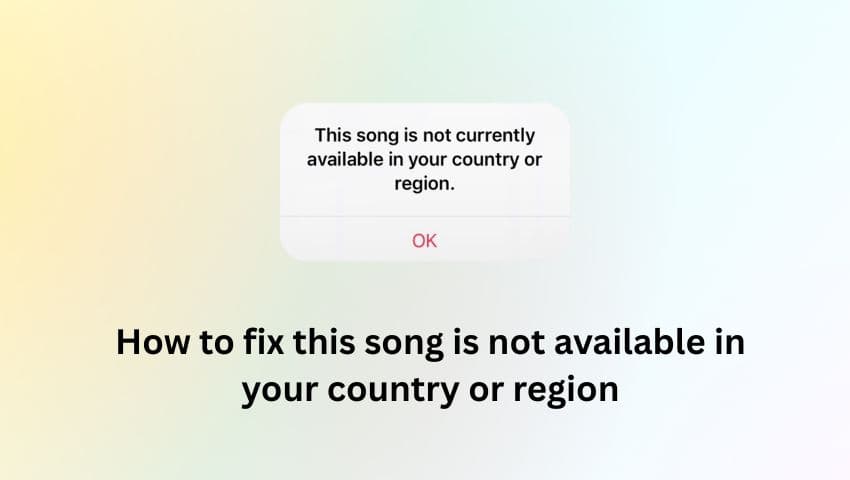
You hit play on your favorite track—maybe it’s a song you’ve listened to a hundred times, or even an MP3 you ripped from a CD years ago. Instead of music, you get silence and the dreaded error message: “This song is not available in your country or region.”
It is one of the most frustrating errors in digital music because it feels random. Why are songs on iTunes greyed out suddenly? Why does Spotify block a song you listened to yesterday?
The truth is, this isn’t just one error; it’s a generic label for three different problems: licensing conflicts, software bugs, or metadata mismatches.
Whether you are traveling, dealing with a glitchy update, or trying to play your own local files, this guide will walk you through the diagnostic process to get your music back.
Is It a Bug or a Ban?
Before we fix it, we need to know what broke it. Generally, the song not available in your region error stems from:
- Genuine Geo-Blocking: You are physically in a country where the record label hasn’t signed a deal for that specific track.
- The “Matching” Bug (Most Common): If you use Apple Music or iTunes Match, Apple scans your local files and “matches” them to their cloud database. Sometimes, they match your file to a version of the song that is restricted, locking you out of your own music.
- IP Address Glitches: Your device thinks you are in a different region than your account settings.
The Quick Fixes (Try These First)
If you are currently at home (not traveling) and seeing this error, it is likely a software glitch.
1. Force Quit and Restart
It sounds cliché, but cache errors are the leading cause of Apple Music Songs not available in region alerts.
- On iPhone: Swipe up from the bottom to open the App Switcher, swipe the Music app away, and restart your phone.
- On Desktop: Completely quit the Music app (Command + Q on Mac) and relaunch.
2. Turn “Sync Library” Off and On
This forces your device to re-download the licensing certificates for your library.
- Go to Settings > Music.
- Toggle Sync Library to OFF.
- Wait 30 seconds.
- Toggle it back ON.
Note: Your device will take a few minutes to re-scan your library.
3. Update iOS or App Version
In late 2024, a known bug in iOS caused widespread regional errors for legitimate users. Ensure you are running the latest version of iOS or the Spotify app to rule out patched bugs.
The “Local File” & Metadata Fix
This is the most critical section for users asking, “Why is my own ripped music blocked?”
If you have local MP3s that are showing songs on iTunes are greyed out, the issue is likely Metadata Mismatching.
How It Works: When you add a file to iCloud Music Library, Apple “fingerprints” it. If their system thinks your MP3 is actually “Song A (UK Version)” but you are in the US, it will block playback—even if you own the file.
The Fix: You need to “break” the match.
- Delete the song from your cloud library (ensure you have a backup of the original file on a hard drive).
- Edit the Metadata: Open the original file on your computer. Change the Song Title slightly (e.g., change “Hotel California” to “Hotel California (2025 Remaster)”).
- Re-add the song to your library.
- Because the title is different, Apple/iTunes will likely fail to match it to their database and will instead Upload your specific file. This bypasses the regional lock.
How to Fix Region Errors When Traveling
If you are traveling abroad or trying to access global playlists, your IP address is likely the culprit. The most effective way to solve this is by using a high-performance VPN to virtually relocate your device back to your home region.
We recommend BearVPN for music streaming because it is specifically optimized for high-bandwidth media and bypasses the “VPN blocks” that Spotify and Apple Music often use.
Why BearVPN?
- Global Server Network: Access over 2,000 servers in 50+ locations, ensuring you can always find a connection in your home region (US, UK, Japan, etc.).
- Zero-Buffering Speed: Unlike generic proxies, BearVPN offers high-speed, low-latency connections essential for streaming high-bitrate audio without stuttering.
- Unblock Streaming Services: It effectively bypasses geo-restrictions not just for Apple Music and Spotify, but also for Netflix, Hulu, and Disney+.
- Split Tunneling: You can route only your Music app through the VPN while letting your other apps (like Maps or local food delivery) use your local internet connection.
Step-by-Step: How to Fix the Error with BearVPN
If you see the “Not available in your country” error, follow these exact steps:
Step 1. Download and Install: Get the BearVPN app from your device’s app store.
Step 2. Close Your Music App: Force quit Apple Music or Spotify completely (do not just minimize it).
Step 3. Connect to Your Home Region: Open BearVPN and select a server in the country where your account is registered (e.g., if your Apple ID is US-based, connect to a “United States” server).
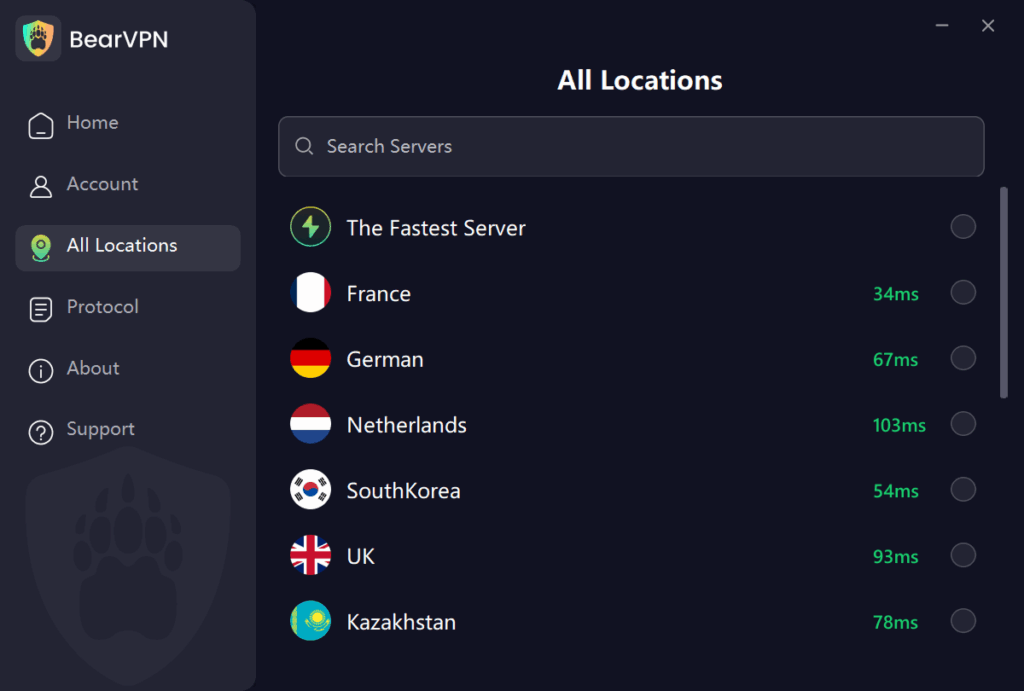
Step 4. Verify Connection: Wait for the “Connected” indicator.
Step 5. Re-open Music: Launch your music app. The greyed-out songs should now be active.
Tip: If it still doesn’t work, go to BearVPN settings, switch the protocol to “Automatic,” and try a different server city.
Specifics for Spotify Users
While the error verbiage is similar, the Spotify song not available in your country issue has a unique setting.
Spotify hides unplayable songs by default. If your playlist looks shorter than usual, you might not even see the errors.
- Open Spotify Settings.
- Scroll to Display Options.
- Toggle Show unplayable songs to ON.
- Now, the songs will appear (greyed out). Once you connect via BearVPN (as described above), restart the app, and these greyed-out songs should turn white and playable again.
Conclusion
Seeing the “Song not available” error doesn’t mean your music is gone forever. In most cases, it is a temporary mismatch between your location and the streaming license.
By following the steps above—starting with a simple “Sync Library” reset, checking your local file metadata, or using BearVPN to mask your location while traveling—you can bypass these restrictions and get back to your playlist.
Is your music still stuck? Drop the name of the song and your country in the comments below, and we’ll help you troubleshoot if it’s a global takedown or a local glitch.
FAQ
Q: Why are songs greyed out on Apple Music even though I bought them?
This usually happens when the record label updates the file on Apple’s server. Your old “purchased” link is pointing to a file that no longer exists or has new rights management. The fix is usually to delete the song and re-download it from your “Purchased” history.
Q: Does using a VPN fix Apple Music region errors?
Yes, but with a catch. Apple Music checks both your IP address and your Apple ID region. A VPN like BearVPN fixes the IP address issue (great for travelers). However, if you want to access a completely different country’s library permanently, you may also need to change your Apple ID region in settings.
Q: Why is a song available in the US but not in the UK?
Music licensing is fragmented. A label might own the rights to an artist in North America but have no distribution deal in Europe. Until a deal is signed, that song is not available in your country or region, regardless of the platform.