You’re probably sick of the generic, copy-and-paste advice that most gaming blogs offer if you’re reading this. “Closing Netflix” is evident, as you are aware. You are aware that you ought to be “closer to the router.” You are seeking a professional solution to a technical issue, not simple advice.
Online gaming has changed in 2025. We now have to contend with bufferbloat, ISP throttling, and bad peering routes in addition to sheer performance. Games like League of Legends, Counter-Strike 2, and Valorant lose their competitive integrity due to high ping. The difference between a respawn screen and a headshot can be as little as one millisecond.
This guide goes beyond the basics. We are going to diagnose your connection, debunk the “snake oil” solutions, and look at the actual physics of network routing to get your ping as low as the laws of physics allow.
The Diagnosis (Don’t Fix What You Haven’t Measured)
Before you start changing settings or buying software, you need to understand the “Unholy Trinity” of network lag. Most gamers confuse these three terms:
- Ping (Latency): The time (in milliseconds) it takes for a data packet to travel from your PC to the server and back. Lower is better.
- Jitter: The variance in your ping. If your ping sits at 30ms but spikes to 150ms every few seconds, that is Jitter. Crucial Note: High jitter is actually worse for gaming than a stable high ping. You can adapt to a steady 80ms delay; you cannot adapt to a random spike.
- Packet Loss: When data fails to arrive entirely. This results in “rubber-banding” (teleporting characters) or shots not registering.
The “TraceRoute” Test
Don’t guess where the problem is. Is it your router? Your ISP? Or the game server itself?
How to check on Windows:
- Open the Command Prompt (Type cmd in the search bar).
- Type tracert google. com (or the IP of your game server if you know it).
- Press Enter.
How to read the results:
- Hop 1: This is your router. If this is <1ms, your local hardware is fine. If it is 10ms+, your problem is inside your house (Wi-Fi or router issues).
- Hop 2–3: This is your ISP. If ping spikes here, your Internet Service Provider is the bottleneck.
- Final Hops: This is the destination. If ping spikes only at the end, the game server is overloaded.
Now that we have diagnosed the issue, let’s look at the 13 proven ways to fix it.
How to Lower Ping – The Physical Layer (Hardware Fixes)
1. The Ethernet Debate: Why Wi-Fi Will Always Fail You
Let’s settle this debate once and for all. Wi-Fi 6 and 6E are fast, but they are half-duplex technologies. This means they can only send or receive data at one moment—not both simultaneously. Ethernet is full-duplex.
In competitive gaming, stability is king. Wi-Fi is susceptible to interference from microwaves, Bluetooth devices, and even your neighbor’s router.
The Fix: Switch to a wired connection.
- Cable Choice: Do not waste money on “Cat8” cables. They are marketing hype for home use. A standard Cat6 or Cat6a cable is shielded, supports 10Gbps, and is perfectly adequate for gaming.
- The Powerline Alternative: If you cannot run a cable across the house, do not use a Wi-Fi extender (which adds latency). Use a Powerline Adapter, which sends internet through your home’s electrical wiring. It is not as good as Ethernet, but it is vastly more stable than Wi-Fi.
2. Upgrade to a Router with SQM (Not Just QoS)
Most guides tell you to enable QoS (Quality of Service). However, older QoS implementations are outdated. In 2025, you need a router that supports SQM (Smart Queue Management).
Standard routers operate on a “First In, First Out” basis. If someone starts a 4K Netflix stream, your tiny gaming packets get stuck in the line behind the massive video packets. This causes a queue, which results in “Bufferbloat.”
SQM actively manages this queue, ensuring that small, time-sensitive packets (like your mouse click in Apex Legends) cut to the front of the line, even if someone else is downloading a massive file. If your router is more than 4 years old, it is time to upgrade to a model that handles SQM/AQM.
3. Peripheral Maintenance: Restart Your Modem
This sounds basic, but there is a technical reason for it. Modems and routers have RAM and a CPU, just like your PC. Over time, error logs, cache buildups, and memory leaks can degrade performance.
Pro Tip: Do not just unplug it for 10 seconds. Unplug it for at least 60 seconds to fully drain the capacitors and force a complete handshake reset with your ISP when you plug it back in.
How to Lower Ping: The Software Layer (Windows & Settings)
4. Nuke Background Bandwidth Vampires
You closed your browser, but did you check the background processes? Windows 10 and 11 are notorious for hidden bandwidth usage.
- Windows Update Delivery Optimization: By default, Windows uses your connection to upload updates to other PC users on the internet (P2P).
- Go to Settings > Update & Security > Delivery Optimization > Turn OFF.
- Cloud Sync: OneDrive, Google Drive, and iCloud often sync files the moment they are modified. Pause these services while gaming.
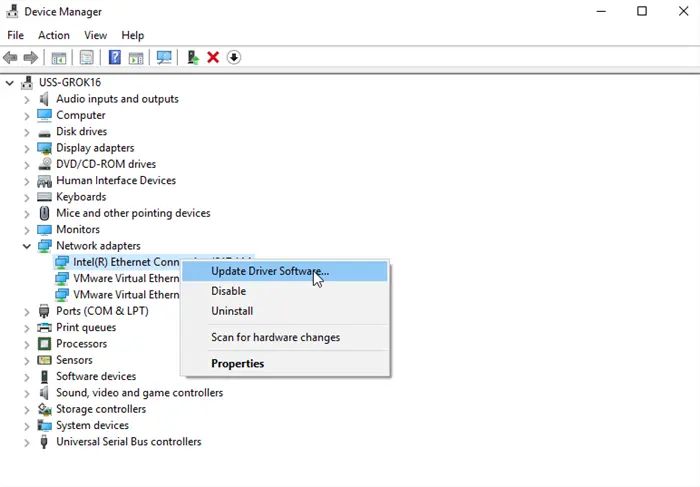
5. Update Network Drivers (Manually)
Windows Update does not always have the latest driver for your specific network card (NIC). An outdated driver can cause “micro-stutters.”
The Fix: Find out your motherboard model, go to the manufacturer’s website (MSI, ASUS, Gigabyte, etc.), and download the latest “LAN Driver” or “Ethernet Driver” specifically for your board.
6. The “Game Mode” and Graphics Settings
Lag isn’t always network-related. Sometimes, what you feel as “lag” is actually low frame rates or input delay.
- Enable Game Mode (Windows): This prevents Windows from running background scans while you play.
- Nvidia Reflex / AMD Anti-Lag: Enable these in your GPU settings. They reduce the queue of frames between the CPU and GPU, making your mouse clicks register faster on screen. This reduces the perception of lag, even if your ping stays the same.
How to Lower Ping: The Routing Layer (The Controversial Stuff)
This is where we get into the “Snake Oil” vs. “Real Solutions” debate.
7. The Truth About DNS Servers
The Myth: “Changing to Google DNS (8.8.8.8) lowers ping.”
The Reality: DNS is a phonebook. It translates “Fortnite.com” into an IP address. Once that translation is done, the game connects directly to the IP. Changing DNS rarely lowers active gameplay ping.
However, a bad ISP DNS can cause connection timeouts and packet loss during the initial handshake.
- The Fix: Switch to Cloudflare DNS (1.1.1.1). It is generally the fastest and most privacy-focused. While it won’t magically drop your ping from 50ms to 10ms, it can prevent “connection to server lost” errors.
8. Use a VPN to Bypass “Bad Peering”
Here is the physics: A VPN adds encryption, which technically takes processing time. So, how can a tool like BearVPN possibly lower your ping?
It comes down to Routing and Server Density.
ISPs are businesses first. They often route your data through the cheapest path, not the fastest one. If you are in New York and the game server is in London, your ISP might bounce your data through a congested hub in Canada just to save on transit costs. This is called “Bad Peering,” and it adds unnecessary milliseconds to your connection.
How BearVPN Fixes This:
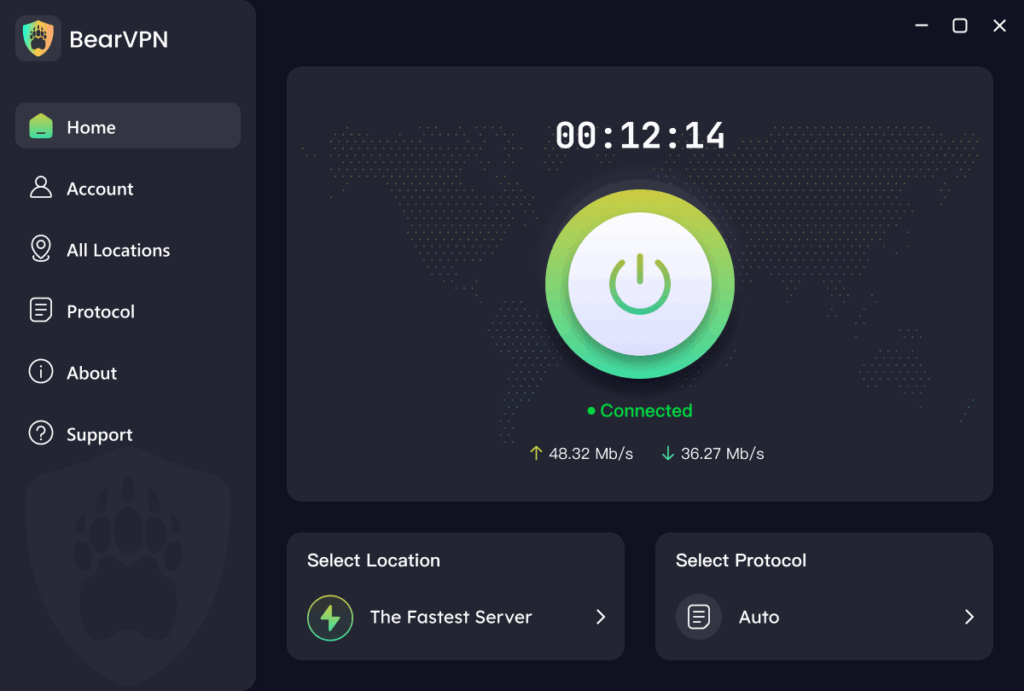
BearVPN isn’t just a security tool; it is a high-performance network optimizer that forces your data onto a cleaner, more direct path.
- Intelligent Routing Technology: BearVPN utilizes smart routing algorithms specifically designed to ensure smooth, lag-free experiences, whether you are streaming or playing games. By connecting to BearVPN, you bypass the ISP’s congested “backroads” and jump onto a high-speed lane.
- Global Server Coverage: With over 2,000 servers covering 50+ regions, BearVPN allows you to physically bridge the gap between you and the game server. If the game host is in Frankfurt, connecting to a BearVPN Frankfurt node ensures your data travels the bulk of the distance on BearVPN’s optimized network, not your ISP’s cheap route.
- Bypassing Throttling: ISPs often throttle high-bandwidth activities. BearVPN employs Advanced Encryption to ensure secure data transmission. This prevents your ISP from inspecting your traffic, meaning they cannot slow you down just because you are gaming or downloading updates.
- Unlimited Bandwidth: Unlike budget tools that cap your speed, BearVPN offers unlimited bandwidth with no traffic restrictions, ensuring your connection doesn’t degrade during long competitive sessions.
The Real-World Result:
- Scenario A: Your ISP takes a zigzag route to the server with 15 hops.
- Scenario B: You use BearVPN’s One-Click Connection. The interface is simple, requiring no technical background. You instantly switch your IP, encrypt your traffic, and force a direct route. Result: A stable connection, reduced packet loss, and lower ping.
BearVPN is free and reliable, supporting Windows, iOS, Android, and macOS, making it an ideal choice for gamers on any platform looking to enhance privacy and performance simultaneously.
9. Region Selection
If you live in Texas, do not play on “US East” if “US Central” is available. This seems obvious, but many games default to “Auto,” which can sometimes throw you into a server with a higher population but worse ping. Always manually select your server region in-game.
How to Lower Ping: The Advanced Fixes
10. Disable “Interrupt Moderation”
This is a deep technical tweak for Ethernet users.
- Go to Device Manager > Network Adapters > Right-click your Ethernet Controller > Properties > Advanced.
- Look for Interrupt Moderation.
- Set to Disabled.
Interrupt Moderation groups data packets together to reduce CPU load. This is great for file transfers but bad for gaming, where you want every packet sent immediately. Disabling this increases CPU usage slightly but forces the PC to process network data instantly.
11. Negotiate with your ISP (Static IP)
Dynamic IPs change frequently and can sometimes cause session disconnects. Requesting a Static IP from your ISP prevents this. Furthermore, ask your ISP if they can switch your profile to “Fast Path” (Interleaved OFF). Interleaving adds error correction but increases ping. Turning it off lowers ping but requires a stable line.
12. Avoid “Peak Hours” (Or use a VPN)
Between 7:00 PM and 11:00 PM, neighborhood nodes get congested because everyone is streaming 4K video.
If you notice your ping skyrockets only at night, this is ISP Throttling or Node Congestion.
- The Fix: You can’t fix the congestion, but you can fix the throttling. This is another area where BearVPN shines. By encrypting your traffic, your ISP cannot see that you are gaming, preventing them from automatically throttling your speed during peak hours.
13. Beware of “Ping Booster” Software
Many apps claim to “reroute” traffic specifically for games (ExitLag, WTFast, etc.).
The Critique: While these can work, they often lack security. They act as a proxy for the game but leave the rest of your PC exposed.
Why BearVPN is the Better Choice: BearVPN offers the same routing benefits (optimizing the path to the server) but applies military-grade encryption to your entire connection. You get the speed benefits for gaming, plus privacy for your browsing, without paying for a single-use tool that does nothing for your security.
Conclusion
Lowering your ping in 2025 isn’t about one magic button. It is about removing bottlenecks.
- Hardware: Switch to Ethernet (Cat6) to stop interference.
- Network: Use an SQM-enabled router to stop Bufferbloat.
- Routing: Use BearVPN to bypass ISP throttling and bad peering routes.
If you have optimized your hardware and are still experiencing lag spikes, the problem is almost certainly the route your ISP is taking. This is where a gaming-optimized VPN becomes an essential tool in your arsenal, not just for privacy, but for performance.
Don’t let a bad route ruin your rank.
Frequently Asked Questions about How to Lower Ping
Q: Does upgrading to 1Gbps internet lower my ping?
A: Generally, no. Bandwidth is the width of the pipe; Ping is the speed of the water. Unless your network is clogged by family members streaming 4K video, paying for faster speeds won’t make data travel to the server any faster.
Q: Why do I lag specifically when I see an enemy?
A: That is usually Packet Loss or a Hardware Bottleneck, not high ping. Your PC is struggling to process new data (the enemy player model) instantly. If your hardware is good, use BearVPN to fix the packet loss; if your hardware is old, lower your graphics settings.
Q: Is 5G good enough for ranked gaming?
A: No. 5G is fast but unstable. It suffers from Jitter (ping spikes). You might have low ping for 10 seconds and then a massive spike. For competitive play, consistency is key—stick to a wired connection.
Q: Can a VPN lower ping if the server is overseas?
A: Physics still applies—distance equals time. However, BearVPN can fix the routing. It ensures your data takes the most direct fiber path to that overseas server, avoiding the inefficient detours your ISP might take to save money.
Q: Why is Wi-Fi 6 still worse than an old Ethernet cable?
A: Wi-Fi is “half-duplex” (it waits to send/receive); Ethernet is “full-duplex” (sends and receives simultaneously). A $5 cable offers more stability than a $300 wireless router because it eliminates the need for “airtime” negotiation.