If your iPad suddenly blocks apps, games, or websites with “not allowed” messages, you’re probably running into Apple’s age and content restrictions. These settings can be useful, but confusing, especially when you just want a specific app to work. This guide walks you through how to change age restrictions on iPad, adjust parental controls for kids, fix common issues, and add extra privacy protection for everyday browsing—without breaking the rules you care about.
Understanding Age Restrictions on iPad
Before you change anything, it helps to understand what age restrictions actually do on an iPad. Most of the controls you care about live under Screen Time and Content & Privacy Restrictions, and they don’t just affect one app—they apply across the entire device. Knowing this structure makes it much easier to change or relax age limits without breaking everything else.
Age restrictions on iPad combine several elements:
- Content ratings for apps, games, and media (like 4+, 9+, 12+, 17+).
- Restrictions for movies, TV shows, books, and music based on region and rating systems.
- Web content filters, which can block adult content or allow only specific websites.
These controls decide what can be accessed: certain games, social apps, streaming content, and websites. They don’t handle things like encrypting your connection, hiding your IP, or stopping third-party trackers—that’s a different layer of protection you’ll see later in this guide.
How to Change Age Restrictions on iPad with Screen Time
The main way to change age restrictions on an iPad is through Screen Time. Whether you want to allow a 12+ game, unblock a 17+ app, or relax content restrictions for yourself, the process always starts in Settings. Once you know where things are, “how to change age restrictions on iPad” becomes a straightforward task instead of a guessing game.
Follow these steps to adjust age and content limits on a single iPad:
Step 1. Open Settings and tap Screen Time. If it’s off, turn Screen Time on.
Step 2. If prompted, choose whether this iPad is for you or for a child.
Step 3. Tap Content & Privacy Restrictions, then turn the toggle On.
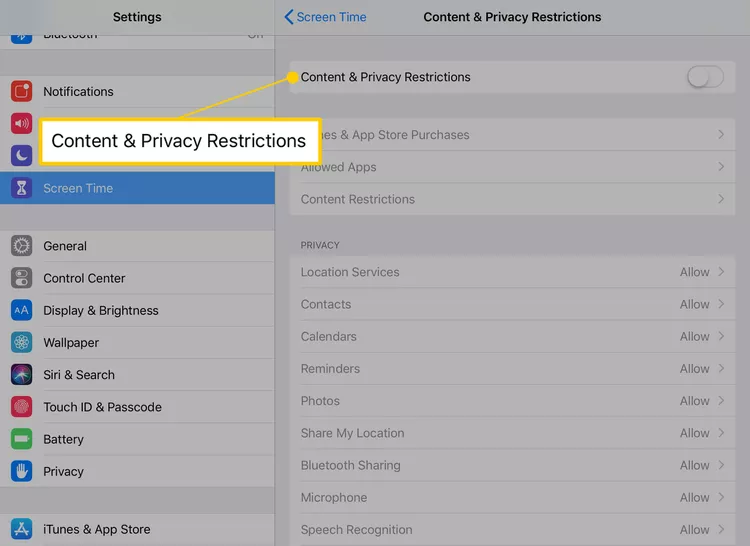
Step 4. Tap Content Restrictions.
Step 5. Under Apps, choose the age rating you want (for example, 9+, 12+, 17+, or Allow All Apps).
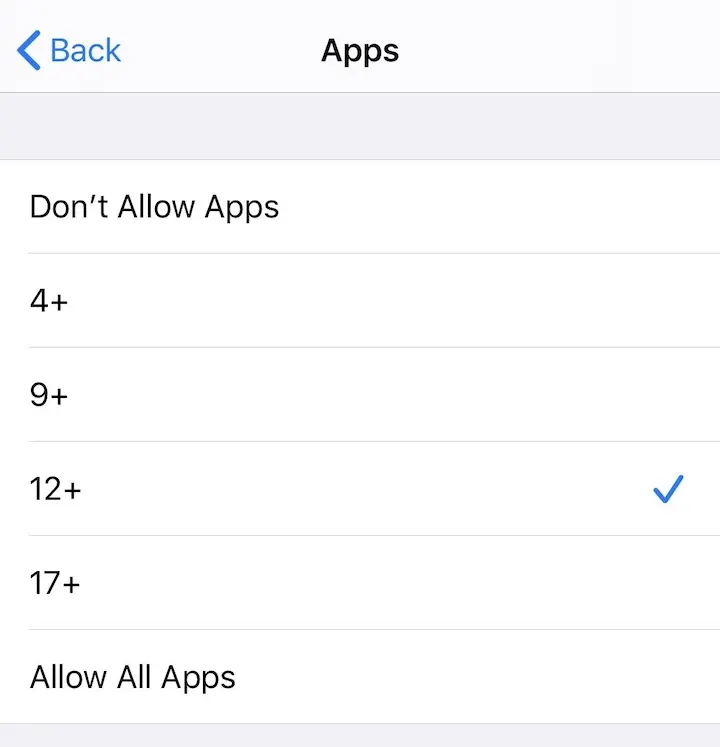
Step 6. Review other sections like Movies, TV Shows, Books, and Music, Podcasts & News to set limits that make sense for you.
Step 7. Exit Settings and check whether previously blocked apps or content now open correctly.
If you want to prevent others from changing these settings, create a Screen Time passcode. Just remember it: forgetting this code is one of the most common reasons people later can’t change age restrictions on iPad at all.
How to Adjust Restrictions for a Child’s iPad with Family Sharing
Many people aren’t just changing age limits for themselves—they’re managing a child’s iPad connected through Family Sharing. In that case, “how to change age restrictions on iPad” often really means “how to control my child’s device remotely without constantly taking it away.” Apple supports this, but the path is slightly different from a standalone device.
Here’s how to adjust age restrictions for a child’s iPad using Family Sharing:
- On your own device, open Settings and tap your Apple ID name at the top.
- Tap Family (or Family Sharing), then choose your child’s account.
- Tap Screen Time for that child.
- Select Content & Privacy Restrictions, enable it, and then open Content Restrictions.
- Set age ratings for apps, games, movies, TV shows, and other media according to what you’re comfortable with.
- Combine this with Downtime, App Limits, and Communication Limits if you want broader parental controls.
The advantage of this approach is that you can change age restrictions on a child’s iPad from your own device, without needing physical access every single time. It’s also harder for a child to bypass, as the rules are tied to their Apple ID and your family settings.
Special Cases: Apple ID Age vs Screen Time Limits
If you search for how to change age restrictions on iPad, you’ll also see advice about changing your Apple ID birthday. That can be confusing, because “changing your age” on the account is not the same as changing Screen Time restrictions—and in many cases, it’s not the right solution.
Your Apple ID birthday affects how Apple classifies the account (adult or child) and which services are available. For adults, you can usually update your birthday under Settings > [Your Name] > Personal Information > Birthday. For children’s accounts, especially those created under Family Sharing, Apple often restricts how much the age can be changed and may block converting a child into an adult too early.
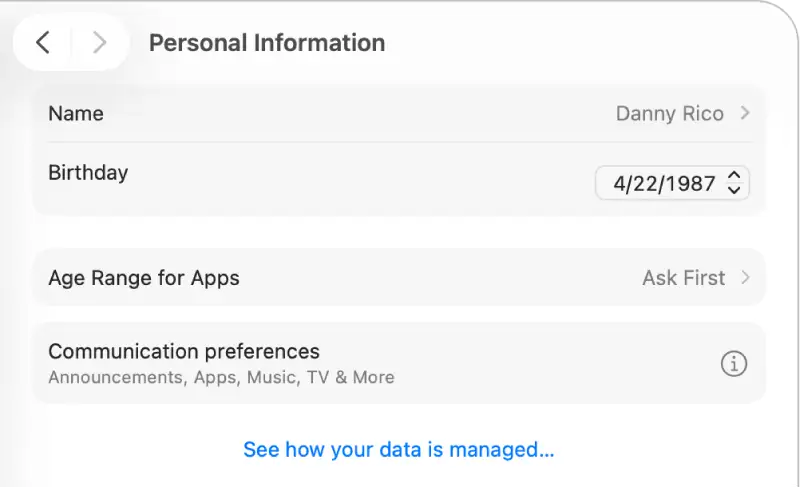
For most people, especially when the main problem is “this app is blocked” or “this website won’t open,” you don’t need to change the Apple ID birthday. It’s almost always safer and more direct to use Screen Time and Content Restrictions instead of trying to trick the system into thinking you’re older than you are.
Related Post: How to Remove iOS Age Restriction in Discord Without Breaking the Rules
Troubleshooting When Age Restrictions Won’t Change
Sometimes you follow all the steps, and your iPad still acts as if nothing has changed. This doesn’t necessarily mean something is broken, but it does mean there’s another layer involved. When you’re stuck, it helps to systematically check the most common problems that block changes from taking effect.
Start with the basics:
- Forgotten Screen Time passcode
- If you’re asked for a Screen Time code and don’t remember it, you won’t be able to change age restrictions on iPad until it’s reset. On newer systems, you can use your Apple ID to reset it. If that doesn’t work, you may need to follow Apple’s official recovery process.
- If you’re asked for a Screen Time code and don’t remember it, you won’t be able to change age restrictions on iPad until it’s reset. On newer systems, you can use your Apple ID to reset it. If that doesn’t work, you may need to follow Apple’s official recovery process.
- Settings overridden by another device
- If Screen Time is set to Share Across Devices, an older setting on your iPhone or Mac might overwrite new changes you make on the iPad. Check all linked devices under the same Apple ID and make sure the rules are consistent.
- If Screen Time is set to Share Across Devices, an older setting on your iPhone or Mac might overwrite new changes you make on the iPad. Check all linked devices under the same Apple ID and make sure the rules are consistent.
- School or company-managed iPads (MDM)
- If the iPad belongs to a school or employer, it may be managed by a Mobile Device Management (MDM) profile. In that case, some age and content restrictions are locked at the organization level. You’ll usually see a message indicating the device is supervised, and there may be options you simply can’t change.
If none of these apply and you still can’t change or save age restriction settings, consider restarting the iPad, updating iPadOS, or temporarily turning Screen Time off and then back on. Just remember that turning it off entirely may clear existing Screen Time data.
Why Age Restrictions Alone Are Not Enough for Online Safety
Adjusting age restrictions on iPad helps decide what content is visible, but it doesn’t fully control what happens to your data while you’re browsing. You might manage to allow a game, unblock a streaming app, or relax web filters, but the connection itself can still be exposed, especially on public Wi-Fi or shared networks.
Age and content limits are designed for content safety, not network privacy. They don’t encrypt your traffic, hide your IP address, or stop Wi-Fi providers and advertisers from analyzing your behavior. They also don’t help much when you’re traveling to another country and find that certain apps or services behave differently or become less accessible.
That’s where pairing Screen Time with privacy and security tools becomes valuable. Instead of thinking “either restrictions or freedom,” you can keep reasonable age limits in place while also strengthening how your iPad connects to the internet.
Using a VPN on iPad for Safer Browsing
Once your age restrictions and parental controls are in a good place, the next question is how to make everyday browsing safer—especially on public Wi-Fi, when traveling, or when multiple people share the same iPad. A Virtual Private Network (VPN) adds that extra layer by encrypting your traffic and helping keep your activity more private.
On an iPad, a VPN routes your internet connection through an encrypted tunnel. That makes it much harder for Wi-Fi providers, snooping users on the same network, or opportunistic attackers to see which sites and services you use. It also helps reduce tracking based on your IP address and location.
BearVPN is designed with mobile and tablet use in mind, so it works naturally alongside Apple’s age and content settings rather than trying to replace them. You can:
- Encrypt all iPad traffic with one tap – protecting browsing, apps, and streaming on both home and public networks.
- Use RAM-only servers and a strict no-logs approach – reducing the risk of your activity being stored long-term.
- Enable DNS leak protection and a kill switch – helping prevent your real IP and DNS requests from slipping out if the VPN connection drops.
- Use per-app routing (where available) – letting you choose which apps use the VPN and which connect directly.

A key point: using a VPN does not change Screen Time or age restrictions on iPad, and it should not be treated as a way to bypass rules set by parents, schools, or workplaces. Instead, it complements those rules by ensuring that whatever content is allowed can be accessed more securely and privately.
FAQs
1. If I turn off Content & Privacy Restrictions, do all age limits disappear?
Yes. Turning this off removes the active content rules under Screen Time, so apps and media follow standard App Store and system defaults. If you want lighter control, consider relaxing the ratings instead of turning everything off.
2. Can I allow one 17+ app but keep stricter limits elsewhere?
You can’t “whitelist” one 17+ app if your app rating is set below 17+. The usual workaround is to set Apps to Allow All Apps, then rely on your own usage rules, App Limits, or communication about what’s acceptable.
3. Do I have to change my Apple ID age to unblock apps?
In most cases, no. You can change age restrictions on iPad just by adjusting Screen Time and Content Restrictions. Changing the birthday on an Apple ID is rarely needed and can cause problems for managed child accounts.
4. Can someone remove restrictions if they know the Screen Time passcode?
Yes. Anyone with the Screen Time passcode can change or disable age and content limits. Pick a code that isn’t reused elsewhere, and don’t share it unless you’re comfortable with that person having full control.
5. Does using a VPN change Screen Time or age restriction behavior?
No. A VPN like BearVPN encrypts and routes your connection but doesn’t modify Screen Time rules, app ratings, or content filters. It improves privacy and security while the existing age restrictions continue to control what can be accessed.
Conclusion: Making Your iPad Safer and More Flexible
Changing age restrictions on iPad doesn’t have to be confusing or stressful. Once you understand how Screen Time, Content Restrictions, and Family Sharing work together, you can adjust app and media limits, fix blocked content, and create rules that feel fair. Add a privacy-focused VPN like BearVPN on top, and you get a device that is not only age-appropriate but also safer to use on the networks you rely on every day.