Key Takeaways
- Carrier Dynamics: Cellular IP addresses are assigned by your mobile provider and cannot be adjusted manually within standard iOS settings.
- Dynamic Nature: Most cellular IPs are dynamic, meaning they rotate automatically over time.
- The VPN Solution: Using a professional service like BearVPN is the only reliable way to instantly switch your public IP to a specific global location for streaming or privacy.
- Soft Resets: Toggling Airplane Mode is the fastest “quick fix” to attempt a local IP refresh from your carrier.
- Market Trends: As of 2026, over 31% of global internet users regularly use a VPN, with mobile devices (iOS and Android) dominating overall usage.
In 2026, your iPhone is more than a communication tool—it’s your wallet, your entertainment hub, your work device, and your primary gateway to the internet. Behind every tap, stream, and scroll sits one invisible detail that quietly shapes your online experience: your IP address. For iPhone users on cellular data, this IP determines what content you can access, how private your browsing really is, and even whether certain apps or services work at all.
An IP address acts like a digital return address. It tells websites and apps where you’re connecting from and which network you’re using. While this is essential for basic connectivity, it also enables geo-restrictions, targeted tracking, bandwidth throttling, and regional blocks—issues that mobile users are encountering more frequently than ever.
At the same time, global behavior is shifting. VPN adoption continues to rise year over year, driven largely by mobile users who want greater control over privacy and location. Streaming platforms enforce stricter regional licensing, governments expand online restrictions, and advertisers grow more aggressive with mobile tracking. As a result, understanding how to change—or at least influence—your cellular IP address is no longer a niche technical trick. It’s a practical skill for anyone who wants a faster, freer, and more private mobile internet experience.
Why You Might Want to Change Your Cellular IP Address
Your IP address is your “digital fingerprint,” revealing your general physical location and internet service provider (ISP) to every website you visit. In 2026, mobile users are increasingly changing their IPs for several critical reasons:
- Access Geo-Restricted Content: Unlock international streaming libraries like Netflix, Hulu, or Disney+ while traveling.
- Enhanced Mobile Privacy: According to GlobalWebIndex 2025 trends, nearly 37% of users rely on VPNs for safer access on public networks and to prevent tracking by advertisers.
- Bypass Network Restrictions: If your current IP has been flagged or “shadow-banned” by a specific gaming platform or social media app, a fresh IP provides a clean start.
- Troubleshoot “No Internet” Glitches: Changing your IP can resolve routing errors or connectivity conflicts caused by your carrier’s gateway.
- Avoid ISP Throttling: Some carriers limit speeds for high-bandwidth activities like 4K streaming; a new, encrypted IP can help bypass these restrictions.
3 Ways to Change Your IP Address on iPhone Cellular Data
While iOS doesn’t provide a manual “change IP” button for cellular data like it does for static Wi-Fi configurations, you can still trigger a change using these three proven methods.
Method 1: The “Airplane Mode” Refresh (The Quick Reset)
This is the fastest way to attempt an IP change without third-party tools. It performs a “soft reset” of your cellular radio, forcing a new handshake with your mobile carrier.
Step 1. Open Control Center: Swipe down from the top-right corner of your screen (on iPhone X or later) or up from the bottom (on older models).
Step 2. Activate Airplane Mode: Tap the Airplane icon. It will turn orange, and your cellular bars will disappear.
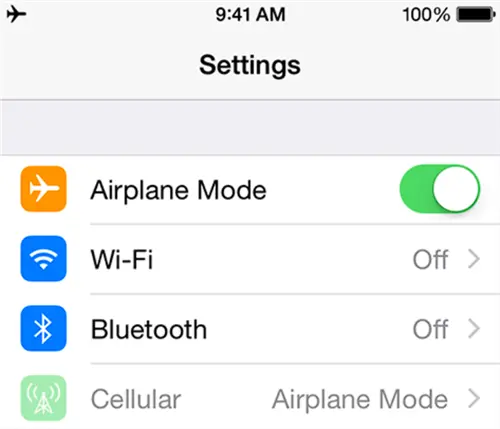
Step 3. The “Cool Down” Period: Wait 30 to 60 seconds. This duration is critical; it ensures that your carrier’s Gateway GPRS Support Node (GGSN) registers your session as closed and releases your previous IP back into their pool.
Step 4. Reconnect: Tap the icon again to turn Airplane Mode off. As your iPhone searches for the nearest tower, the carrier will typically assign a fresh dynamic IP address from its current available block.
Method 2: Use BearVPN (The Professional & Secure Way)
Airplane Mode only gives you a different local IP assigned by your provider, which doesn’t hide your general location or protect your data. For true privacy and the ability to “virtually travel” to another country, BearVPN is the industry standard.

Why BearVPN is the Ultimate Solution:
- Global Freedom: Instantly switch to an IP from 2000+ servers in core global cities.
- High-End Security: Unlike a simple carrier refresh, BearVPN wraps your cellular traffic in military-grade encryption using SLProxy and SCProxy protocols.
- Bypass Censorship: Specifically designed to work in high-restriction zones like the MENA region or Southeast Asia.
Step-by-Step Setup:
Step 1. Download & Install: Find BearVPN on the official iOS App Store.
Step 2. Choose Your Destination: Open the server list and pick a location—for example, select “Los Angeles, USA” to access US-specific content or “London, UK” for British libraries.
Step 3. One-Tap Connection: Hit the “Connect” button. BearVPN’s intelligent routing will automatically find the fastest path for your mobile data.
Step 4. Confirm the Change: Open your mobile browser and go to whatismyip.com. You will see that your public IP now reflects your chosen BearVPN server rather than your physical mobile tower.
Method 3: Reset Network Settings (The “Deep Clean”)
If your IP is “sticky” and won’t change when Airplane Mode is on, a network reset is the next step in troubleshooting. This clears the iPhone’s internal cache of DNS settings, DHCP leases, and cellular configurations.
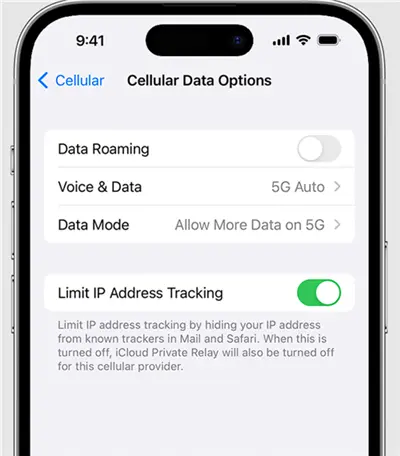
Pro Tip: This method is effective but invasive. It will delete all saved Wi-Fi passwords and Bluetooth pairings, so ensure you have your home Wi-Fi password handy before proceeding.
- Navigate to Settings > General.
- Scroll to the very bottom and tap Transfer or Reset iPhone.
- Tap Reset and then select Reset Network Settings.
- Authenticate: Enter your passcode to confirm. Your iPhone will immediately restart.
- Fresh Connection: Upon rebooting, your iPhone re-initializes its connection to the carrier’s packet gateway from scratch, which almost always forces the assignment of a new IP address.
Why BearVPN is the Best Choice for iPhone Users
In the competitive 2026 VPN landscape, BearVPN stands out by focusing on the specific needs of mobile power users:
Optimized for 5G & 4K Streaming
Modern iPhones are capable of 4K streaming over 5G, but most VPNs become the bottleneck. BearVPN operates dedicated high-bandwidth nodes optimized for platforms like Netflix, Hulu, and HBO, ensuring consistent speeds even on mobile data. Instead of random server hopping, traffic is intelligently routed through streaming-optimized paths, reducing buffering, resolution drops, and mid-stream disconnects—common frustrations for mobile users.
Advanced Stealth Technology for Restricted Regions
In high-censorship environments such as the MENA region or parts of Southeast Asia, standard VPN traffic is often flagged or blocked at the network level. BearVPN’s proprietary SLProxy and SCProxy protocols are designed to obfuscate VPN signatures, making encrypted traffic appear like normal HTTPS data. For iPhone users traveling or living in restrictive regions, this means stable connections that conventional VPNs simply fail to provide.
Unrivaled Mobile Privacy by Design
Privacy on cellular networks is uniquely vulnerable. Mobile carriers, advertisers, and analytics SDKs actively profile users based on IP behavior. BearVPN enforces a strict no-logs policy, ensuring that your browsing activity, app usage, and connection metadata are never stored or shared. Combined with built-in DNS and IPv6 leak protection, this creates a clean privacy layer specifically tuned for iOS environments.
Low-Latency Performance for Competitive Gaming
Mobile gaming in 2026 is no longer casual-only. Competitive titles demand low ping and stable routing, especially on cellular connections. BearVPN’s network prioritizes latency-sensitive traffic, reducing jitter and packet loss. For gamers dealing with IP-based matchmaking issues or regional server locks, switching to a nearby BearVPN node often results in smoother gameplay and fewer disconnects.
One Account, Total Coverage Across Devices
Modern users don’t live on a single screen. With one BearVPN account, you can protect up to 10 devices simultaneously—your iPhone on cellular data, your iPad on public Wi‑Fi, and your MacBook at home or while traveling. This unified approach ensures consistent privacy and location control across your entire Apple ecosystem, without juggling multiple subscriptions.
In short, BearVPN isn’t just compatible with iPhone—it’s engineered for how iPhone users actually use the internet in 2026.
Troubleshooting: IP Not Changing?
If you’ve followed the steps above and your IP remains the same, consider these common 2026 technical hurdles:
- Carrier “Sticky” IPs: Some mobile providers assign “sticky” dynamic IPs that won’t change even after an Airplane Mode toggle. In this case, a VPN is the only way to force a new public-facing identity.
- IPv6 Leaks: Some modern carriers use IPv6, which can occasionally “leak” your real identity even when using a basic proxy. BearVPN includes built-in DNS/IP leak protection to handle this automatically.
- Split Tunneling Conflicts: If you are using Split Tunneling, ensure the app you are testing (like your browser) is actually set to go through the VPN tunnel.
- High-Censorship Regions: In restricted areas like the UAE or Russia, carriers may actively block standard VPN ports. Switch to BearVPN’s obfuscated protocols to bypass these blocks.
Conclusion
Navigating the mobile web in 2026 requires more than just a data plan—it requires the ability to control your digital identity. While simple tricks like Airplane Mode offer a quick refresh, only a dedicated tool like BearVPN provides the location-switching power and security needed for true internet freedom.
Take control of your mobile privacy today.
Frequently Asked Questions on Changing the IP Address on iPhone
Is it legal to change my IP on cellular data?
Yes, changing your IP for privacy and security is legal in most countries. However, users should always comply with local regulations, especially in high-restriction regions such as Iran or Myanmar, where VPN usage may be regulated or limited.
Does a VPN slow down my cellular speed?
Encryption introduces a small overhead, but modern VPNs are optimized for mobile networks. BearVPN uses high-speed protocols like WireGuard and SCProxy to maintain near-native speeds, even on 5G connections.
Can my mobile carrier see my VPN activity?
Your carrier can see that a VPN connection exists, but it cannot see the websites you visit, the apps you use, or the data you transmit. All traffic inside the VPN tunnel is fully encrypted.
Will changing my IP fix a “shadow ban” on social media?
In many cases, yes. Platforms often restrict or throttle accounts based on IP reputation. Switching to a clean IP from a trusted VPN server can help restore access, though account-level bans may still apply.
Can I change my IP to a specific city?
Yes. With BearVPN, you can select servers in specific cities across major global regions, allowing you to appear as if you’re browsing locally from that area.
What’s the difference between a local IP and a public IP on iPhone?
A local IP is assigned within your carrier’s internal network and is not visible to websites. A public IP is what websites see and use to determine your location. VPNs change your public IP, which is what matters for privacy and geo-restrictions.
Why doesn’t Airplane Mode always change my IP?
Some carriers use “sticky” dynamic IPs that remain the same across short reconnections. In these cases, toggling Airplane Mode may not trigger a new IP assignment, making a VPN the only reliable solution.
Can I use a free VPN to change my cellular IP?
Free VPNs often come with severe limitations, such as slow speeds, data caps, limited server locations, and potential privacy risks. Many also reuse overcrowded IPs that are already blocked by streaming platforms and apps.