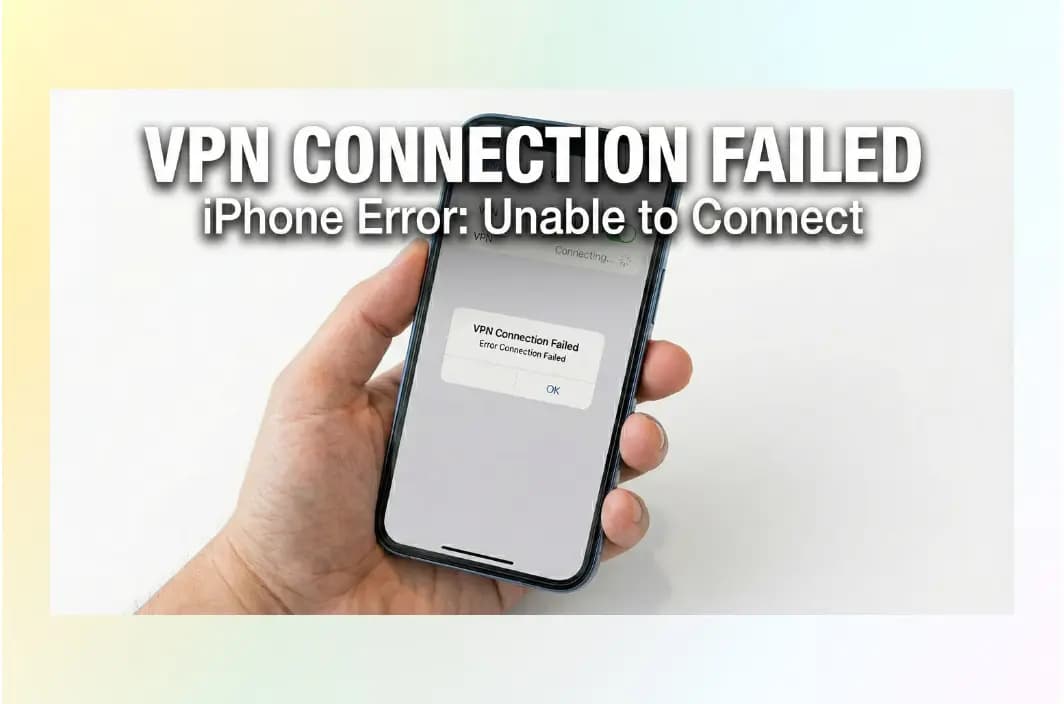
It’s 2026, and while the new Liquid Glass interface in iOS 26 makes your iPhone look more futuristic than ever, it hasn’t solved the age-old frustration of a VPN that simply refuses to connect. Whether you are a digital nomad in Southeast Asia trying to access your crypto accounts or a student in a high-restriction zone, a broken VPN isn’t just an inconvenience—it’s a security risk.
Key Takeaways: Quick Summary
- Quick Answer: Most iPhone VPN issues in 2026 are triggered by unstable network handoffs (switching from 5G to Wi-Fi), iOS 26’s new “Adaptive Power” mode, or deep packet inspection (DPI) from your ISP.
- The Best Solution: Switching to a provider with specialized, obfuscated protocols like BearVPN’s SLProxy or SCProxy is the most effective way to bypass regional blocks and ISP throttling instantly.
- Checklist: Always ensure your Kill Switch isn’t active while you’re trying to reconnect, and verify that your subscription hasn’t expired—two of the most common “invisible” errors.
Why is My VPN Not Working on My iPhone? Common 2026 Culprits
Understanding why your connection is failing is the first step toward fixing it. In the 2026 landscape, the reasons have become more nuanced due to Apple’s aggressive privacy updates and smarter network filtering by ISPs.
Network Handoff Glitches
Modern iPhones constantly switch between 5G, Wi-Fi 7, and public networks in search of the fastest signal. Every switch changes your IP address and routing path. For a VPN, this means the encrypted tunnel must be rebuilt in real time.
Many VPN protocols are not designed for frequent handoffs. When the transition happens too quickly, the tunnel may enter an unstable state. This typically results in endless “Connecting” screens, sudden disconnections when the screen locks, or a VPN that shows “Connected” but blocks all traffic.
This behavior is widely reported by users, especially on Wi-Fi networks. In 2026, the problem became more common because iOS now prioritizes fastest-path routing, causing network changes to happen more often than before.
iOS 26 “Adaptive Power” Restrictions
Adaptive Power is another major source of VPN instability. The system automatically limits background activity to reduce battery drain, and persistent encrypted connections are often classified as high-energy tasks.
When power management intervenes, iOS may suspend the VPN process or terminate the tunnel without warning. The app may still display “Connected,” even though traffic is no longer protected.
Mobile security research from OWASP shows that background throttling is one of the leading causes of unstable tunnels and temporary traffic leakage. In practice, this explains why VPNs often disconnect when the screen locks, the battery drops, or the device overheats.
ISP Throttling and Deep Packet Inspection
ISP interference is now a global issue, not limited to heavily censored countries. Modern networks use Deep Packet Inspection to identify VPN traffic based on timing patterns and protocol fingerprints.
Once detected, the connection may be throttled, reset after fixed intervals, or blocked entirely. AV-Test reports that more than one-third of standard VPN protocols fail consistently in filtered networks without obfuscation. Freedom House also notes that over 30 countries actively interfere with VPN traffic.
This is why many users find that their VPN works on mobile data but fails on home Wi-Fi, or connects successfully but becomes unusably slow.
Fragmented VPN Profiles After iOS Updates
System updates are a quieter but frequent cause of failure. iOS 26 introduced stricter VPN authorization rules, and profiles created on older versions may no longer have proper system permissions.
The result is a VPN that installs correctly but cannot establish a connection to the network stack. This explains why deleting and reinstalling the VPN profile remains one of the most reliable fixes.
10 Solutions to Fix Your iPhone VPN Not Working
Follow these steps in order. Start with simple resets and move gradually toward deeper system and protocol adjustments. In most cases, the problem can be resolved without reinstalling the operating system or changing providers.
1. Perform a “Fresh Start” Reset
Before changing any advanced settings, reset both the VPN app and your network state. Temporary DNS records or inactive routing paths can prevent the tunnel from rebuilding correctly.
Close the VPN app completely, enable Airplane Mode for about 10 seconds, then turn it off and restart your iPhone. This clears cached network sessions and forces iOS to rebuild its routing table from scratch.
2. Update the VPN App to the Latest Version
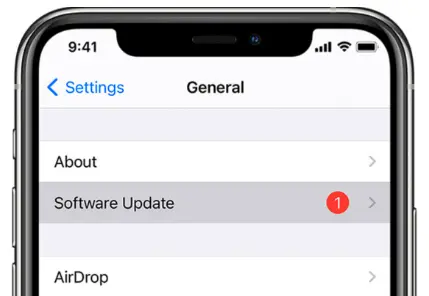
Running an outdated VPN client on a new iOS version is one of the most common causes of instability. VPN providers frequently release compatibility patches after major iOS updates to fix background execution issues, handshake failures, and new permission restrictions.
Open the App Store and confirm that you are using the latest version of your VPN app before troubleshooting further.
3. Switch to an Obfuscated or “Stealth” Protocol
If your VPN connects but fails to pass traffic, or disconnects repeatedly, your ISP may be detecting and interfering with standard VPN protocols.
Open the VPN app’s protocol settings and switch from automatic selection to an obfuscated or stealth mode if available. These modes disguise VPN traffic as regular HTTPS traffic and are often the only reliable solution in restricted or heavily filtered networks.
This step alone resolves a large percentage of Wi-Fi-only VPN failures.
4. Delete and Reinstall the VPN Profile
iOS stores VPN settings in a system configuration profile. After major iOS updates, these profiles may become partially invalid.
Go to Settings → General → VPN & Device Management, delete the existing VPN profile, then reopen the VPN app and allow it to install a fresh configuration. This refreshes system permissions and restores proper kernel-level networking access.
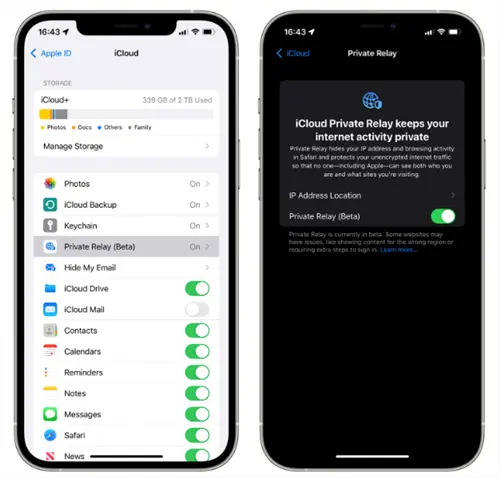
5. Disable Apple’s iCloud Private Relay
iCloud Private Relay functions as a system-level proxy. When both Private Relay and a VPN attempt to control the same traffic, conflicts are common.
Go to Settings → Apple ID → iCloud → Private Relay and temporarily turn it off while using your VPN. This avoids routing conflicts and eliminates a frequent cause of stalled connections.
6. Change Server Location or Region
Sometimes the issue is not your device but the server itself. A specific city or region may be congested, under maintenance, or blocked by local networks.
Manually select a server in a different geographic region and reconnect. Nearby regions often provide better stability than distant endpoints.
7. Check Account and Device Limits
Many “connection failures” are actually account restrictions. Most VPN subscriptions limit the number of simultaneous devices.
If your account is already connected on multiple phones, laptops, or tablets, your iPhone may be refused silently. Log out from unused devices or disconnect inactive sessions before reconnecting.
8. Disable “Limit IP Address Tracking” on Wi-Fi
Apple’s “Limit IP Address Tracking” feature can interfere with VPN routing on some networks.
Go to Settings → Wi-Fi → [Your Network] and turn this option off. This allows the VPN to control routing directly and often resolves “No Internet” errors when connected.
9. Reset Network Settings (Advanced Step)
If none of the above works, reset your network configuration.
Go to Settings → General → Transfer or Reset iPhone → Reset → Reset Network Settings. This clears saved Wi-Fi networks, DNS overrides, and routing rules. After rebooting, reconnect to Wi-Fi and try the VPN again.
This step fixes many hidden configuration conflicts.
10. Test on a Different Network
Finally, connect your iPhone to a different Wi-Fi network or use mobile data.
If the VPN works immediately on another network, the problem is almost certainly caused by your original ISP, router firewall, or network-level filtering. In these cases, obfuscated protocols or private DNS are usually required for long-term stability.
How to Fix iPhone VPN Issues with BearVPN (Step-by-Step)
If you are a BearVPN user, most connectivity issues can be resolved in under two minutes by following these specific 2026 optimization steps.
Step 1: Restart BearVPN & Your Device
It sounds basic, but a full restart clears the temporary cache and resets the DNS resolver. In the Liquid Glass interface, ensure you have completely “swiped up” to close the BearVPN app before restarting your iPhone 17 or older models.

Step 2: Update to the Latest Version
The 2026 internet landscape moves fast. Ensure you are using the latest version from the BearVPN Download Page. Our latest patches include specific fixes for the iOS 26.2 connection bugs reported by the community.
Step 3: Switch to SLProxy or SCProxy Protocols
If the “Smart Connect” feature fails, go to Settings > Protocol within the BearVPN app. Switch from the default to SLProxy or SCProxy. These protocols are specifically engineered to wrap your data in an additional layer of obfuscation, making your VPN traffic look like standard HTTPS traffic to your ISP.
Step 4: Reinstall the VPN Profile
Sometimes the iOS configuration file itself is the problem.
- Go to Settings > General > VPN & Device Management.
- Find the BearVPN profile and tap “Delete VPN”.
- Open the BearVPN app again. It will prompt you to “Add VPN Configurations.” Tap Allow and authenticate with FaceID.
Why BearVPN is the Best Choice for iOS Stability
While many legacy VPNs have struggled to keep up with Apple’s 2026 security changes, BearVPN remains the gold standard for iPhone users, especially those in Critical zones like Southeast Asia or the MENA region.
- High-Speed Global Infrastructure: We maintain 2,000+ servers across every major global hub, ensuring that if one node is congested, you have hundreds of others to choose from.
- Engineered for 2026 Challenges: Our SLProxy and SCProxy protocols are not just marketing buzzwords; they are survival tools for users in high-censorship areas where standard VPNs are blocked at the protocol level.
- Adaptive to “Adaptive Power”: BearVPN is optimized to work seamlessly with iOS 26’s power management, ensuring your connection stays active even when your battery is low, without triggering excessive drain.
- Strict No-Logs Policy: Your privacy is non-negotiable. Even if your connection drops, our Kill Switch ensures no unencrypted data ever leaks to the public web.
- Protect the Whole Family: A single BearVPN account supports 10 simultaneous device connections, allowing you to secure your iPhone, iPad, and MacBook.
What if the VPN Still Won’t Connect?
If the steps above didn’t work, the issue might be hidden deep in your iPhone’s advanced network settings.
Check for IP & DNS Leaks
Even if the app says “Connected,” your real location might be leaking through DNS. Use the built-in DNS/IP Leak Protection in the BearVPN app settings to ensure all queries are routed through our private, encrypted DNS servers.
Disable “Limit IP Address Tracking”
Apple’s “Limit IP Address Tracking” feature (found in Settings > Wi-Fi > [Your Network]) can sometimes conflict with VPN tunnels. Toggling this OFF allows BearVPN to take full control of the network stack, often resolving “No Internet” errors while connected.
Clear Browser Cache & Location Services
Apps like Safari or TikTok often store your physical location in their cache. If you connect to a US server but Safari still shows your local results, go to Settings > Safari > Clear History and Website Data. Also, consider disabling Location Services for specific apps while using the VPN to prevent GPS-based tracking.
Conclusion
A malfunctioning VPN on your iPhone shouldn’t be the reason you lose your digital freedom. Whether it’s an iOS 26 glitch or an ISP block, the solutions are almost always a few taps away.
Don’t let technical hurdles compromise your privacy or access to the global web. With industry-leading protocols and a commitment to your anonymity, BearVPN offers the most reliable “always-on” protection for your mobile devices.
Ready to experience the internet without limits? Start your BearVPN journey today!
FAQs on VPN Not Working on iPhone
Is it legal to use a VPN on my iPhone?
In most Western countries, yes. However, if you are in “Restricted Zones” like India (where logging is mandatory), the UAE (where VoIP bypass is restricted), or Russia (where many VPN sites are blocked), you should exercise caution. BearVPN advocates for internet freedom but advises users to remain aware of local legal frameworks.
Does a VPN slow down my iPhone speed?
Any encryption adds a small amount of overhead. However, BearVPN’s Smart Routing technology selects the lowest-latency server based on your actual network path, minimizing the impact so you can still enjoy buffer-free 4K streaming and low-ping gaming.
Why does my VPN keep disconnecting?
The most common reason is the iOS “Background App Refresh” setting or Adaptive Power Mode cutting the VPN’s background activity. Ensure BearVPN has permission to run in the background in your iPhone settings.
Can I use a free VPN instead?
We strongly advise against it. Free VPNs often lack the advanced SCProxy protocols needed to bypass 2026-era DPI blocks. Furthermore, many “free” providers survive by logging and selling your browsing data—the exact opposite of what a VPN should do.
How many devices can I connect to BearVPN?
You can protect up to 10 devices simultaneously with a single account, making it easy to secure your entire digital life.