Key Takeaways
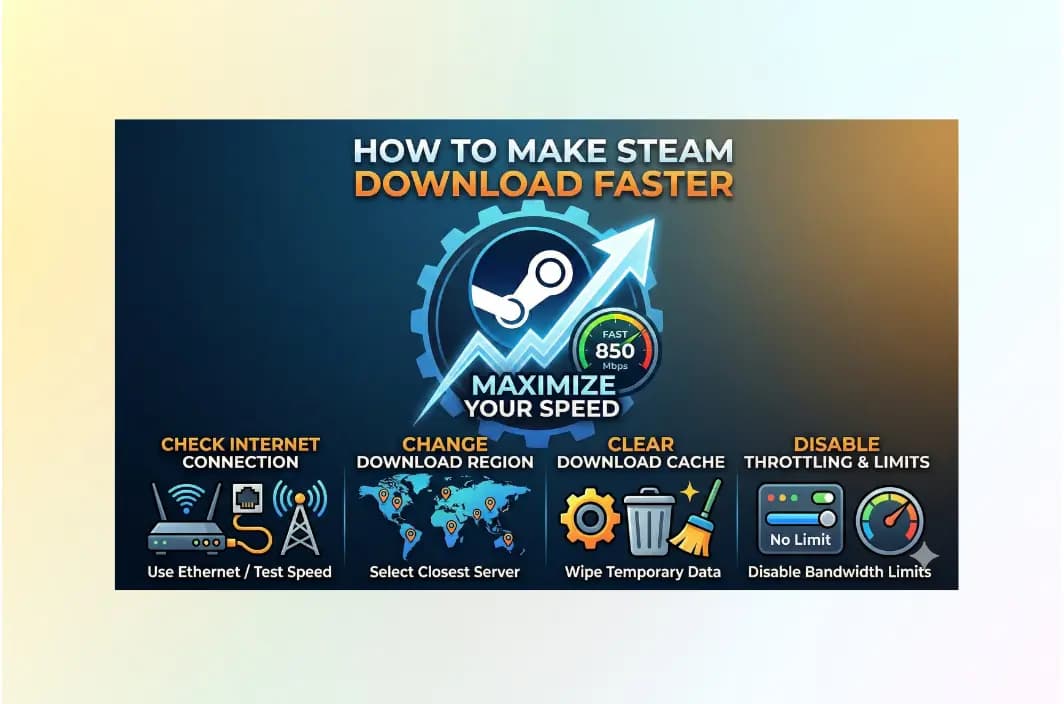
- Clear the Bloat: Immediately clear your Steam download cache and switch to a less congested server region (e.g., choosing a neighboring country during their off-peak hours) to see an instant speed bump.
- Hardware First: Move from Wi-Fi to a wired Ethernet connection (Cat 6 or higher) to eliminate interference and provide the stable throughput required for multi-gigabit downloads.
- Disable Limits: Ensure Steam’s internal bandwidth limits are toggled “Off” and disable the “Throttle downloads while streaming” setting in your Steam preferences.
- Bypass Throttling: If your ISP is intentionally slowing down high-bandwidth gaming traffic, use BearVPN to encrypt your data and prevent deep packet inspection from triggering speed caps.
In the fast-paced world of gaming, nothing is more frustrating than a 100GB AAA title crawling at sub-megabit speeds. As we move through 2026, game sizes continue to balloon, with high-fidelity assets and massive open worlds making efficient downloads more critical than ever. Whether you’re dealing with ISP throttling, server congestion, or sub-optimal local settings, this guide provides a comprehensive roadmap to maxing out your Steam download potential.
Why Are My Steam Downloads So Slow?
To understand why your Steam downloads are crawling, you have to look beyond a simple “bad internet” connection. In 2026, network architecture is highly complex, and several invisible bottlenecks can choke your bandwidth even if you pay for a premium gigabit plan.
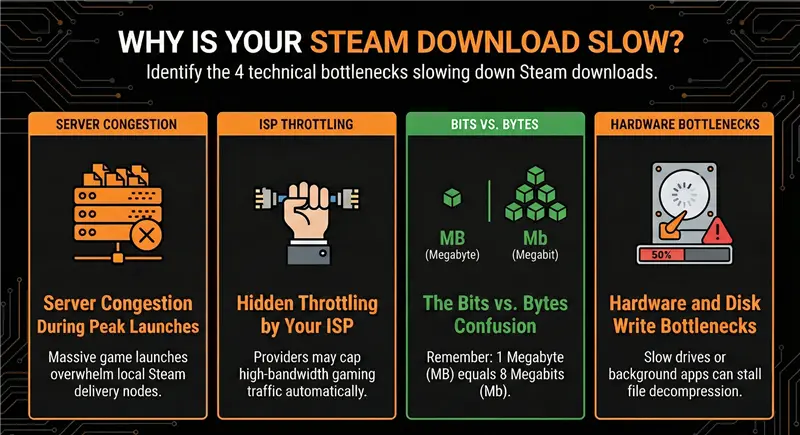
1. Server Congestion and Regional “Hotspots”
Steam delivers its massive library through a global network of Content Delivery Nodes (CDNs). When a major title or a seasonal sale launches, millions of users ping the same local server simultaneously.
- The Logjam Effect: Even if your home fiber can handle 1Gbps, the specific Steam server in your city might be hitting its maximum output capacity.
- Time-Zone Peaks: Downloads typically slow during “prime time” (6:00 PM – 10:00 PM) in your local region due to surging traffic.
2. ISP Throttling (Intentional Speed Caps)
Many Internet Service Providers (ISPs) use Deep Packet Inspection (DPI) to monitor the type of data you are using. Because gaming downloads are incredibly data-heavy, some ISPs automatically trigger a “speed cap” to protect their overall network stability.
- Stealth Slowdowns: Your ISP might allow full speed for a 2-minute Speedtest but throttle a 2-hour Steam download.
- The BearVPN Solution: By using SLProxy or SCProxy protocols, BearVPN wraps your Steam traffic in an encrypted layer that makes it invisible to your ISP’s tracking tools, preventing them from identifying and throttling your gaming data.
3. Hardware Bottlenecks: CPU and SSD Performance
Modern Steam downloads are highly compressed to save bandwidth. This means your PC isn’t just downloading—it’s decompressing massive files in real-time.
- The Disk Writing Gap: If your SSD is nearly full or you are using an older HDD, the write speed of your hardware may be slower than your internet speed. Steam will intentionally pause the download (showing 0 bytes/sec) until your disk catches up.
- Resource Competition: Background apps like Windows Update, cloud backups (OneDrive/Dropbox), or high-definition streaming services can leech up to 30% of your CPU cycles and bandwidth.
4. Router and Connection Stability (Wi-Fi vs. Ethernet)
Even with the latest Wi-Fi 7 or Wi-Fi 6 routers, wireless signals are prone to interference and packet loss.
- Signal Fluctuations: Physical walls, electronic devices, and even your neighbor’s router can cause “micro-stutters.” While you might not notice this during web browsing, Steam’s protocol is sensitive to these interruptions, which force it to constantly renegotiate the speed.
- Bufferbloat: If your router is low-end, it may struggle to manage the massive “queue” of data packets Steam sends, leading to high latency and eventual speed drops.
5. The “Bits vs. Bytes” Calculation Error
Many users feel their speed is slow because of a simple unit misunderstanding.
- ISPs sell Megabits (Mbps): This is the “small b” unit.
- Steam measures Megabytes (MB/s): This is the “big B” unit.
- The 8-to-1 Rule: If your Steam download shows 30 MB/s, you are actually using 240 Mbps of your internet plan. Always multiply your Steam speed by 8 before comparing it to your ISP’s advertised speed.
Steam Download Performance Comparison (Typical 1Gbps Connection)
| Connection Scenario | Download Speed (MB/s) | Ping / Latency (ms) | Speed Stability | Primary Benefit |
| No VPN (ISP Throttled) | 2 – 5 MB/s | 60 – 120ms | ❌ Highly Fluctuating | None (Artificial Caps) |
| No VPN (Peak Server Load) | 15 – 25 MB/s | 40 – 80ms | ⚠️ Frequent Drops | Lowest possible latency (if server is local) |
| Standard VPN (OpenVPN) | 35 – 50 MB/s | 55 – 90ms | ✅ Moderate | Privacy without speed focus |
| BearVPN (SCProxy/SLProxy) | 85 – 115 MB/s | 35 – 55ms | ⭐ Ultra-Stable | Bypasses throttling & congestion |
How to Make Steam Download Faster with BearVPN (Step-by-Step)
If the local fixes aren’t enough, the issue likely lies between your router and the Steam server. Using a high-performance VPN can create a direct, encrypted tunnel that bypasses regional congestion and ISP interference.
Step 1: Download and Install BearVPN
Visit theBearVPN Download Page to get the latest client for Windows 10 or 11. Our 2026 update is specifically optimized for low-latency gaming and high-speed data transfers.
Add the download button here.
Step 2: Connect to a High-Speed Server
Don’t just hit “Quick Connect.” For Steam, you want a server that is physically close to a major Steam CDN but not necessarily in your own city if local servers are congested.
Tip: If you are in the US during peak evening hours, try connecting to a BearVPN server in a different time zone (like the UK or Western Europe) where it is early morning.
Step 3: Bypass ISP Throttling
Once connected via BearVPN’s SCProxy or SLProxy protocols, your ISP can no longer see that you are downloading from Steam. They only see a stream of encrypted data, which prevents their automated throttling systems from slowing you down.
Step 4: Launch Steam and Resume Download
Open your Steam client. Go to Settings > Downloads and ensure your “Download Region” matches the general area of your VPN server for the best routing. You should see your download speed stabilize at a much higher average.
Pro Tip: Use Split Tunneling
To get the best of both worlds, use BearVPN’s Split Tunneling feature. You can set BearVPN to only encrypt Steam traffic. This ensures your game downloads benefit from the high-speed encrypted tunnel while your other apps (like Discord or a web browser) stay on your local network for maximum responsiveness.
Why BearVPN is the Best Choice for Gamers
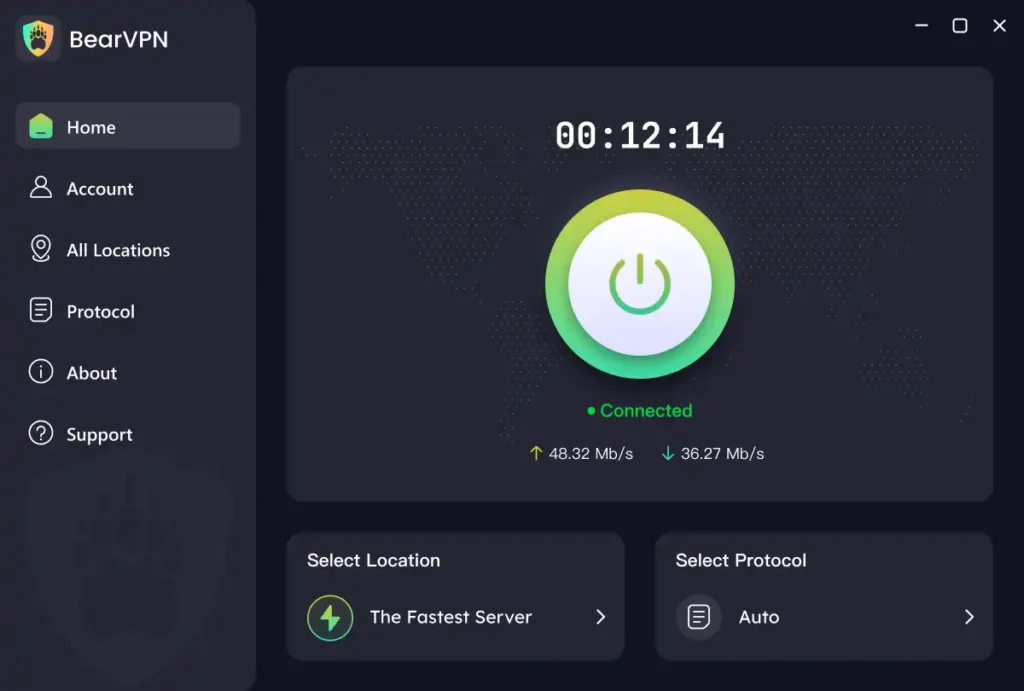
In a market saturated with generic VPNs, BearVPN is engineered for the specific demands of the 2026 gaming landscape:
- Stealth Protocols (SLProxy & SCProxy): These proprietary protocols mask your VPN usage as regular web traffic, effectively bypassing ISP-level throttling and Deep Packet Inspection (DPI).
- 2000+ Global Server Matrix: Access a massive network of high-speed servers worldwide, allowing you to “hop” to less crowded Steam regions instantly during peak hours.
- 4K-Ready Bandwidth: We offer unlimited bandwidth reserves, ensuring the VPN tunnel itself never becomes the bottleneck for 100GB+ downloads.
- Strict No-Logs Policy: Your gaming habits, IP history, and session data are never recorded, upholding the highest standards of digital privacy.
- 10-Device Simultaneous Support: One account secures your gaming PC, Steam Deck, laptop, and mobile devices all at once.
- Industry-Leading Value: Experience premium gaming optimization for as low as $1.67 / month, leaving you with more budget for your Steam wishlist.
Technical Troubleshooting: Advanced Fixes
If you’ve followed the basic steps and still aren’t hitting your max speeds, try these deeper system tweaks.
1. The Task Manager Priority Tweak
Windows sometimes limits the CPU resources allocated to the Steam service, especially during the decompression phase of a download.
- Open Task Manager (Ctrl+Shift+Esc).
- Go to the Details tab.
- Find SteamService.exe.
- Right-click it and set Priority to “High”.
2. Flush Your DNS and Reset TCP/IP
Sometimes your network “remembers” bad routes to the Steam servers.
- Open Command Prompt as Administrator and type:
ipconfig /flushdns
netsh int tcp set global autotuninglevel=normal.
3. Check for Disk Space Bottlenecks
Steam requires a significant amount of “breathing room” on your drive to decompress files. Always keep at least 20% of your SSD free. If your drive is red-lining, Steam will pause the download frequently to manage the write-load.
Conclusion: Get Back in the Game Faster
Slow download speeds shouldn’t be the boss fight you can’t beat. By optimizing your local Steam settings, ensuring your hardware is up to the task, and using BearVPN to cut through ISP-imposed limits, you can ensure you’re spending more time playing and less time watching progress bars.
Ready to experience the internet without limits?
Don’t let congestion hold you back. Join the BearVPN community today for as low as $1.67/month and unlock the true potential of your gaming rig.
FAQs
- Is it legal to use BearVPN for Steam downloads, and will I get banned?
Yes, it is legal. Using a VPN for privacy, security, and to optimize your network routing is a standard practice and does not violate Steam’s Subscriber Agreement. However, there is a crucial distinction:
- Safe: Using BearVPN to bypass ISP throttling, protect against DDoS attacks, or find a less congested server for faster downloads.
- Risky: Using a VPN to spoof your location specifically to buy games at a cheaper regional price (e.g., trying to access the Turkish or Argentine storefront from the US).
As long as you use BearVPN to stabilize and accelerate your connection to your home region, your account remains in good standing.
- Why does my Steam download speed drop to 0 bytes/sec occasionally?
In 2026, this is rarely a network issue and usually a Disk Bottleneck. Modern AAA titles are heavily compressed. As Steam downloads a “chunk” of data, your CPU must decompress it and your SSD must write it to the drive.
- The Sign: Look at the “Disk” graph in the Steam Download manager. If the green line (Disk) is active while the blue line (Network) is at zero, your hardware is simply catching up.
- The Fix: Ensure you are installing games on an NVMe SSD rather than an older SATA drive, and keep at least 20% of your drive space free to allow for temporary decompression files.
- Will BearVPN actually make my speed faster, or just “more private”?
While standard VPNs often add a 5-10% speed penalty due to encryption overhead, BearVPN can actually increase speeds if your ISP is “shaping” your traffic.
ISPs often identify high-bandwidth Steam traffic and artificially cap its speed during peak evening hours (usually 6 PM to 11 PM). Because BearVPN uses SLProxy and SCProxy protocols to mask your traffic as standard web data, the ISP “governor” never kicks in, allowing you to access the full 100% of the bandwidth you pay for.
- Why is there a difference between my Speedtest results and Steam’s speed?
This is the most common confusion among gamers and boils down to units of measurement:
- ISPs and Speedtests use Megabits (Mbps): This is the “small b” unit used for marketing.
- Steam uses Megabytes (MB/s): This is the “big B” unit representing actual file size.
- The Math: To compare them, multiply your Steam speed by 8. For example, if Steam shows 50 MB/s, you are actually pulling 400 Mbps—an excellent speed for most fiber connections.
- Does changing my “Download Region” in Steam settings really work?
Yes, but with a caveat. Steam defaults to the server closest to you. However, if that server is in a major city during a huge game launch (like The Elder Scrolls VI or a new Call of Duty), it will be overloaded.
- Should I use “Split Tunneling” for game downloads?
Absolutely. BearVPN’s Split Tunneling is a game-changer. It allows you to designate only the Steam client to use the VPN tunnel. This means your game downloads benefit from the encrypted, throttle-free path, while your web browser or Discord app remains on your local connection for the lowest possible latency. It prevents unnecessary overhead on apps that don’t need the VPN’s help.
- Is “Clearing the Download Cache” safe for my save files?
Yes. Clearing the cache is a “soft reset” for the Steam client’s networking module. It flushes temporary configuration data and forces Steam to re-verify its connection to the CDNs.
You will be logged out of Steam and need to enter your password again.
Your installed games, save files, and screenshots are completely untouched. It is often the quickest way to fix a download that is “stuck” at 99%.