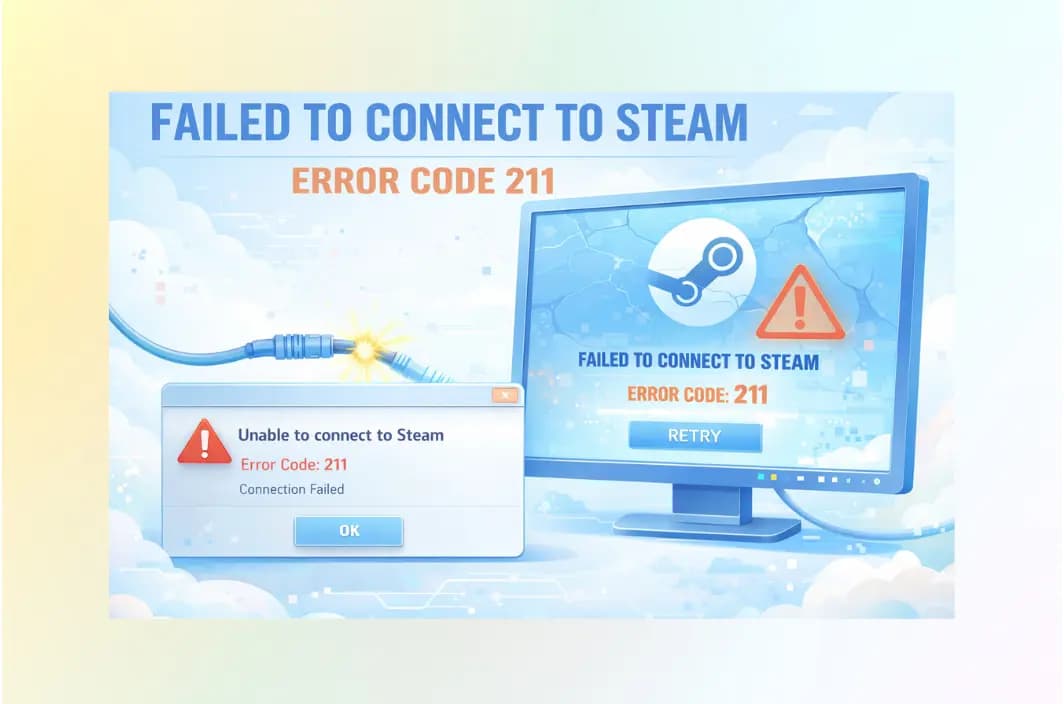
Key Takeaways: Fixing Steam Error 211
- The Cause: Error 211 is typically an authentication failure caused by corrupted login tokens, firewall blocks, or ISP routing congestion.
- The Quick Fix: Fully exit Steam via Task Manager, end all steamwebhelper processes, and relaunch as an Administrator.
- The Pro Fix: Use a gaming-optimized VPN like BearVPN to bypass ISP throttling and refresh your connection to Steam’s regional authentication nodes.
- Verification: Always verify game files to ensure a recent update hasn’t corrupted the connection logic.
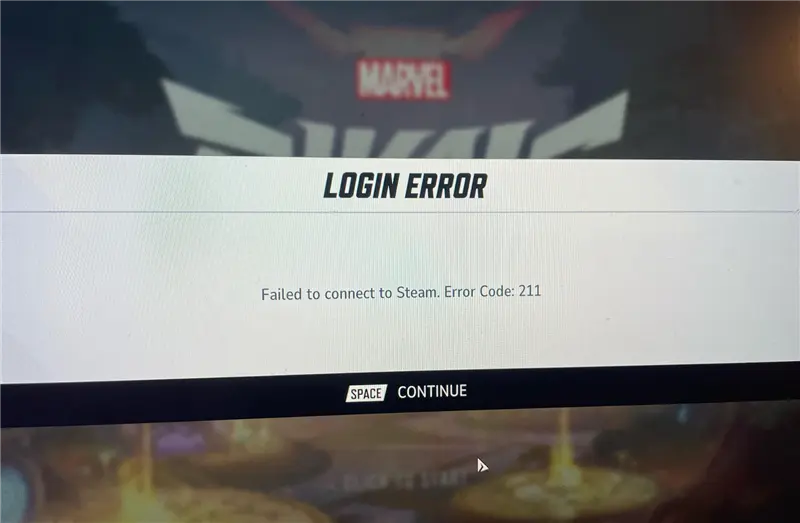
In early 2026, an increasing number of PC players have reported encountering “Failed to connect to Steam. Error code 211”, particularly when launching Marvel Rivals and other live-service games through Steam. The error often appears suddenly, even when the game was working normally just hours before.
What makes Steam Error Code 211 especially confusing is that it frequently occurs without a clear Steam outage. Player reports on Reddit and the Steam Community show a consistent pattern: the game fails during launch authentication, standard restarts do not help, and the issue sometimes resolves only after Steam services stabilize or the user refreshes their login session.
These user-generated reports suggest that Error 211 is not a random crash, but a Steam-specific authentication failure. In most cases, the problem is linked to invalid or stale login tokens, interrupted session verification, or unstable network routing between the Steam client and the game’s backend servers.
This guide explains what Steam Error Code 211 means, why it commonly affects games like Marvel Rivals, and the most reliable methods to fix it—starting with quick client resets and progressing to deeper network-level solutions.
What is Steam Error Code 211 and Why Does It Happen?
Unlike general “Server Down” messages, Error 211 is native to the Steam launcher. Players on the Epic Games Store or consoles rarely see this specific code, which points to a breakdown in the Steam-to-Game authentication handshake.
1. Authentication Handshake Failure
When you launch a game, Steam sends a “token” to the game’s servers to prove you are who you say you are. If this token is rejected—or if the message never reaches the server due to high latency—the game throws Error 211.
2. Stale Login Tokens
Did you recently change your Steam password? Security measures often invalidate existing sessions. If Steam doesn’t force a fresh login, you might be stuck trying to authenticate with an “expired” key.
3. ISP Throttling and Poor Routing
Your local internet provider (ISP) doesn’t always take the fastest path. During peak gaming hours, network congestion can cause “packet loss” during the login phase. If the authentication packet takes too long, the connection times out.
Expert Insight: “Error 211 is essentially a ‘doorbell’ problem. You’re pressing the button (launching the game), but the wire (network path) is cut or the person inside (Steam) doesn’t recognize your face (token).”
10 Common Ways to Fix “Failed to Connect to Steam” Error Code 211
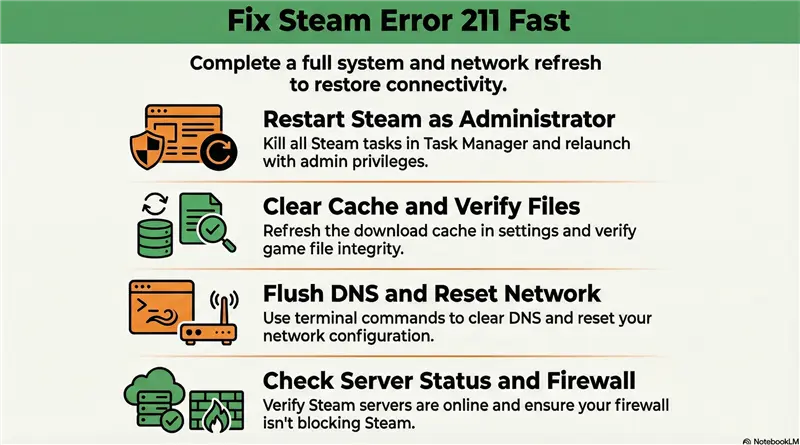
If you’re encountering Steam Error Code 211, the problem is usually tied to authentication validation, cached session data, or unstable network routing between your PC and Steam’s servers. Follow the steps below in order—in most cases, the error is resolved before reaching the advanced fixes.
1. Completely Restart Steam (Not Just Close It)
Simply closing the Steam window is not enough. Steam often leaves background processes running, including multiple steamwebhelper instances that can retain a broken or expired login token. To fully reset the session:
- Open Task Manager
- End all Steam and steamwebhelper processes
- Relaunch Steam normally
This forces Steam to establish a brand-new authentication session instead of reusing a corrupted one.
2. Run Steam as Administrator
Running Steam without sufficient permissions can prevent it from refreshing authentication tokens or accessing required network services.
Right-click the Steam shortcut and select Run as administrator.
This is especially important after Windows updates or when Steam is installed on a protected system drive.
3. Clear Steam Download Cache
Steam stores temporary session and connection data locally. After major updates, this cache can become inconsistent with Steam’s backend authentication servers.
To clear it:
- Steam → Settings → Downloads
- Click Clear Download Cache
- Log back into Steam when prompted
This step alone resolves Error 211 for a large number of players.
4. Log Out and Log Back Into Steam
If you recently changed your Steam password or enabled additional security features, older login tokens may become invalid.
Logging out forces Steam to:
- Re-authenticate your account
- Generate a fresh login token
- Sync your session with Steam’s servers
This is a simple but often overlooked fix.
5. Verify Game Files
Live-service games rely on authentication scripts that can break if an update fails or files are corrupted. To verify:
- Right-click the affected game (such as Marvel Rivals)
- Properties → Installed Files
- Verify the integrity of game files
Steam will automatically replace any missing or corrupted files related to launch and authentication.
6. Check Steam Server Status
Error Code 211 can occur even when Steam appears “online.” Regional authentication servers may be temporarily unstable or overloaded.
If many players are reporting similar issues:
- Wait 10–30 minutes
- Avoid repeated login attempts, which may further delay authentication
In some cases, the issue resolves without any local changes.
7. Temporarily Disable Firewall or Antivirus
Firewalls and antivirus software may mistakenly block Steam’s authentication handshake, especially after updates.
Make sure the following are allowed:
- Steam.exe
- The game’s executable file
If disabling protection fixes the issue, add proper whitelist rules instead of leaving security disabled.
8. Flush DNS and Reset Network Stack
Outdated DNS records or corrupted network configurations can send authentication requests down invalid routes. Open Command Prompt as Administrator and run:
ipconfig /flushdns
netsh winsock reset
Restart your PC afterward to fully apply the changes.
9. Restart Your Router or Switch Networks
ISP congestion or faulty routing can interrupt Steam’s login verification process, even if your general internet connection seems fine. Try:
- Restarting your router/modem
- Switching to a different network (mobile hotspot, alternate ISP)
If the error disappears on another network, routing is likely the root cause.
10. Use a VPN to Bypass ISP Routing Issues
If all local fixes fail, the problem is often caused by poor routing between your ISP and Steam’s authentication servers.
A gaming-optimized VPN can:
- Bypass congested ISP routes
- Reduce packet loss during authentication
- Provide a stable path to Steam’s regional servers
This is one of the most reliable solutions for persistent Error 211 cases.
How to Fix Error Code 211 with BearVPN
If basic restarts aren’t working, the issue is likely rooted in your network’s routing to Steam’s servers. BearVPN provides a clean, high-speed tunnel that bypasses these local obstacles.
Step 1: Deep-Clean Steam Processes
Before launching BearVPN, ensure no “ghost” versions of Steam are running.
- Press Ctrl+Shift+Esc to open the Task Manager.
- Find all processes named “Steam” or “Steamwebhelper”.
- Right-click and select End Task.
Step 2: Launch BearVPN
Open the BearVPN client. To fix Error 211, you need a server that is physically close to the game’s regional headquarters (e.g., US-West for North American Marvel Rivals players).
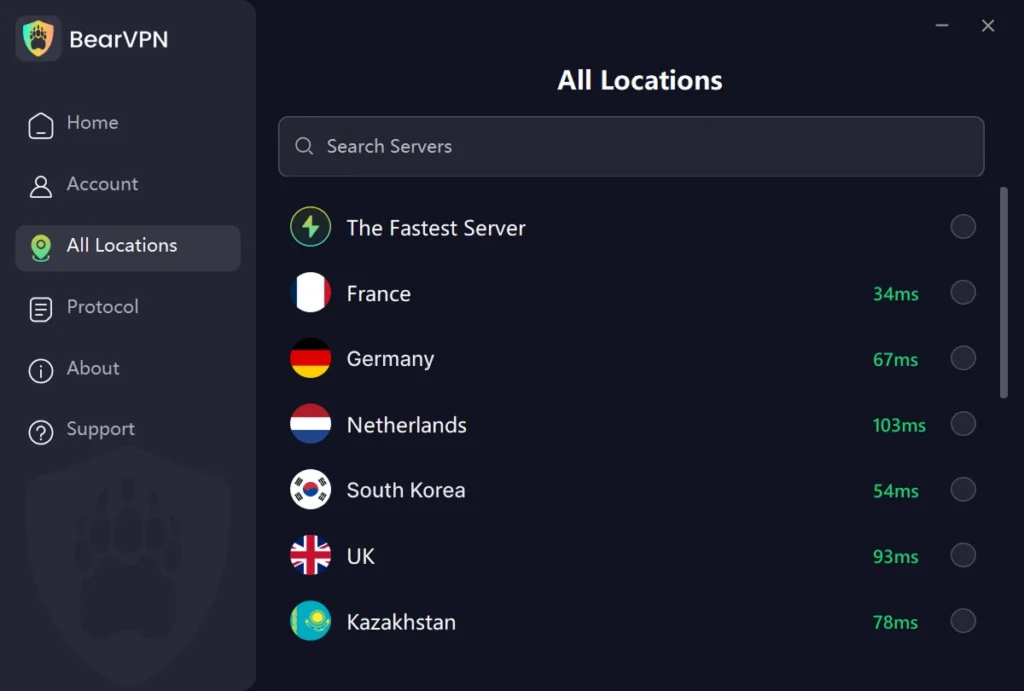
Protocol Tip: Use the SCProxy protocol. It’s designed to look like standard web traffic, preventing ISPs from identifying and throttling your gaming packets.
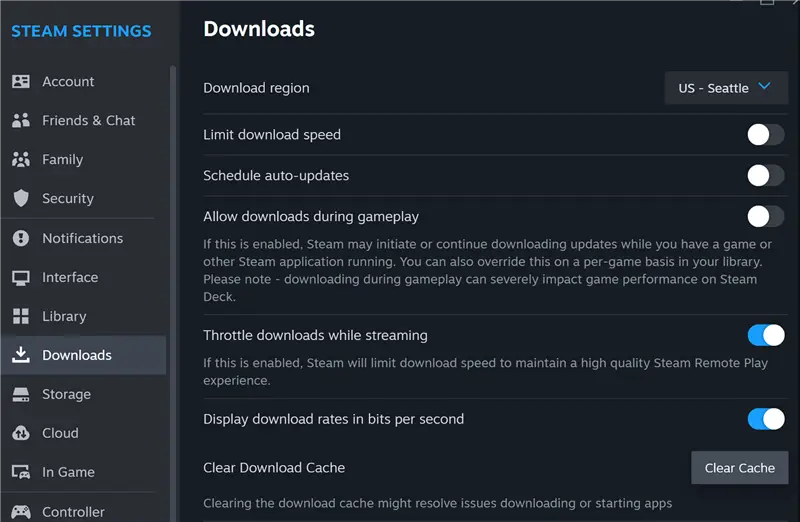
Step 3: Clear Steam Download Cache
This is a critical, often-overlooked step. Clearing the cache forces Steam to reset its internal login logic.
- Open Steam > Settings > Downloads.
- Click Clear Download Cache.
- Steam will restart and ask you to log in again.
Step 4: Restart and Play
With BearVPN active, right-click the Steam shortcut and select “Run as Administrator”. Launch your game. The fresh login token, combined with BearVPN’s optimized path, should bypass the 211 error immediately.
Why BearVPN is the Best Choice for Steam Gaming
In the 2026 gaming landscape, a VPN is more than a privacy tool—it’s a performance optimizer.
- Bypasses Regional Congestion: While your ISP might route you through a congested local hub, BearVPN uses an intelligent “smart routing” system to find the path of least resistance to Steam’s servers.
- Anti-Throttling Technology: Many ISPs intentionally slow down high-bandwidth gaming traffic. BearVPN’s military-grade encryption (AES-256) hides your activity, ensuring you get the full speed you pay for.
- 4K-Ready Bandwidth: With over 2,000 servers globally, BearVPN is built for low-jitter gaming. We offer 4K-level bandwidth reserves, meaning your ping stays low even in 64-player matches.
- Smart Split Tunneling: Want the VPN to fix Steam but keep your browser on your local connection? Our Split Tunneling feature lets you choose exactly which apps use the VPN tunnel.
Advanced Troubleshooting: If the Error Persists
If you’ve already cleared the Steam cache, restarted your session, and even tested a VPN—but Steam Error Code 211 still appears—the issue is likely rooted deeper in your local system configuration or network stack. The following advanced steps target less obvious failure points in Steam’s authentication process.
1. Verify Game Files
In some cases, a game update or hotfix may not install correctly, leaving behind corrupted or mismatched files that interfere with Steam’s authentication handshake.
To verify game files:
- Open Steam
- Right-click the affected game (for example, Marvel Rivals) in your Library
- Select Properties
- Go to Installed Files
- Click Verify integrity of game files
Steam will scan the installation and automatically re-download any missing or corrupted files, including launch scripts or connection-related components. This step is especially important after major patches.
2. Flush DNS and Reset the Network Stack
Over time, cached DNS records and network configurations can become outdated or corrupted, causing your system to route authentication requests incorrectly. To reset your network stack:
Step 1. Open Command Prompt as Administrator
Step 2. Run the following commands one at a time:
ipconfig /flushdns
netsh winsock reset
Step 3. Restart your PC
Flushing DNS forces Windows to request fresh routing information, while resetting Winsock clears low-level networking issues that can disrupt Steam’s login verification.
3. Firewall Whitelisting (Windows Defender and Third-Party Firewalls)
Security software may incorrectly flag Steam’s authentication traffic as suspicious, especially after updates or changes in network behavior.
Check that the following are allowed through your firewall:
- Steam.exe
- The game’s executable file (for example, MarvelRivals.exe)
Ensure both are permitted on Private and Public networks.
If you are using a third-party firewall or antivirus suite, temporarily disabling it can help confirm whether it is the source of the blockage—if so, create permanent whitelist rules rather than leaving protection turned off.
When Advanced Fixes Still Don’t Work
If Error 211 continues after completing these steps, the issue is very likely external—such as ISP-level routing instability or regional Steam authentication server congestion. At that point, network rerouting solutions or simply waiting for server-side stabilization are often the only reliable options.
Conclusion
Don’t let a simple handshake bug keep you out of the lobby. Steam Error 211 is frustrating, but it is almost always fixable by refreshing your login tokens and optimizing your network route.
By combining a clean Steam restart with BearVPN’s high-speed gaming nodes, you can eliminate connection timeouts and get back to the game.
FAQs about Steam Error 211
Q: Is using BearVPN with Steam legal?
A: Yes. Using a VPN for privacy and routing optimization is completely legal. It does not violate Steam’s TOS unless you use it to bypass regional pricing to buy games cheaper.
Q: Will a VPN increase my ping?
A: Not necessarily. If your ISP has poor routing, BearVPN can actually reduce your ping by providing a more direct path to the game server.
Q: Does Error 211 mean I’m banned?
A: No. Error 211 is strictly a connectivity/authentication issue. If you were banned, you would see a specific “Account Banned” or “VAC” message.
Q: Can I fix this by switching to the Epic Games Store?
A: In many cases, yes. Because Error 211 is native to Steam, downloading the game via the Epic Games Store bypasses the Steam authentication layer entirely.
Q: Why did this start after a power outage?
A: A sudden disconnection can leave a “stuck” session on the server. The server thinks you are still logged in, so it rejects your “new” login attempt. A full Steam restart via Task Manager usually fixes this.