


Maybe you blocked a contact during an argument, tapped the wrong name, or simply needed a break. When you are ready to reconnect, Telegram lets you reverse the block from the person’s profile or from the full Blocked Users list.
The steps vary slightly by device, so use the Android, iPhone, Windows, or macOS instructions below. Afterward, check the reality section before sending a message: Telegram will not announce the unblock, but privacy settings and future activity can still give the other person clues.
How to Unblock Someone on Telegram on Phone (Mobile App)
Unblocking a contact on your smartphone takes just a few seconds. The interface differs slightly depending on whether you are using an Android device or an iPhone. Here is how to find and manage your blocked list on both.
On Android
1.Open the Menu:
Launch the Telegram app on your Android device. Tap the three horizontal lines (hamburger menu) in the top-left corner to open the main menu.
2.Navigate to Privacy Settings:
Tap on Settings, then scroll down and select Privacy and Security.
3.Access Blocked Users:
At the very top of the screen, tap on Blocked Users. Here, you will see a list of all the contacts and bots you have previously blocked.
4.Unblock the User:
Locate the person you want to unblock. Tap the three vertical dots next to their name, and select Unblock User from the pop-up menu.
On iPhone (iOS)
Telegram for iOS offers two quick methods to unblock a contact. You can either use a swipe shortcut in the settings or do it directly from their profile if you still have your chat history.
Path 1: The Settings Shortcut (Fastest)
1.Go to Settings:
Open the Telegram app and tap the Settings gear icon located in the bottom right corner of your screen.
2.Navigate to Blocked Users:
Tap on Privacy and Security, then select Blocked Users at the top of the menu.
3.Swipe to Unblock:
Find the contact you wish to restore. Simply swipe left on their name and tap the red Unblock button that appears.
(Alternative: Tap Edit in the top right corner, tap the red minus button next to their name, and confirm by tapping Unblock).
Path 2: From Their Profile Page
If you don’t want to dig through your settings menu, you can unblock someone directly from your previous chat logs:
- Open your Telegram chat list and tap on the conversation with the blocked user.
- Tap their Profile Picture or Name at the top center of the screen to open their profile page.
- Scroll down to the bottom, tap Unblock, and confirm by tapping Yes.
How to Unblock Someone on Telegram on Computer (Desktop)
If you use Telegram for work or prefer typing on a keyboard, the desktop process is just as straightforward. However, the exact location of the settings menu differs slightly depending on whether you are using Windows or macOS.
On Windows (PC)
1.Open the Menu:
Launch the Telegram app on your PC. Click the three horizontal lines in the top-left corner of the window to open the main menu.
2.Navigate to Privacy Settings:
Select Settings, then click on Privacy and Security.
3.Manage Blocked Users:
Click on Blocked Users. Scroll through the list to find the person you want to restore.
4.Unblock:
Simply click the Unblock button next to their name.
On macOS
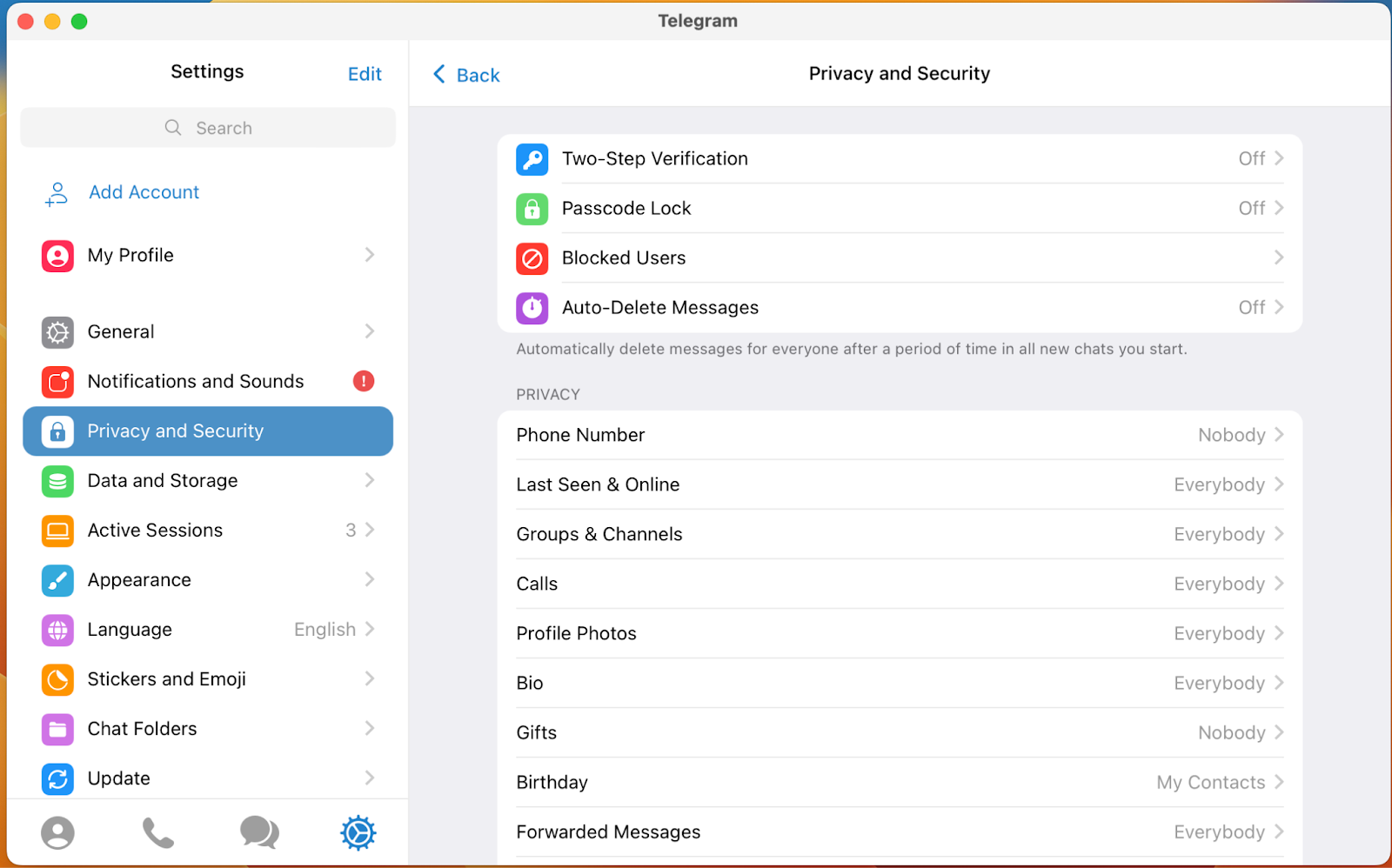
1.Go to Settings:
Open Telegram on your Mac. Unlike Windows, you need to click the Settings gear icon located in the bottom-left corner of the left panel.
2.Navigate to Privacy Settings:
Click on Privacy and Security, then select Blocked Users.
3.Unblock:
In your blocked users list, locate the person you wish to unblock and click Unblock next to their name.
Can’t find the same menu? Telegram occasionally moves controls between app versions. Open the existing chat or search the username, tap the person’s name to open their profile, and look for Unblock in the profile menu or below the bio. If the profile shows Block User instead, that account is not currently blocked by you.
Bonus: How to Unblock/Unban Someone in a Telegram Group
One of the most common questions on forums like Reddit is: “I accidentally banned a user from my group, how can I unban them?”
If you are a group administrator, unblocking someone from a group chat works entirely differently than unblocking them from a personal chat. Removing someone from a group automatically adds them to the group’s “Removed Users” list, preventing them from rejoining.
Here is how to reverse a group ban:
- Open Group Info:
Open the Telegram Group where you are an admin and tap the group name at the top of the chat window.
2. Edit Group Settings:
Tap the Pencil icon (Edit) in the top right corner of the screen.
3. Access Permissions:
Tap on Permissions, scroll down to the bottom of the page, and select Removed Users.
4. Unban the User:
Find the user you want to forgive, tap the three dots next to their name, and select Unban (or Remove from list).
Unbanning someone from a group does not automatically add them back to the chat. You will need to send them a new invite link so they can rejoin manually.
What Happens When You Unblock Someone on Telegram? (The Reality Check)
Before you hit that unblock button, you likely have a few burning questions about what the other person will see and what might suddenly appear on your screen. Here is exactly how Telegram handles the aftermath of a block.
If I unblock someone on Telegram, will they know?
No, Telegram does not send a notification to the other person saying they have been unblocked. The app itself will keep your secret.
They may still work it out. Blocked users are shown “Last seen a long time ago,” but what becomes visible after unblocking depends on your Last Seen & Online, profile-photo, phone-number, and other privacy settings. If you send a new message, read their message, or appear online under settings that allow it, that activity can reveal that contact is possible again.
If you unblock someone on Telegram, will their messages come through?
This is the single most common concern, and the answer is a definitive No.
Messages sent while the block was active are not retroactively delivered to your chat when you unblock the account. Do not describe the sender’s single checkmark as “not delivered to your device”: Telegram defines one check as delivered to the Telegram Cloud, and it does not provide a separate delivered-to-device status. Ask the person to resend anything important after the unblock.
If I unblock someone on Telegram, will I see their old messages?
You will not receive a backlog of messages sent during the block. New messages can arrive after you unblock the account.
Chat history from before the block remains visible if it was not deleted. Telegram also lets either participant delete messages or an entire one-to-one chat for both sides, so an older conversation cannot be restored merely by unblocking the person.
Unblocked the Person, but Telegram Is Still Blocked?
Removing someone from Blocked Users only changes who may contact your account. It does not fix a Telegram app, Web page, call, or media download blocked by school Wi-Fi, an office firewall, an ISP, or a regional network restriction.
Test Telegram on mobile data. If it works there but stays on Connecting… or fails to send messages on the current Wi-Fi, the network—not the contact—is blocking Telegram. Connect BearVPN, reopen Telegram, and send a test message through a new route. If the network also detects ordinary VPN traffic, switch to an obfuscated connection and retry.
The contact is unblocked. Now unblock the connection.
BearVPN changes the network route, masks your public IP, and encrypts traffic between your device and the VPN server. It cannot remove another person’s account-level block, recover deleted messages, or override Telegram admin permissions—those actions remain inside Telegram.
FAQ: Troubleshooting Telegram Block & Unblock
There is no hidden setting or “hack” to bypass being blocked by someone else. If someone has blocked you, you cannot unblock yourself from your end. The only way you can still communicate with them on Telegram is if you share a mutual group chat (where you can both still see each other’s messages). Otherwise, you will need to reach out to them on a different platform and politely ask them to manually unblock you.
First confirm that you opened the correct Telegram account if you use multiple phone numbers. Then search the username or open the old chat and check the profile: Unblock means the account is blocked; Block User means it is not. If the name still does not appear, update and restart Telegram, then check the Blocked Users list again. A deleted account may appear under a generic “Deleted Account” label, so do not assume Telegram automatically removed it from the list.
Deleting a Telegram account permanently removes its messages, contacts, and account data. Telegram says that registering again—even with the same phone number—creates a new user and does not restore the old history, contacts, groups, or block list. Do not delete your account merely to manage blocked users; unblock the contacts you want from Settings instead.
Conclusion
To unblock someone on Telegram, open Settings → Privacy and Security → Blocked Users, choose the account, and tap Unblock. You can also open an existing chat or profile and use the Unblock control there. Group admins must separately remove a member from the group’s Removed Users list.
Telegram will not send a dedicated unblock notification, and messages sent during the block will not suddenly arrive afterward. Older chat history remains only if neither side deleted it. If the contact is unblocked but Telegram itself still cannot connect on the current Wi-Fi, use the BearVPN network fix above—the personal block and the network block are two different problems.



![How to Change YouTube TV Location [Still Works in 2026]](/_next/image/?url=https%3A%2F%2Fcms.bearvpn.com%2Fwp-content%2Fuploads%2F2026%2F06%2Fhow-to-change-location-youtube-tv.webp&w=640&q=75)

