TikTok’s “We’re having trouble playing this video. Please refresh and try again” message does not identify one guaranteed cause. It can appear when the post itself is unavailable, the browser blocks or stores something incorrectly, TikTok has a service problem, or the current network cannot reach the video stream.
Before changing settings, open two or three different public TikTok videos. Then try the same video in a private window or another current browser. If only one post fails, skip the browser-wide fixes and check the video’s availability. If every video fails in one browser, start with Fixes 1–6. If every browser fails only on one Wi-Fi network, use Fix 7.
Why Does TikTok Say “We’re Having Trouble Playing This Video”?
The error means playback did not complete, but the message alone cannot prove whether the browser, post, TikTok service, or network caused it. Match the pattern you see to the four categories below.
Browser Extensions, Tracking Protection, or Blocked JavaScript
TikTok’s web player depends on scripts, site data, and media requests. An ad blocker, script blocker, privacy extension, disabled JavaScript setting, or strict tracking protection can interrupt one of those requests. The strongest evidence is simple: the videos work in a private window or after the relevant extension is disabled for tiktok.com.
Browser Rendering or Hardware Acceleration
Chrome, Edge, and other browsers can use the GPU to render video. Hardware acceleration is worth testing when the TikTok player turns black, flashes, crashes, or shows a rendering problem—especially if the same link plays in another browser. It is not automatically the most common cause, and disabling it should not be the first change for every playback error.
Network, VPN, DNS, or Filtering Problems
A network-level cause is likely when TikTok videos fail in every browser on the same Wi-Fi but immediately play through mobile data or another trusted connection. The cause may be a captive portal, DNS or content filter, a misbehaving VPN/proxy, an administrator policy, or a temporary routing problem. A page that loads while its videos fail does not, by itself, prove that an administrator selectively blocked a CDN.
TikTok Outage or One Unavailable Video
If the same video says Video not found, Video unavailable, or Couldn’t play video across different browsers and networks while other TikTok posts work, the post may have been deleted, made private, limited by age or audience settings, removed by TikTok, or shared through an incomplete link. If every video suddenly fails across several devices and networks, TikTok itself may be having a service problem. Local browser changes cannot restore a deleted post or repair a platform-wide outage.
How to Fix TikTok Videos Not Playing in Browser (Step-by-Step)
Work through these fixes in order and retest the same public video after each one. Do not disable several protections, erase all browser data, and change networks at once—you will not know which change solved the problem.
Fix 1. Check Whether One Video or Every Video Fails
- Open the original TikTok link in a new tab.
- Open two other public videos from different creators.
- If only the original fails, search for the creator’s profile and locate the post directly. The shared link may be incomplete, or the post may no longer be public.
- If every post fails, open the same public video in another current browser.
- If it works there, the problem is inside the original browser; continue with Fixes 2–6.
- If it fails in every browser, compare another trusted network in Fix 7 before assuming the PC is broken.
Fix 2. Test a Private Window and Disable the Conflicting Extension
A private window is a quick diagnostic because many extensions are disabled there and the session starts without the normal TikTok cookies. It is not a permanent fix by itself.
Chrome or Edge
- Open the browser menu and choose New Incognito window or New InPrivate window.
- Open
https://www.tiktok.com/and test the same public video. - If it plays, return to the normal window and open Extensions > Manage extensions.
- Turn off ad blockers, script blockers, privacy tools, download helpers, and other extensions that can modify pages.
- Reload TikTok after each change until the conflicting extension is identified.
- Leave unrelated extensions enabled; do not remove every privacy tool permanently.
Firefox
- Open a New Private Window and test the same video.
- If it works, test extensions under Menu > Add-ons and themes > Extensions.
- If extensions are not responsible, leave them restored and continue to the Firefox site-protection test in Fix 6.
Fix 3. Allow JavaScript and Update the Browser
TikTok’s web player cannot operate normally when JavaScript is blocked. An outdated browser can also contain video, codec, or rendering bugs already fixed in a later release.
Chrome/Edge
- Open TikTok and select the site-information icon beside the address.
- Open Site settings and make sure JavaScript is allowed.
- In Chrome, open Menu > Help > About Google Chrome. In Edge, open Menu > Help and feedback > About Microsoft Edge.
- Install an available update, relaunch the browser, and retest.
Firefox/Safari
- Update Firefox from Menu > Help > About Firefox.
- Update Safari by installing the current macOS or iOS update supported by the device.
- Restart the browser before testing TikTok again.
Fix 4. Remove TikTok Site Data Before Clearing Everything
Delete data for TikTok first. This signs you out of TikTok but avoids erasing cookies and active sessions for every other website.
Chrome or Edge
- Open
tiktok.com. - Select the site-information icon beside the address and open Cookies and site data or Site settings.
- Delete TikTok’s stored site data and permissions.
- Close every TikTok tab, reopen the site, and sign in again.
Firefox
- Open Settings > Privacy & Security.
- Under Cookies and Site Data, select Manage Data.
- Search for TikTok, remove its data, and save the change.
Safari on Mac
- Choose Safari > Settings > Privacy > Manage Website Data.
- Select TikTok and click Remove.
- Reopen TikTok and sign in again.
If the browser does not offer a convenient single-site control, use Ctrl + Shift + Delete on Windows or Command + Shift + Delete on Mac, select cookies/site data and cached files, and understand that a broad deletion may sign you out of other sites.
Fix 5. Test Hardware Acceleration for Black Screens or Rendering Errors
Use this test when videos show a black player, flashing frames, browser crashes, or other GPU-like symptoms. Record the original setting so you can restore it if nothing changes.
Google Chrome
- Open Menu > Settings > System.
- Turn off Use graphics acceleration when available. Some versions still label it Use hardware acceleration when available.
- Select Relaunch.
- Test TikTok again.
- If the error is unchanged, restore the original setting and update the graphics driver instead of assuming the GPU caused the problem.
Microsoft Edge
- Open Settings > System and performance.
- Turn off the available graphics/hardware acceleration setting.
- Restart Edge and retest the same video.
Fix 6. Test Firefox or Safari Protection for TikTok Only
Change the affected website first instead of disabling privacy protection globally.
Firefox
- Open
tiktok.comand select the shield icon beside the address bar. - Turn off Enhanced Tracking Protection for this site temporarily.
- Let Firefox reload the page and test several public videos.
- If nothing changes, turn the protection back on.
- If it fixes playback, keep the exception limited to TikTok and report the broken site to Mozilla when available.
Safari on Mac
- Open TikTok and choose Safari > Settings > Websites.
- Select Content Blockers and turn blocking off for TikTok only, or use the current page’s Website Settings control.
- Retest before changing Prevent cross-site tracking globally.
- If the video still fails, restore the content blocker and use the site-data steps in Fix 4.
Fix 7. Compare Networks, Then Use BearVPN Only for a Network-Specific Failure
Turn off any active VPN or proxy first and test TikTok on the normal connection. Then compare the same public video on the current Wi-Fi and on mobile data or another trusted network.
- Fails everywhere: The cause is probably the post, browser, device, or TikTok—not the Wi-Fi route. A VPN is not the next logical fix.
- Works on mobile data but fails on one Wi-Fi: Finish any captive-portal login, restart a router you control, and check whether the network intentionally restricts TikTok.
- Works when an existing VPN is turned off: The VPN route or DNS configuration is the conflict. Do not add a second VPN.
- Only the permitted Wi-Fi route fails after those checks: BearVPN can provide a separate encrypted route on a device and network where VPN use is allowed.
How to Test TikTok with BearVPN
- Fully disconnect and close every other VPN or proxy.
- Download BearVPN from the official website or official app store.
- Open BearVPN and start with Smart Location or a nearby server for lower latency.
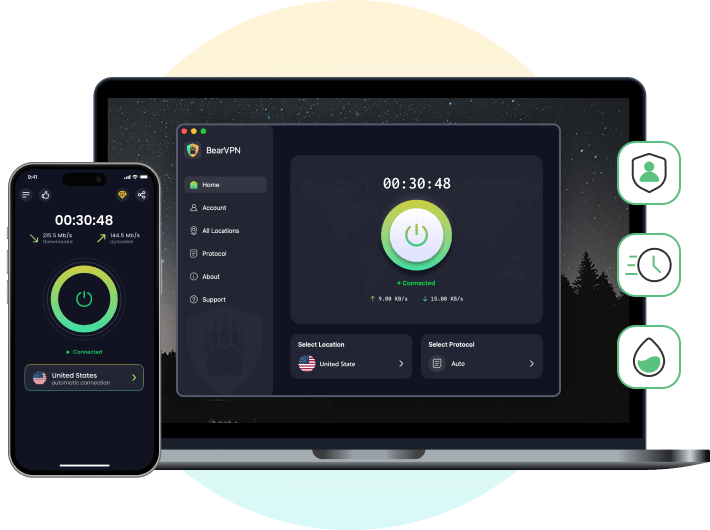
- Connect and wait until the app shows Connected.
- Reopen the browser and test the same public TikTok video plus one unrelated website.
- If playback returns, the previous network route or filtering was likely involved.
- If playback still fails, disconnect BearVPN and return to the browser/post diagnosis. Repeatedly changing countries will not restore a deleted or private video.
BearVPN encrypts traffic between the supported device and its VPN server, masks the normal public IP while connected, and includes IP/DNS leak protection and a Kill Switch. It cannot guarantee TikTok availability, repair a TikTok outage, restore removed content, or override administrator policy.
- Switch to an encrypted route where VPN use is allowed.
- Connect through 2,000+ physical servers.
- Protect the connection with AES-256 and a Kill Switch.
Why Can’t I Watch TikToks Sent to Me in Safari?
A TikTok link received through Messages can fail because the post is no longer public, the shared URL is incomplete, Safari is opening a mobile redirect, or a site-specific blocker/data problem is interfering. Decide first whether you want to watch the public post in Safari or open it in the official TikTok app.
Method 1. Verify the Direct TikTok Link and Post Availability
- Touch and hold the shared link, then copy it.
- Paste it directly into Safari’s address field rather than opening a screenshot, preview card, or third-party redirect page.
- Confirm the hostname is
tiktok.combefore continuing. - If Safari says Video not found, search for the creator’s profile and the post directly.
- Test the link in another current browser or the official TikTok app. If the same single post is unavailable everywhere while other posts play, no browser setting can restore it.
Method 2. Request the Desktop Website on iPhone or iPad
Use this when the mobile page loops, shows an app-store prompt, or does not expose the normal web player.
- Open the TikTok link in Safari.
- Tap the Page Menu button on the left side of the address field.
- Tap Request Desktop Website if the option is available.
- Let the page reload, then test playback.
- If TikTok requires a sign-in or the post has audience restrictions, requesting the desktop site will not remove that requirement.
Method 3. Test Safari Website Data and Content Blockers
On iPhone or iPad
- Open the TikTok page and tap the Page Menu button.
- Choose Manage Extensions and temporarily turn off the relevant content blocker for TikTok.
- Reload the page and test.
- Restore the extension if playback does not change.
On Mac
- Open TikTok and use Website Settings to turn off content blockers for this site only.
- If that does not help, choose Safari > Settings > Privacy > Manage Website Data.
- Remove TikTok’s data, reopen the site, and sign in again.

FAQ About TikTok Browser Issues
A working connection only proves that the device can reach some websites. Test whether one TikTok post or every post fails, then try a private window and another current browser. If every browser works on mobile data but fails on the same Wi-Fi, investigate that network. If only one browser fails, extensions, JavaScript, site data, updates, or rendering settings are more likely.
If only one video fails across browsers and networks, it may have been deleted, made private, limited to a particular audience, removed by TikTok, or shared through an invalid link. If every video fails, treat it as a browser, service, device, or network problem instead of assuming the content disappeared.
Some posts may be unavailable because of the creator’s privacy or audience settings, age requirements, removal, music or rights restrictions, or regional availability. First check the same link while signed in and on another supported browser. A VPN cannot change the creator’s permissions, your account eligibility, or TikTok’s removal decision, and BearVPN does not guarantee that a particular post will become available.
“Video not found” usually points to that specific post or link rather than a browser-wide playback failure. Confirm that the URL is complete, search for the creator and post directly, and test the same link in another browser or the official app. If other TikTok videos play normally and the post remains missing everywhere, it is probably deleted, private, restricted, or no longer available.
Conclusion
When TikTok videos are not playing in a browser, begin with the scope of the failure. One missing video points to the post or link; every video failing in one browser points to extensions, JavaScript, site data, updates, or rendering; every browser failing on one network points to the connection or its policy.
Use a private window and single-site changes before disabling privacy protection globally or deleting all browsing data. Test hardware acceleration only when the symptoms look like a rendering problem. If the same public videos fail across devices and networks, TikTok may be experiencing an outage and local changes are unlikely to help.
BearVPN is relevant only when TikTok works through another network but the current permitted route fails. It can provide a different encrypted connection, but it cannot restore unavailable posts or guarantee playback. The conditional CTA already appears in Fix 7, so do not repeat a large download block after this conclusion.
Do not let network firewalls or ISP throttling ruin your scrolling experience. Use BearVPN to mask your IP, bypass restrictions, and stream TikTok flawlessly on any network.